

'%3e%3cpath%20d='M21.0949%203.79395L13.9961%209.82854H21.0949V3.79395Z'%20stroke='black'%20stroke-width='1.38'%20stroke-miterlimit='10'/%3e%3cpath%20d='M13.998%209.82854L7.44531%203.79395V9.82854H13.998Z'%20stroke='black'%20stroke-width='1.38'%20stroke-miterlimit='10'/%3e%3cpath%20d='M13.9961%202.69922V25.1919'%20stroke='black'%20stroke-width='1.38'%20stroke-miterlimit='10'/%3e%3cpath%20d='M20.5488%2016.4113L13.9961%209.82812V18.2217L20.5488%2024.0918V16.4113Z'%20stroke='black'%20stroke-width='1.38'%20stroke-miterlimit='10'/%3e%3cpath%20d='M7.44531%2016.4113L13.998%209.82812V18.0526L7.44531%2024.0918V16.4113Z'%20stroke='black'%20stroke-width='1.38'%20stroke-miterlimit='10'/%3e%3cpath%20d='M4.71094%209.82812V18.6057H7.44125V16.4113L13.9941%209.82812H4.71094Z'%20stroke='black'%20stroke-width='1.38'%20stroke-miterlimit='10'/%3e%3cpath%20d='M13.9961%209.82812L20.5488%2016.4113V18.6057H23.2792V9.82812H13.9961Z'%20stroke='black'%20stroke-width='1.38'%20stroke-miterlimit='10'/%3e%3c/g%3e%3c/svg%3e)

'%3e%3cmask%20id='mask0_21456_29260'%20style='mask-type:luminance'%20maskUnits='userSpaceOnUse'%20x='0'%20y='0'%20width='28'%20height='28'%3e%3cpath%20d='M27.5%200.5H0.5V27.5H27.5V0.5Z'%20fill='white'/%3e%3c/mask%3e%3cg%20mask='url(%23mask0_21456_29260)'%3e%3cpath%20d='M14%2027.5C13.4854%2024.1035%2011.8974%2020.9608%209.46828%2018.5317C7.03922%2016.1026%203.89651%2014.5146%200.5%2014C3.89651%2013.4854%207.03922%2011.8974%209.46828%209.46828C11.8974%207.03922%2013.4854%203.89651%2014%200.5C14.5147%203.89644%2016.1028%207.03905%2018.5318%209.46816C20.9609%2011.8972%2024.1035%2013.4853%2027.5%2014C24.1035%2014.5147%2020.9609%2016.1028%2018.5318%2018.5318C16.1028%2020.9609%2014.5147%2024.1035%2014%2027.5Z'%20fill='url(%23paint0_linear_21456_29260)'/%3e%3c/g%3e%3c/g%3e%3cdefs%3e%3clinearGradient%20id='paint0_linear_21456_29260'%20x1='9.5'%20y1='9.5'%20x2='20.75'%20y2='21.875'%20gradientUnits='userSpaceOnUse'%3e%3cstop%20stop-color='%23F0DCD6'/%3e%3cstop%20offset='0.914506'%20stop-color='%231D6DFF'/%3e%3c/linearGradient%3e%3cclipPath%20id='clip0_21456_29260'%3e%3crect%20width='28'%20height='28'%20fill='white'/%3e%3c/clipPath%3e%3c/defs%3e%3c/svg%3e)
'%3e%3cpath%20d='M22.8019%2011.2412L23.5234%2011.6807V12.0103L23.3172%2012.7796L14.5579%2014.9771L13.7344%2012.7951L22.8019%2011.2412Z'%20fill='%23D97757'/%3e%3cpath%20d='M19.5236%204.77832L20.5322%205.00396L20.8%205.35575L21.0552%206.19876L20.9494%206.73644L15.0712%2015.3068L13.1133%2013.2191L18.5338%205.63471L19.5236%204.77832Z'%20fill='%23D97757'/%3e%3cpath%20d='M14.4577%203.43951L15.0761%203L15.5912%203.21976L16.1065%203.9889L14.6949%2013.0345L13.7364%2012.3397L13.3242%2011.131L14.0456%204.31853L14.4577%203.43951Z'%20fill='%23D97757'/%3e%3cpath%20d='M7.84766%203.5851L8.48285%202.7199L8.89716%202.61914L9.71923%202.74717L10.125%203.08581L13.0815%2010.0748L14.1509%2013.3954L12.8997%2014.1372L8.13117%204.91019L7.84766%203.5851Z'%20fill='%23D97757'/%3e%3cpath%20d='M4.77232%208.38688L4.56641%207.50742L5.18478%206.73828L5.90613%206.84816H6.11223L10.4403%2010.2544L11.78%2011.3531L13.6349%2012.8914L12.6044%2014.7594L11.6769%2013.9903L11.0586%2013.331L5.08168%208.82593L4.77232%208.38688Z'%20fill='%23D97757'/%3e%3cpath%20d='M3.53288%2014.0982L3.06641%2013.5489L3.06647%2013.0601L3.53288%2012.8896L8.78833%2013.2193L13.9408%2013.6588L13.7736%2014.7528L3.94502%2014.2082L3.53288%2014.0982Z'%20fill='%23D97757'/%3e%3cpath%20d='M6.62378%2019.8178H5.59334L5.18359%2019.3146V18.7132L6.93299%2017.3946L14.045%2012.5674L14.7648%2013.8785L6.62378%2019.8178Z'%20fill='%23D97757'/%3e%3cpath%20d='M8.57739%2022.8884L8.16518%2022.9984L7.54688%2022.6687L7.64995%2022.1193L13.7299%2013.5488L14.5543%2014.7574L10.0201%2021.1305L8.57739%2022.8884Z'%20fill='%23D97757'/%3e%3cpath%20d='M13.7361%2023.9861L13.4271%2024.4257L12.8088%2024.6454L12.2935%2024.2058L11.9844%2023.5466L13.5301%2014.6465L14.4576%2014.7563L13.7361%2023.9861Z'%20fill='%23D97757'/%3e%3cpath%20d='M18.9869%2021.5713V22.4503L18.8838%2022.7799L18.4716%2022.9997L17.7503%2022.8974L12.7969%2015.0367L14.7617%2013.4404L16.4104%2016.6269L16.5652%2017.7805L18.9869%2021.5713Z'%20fill='%23D97757'/%3e%3cpath%20d='M21.3629%2020.2507L21.4659%2020.8L21.1568%2021.2396L20.8476%2021.1297L19.0958%2019.8112L16.4165%2017.284L14.3555%2015.7457L14.9736%2013.6582L16.0041%2014.3175L16.6226%2015.5259L21.3629%2020.2507Z'%20fill='%23D97757'/%3e%3cpath%20d='M20.0232%2014.6482L22.5995%2014.8679L23.2178%2015.3074L23.6299%2015.9667V16.441L22.4964%2016.9556L16.7256%2015.4173L14.3555%2015.3074L14.9737%2013L16.6226%2014.3185L20.0232%2014.6482Z'%20fill='%23D97757'/%3e%3c/g%3e%3c/svg%3e)
Speech-to-text is one of the features in Google Docs that can contribute to our productivity. When we dictate text, our ideas flow naturally, as if we were speaking to another person. This is also good for those who want to multitask and do other things.
Google Docs is a free, accessible solution that is perfect for individuals and teams when creating various written content. The transcribed text can be used as a script for making videos and for localizing and translating video content into different languages.
According to Fortune Business Insights (2025), the global speech and voice recognition market reached USD 15.46 billion in 2024. The market is projected to grow to USD 19.09 billion in 2025 and could reach USD 81.59 billion by 2032, reflecting a compound annual growth rate of 23.1% over the forecast period.
Key Takeaways:
- Google Docs voice typing lets users dictate rather than type, making writing faster and easier.
- Speech-to-text (voice typing) in Google Docs can be enabled by clicking Tools, then Voice Typing, or by using the shortcut Ctrl + Shift + S.
- It is free, accurate, and supports many languages, and it requires only a Google account.
- Voice typing improves accessibility and productivity, especially for students, professionals, fast thinkers, and people with typing challenges.
- Google Docs voice typing works for live dictation only and includes built-in editing tools to refine text.
- For audio or video file transcription, AI tools like VMEG AI are needed, offering faster, multilingual, and more advanced transcription features.
What Is Speech-to-Text on Google Docs?
Speech to text or voice typing is one of the tools on Google Docs, where you can say the words instead of typing them. With voice typing, you just have to say the information you want to be transcribed. It is like talking to a friend, and it automatically transcribes your speech into text.
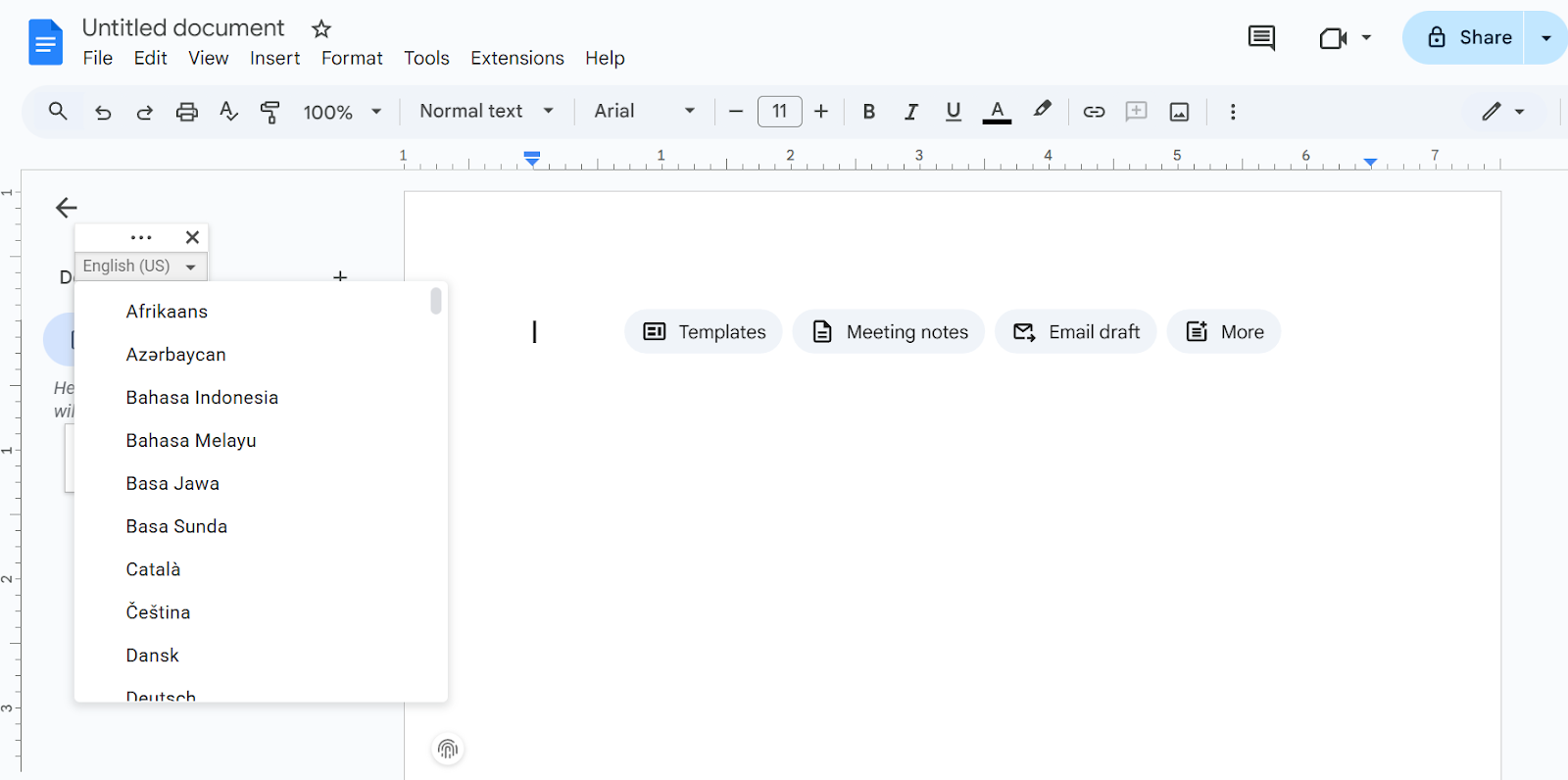
It supports multiple languages, including English, Español, Italiano, Português, and Kiswahili. The other languages available are Afrikaans, Bahasa Indonesia, Deutsch, Filipino, and more.
Many types of content can be created in Google Docs, including articles, blog posts, video scripts, eBooks, social media content, notes, and lectures.
It is helpful for video localization, as once you have the text, it can easily serve as a guide for scripts and be translated into different languages.
Why Use Speech-to-Text on Google Docs?
Here are some reasons to use speech-to-text on Google Docs:
Free and widely available
One of the best things about Google Docs is that it is free and widely available. You just need a Google Account and open Google Docs. Speech-to-text or voice typing is easy to use, with no complicated steps required.
Accurate and language-rich
Another great thing about Google Docs is its accuracy, especially when you speak clearly and there is no background noise. There are also numerous languages supported, making it more accessible to more people.
Accessible and inclusive
People have different needs and preferences when it comes to typing. It makes it more accessible to more people, such as those who want to multitask, prefer voice typing, and have some injuries.
Fast for drafting and brainstorming.
For some people, voice typing in Google Docs is faster for brainstorming ideas and creating drafts. It helps them be more productive by saving time and effort. This is ideal for those who generate ideas better, faster, and more naturally using speech-to-text.
Integrated with powerful editing tools
Google Docs has powerful editing tools for editing, proofreading, or polishing content. Those editing tools are easy to use
Who Should Use Speech-to-Text on Google Docs?
Speech-to-text or Voice Typing in Google Docs is beneficial to many individuals and businesses, as it can help them save time and effort.
People with typing challenges
Those users with disabilities or repetitive strain injuries will benefit from using Google Docs. Even with physical challenges, they will still be able to be productive.
Fast thinkers who want to write quickly
Voice typing is an advantage to fast thinkers, as they can just speak their ideas continuously. With this, they will be able to write quickly and finish faster.
Students and professionals drafting long texts.
Drafting and typing long text can be tiring and affect productivity. For students and professionals, speech-to-text can be helpful, allowing them to type using voice input when they get tired of typing by hand.
Non-native speakers who think better verbally
This is also good for non-native speakers who are more productive when thinking verbally. In this way, they will be able to create content or any document faster.
Anyone who prefers talking to typing
Some people prefer talking to typing on a keyboard, especially when brainstorming and creating content. It is helpful when their ideas flow naturally when speaking.
How to Do Speech-to-Text on Google Docs (Step-by-Step Guide)
Doing speech-to-text (voice typing) on Google Docs is easy, and it doesn’t require any technical expertise from the user.
Step 1: Open Google Docs in Google Chrome
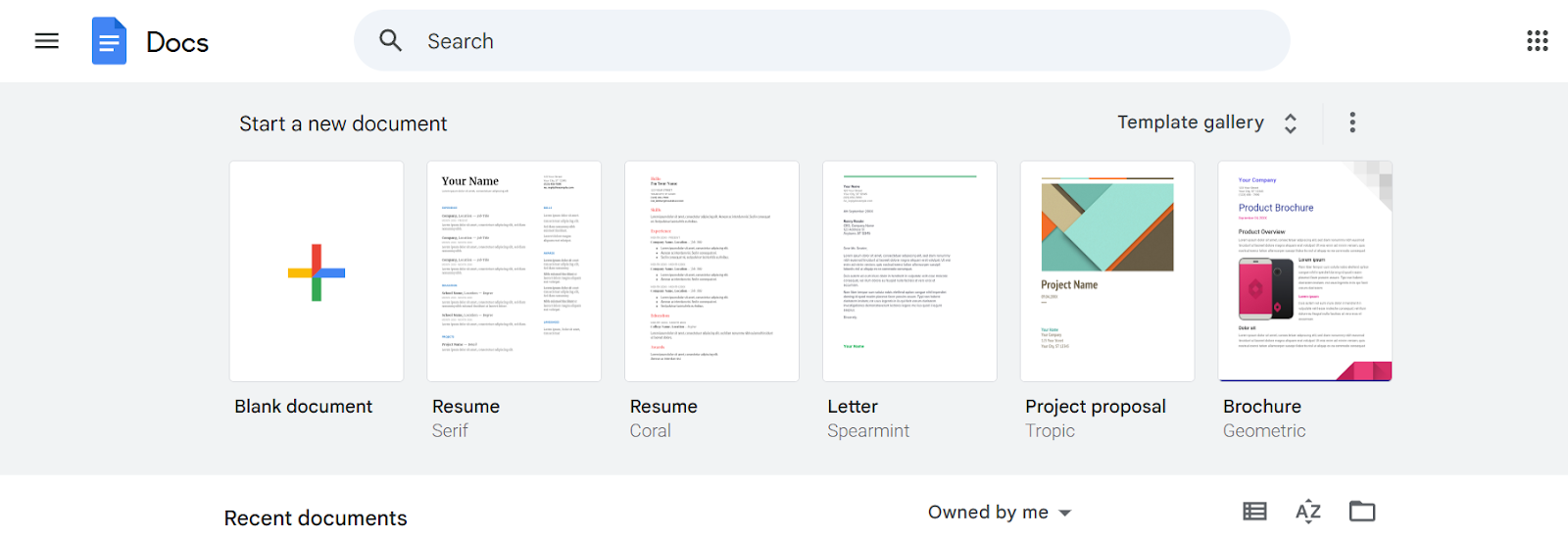
Step 2: Create or open a document
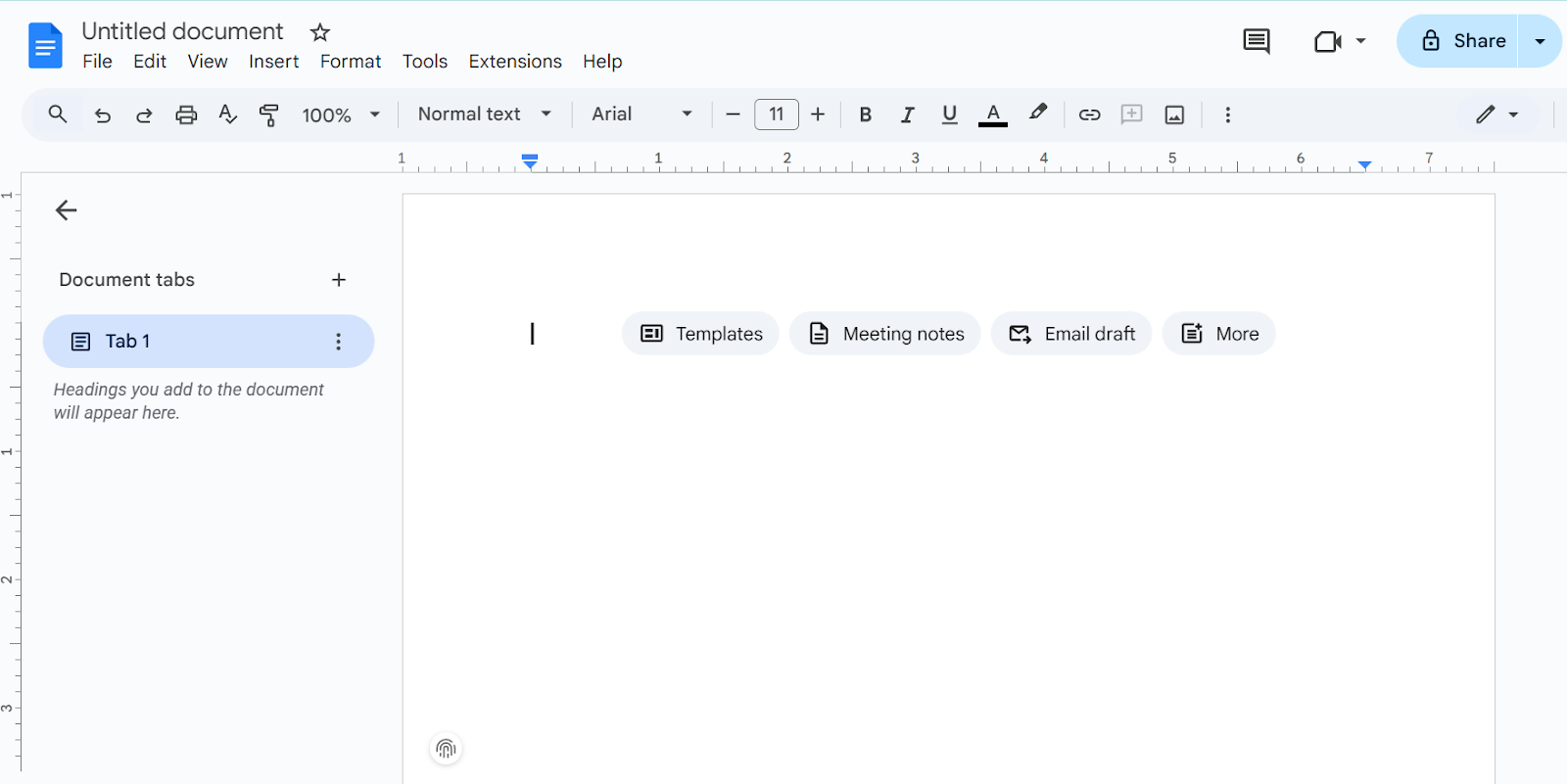
Step 3: Enable Voice Typing
Tools → Voice typing
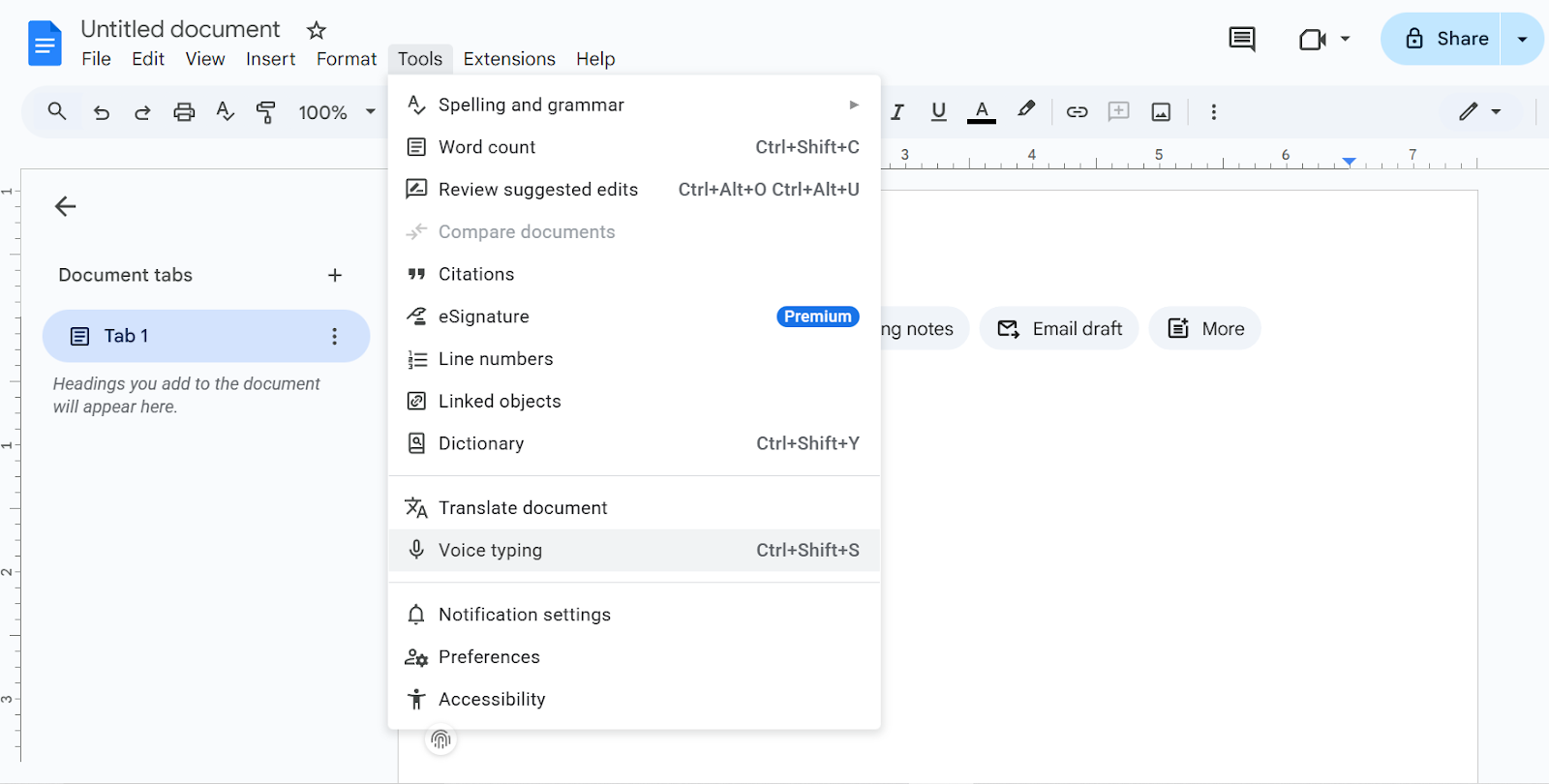
Step 4: Choose the correct language
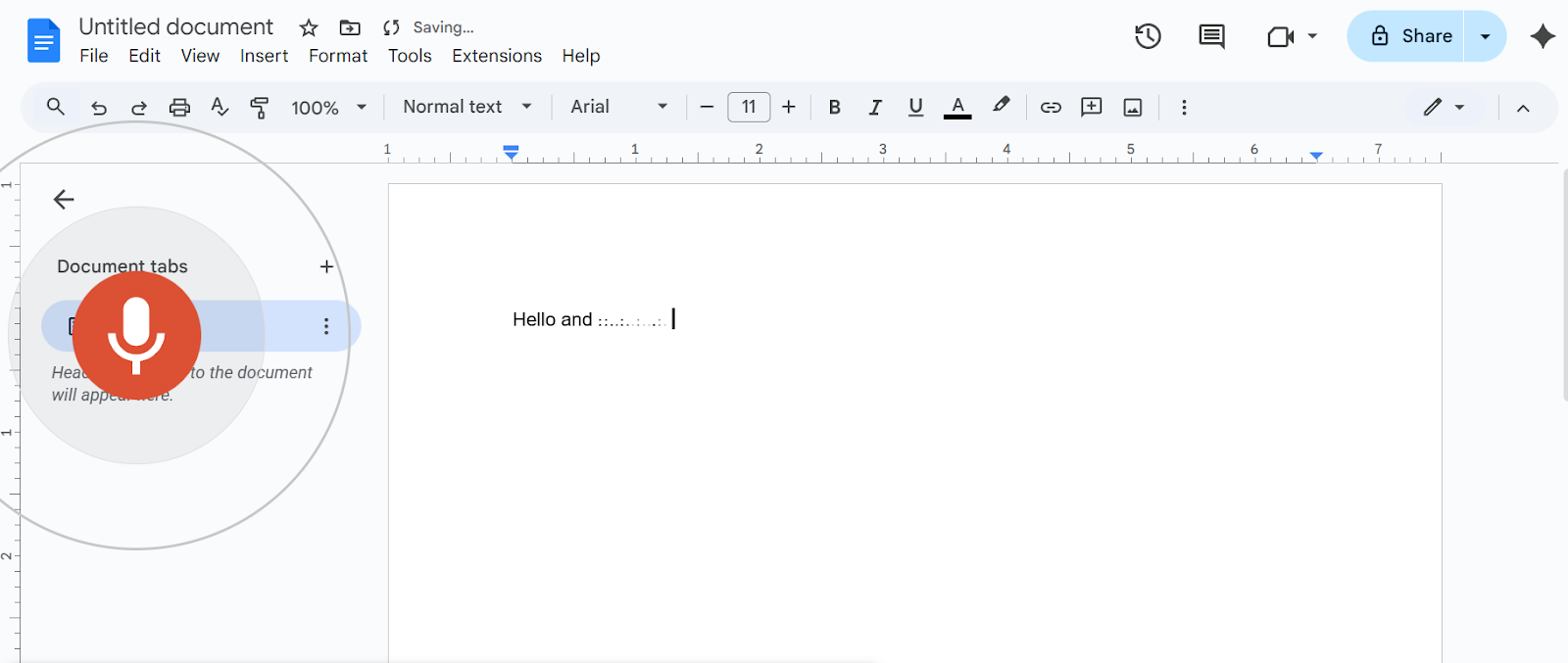
Step 5: Start dictating clearly
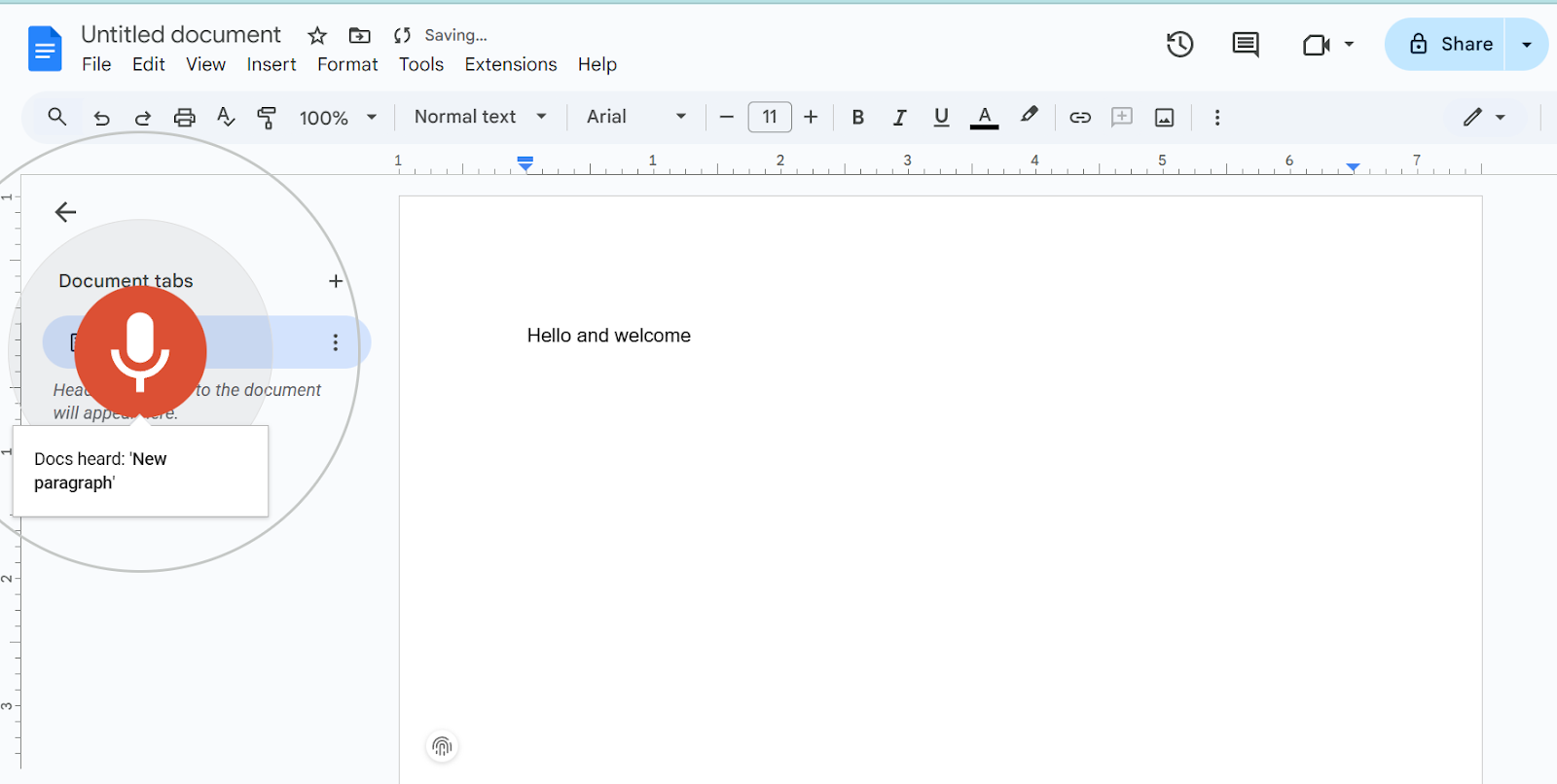
Step 6: Use voice commands for punctuation and formatting
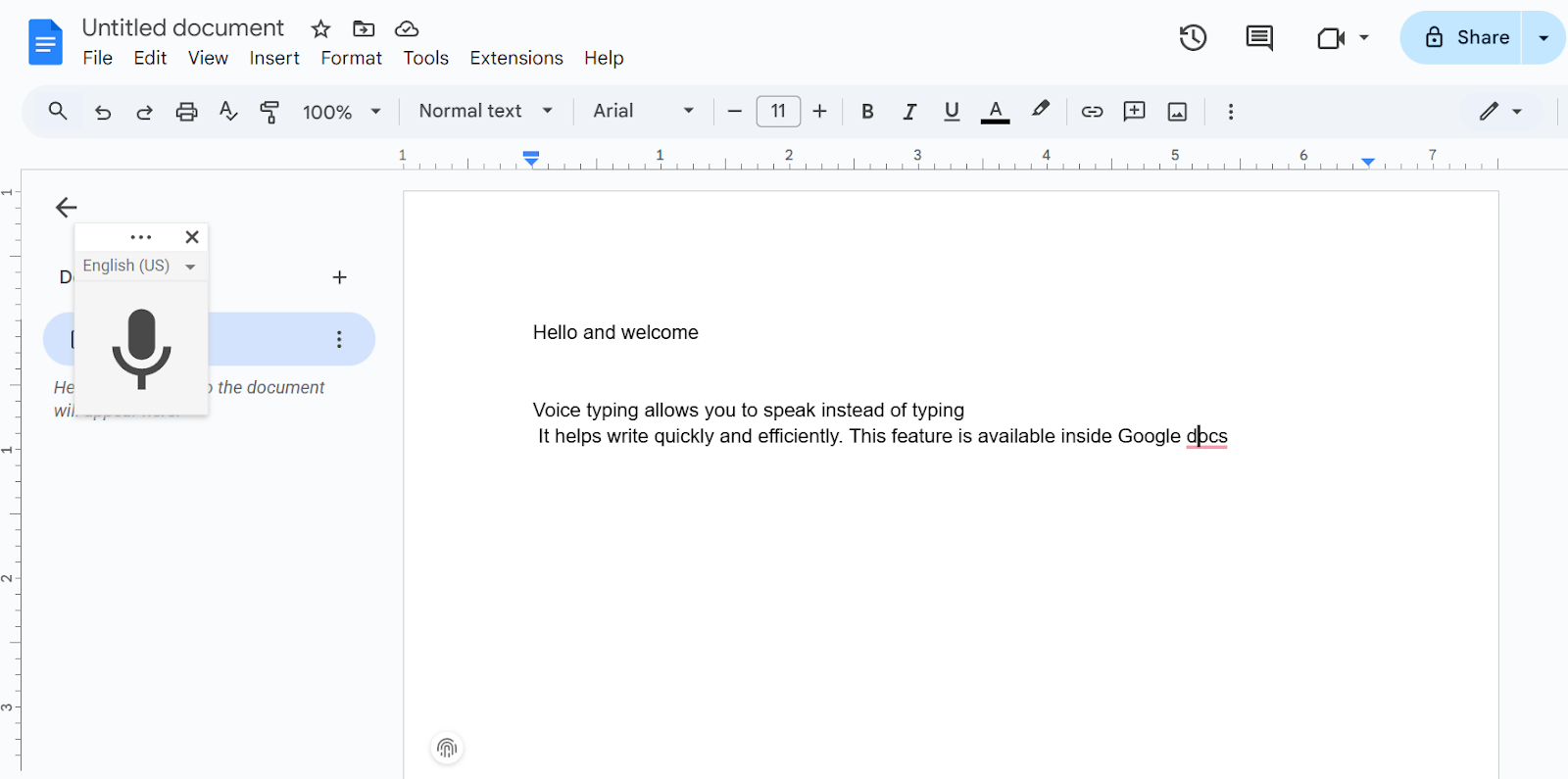
Step 7: Edit and refine the transcribed text
How to Troubleshoot If Voice Typing Isn’t Working
Learning how to troubleshoot when voice typing isn't working can save time and effort. Here are some errors you might encounter when using speech-to-text (voice typing) in Google Docs, along with how to fix them.
“We’re having trouble hearing you.”
One of the error messages you might encounter is “We’re having trouble hearing you.” Here are some troubleshooting actions you can try:
- You can move to a quiet room or space with minimal background noise.
- Try plugging in an external microphone or adjusting the microphone’s input volume so that the system can hear you clearly.
Microphone not working
Another issue you might encounter is when your computer's microphone is not working. Here are some troubleshooting actions you can try:
- Check the microphone to see whether it works properly or is broken.
- Check the microphone settings on your computer.
- Ensure that your microphone is plugged in and that no other apps are using it.
- Go to a quiet room or space.
- Restart your computer.
Voice Commands Not Working
Here are some actions you can try if voice commands are not working:
- Speak slowly and clearly.
- Before and after your command, pause for a while. The voice command may appear first on screen before it performs the said action.
- A bubble appears on the microphone icon showing the most recent command. If you see a different command, you can say “Undo”.
How to Transcribe Audio to Text Using AI-Powered Tools
Google Docs is a great tool when transcribing speech to text through voice typing. However, it doesn’t yet support audio or video-to-text transcription, which individuals, such as content creators, may need. After transcribing your text in Google Docs and editing it, you can use it as a guide or script when creating audio and video recordings to make the recording more polished.
Why VMEG AI is the best tool for Transcribing Audio to Text
Here are the key features of VMEG AI, making it one of the best tools for transcribing audio to text.
- Supports more than 170 languages.
- Perfect for various projects, including voice messages, podcasts, meetings, interviews, and more.
- Easy to use, making it ideal for beginners.
- You can upload media or paste a URL from platforms such as YouTube, Facebook, Zoom, and more.
- Fast, highly accurate, and free to use.
- Offers other tools for transcription, translation, subtitles, and text-to-speech, making it an all-in-one platform for video localization.
How to Use VMEG AI’s audio-to-text tool?
If you have an audio that you want to transcribe, you need an AI-powered tool like VMEG AI. Before transcribing an audio or video, make sure it is your own or that you have permission to avoid any issues.
VMEG AI’s audio-to-text converter is an effective AI tool for converting audio to text. With more than 170 languages and accents supported, you can easily choose the languages you need. This tool is ideal for a range of purposes and projects, including meetings, podcasts, and interviews. It is easy to use, and the transcribed text is ready in just a few minutes.
Here are the simple steps to transcribe audio using VMEG AI:
- Upload an audio file or paste a link.
It supports multiple file formats and platforms.
- Choose Transcription Settings.
Choose the original language, the language you want to translate the transcript into, the transcription mode, and the number of speakers. Click submit, then wait a few seconds or minutes for it to transcribe.
- Refine and export the transcribed audio.
After it has been transcribed, you can edit the original or translated text before exporting it in a file type you prefer.
FAQs
How to do speech-to-text on Google Docs?
Open a document, go to tools, and select Voice Typing.
Can I do voice-to-text on Google Docs?
Yes, you can do voice-to-text on Google Docs.
How do I activate Google Voice typing?
To activate Google Voice Typing, simply go to Tools and click on Voice Typing.
Why is voice typing not working on Google Docs?
Voice typing may not work in Google Docs due to microphone, voice command, or background noise issues.
What is the shortcut key for voice typing in Google Docs?
The shortcut key for voice typing in Google Docs is Ctrl + Shift + S.
Conclusion
Speech to text, also known as Voice Typing, is one of the features of Google Docs. It can be done simply by opening a document, choosing Tools, and then Voice Typing. It can also be done using a shortcut: press Ctrl + Shift + S. Google Voice Typing can help content creators, writers, students, and other individuals be more productive by saving time and effort. It can be used to create captions, guides, and scripts for a video.
However, individuals who want to transcribe audio and video directly need an AI-powered platform that simplifies the process. One AI-powered platform you can try is VMEG AI. It is a video localization platform where you can transcribe, translate, create subtitles, and more for your different content. It is perfect for video localization themes, as it is an all-in-one tool for localizing your content to reach a global audience.
Got an audio or video you want to transcribe? Try VMEG AI and see how easy and fast it is to be transcribed. Also, try the platform's other tools to see how it simplifies your workflow.


The VMEG Team
Behind VMEG stands a passionate team of creatives, engineers, and language lovers. At the crossroads of AI and storytelling, they craft tools that bridge languages and cultures.