


'%3e%3cpath%20d='M21.0949%203.79395L13.9961%209.82854H21.0949V3.79395Z'%20stroke='black'%20stroke-width='1.38'%20stroke-miterlimit='10'/%3e%3cpath%20d='M13.998%209.82854L7.44531%203.79395V9.82854H13.998Z'%20stroke='black'%20stroke-width='1.38'%20stroke-miterlimit='10'/%3e%3cpath%20d='M13.9961%202.69922V25.1919'%20stroke='black'%20stroke-width='1.38'%20stroke-miterlimit='10'/%3e%3cpath%20d='M20.5488%2016.4113L13.9961%209.82812V18.2217L20.5488%2024.0918V16.4113Z'%20stroke='black'%20stroke-width='1.38'%20stroke-miterlimit='10'/%3e%3cpath%20d='M7.44531%2016.4113L13.998%209.82812V18.0526L7.44531%2024.0918V16.4113Z'%20stroke='black'%20stroke-width='1.38'%20stroke-miterlimit='10'/%3e%3cpath%20d='M4.71094%209.82812V18.6057H7.44125V16.4113L13.9941%209.82812H4.71094Z'%20stroke='black'%20stroke-width='1.38'%20stroke-miterlimit='10'/%3e%3cpath%20d='M13.9961%209.82812L20.5488%2016.4113V18.6057H23.2792V9.82812H13.9961Z'%20stroke='black'%20stroke-width='1.38'%20stroke-miterlimit='10'/%3e%3c/g%3e%3c/svg%3e)

'%3e%3cmask%20id='mask0_21456_29260'%20style='mask-type:luminance'%20maskUnits='userSpaceOnUse'%20x='0'%20y='0'%20width='28'%20height='28'%3e%3cpath%20d='M27.5%200.5H0.5V27.5H27.5V0.5Z'%20fill='white'/%3e%3c/mask%3e%3cg%20mask='url(%23mask0_21456_29260)'%3e%3cpath%20d='M14%2027.5C13.4854%2024.1035%2011.8974%2020.9608%209.46828%2018.5317C7.03922%2016.1026%203.89651%2014.5146%200.5%2014C3.89651%2013.4854%207.03922%2011.8974%209.46828%209.46828C11.8974%207.03922%2013.4854%203.89651%2014%200.5C14.5147%203.89644%2016.1028%207.03905%2018.5318%209.46816C20.9609%2011.8972%2024.1035%2013.4853%2027.5%2014C24.1035%2014.5147%2020.9609%2016.1028%2018.5318%2018.5318C16.1028%2020.9609%2014.5147%2024.1035%2014%2027.5Z'%20fill='url(%23paint0_linear_21456_29260)'/%3e%3c/g%3e%3c/g%3e%3cdefs%3e%3clinearGradient%20id='paint0_linear_21456_29260'%20x1='9.5'%20y1='9.5'%20x2='20.75'%20y2='21.875'%20gradientUnits='userSpaceOnUse'%3e%3cstop%20stop-color='%23F0DCD6'/%3e%3cstop%20offset='0.914506'%20stop-color='%231D6DFF'/%3e%3c/linearGradient%3e%3cclipPath%20id='clip0_21456_29260'%3e%3crect%20width='28'%20height='28'%20fill='white'/%3e%3c/clipPath%3e%3c/defs%3e%3c/svg%3e)
'%3e%3cpath%20d='M22.8019%2011.2412L23.5234%2011.6807V12.0103L23.3172%2012.7796L14.5579%2014.9771L13.7344%2012.7951L22.8019%2011.2412Z'%20fill='%23D97757'/%3e%3cpath%20d='M19.5236%204.77832L20.5322%205.00396L20.8%205.35575L21.0552%206.19876L20.9494%206.73644L15.0712%2015.3068L13.1133%2013.2191L18.5338%205.63471L19.5236%204.77832Z'%20fill='%23D97757'/%3e%3cpath%20d='M14.4577%203.43951L15.0761%203L15.5912%203.21976L16.1065%203.9889L14.6949%2013.0345L13.7364%2012.3397L13.3242%2011.131L14.0456%204.31853L14.4577%203.43951Z'%20fill='%23D97757'/%3e%3cpath%20d='M7.84766%203.5851L8.48285%202.7199L8.89716%202.61914L9.71923%202.74717L10.125%203.08581L13.0815%2010.0748L14.1509%2013.3954L12.8997%2014.1372L8.13117%204.91019L7.84766%203.5851Z'%20fill='%23D97757'/%3e%3cpath%20d='M4.77232%208.38688L4.56641%207.50742L5.18478%206.73828L5.90613%206.84816H6.11223L10.4403%2010.2544L11.78%2011.3531L13.6349%2012.8914L12.6044%2014.7594L11.6769%2013.9903L11.0586%2013.331L5.08168%208.82593L4.77232%208.38688Z'%20fill='%23D97757'/%3e%3cpath%20d='M3.53288%2014.0982L3.06641%2013.5489L3.06647%2013.0601L3.53288%2012.8896L8.78833%2013.2193L13.9408%2013.6588L13.7736%2014.7528L3.94502%2014.2082L3.53288%2014.0982Z'%20fill='%23D97757'/%3e%3cpath%20d='M6.62378%2019.8178H5.59334L5.18359%2019.3146V18.7132L6.93299%2017.3946L14.045%2012.5674L14.7648%2013.8785L6.62378%2019.8178Z'%20fill='%23D97757'/%3e%3cpath%20d='M8.57739%2022.8884L8.16518%2022.9984L7.54688%2022.6687L7.64995%2022.1193L13.7299%2013.5488L14.5543%2014.7574L10.0201%2021.1305L8.57739%2022.8884Z'%20fill='%23D97757'/%3e%3cpath%20d='M13.7361%2023.9861L13.4271%2024.4257L12.8088%2024.6454L12.2935%2024.2058L11.9844%2023.5466L13.5301%2014.6465L14.4576%2014.7563L13.7361%2023.9861Z'%20fill='%23D97757'/%3e%3cpath%20d='M18.9869%2021.5713V22.4503L18.8838%2022.7799L18.4716%2022.9997L17.7503%2022.8974L12.7969%2015.0367L14.7617%2013.4404L16.4104%2016.6269L16.5652%2017.7805L18.9869%2021.5713Z'%20fill='%23D97757'/%3e%3cpath%20d='M21.3629%2020.2507L21.4659%2020.8L21.1568%2021.2396L20.8476%2021.1297L19.0958%2019.8112L16.4165%2017.284L14.3555%2015.7457L14.9736%2013.6582L16.0041%2014.3175L16.6226%2015.5259L21.3629%2020.2507Z'%20fill='%23D97757'/%3e%3cpath%20d='M20.0232%2014.6482L22.5995%2014.8679L23.2178%2015.3074L23.6299%2015.9667V16.441L22.4964%2016.9556L16.7256%2015.4173L14.3555%2015.3074L14.9737%2013L16.6226%2014.3185L20.0232%2014.6482Z'%20fill='%23D97757'/%3e%3c/g%3e%3c/svg%3e)
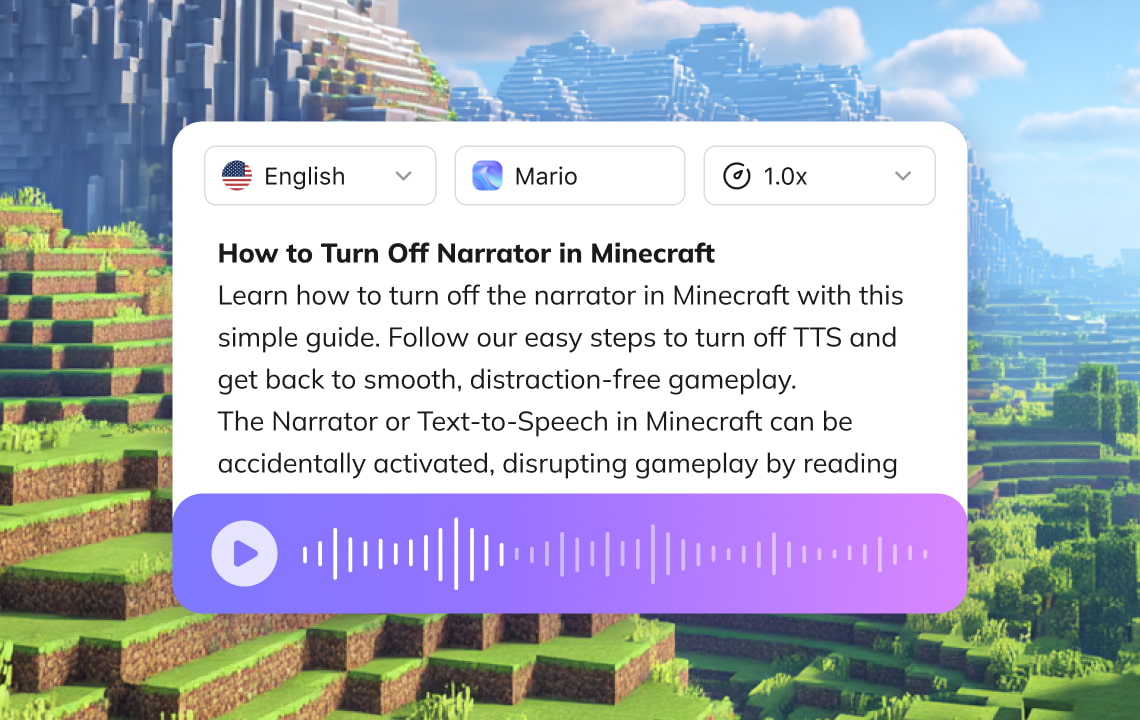
The Narrator or Text-to-Speech in Minecraft can be accidentally activated, disrupting gameplay by reading every button, menu, and chat message out loud. This is one of the issues that you may encounter and want to fix. In this guide, we will discuss how to turn off the narrator in Minecraft to improve your gameplay.
What Is Minecraft Narrator and Text-to-Speech?
Narrator and Text-to-speech are Minecraft audio features that read buttons, menus, and chat messages loudly. These features can be turned on or off in the game's accessibility settings, depending on your preference. Players can turn it on if they prefer narration and text-to-speech, or turn it off if it makes it hard to focus.
The text-to-speech in chat can be turned on or off in-game in the accessibility settings. On the other hand, the narrator is automatically enabled when the player uses an activated screen reader, but it can be turned off in the settings.
Why Does the Narrator Turn On in Minecraft?
There are several reasons why the narrator and text-to-speech get turned on during gameplay. Here are some reasons that influence narration and text-to-speech.
Accidental activation during gameplay
When playing a game, people may not realize they accidentally turned on or activated the narrator or text-to-speech.
Default accessibility settings
Narrator and text-to-speech may be enabled by default. Sometimes external or device settings can turn it on automatically, such as when an activated screen reader is in use.
Auto-enabled in settings
Sometimes narration and text-to-speech can be automatically enabled in settings.
Keyboard Shortcut
There are times when players accidentally press Ctrl + B, which then enables the text-to-speech or narrator.
Who Might Need to Disable the Minecraft Narrator?
Here are the individuals who might need to disable the Minecraft narrator or text-to-speech:
Players who turned it on accidentally
Players who accidentally turned it on need to disable it, especially if it disrupts them or they are not used to it.
Streamers/content creators wanting a clean audio experience
Streamers and content creators who create Minecraft content need to turn off the narrator and text-to-speech to provide a clean audio experience and avoid distracting their audience. It will help them connect more easily with the audience if the audio is clear and there are no disruptions.
Parents adjusting accessibility settings for kids.
Parents need to disable or adjust their kids' accessibility settings to improve their gameplay experience. They may also be disabled if it distracts other people around them.
Players who avoid screen-reading interruptions.
Screen reading might interrupt gameplay, so players can turn it off to improve their experience and enjoy the game more with their friends.
How the Narrator and Text-to-Speech Impacts Your Gameplay
Narrator and text-to-speech affect gameplay; they can be helpful to some but distracting to others, as every player has different preferences. These can impact how you play the game, interact, and navigate menus.
Positive Impacts
- Improved Accessibility
Narration and text-to-speech improve game accessibility, especially for those who rely more on audio, enabling them to navigate the game independently. This helps players to manage the game and enjoy it more easily.
- Helps track the game without looking
In fast-paced moments that need more focus, narration and text-to-speech will help you stay on track. Also, the player will not miss messages even if they are focused on the game.
Negative Impacts
- Can be noisy or distracting
Some players prefer a quiet environment so they can focus more on the game. The noise or audio can distract them and prevent them from fully enjoying the game, especially if they prefer a quiet, cinematic experience.
- Interrupting gameplay
Some messages may take the system time to read, making it harder to stay up to date in real time. Text-to-speech may also not convey the context well, as it might mispronounce names and slang.
How to Turn Off the Narrator and Text-to-Speech in Minecraft
In this section, we will discuss how to turn off the narrator and text-to-speech in Minecraft for a better gaming experience.
Narration and Text-to-Speech for Minecraft Dungeons
- Go to Accessibility Settings
Go to the Main Menu or Settings icon in-game to access the accessibility settings. Once you’re in accessibility settings, you can turn off the text-to-speech.
- MENU UI narration.
If you are using a screen reader, narration will automatically activate when you launch the game. Go to the accessibility menu to turn it off.
- Turning on and off the text-to-speech on chat
One feature players can use in Minecraft Dungeons is text-to-speech in chats. If you are not comfortable using text-to-speech, go to the Accessibility Menu in Settings to turn it off.
Narration and Text-to-Speech in Minecraft Bedrock Edition
- Go to Accessibility Menu
Go to the Main Menu, select Settings, then open the Accessibility Menu to see which are enabled.
- Menu UI Narration
Screen Reader. If your screen reader is enabled, the menu UI narration will automatically activate when you launch the game.
You can adjust how the system responds to platform-specific settings by enabling or disabling the Text-to-Speech with Device Settings toggle.
Go to settings, then open the Accessibility Menu, and use the text-to-speech for UI toggle to turn Menu UI Narration on or off.
- Turning on or off the Text-to-Speech on Chat
Use the Text To Speech For Chat toggle to enable it (turn it on) or disable it (turn it off).
If you decide to turn on text-to-speech, you can use CTRL + B to enable it.
Narration and Text-to-Speech Minecraft Java Edition
- Go to Accessibility Menu
Go to the Start Menu and select the accessibility icon. It can be found to the right of the Quit Game button. The other way to access it is to go to Options and select Accessibility Settings. This will help you see which tools are enabled and disabled.
- Narration
Click the Narration toggle to select the narration mode you prefer, which will give you a better gaming experience. You can choose which tool to turn on or off.

Image Credits: Screenshot from Minecraft website accessed December 2025 for illustrative purposes only.
- Text-to-Speech Narration
Go to Accessibility Settings to turn on or off the text-to-speech. You can also adjust other settings based on your preference to enhance your experience.
Instant Fix: The Minecraft Narrator Shortcut
The quickest way to toggle the narrator off is by pressing Ctrl + B. This cycles through modes: Narrate All, Narrate Chat, Narrate System, and Off. The other way is to go to the Accessibility Menu and toggle off the narration.
Still Hearing A Voice? Check System Settings
Sometimes, even if the narration or text-to-speech is already turned off in-game, the system still speaks. This is because the built-in “Narrator” in Windows/Xbox/PS5 is still active.
Also, check the Windows shortcut by pressing Win + Ctrl + Enter or the Xbox Ease of Access Settings to access the accessibility feature.
Pro Tip: Connect With Players Around the World with VMEG AI
While Minecraft’s built-in narrator is helpful for accessibility, it lacks the professional tone needed for YouTube or TikTok. If you want high-quality AI narration for your gameplay videos, VMEG AI offers 7,000+ lifelike voices to make your content sound professional.
This is a perfect tool for content creators and players who want to share tips, tricks, or other Minecraft-related content, connect with players around the world, and localize content. And to make it possible, there are tools like VMEG AI that are easy to use and perfect for different kinds of projects.
Here are some VMEG AI tools that will bring your content globally:
The text-to-speech tool will turn your text into speech. You can choose from more than 170 languages and 7,000 lifelike AI voices, so you can easily localize your content. It also supports voice cloning, ideal if you want to create a unique voice for your content or brand.
Translation
VMEG AI supports multiple translation options, including Video Translation, Audio Translator, MP3 Translator, and Movie Translator, making it a perfect content localization tool for a wide range of projects. Whether you're sharing tips, tutorials, or simply your experience, you can do it easily with VMEG.
Subtitle
Subtitles are an essential element of content, especially if you are targeting an audience from different parts of the world. VMEG offers various subtitle tools, including Video Subtitle Generator, Subtitle Translator, Subtitle Editor, and more tools to make content creation smoother.
Why Choose VMEG AI for Localization?
Accuracy. VMEG AI provides high-accuracy results, making your content look professional and helping you build authority. Viewers are more likely to be interested in your content when they see that it is accurate and reliable.
Easy to Use. You don’t need technical expertise, as it is easy to use and perfect for beginners. You don’t need to watch or read a tutorial, as you can easily navigate it on your own. This can save you time, effort, and money and help you to do more.
Supports more than 170 languages. It supports more than 170 languages and 7,000 lifelike AI voices, helping content creators, individuals, and businesses reach audiences worldwide.
Offers various tools. Whether you need a translation, transcription, subtitle, or text-to-speech, VMEG AI can handle it for you. These tools are easy to use and convenient, helping you connect with more people globally.
FAQs
Why does the Minecraft Narrator keep turning back on?
Check the ‘narrator:O’ setting in the ‘options.txt’ file, or any third-party accessibility plugins that you might have enabled.
How to turn off Narrator in Minecraft?
Go to Accessibility Settings to turn off the narrator in Minecraft.
How to turn off Text-to-speech in Minecraft?
Go to Accessibility Settings and turn off the text-to-speech in Minecraft.
What button is the Narrator in Minecraft?
Use the CTRL + B button to access the narration settings in Minecraft.
Why is my Minecraft narrating everything?
There are several reasons Minecraft may be narrating everything, such as a screen reader or the narrator enabled in Accessibility Settings. You can turn it off in the Accessibility Settings to enhance your gameplay.
Conclusion
If you are wondering how to turn off the narrator in Minecraft, you can easily do it in the Accessibility Settings. The exact process also applies to turning off text-to-speech in Minecraft. In Accessibility Settings, you can also enable or disable other features to improve your gaming experience. And if you are creating content and want to localize it, try VMEG AI to connect more with the audience from different parts of the world. It is easy to use, suitable for various projects, and delivers highly accurate results.


The VMEG Team
Behind VMEG stands a passionate team of creatives, engineers, and language lovers. At the crossroads of AI and storytelling, they craft tools that bridge languages and cultures.