

How to extract embedded subtitles from a film? You might need those subtitle files separately for editing, translation, or sharing with your team. Perhaps you’re watching foreign YouTube videos. These often contain multiple language tracks. You need to extract subtitles from video files for academic purposes, such as studying or researching.
The key question is whether the video contains an extractable subtitle track, burned-in text, or no subtitles at all. That distinction determines whether you should export an existing stream, use OCR, or generate a new SRT subtitle file.
This guide covers efficient approaches for extracting subtitles. You will learn six detailed methods to get subtitles from MKV, MP4, or any video files, ranging from beginner-friendly tools to advanced batch processing techniques. Find troubleshooting tips for common issues with video subtitle extractors. Additionally, discover how to select a subtitle generator. This applies to raw video or audio.
What is Subtitle Extraction?
Why Extracting Subtitles?
Ideal for:
- Downloaded movies/TV with existing subtitles
- Foreign films or pro content needing subtitle editing
- Preserving original timing/formatting
- Extract subtitles for distribution across platforms
- Separating language tracks from MKV/MP4 files
- Extraction Limitations to Understand
Extraction works only when an extractable subtitle stream is present. For burned-in subtitles, use OCR; for videos without subtitle tracks, use AI subtitle generation instead.
| Video situation | Recommended method | What to expect |
| Selectable text subtitle track | Subtitle Edit or FFmpeg | Export or convert a compatible subtitle stream. |
| Burned-in subtitles | OCR workflow | Extract text from video frames, then review accuracy and timing. |
| No subtitle track | VMEG AI subtitle generation | Generate an editable subtitle draft from the audio. |
| YouTube transcript available | YouTube transcript panel | Copy available text, then format or retime it if you need a subtitle file. |
How to Inspect Subtitle Tracks with VLC
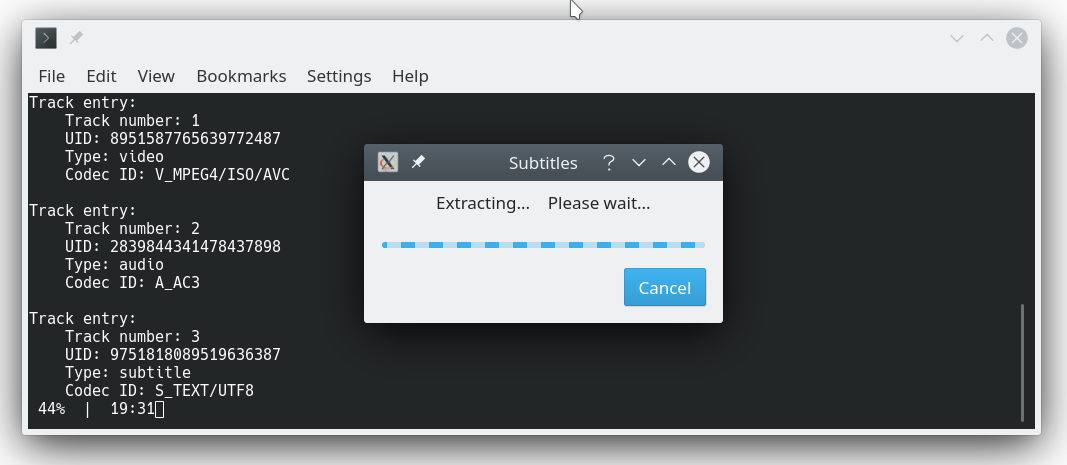
Key Features
- Multi-format video support (MP4, MKV, AVI, MOV, WMV)
- Basic subtitle track selection and preview
- Subtitle-track selection and playback verification
- Cross-platform compatibility
- Integrated media player for verification
Pros
- Completely free with no licensing restrictions
- Simple, intuitive interface perfect for beginners
- Cross-platform compatibility (Windows, macOS, Linux)
- Supports most common video and subtitle formats
- No additional software installation required
Cons
- Desktop software needs installation
- Not a reliable standalone workflow for exporting subtitle tracks as SRT files
- No batch processing capabilities for multiple files
- A manual process is required for each video file
- Cannot handle complex subtitle styling
How to Inspect Subtitle Tracks with VLC
- Open the video in VLC.
- Use Subtitle > Sub Track to check whether selectable subtitle tracks are available.
- Use VLC to preview the selected track. If you need an SRT or another exportable file, continue with Subtitle Edit or FFmpeg.
Advanced VLC Subtitles Extraction Tips:
- Use keyboard shortcuts (V key) to cycle through available subtitle tracks quickly.
- Access advanced subtitle settings through Tools > Preferences > Show All Settings.
- Configure subtitle encoding options for international character support.
- Utilize VLC's conversion feature for simultaneous extraction and format conversion.
VLC’s straightforward interface and reliable performance make it ideal for personal use and simple projects.
How to Extract Subtitles via Subtitle Edit
Subtitle Edit specializes in subtitle extraction and manipulation for professionals and enthusiasts. This dedicated tool lets you extract subtitles from video files (MP4, MKV, etc.) with precision. As a specialized video subtitle extractor, it excels at tasks where other tools fail. Subtitle Edit is essential for professional workflows requiring reliable extraction and editing capabilities.
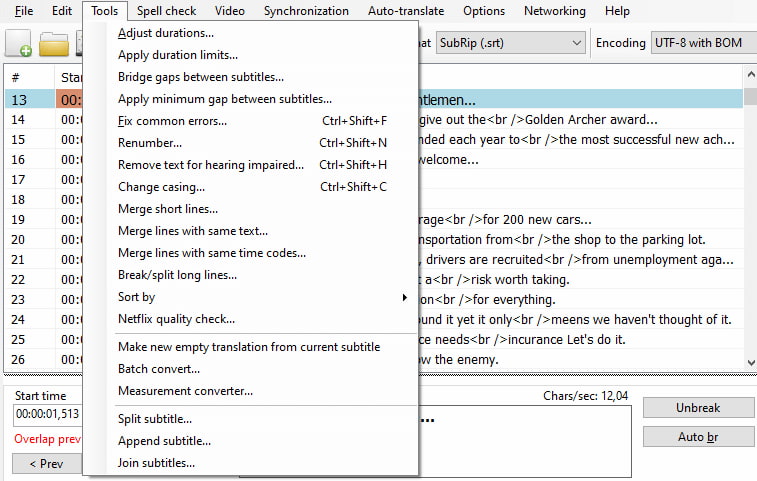
Key Features
- Handle complex subtitle scenarios beyond general-purpose tools
- Convert between subtitle formats seamlessly
- Perform advanced editing and quality improvements
- Advanced OCR for image subtitle extraction
- Batch processing
Pros
- Specialized subtitle focus with advanced editing capabilities
- OCR support for image-based subtitle extraction
- Comprehensive format support and conversion options
- Built-in quality improvement tools
- Free with regular updates and an active community
Cons
- Windows-only application (limited cross-platform support)
- Steeper learning curve than basic extraction tools
- Requires more system resources than simple extractors
- Interface complexity can overwhelm casual users
How to Extract Subtitles with Subtitle Edit
- Launch Subtitle Edit and navigate to File > Open to select your video file containing embedded subtitles.
- The software automatically scans for available subtitle tracks. Select from multiple extraction algorithms based on subtitle type.
- Set output settings, including format, encoding, and timing preferences.
- Process the extraction with real-time preview capabilities.
- Use built-in editing tools to review and edit extracted subtitles.
- Save in the desired format with quality optimization.
Advanced Subtitle Edit Features
- OCR Capabilities: Extract text from image-based subtitles (PGS, VobSub)
- Timing Synchronization: Advanced tools for fixing timing issues
- Format Conversion: Convert between multiple subtitle formats during extraction
- Quality Enhancement: Automatic spell-checking and formatting improvements
- Batch Processing: Handle multiple files with consistent settings
Subtitle Edit bridges the gap between simple extraction and professional subtitle editing, making it ideal for users requiring both extraction and enhancement capabilities.
How to Generate Subtitles with VMEG AI
If a video has no extractable subtitle track, use an AI subtitle generator to create an editable subtitle draft from its audio.
VMEG AI supports subtitle-generation and translation workflows across 170+ languages and dialects. VMEG’s Subtitle Generator creates an editable draft that should be reviewed for transcript accuracy, timing, speaker settings, and final export.
VMEG Subtitle Generator & Translator
Create editable subtitle drafts and translate them across 170+ languages and dialects. Review the output before export.
Key VMEG Advantages to Get Subtitles
- AI Subtitle Generation: Create an editable subtitle draft when a video does not contain an extractable subtitle track.
- Reviewable Transcript: Check names, terminology, punctuation, timing, and difficult audio before publishing.
- Multilingual Workflow: Create and translate subtitles across 170+ languages and dialects; verify the current language availability for your project.
- Editing Controls: Review speaker settings, subtitle text, timing, and styling before export.
- Export Options: Download a compatible subtitle file or export a subtitled video according to the options available in your workflow.
Pros
- Industry-leading subtitles transcription accuracy
- 170+ language support with native-level translations
- Professional customization options
- Available free trial with 60 credits
Cons
- Requires an internet connection for processing
- Subscription model for high-volume usage
How to Generate Video Subtitles Step by Step
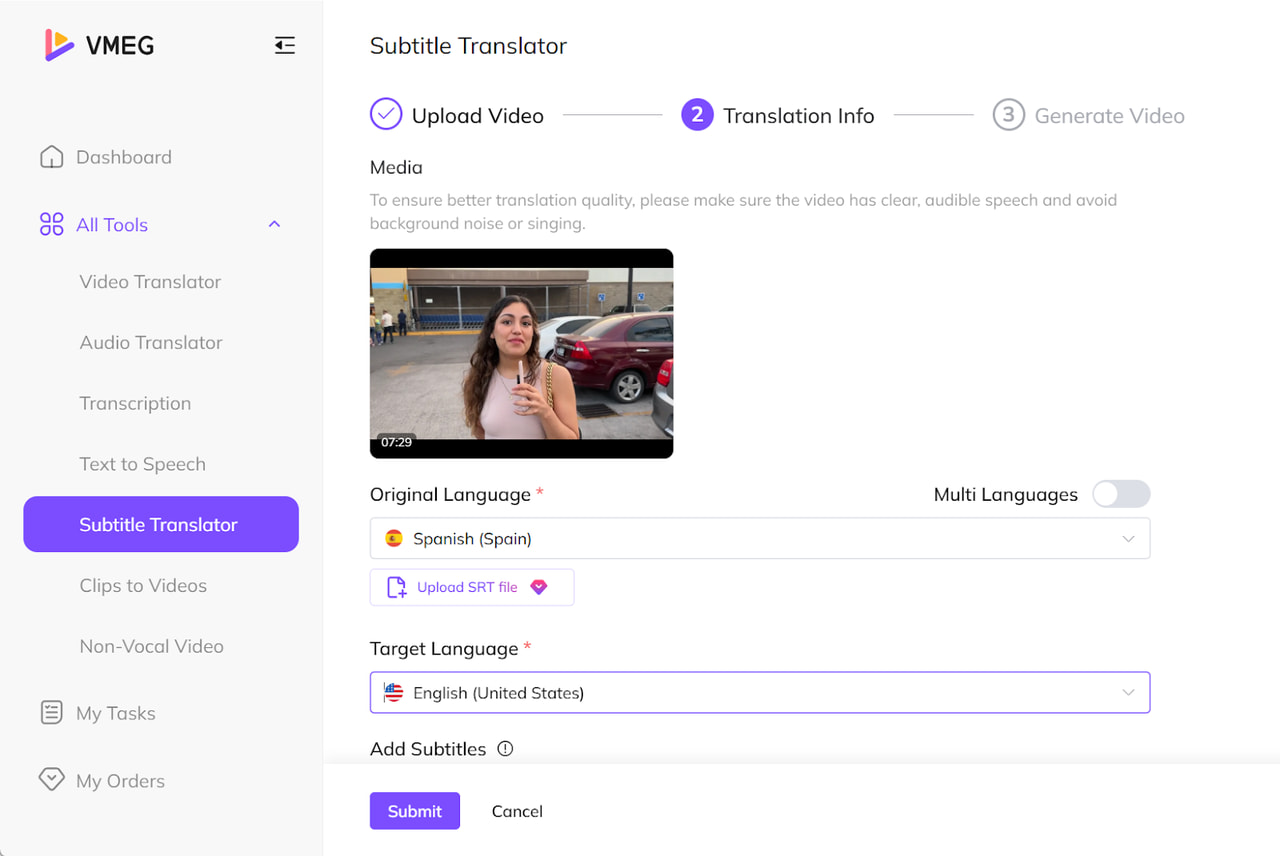
Step 1. Go to the Video Subtitle Generator page, upload a video, and sign in to your account.
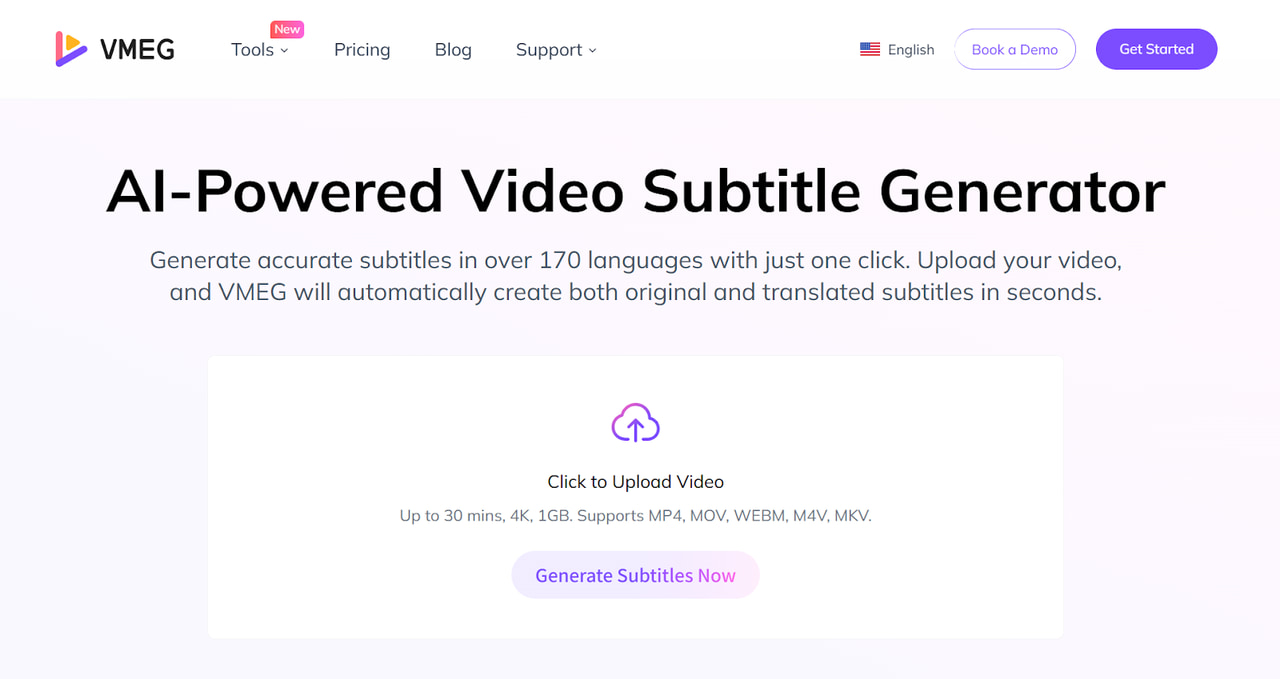
Step 2. Select the original language of the video, and the target language you want to translate the subtitles to.
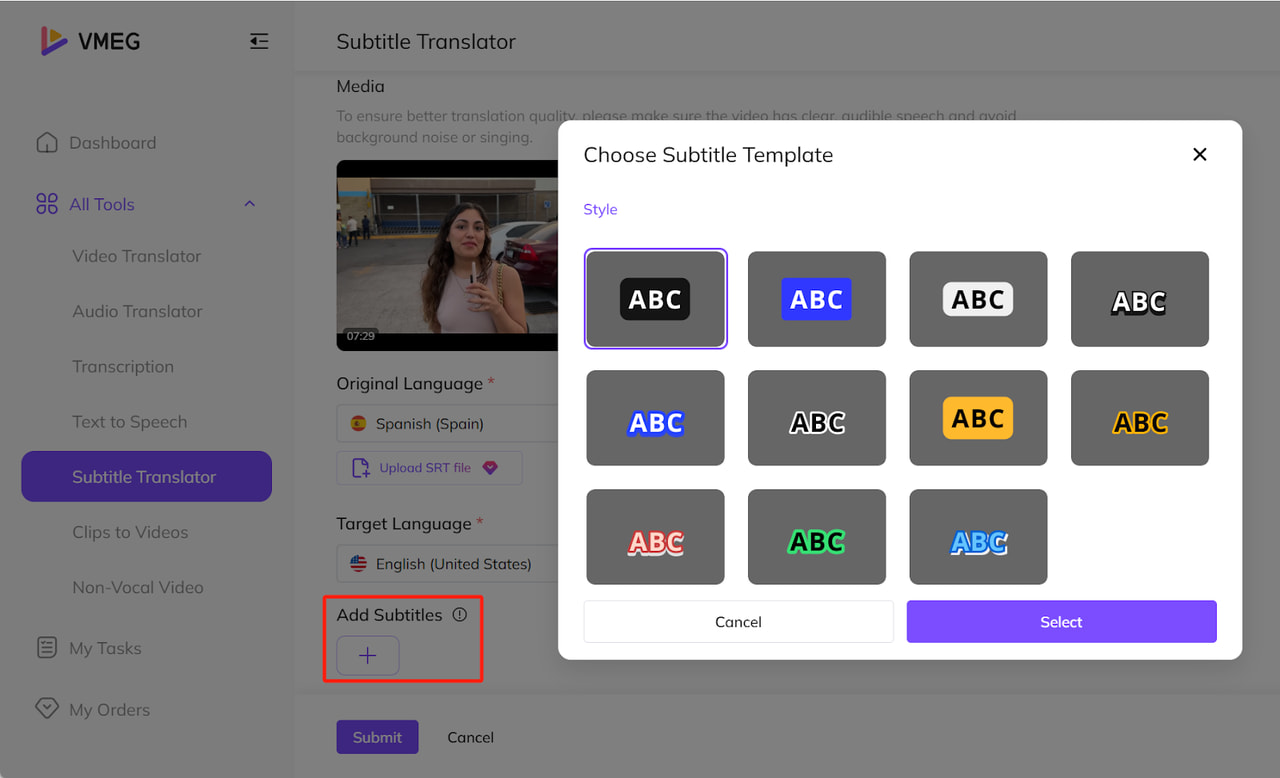
Step 3. Choose a subtitle style from preset templates.
Step 4. Click the Submit button to start processing.
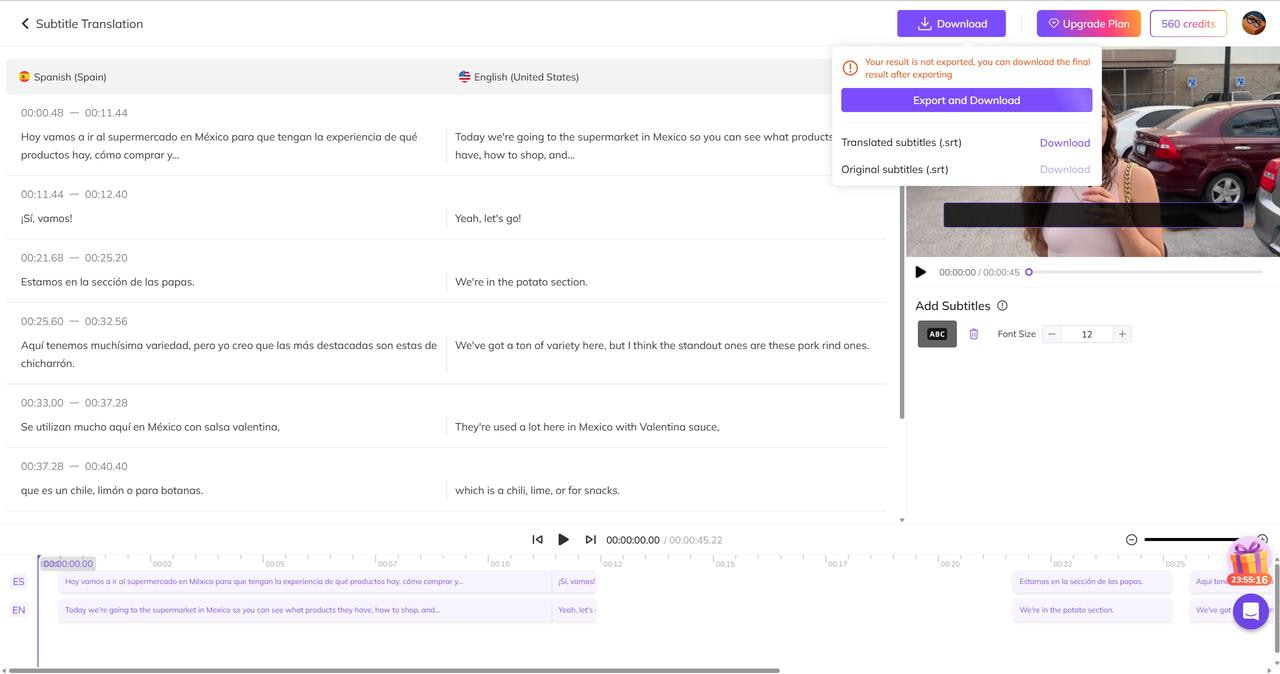
Step 5. Most subtitles are generated within seconds. Then you can edit and refine subtitles. Finally, export the video with embedded original/translated subtitles and save subtitles as an .srt file.
How to Extract Video Subtitles with FFmpeg
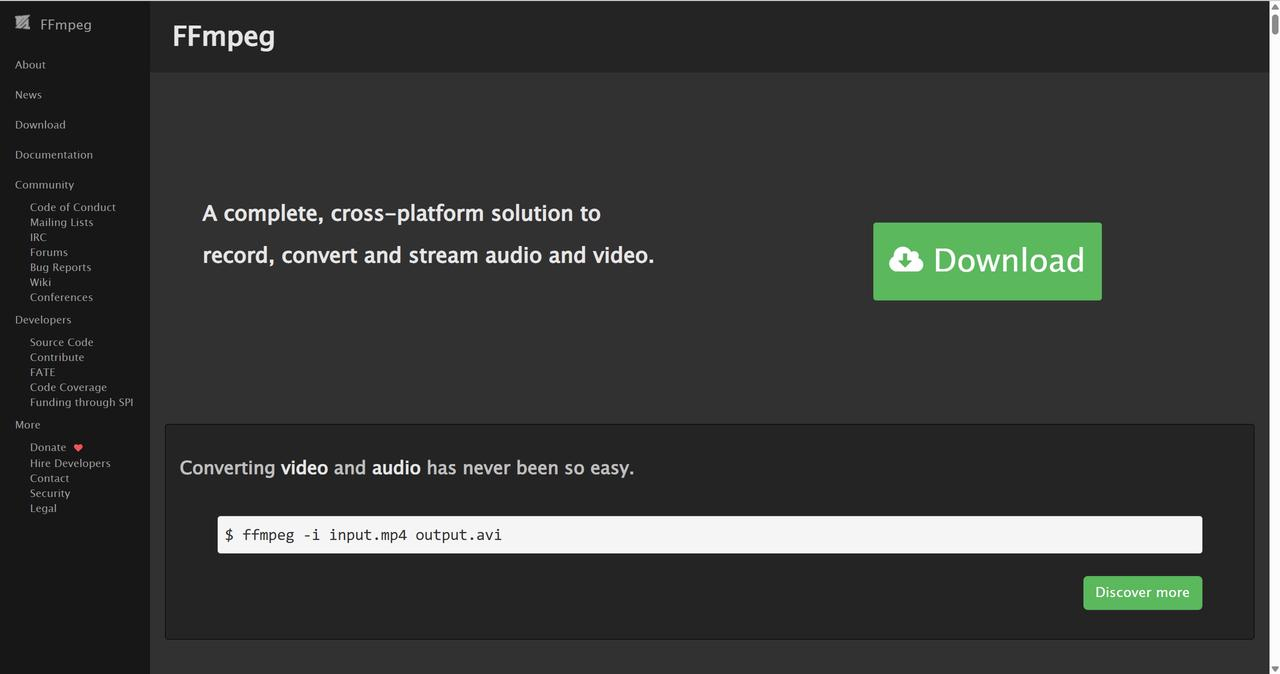
FFmpeg provides a flexible command-line solution for extracting subtitle streams from supported containers, though it requires technical expertise and familiarity with subtitle codecs.
This tool offers subtitle reading & extracting, stream inspection, and automation capabilities. Image-based subtitle tracks may still require OCR. Advanced users leverage FFmpeg for complex batch operations and integration with existing workflows: Install FFmpeg > Launch Command > Run the related command to extract subtitles.
Key Features
- Universal format support
- Batch processing automation
- Format conversion capabilities
- Integration-friendly architecture
Pros
- Supports virtually all video and subtitle formats
- Powerful batch processing and automation capabilities
- Format conversion and advanced manipulation options
Cons
- Requires command-line expertise
- Steep learning curve for beginners
- No graphical user interface
Essential Commands that You May Need
- List all streams in a video file: ffmpeg -i input.mkv
- Extract first subtitle stream: ffmpeg -i input.mkv -map 0:s:0 -c copy output.srt
- Extract all subtitle streams: ffmpeg -i input.mkv -map 0:s -c copy subtitle_%d.srt
FFmpeg serves as the foundation for many commercial video tools. Its command-line interface intimidates beginners but offers unparalleled power for technical users.
How to Extract Subtitles from YouTube Videos
There is another way to get YouTube video subtitles via the built-in transcript feature. It offers a direct way to view available transcript text when the creator or YouTube has made captions available. Unlike generating subtitles via speech recognition, this method pulls existing text data synchronized with the video’s timeline.
It is 100% free with no external tools. You can copy plain transcript text and remove timestamps when available. It is not a direct SRT-download workflow, so formatting and timing may need additional work.
Pros
- No software/downloads needed
- Perfect sync with video timing
- Quick copy-paste export
- Removes timestamps optionally
Cons
- Only works if captions exist, whether uploaded or auto-generated
- Auto-generated captions may be inaccurate
- No direct download button
- Text lacks paragraph formatting
Follow the Steps to Extract Subtitles from YouTube Videos
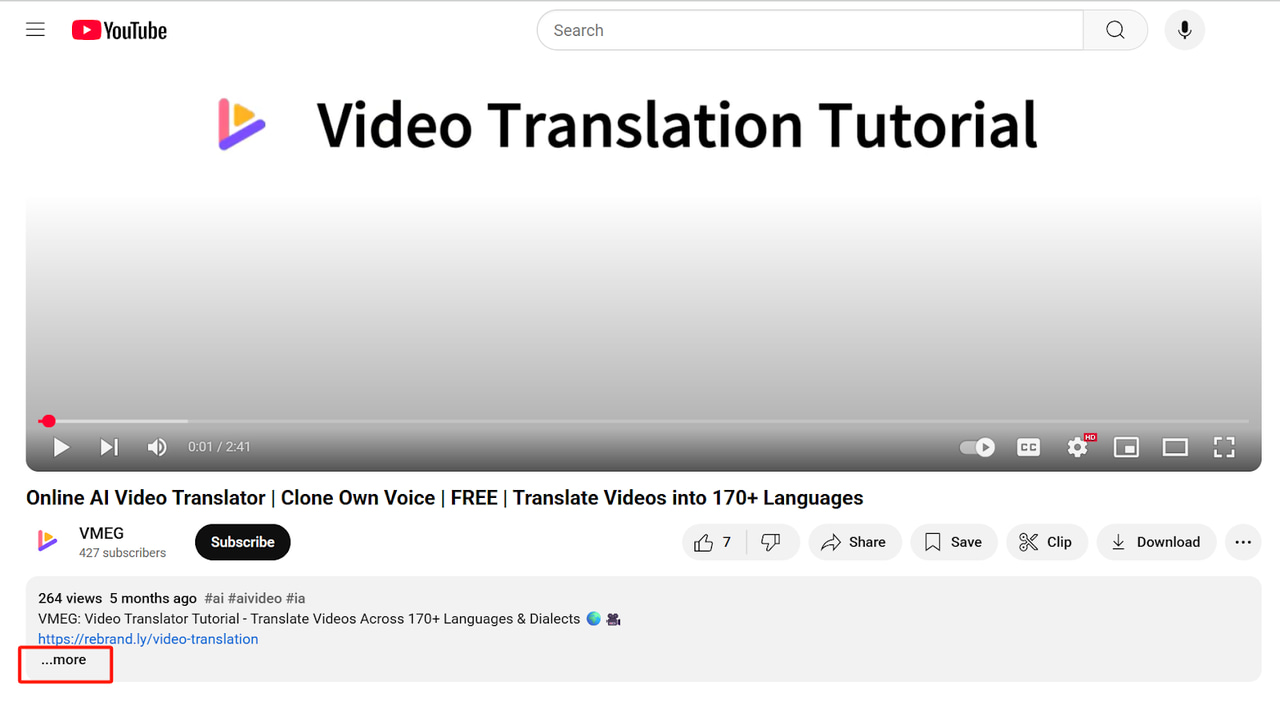
Step 1. Open the YouTube video and click the “⋯ More” button below the video player.
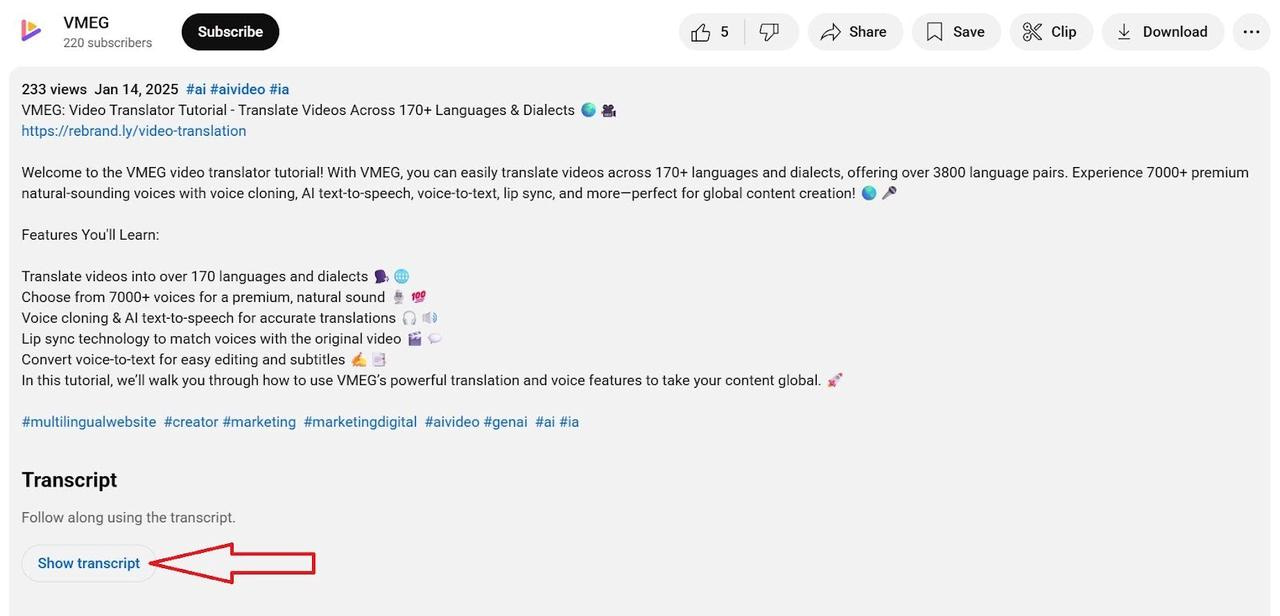
Step 2. Select “Show transcript”.
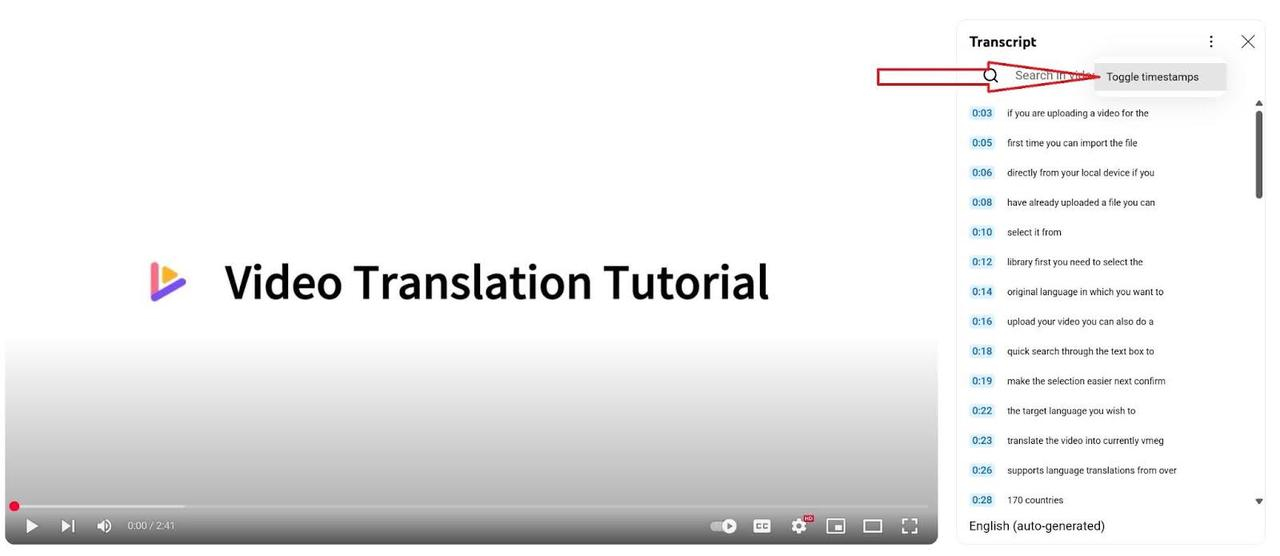
Step 3. A transcript panel appears on the right. Click the ⋮ icon in the transcript panel, and “Toggle timestamps” or not.
Step 4. Select all text and copy & paste into a text editor and save as .txt or convert to .srt.
How to Extract Subtitles from MP4 on Mobile
Mobile applications extend subtitle extraction capabilities, enabling on-the-go subtitle management for content creators, travelers, and mobile-first users. Leading mobile extraction apps include VLC for Mobile, Video & TV SideView, and more.
Frequently Asked Questions about Subtitles Extraction
What is the difference between dubbing and subtitling?
Simply, dubbing replaces the original audio track with original or translated voice-overs. Subtitling adds original or translated text (subtitles) to the video screen while preserving the original audio.
Why aren't any subtitle tracks detected?
This frequent problem occurs when videos lack embedded subtitle data or when your video subtitle extractor tool fails to recognize the format. Try an alternative subtitle extractor since different software handles formats uniquely. Or use the VMEG AI subtitle generator to explore possibilities with original and translated subtitles.
How can I fix out-of-sync subtitles?
Timing misalignment is the most common quality issue when you extract subtitles from a video. Causes include frame rate mismatches or original timing errors. You can use tools like Subtitle Edit for adjustments and re-extraction. Manual correction is often necessary for precision.
How do I handle complex subtitle formats like image-based?
Image-based subtitles require OCR conversion to text formats. Use Subtitle Edit's OCR capabilities, expect longer processing times, and manually review accuracy. This specialized approach preserves content when you extract subtitles from video in graphical formats.
Subtitles vs Closed Captions?
Subtitles are original or translated dialogue for viewers hearing the audio. Closed captions (CC) transcribe dialogue and describe sound effects/music for viewers who are deaf or hard of hearing.
Conclusion
Efficiently extracting subtitles from video files is essential for editing, translation, or academic workflows. Whether working with embedded subtitles in MKV/MP4 files, YouTube captions, or raw audio, this guide provides tailored solutions—from VLC’s simplicity for beginners to Subtitle Edit’s advanced OCR for professionals and VMEG’s AI-powered generation and translation.
Each method balances speed, format compatibility, and output quality. Text subtitle streams can often retain timing and formatting, while OCR and AI-generated subtitles require review. By selecting the right video subtitle extracting method, users can transform traditional manual work into an efficient task with automated precision.
For videos without an extractable subtitle track, AI tools such as VMEG can generate an editable subtitle draft. Review the result, then export the format available for your workflow.
VMEG Subtitle Generator & Translator
Generate and translate editable subtitle drafts across 170+ languages and dialects, then review the result before export.


The VMEG Team
Behind VMEG stands a passionate team of creatives, engineers, and language lovers. At the crossroads of AI and storytelling, they craft tools that bridge languages and cultures.