English
EN

ChatGPT Video Translator

Connect VMEG to ChatGPT through the GPT Marketplace or MCP. Translate, dub, and localize videos in 170+ languages directly from your AI assistant.

What Is a ChatGPT Video Translator?

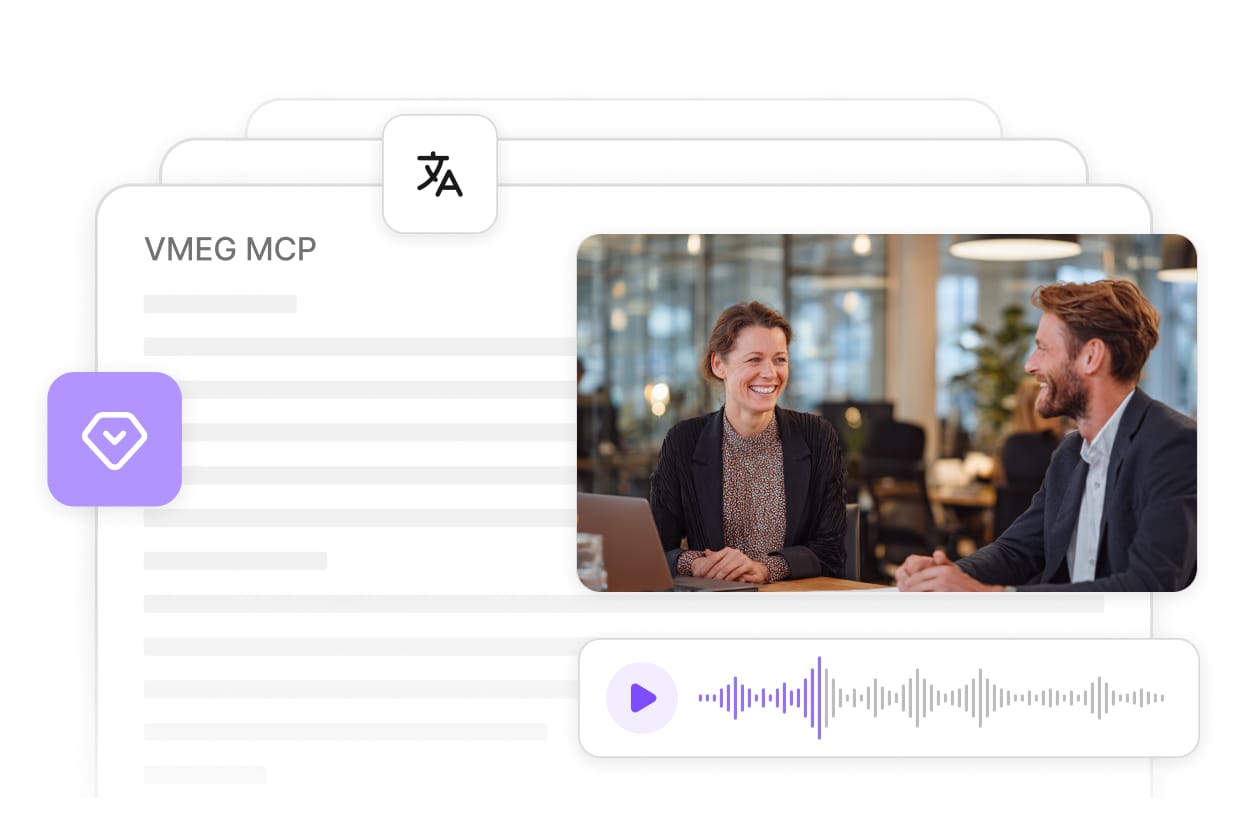
A ChatGPT video translator is an AI workflow that uses ChatGPT — together with a video translation engine — to convert a video's speech into another language with translated audio, dubbed voice, and (optionally) lip-sync.

ChatGPT itself is a text-and-conversation model. It does not natively translate the audio inside an MP4 file. To translate a video "with ChatGPT," you connect ChatGPT to a tool that can actually process video.

VMEG is that tool. Once connected through the ChatGPT app marketplace or the VMEG Remote MCP server, ChatGPT can:

  • Receive a video file or link from you
  • Hand it off to VMEG's translation engine
  • Wait for the translated, dubbed, and lip-synced output
  • Hand the finished file back to you in the same chat

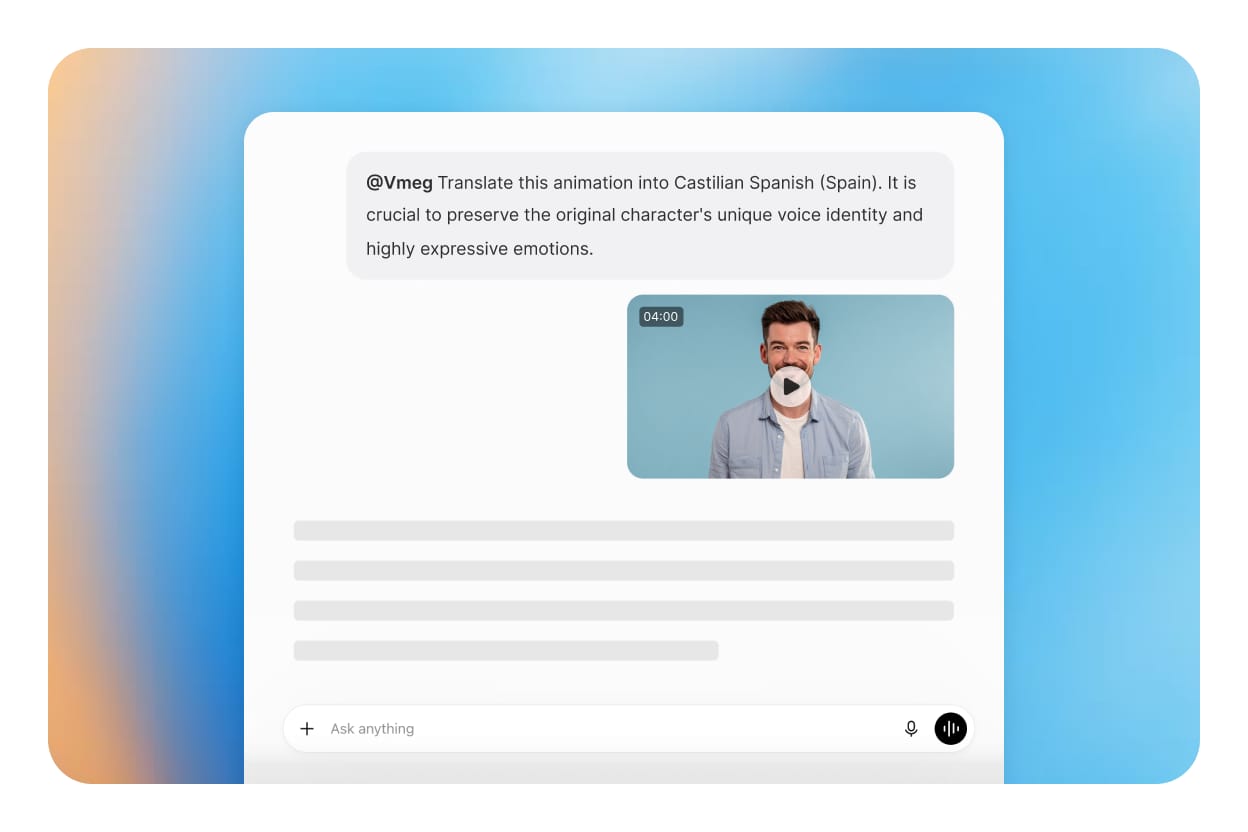
You stay inside the ChatGPT interface. VMEG does the heavy media work. ChatGPT handles the conversation, the prompts, and the follow-up edits.
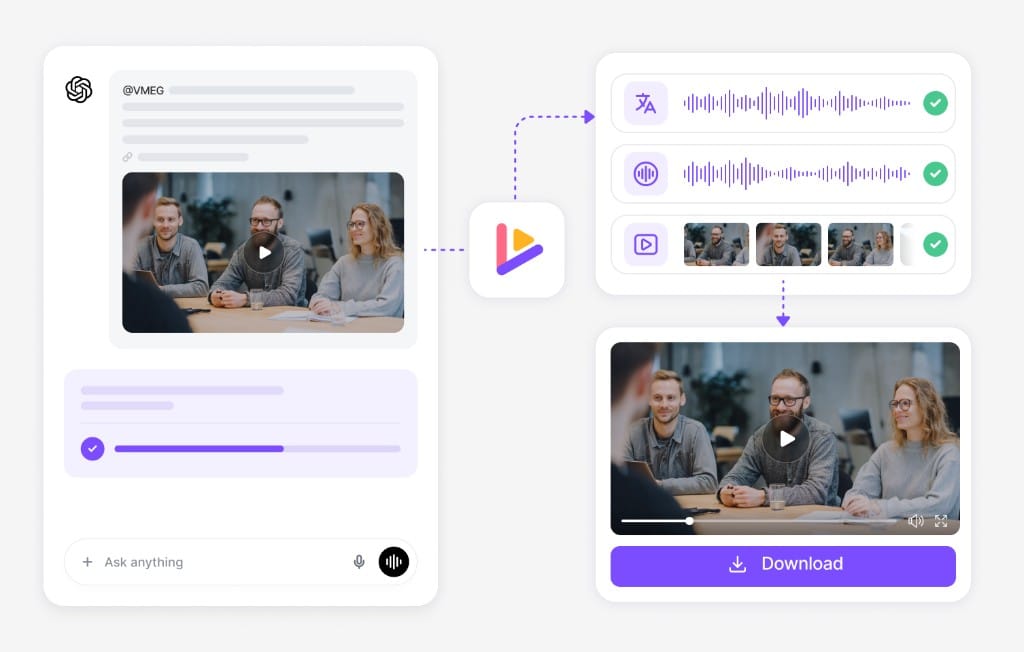
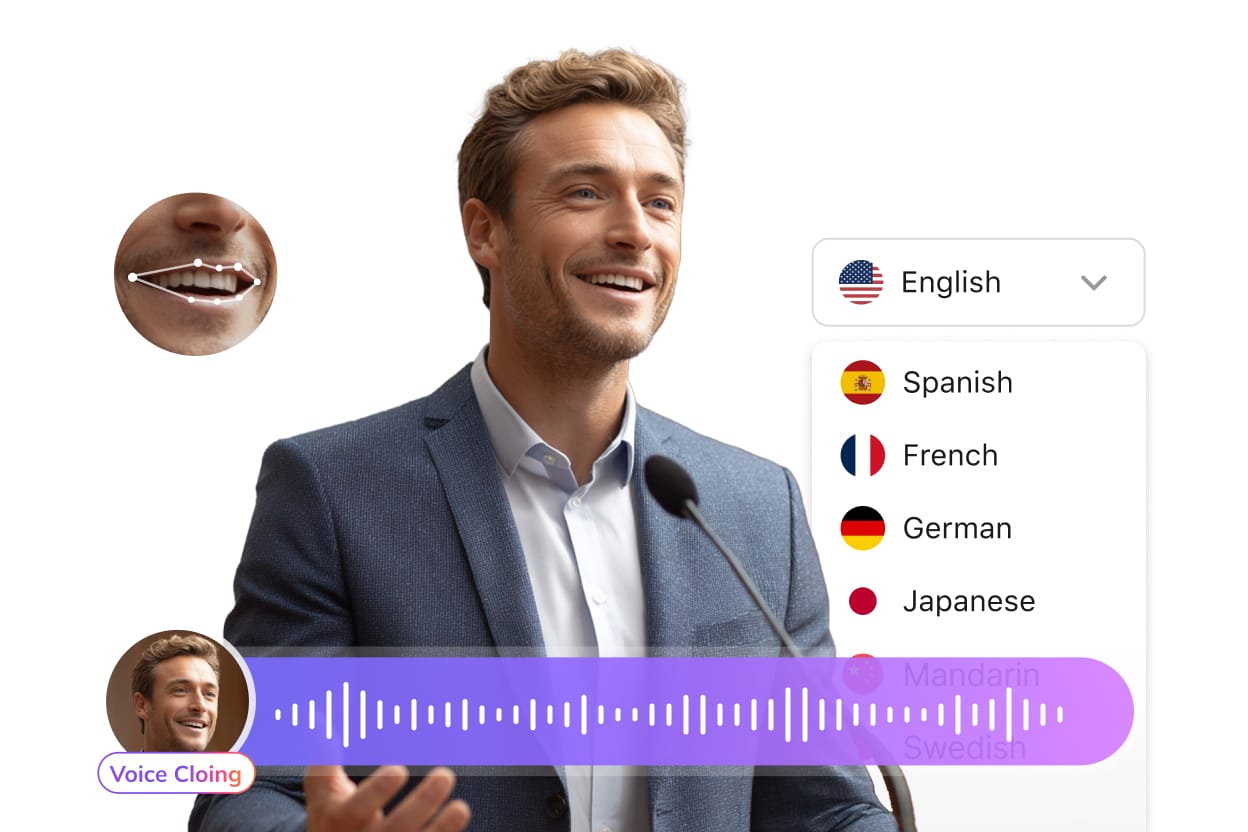
ChatGPT connected to VMEG video translation workflow

How to Translate a Video with ChatGPT (Step by Step)

You have two ways to get started. Pick the one that matches how you use ChatGPT.

Option 1

Connect through the ChatGPT App Marketplace (easiest)

Search App

upload

Dubbing

1. Open ChatGPT and Search VMEG

Open ChatGPT and click Apps in the left sidebar. Search for VMEG Video Translator.

2. Click Connect and sign in

Click Connect and sign in with your VMEG account.

3. In any chat

In any chat, type: "Translate this video to Spanish with VMEG."

4. Upload your MP4 or paste a YouTube link.

Upload your video or audio files, select target languages, and start your translation project in minutes.

5. Wait for VMEG to return the translated, dubbed video.

You can ask ChatGPT to re-dub, re-translate, or adjust the output inside the same conversation.

Go to ChatGPT Marketplace

Option 2

Connect VMEG MCP manually (works today)

API key

Enter link

Dubbing

1. Create a free account and grab an API Key

Create a free VMEG account and grab an API Key from your VMEG dashboard.

2. Click Connect and sign in

In ChatGPT, open Settings → Connectors → Add custom connector (not a marketplace listing).

3. Enter:

  • Name: VMEG
  • URL: https://www.vmeg.ai/api/mcp
  • Authorization: Bearer YOUR_API_KEY

4. Start a new chat and ask

Start a new chat and ask: "Translate this video to French with VMEG."

5. Wait for

ChatGPT will upload the file, call VMEG, and return the translated video.

Full instructions

Why Use VMEG as Your ChatGPT Video Translator

Real video translation, not just subtitles.

VMEG re-dubs the audio and can re-sync the speaker's lips. Most "video translators" only output translated SRT files.

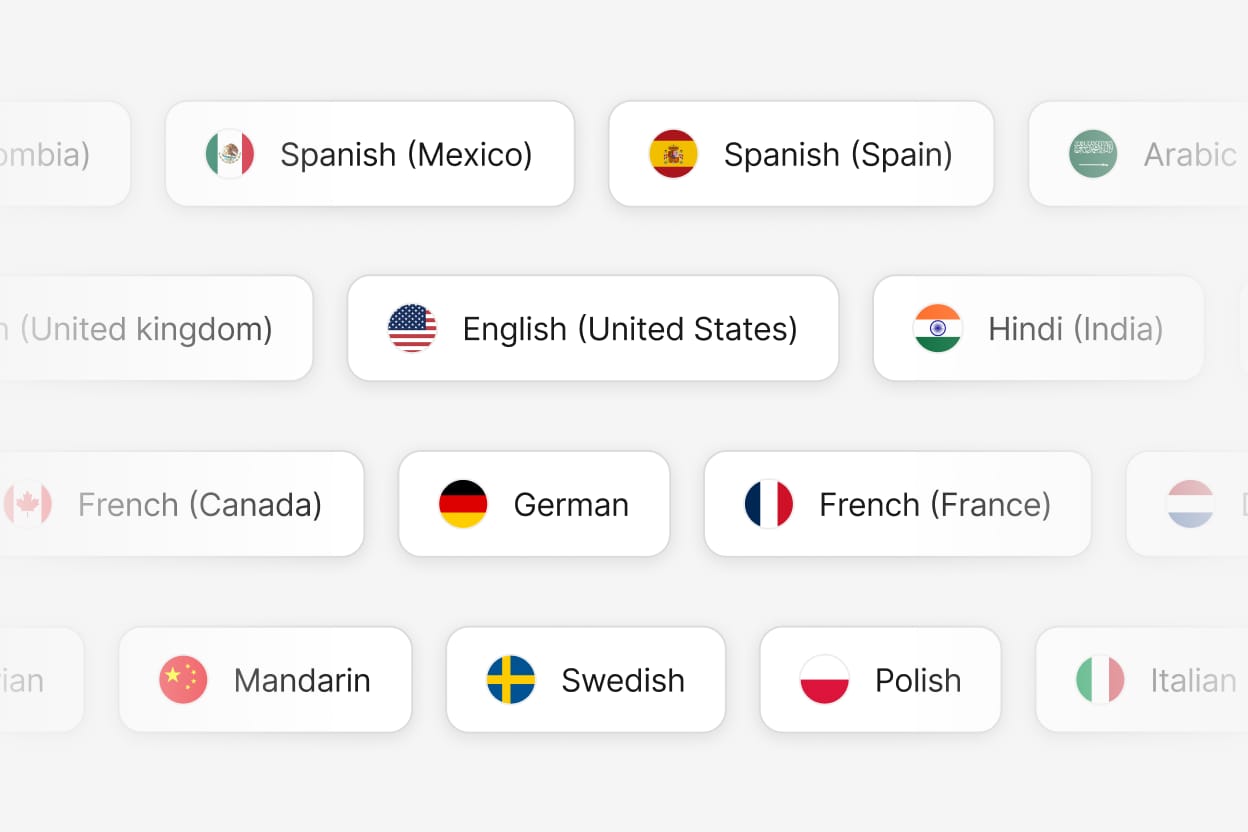
170+ languages with native-quality voices.

Powered by VMEG's voice cloning and TTS stack, not a generic translator.

Works from inside ChatGPT.

No new tab, no upload portal, no copy-pasting transcripts. The translated video comes back into the same chat.

Same Credits, Same Powerful Engine

Use your existing VMEG credits with no extra fees. MCP runs on the same translation engine as vmeg.ai, giving you the full VMEG experience.

Contact sales

What You Can Translate with ChatGPT + VMEG

One secure platform for professional AI dubbing pipeline

Media type
Video file
Audio file
YouTube link
Subtitle file
Supported inputs
MP4, MOV, WEBM, MKV
MP3, WAV, M4A
Any public YouTube URL
SRT, VTT
Output
Translated + dubbed video with optional lip-sync
Translated audio in target language
Translated + dubbed video
Translated subtitles in target language

170+ target languages

Spanish, French, Mandarin, Japanese, Arabic, Hindi, and more

Voice cloning

keep the original speaker's voice across languages

Lip-sync

optional mouth-movement alignment for translated speech

Subtitle generation

burned-in or exportable SRT/VTT

Full instructions

Common Use Cases

Content Creators & Podcasters

YouTubers, podcasters, and short-form video creators rely on VMEG Text to Speech to add clear, natural voiceovers without needing a microphone or recording studio. Whether it's narration, ad scripts, or entertaining stories, VMEG's library of over 7,000 voices in 170+ languages helps creators reach wider, multilingual audiences while saving time on recording and editing.

Educators, Students & E-Learning Platforms

Teachers, course developers, and language learners use VMEG to convert lessons, presentations, and training materials into lifelike speech that enhances engagement and accessibility. Text to Speech is especially helpful for visually impaired students, making educational content more inclusive and easier to absorb across different languages.

Businesses & Marketing Teams

Companies and marketing professionals use VMEG to quickly produce multilingual voiceovers for training videos, product demos, and advertisements. With precise control over tone, speed, and emotion, VMEG enables fast localization to connect with global customers authentically, saving costs on voice talent and accelerating project timelines.

Frequently

Asked

Questions

Can ChatGPT translate a video by itself?

No. ChatGPT is a text model. To translate the actual audio inside a video file, you need to connect it to a video translation engine. VMEG is that engine, and it plugs into ChatGPT through the app marketplace or via MCP.

Do I need a paid ChatGPT plan?

ChatGPT's connector/MCP features typically require a paid plan (Plus, Team, or Enterprise). VMEG itself has a free tier to start; production usage draws on VMEG plan credits.

How long does it take to translate a video?

A 5-minute video usually finishes in 5–15 minutes, depending on the source language, target language, and whether lip-sync is enabled. Longer videos scale linearly.

Can I keep the original speaker's voice?

Yes. VMEG's voice cloning preserves the original speaker's tone and pacing in the target language. You can also pick from 100+ stock voices.

Does the video come back with lip-sync?

Yes, lip-sync is enabled by default for video outputs. You can disable it in the task settings if you prefer faster rendering.