


Narrated Presentation Videos
Combine your slides with spoken explanation so the presentation can stand on its own as video content.
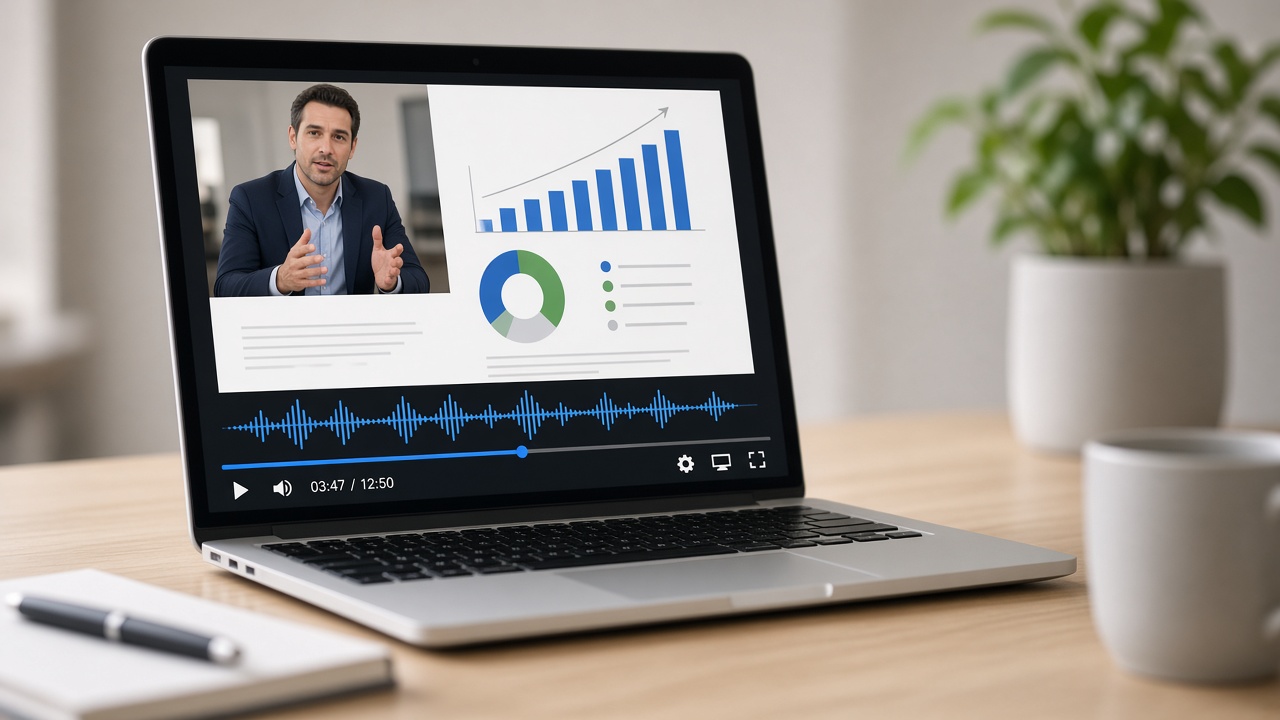


Turn PowerPoint slides into narrated presentation videos without recording from scratch. Upload your PPT, add your own audio or narration text, and create a presenter-led video with AI.
Turn static slides into a presentation viewers can watch and listen to without requiring you to present it live.
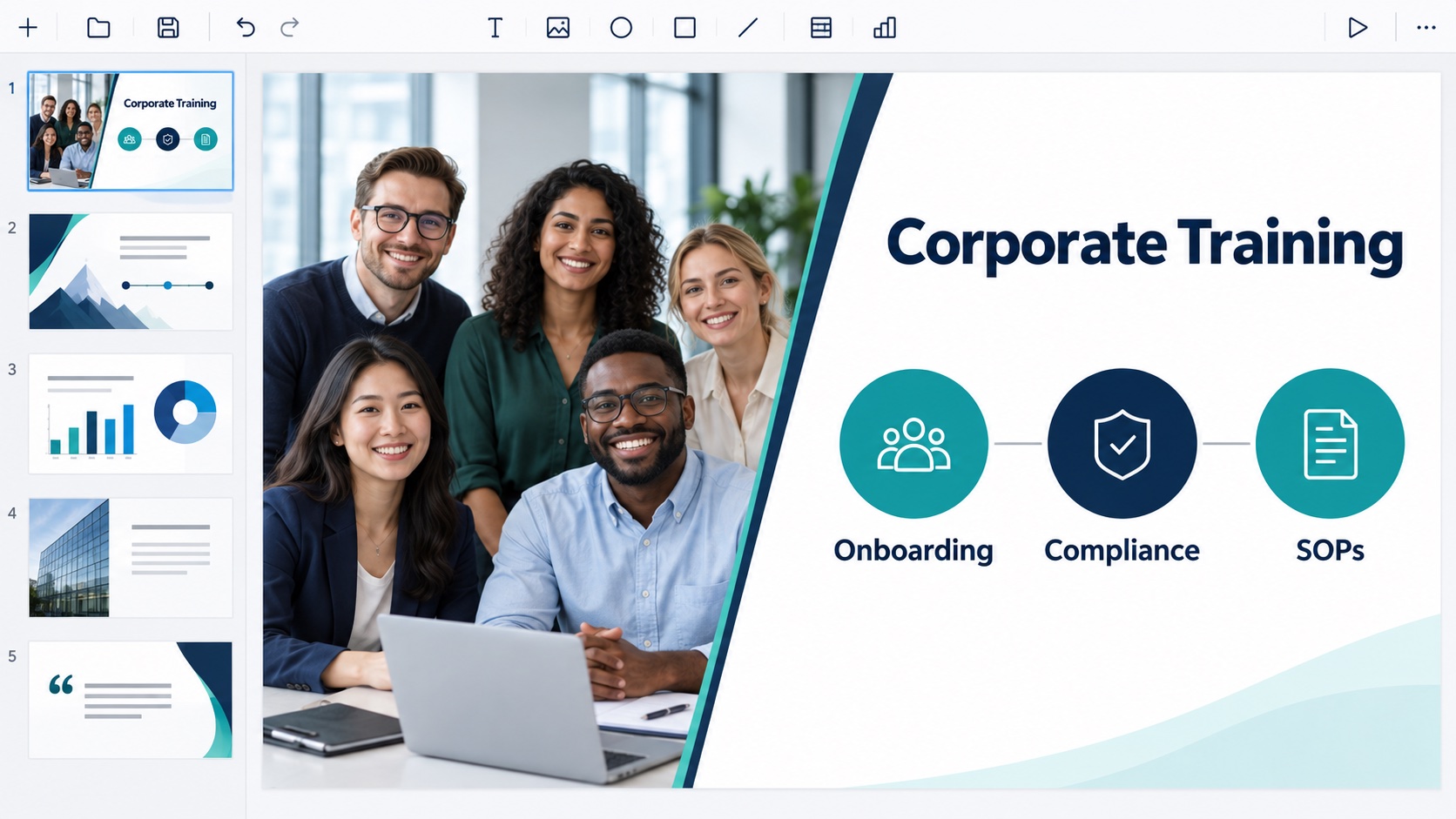
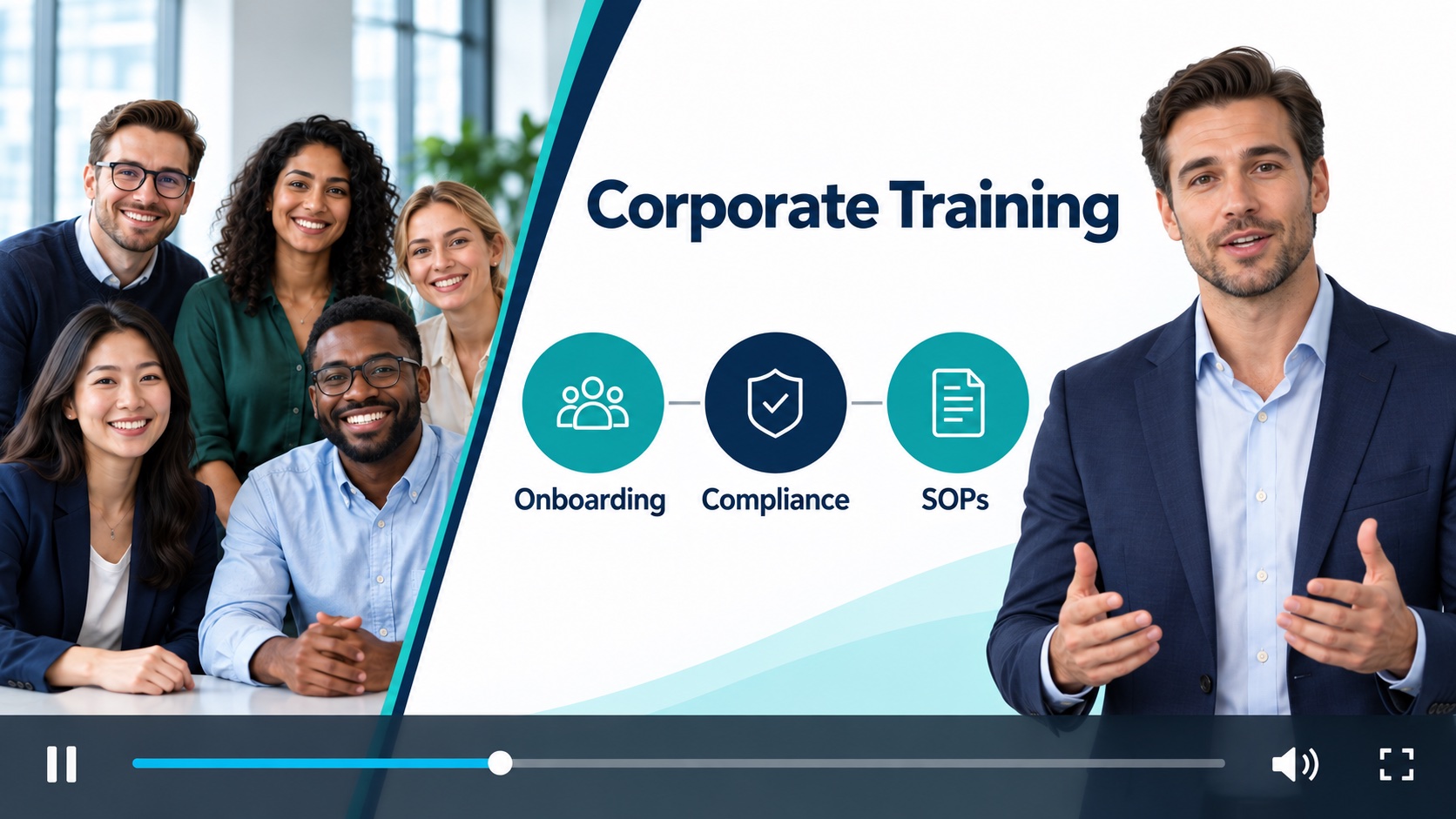
Turn onboarding, compliance, and SOP decks into training videos teams can watch on demand.
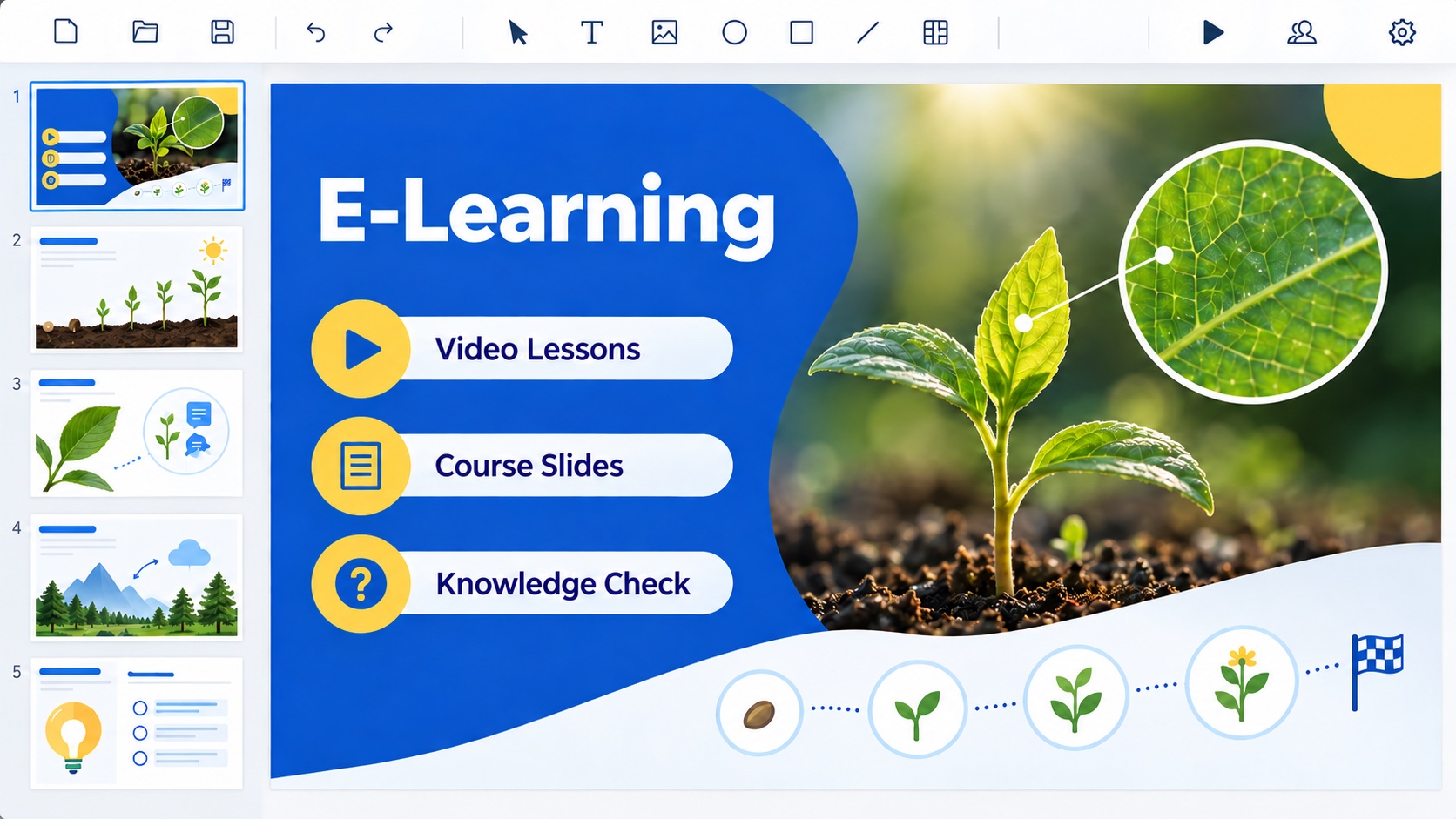
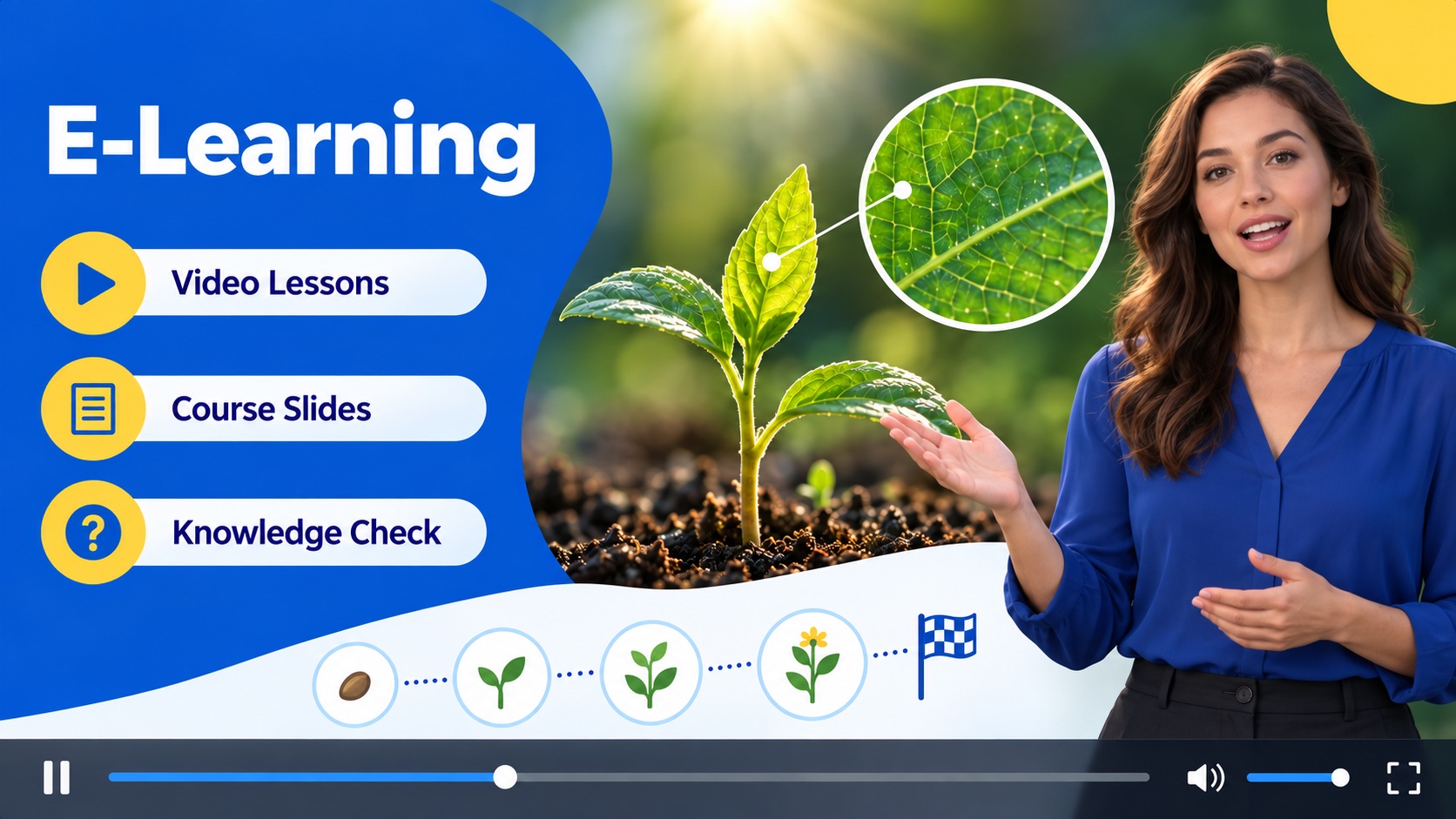
Create narrated video lessons from teaching slides and course presentations.
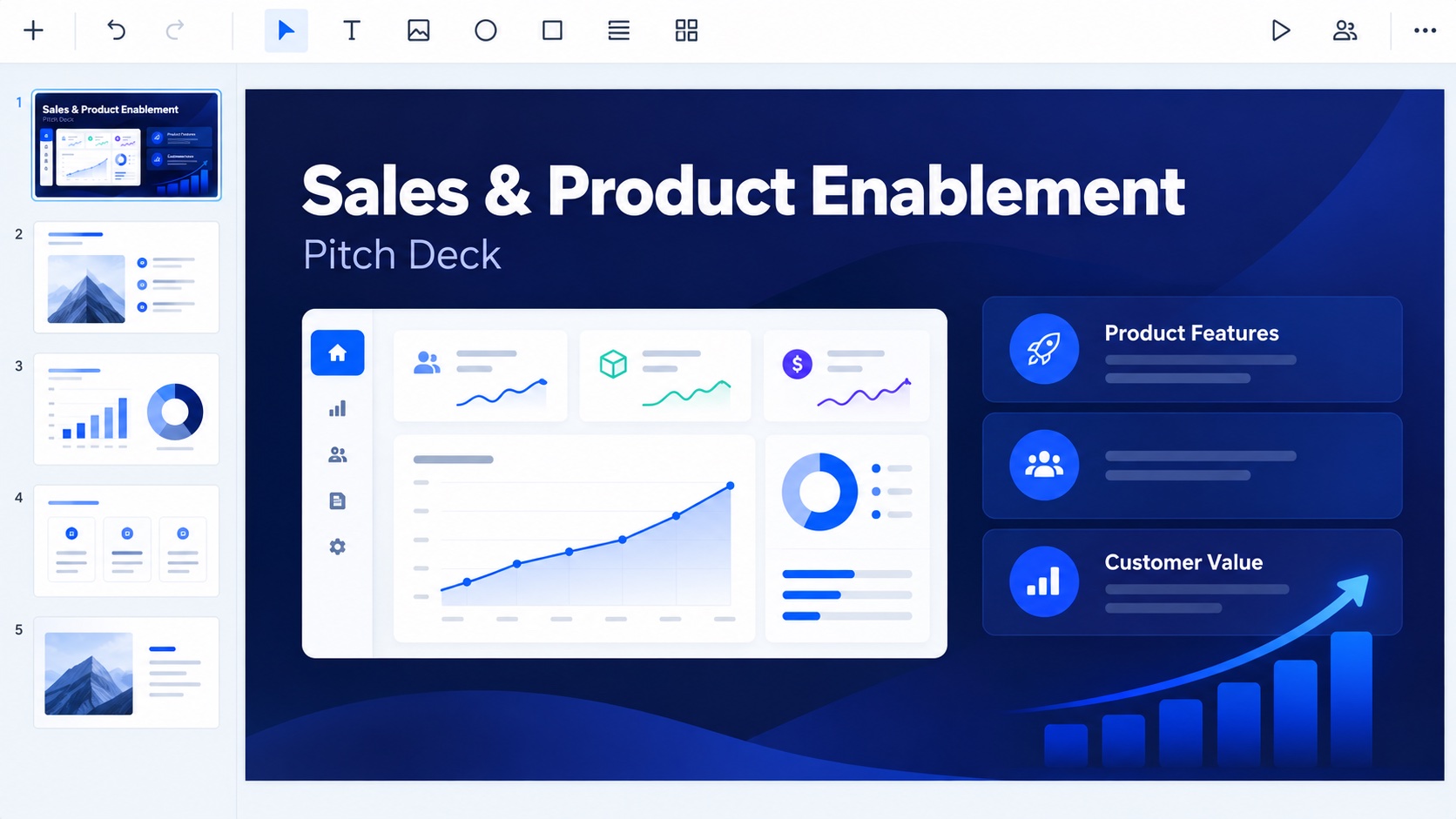
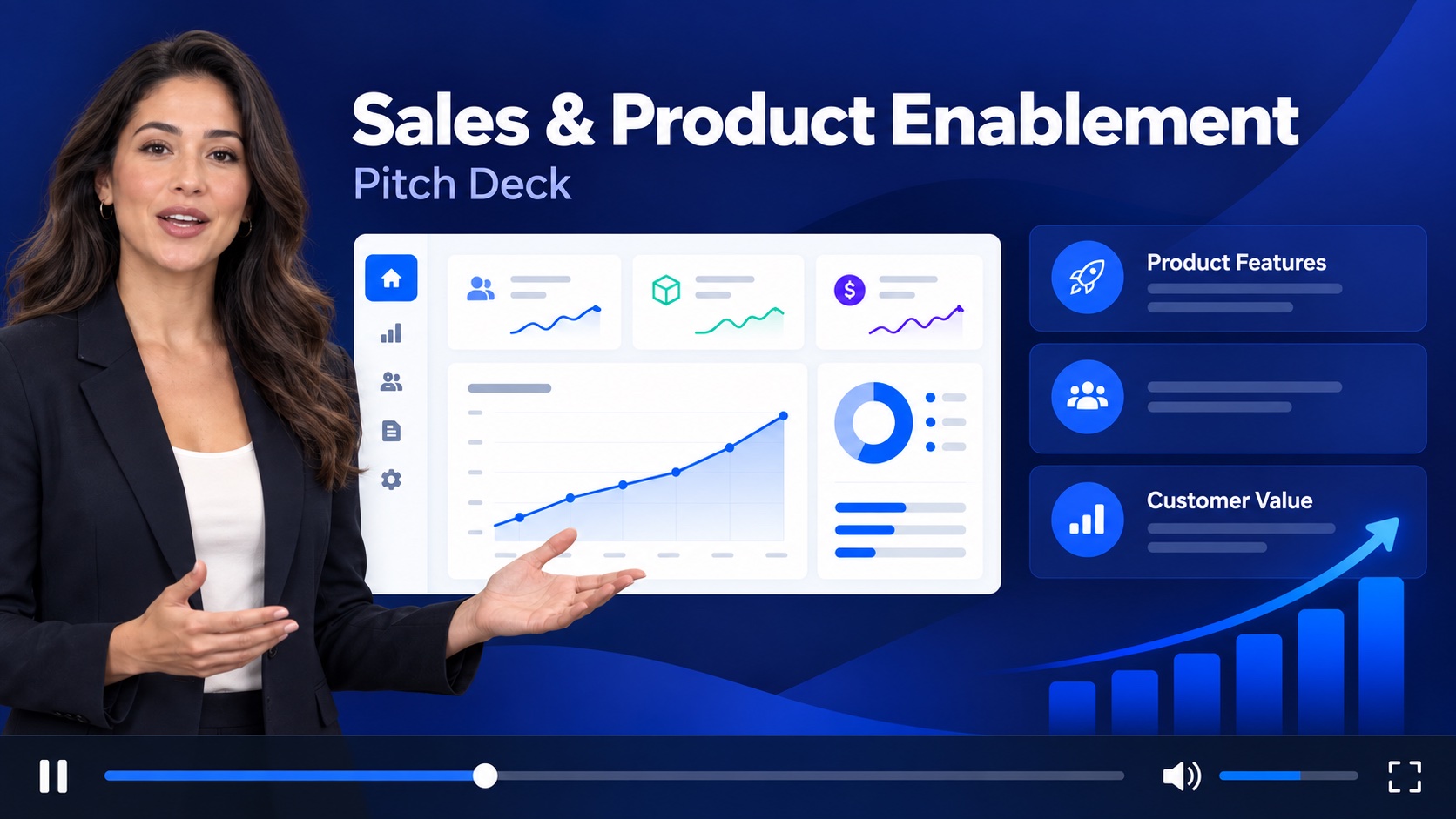
Turn pitch decks and product presentations into videos prospects can watch asynchronously.
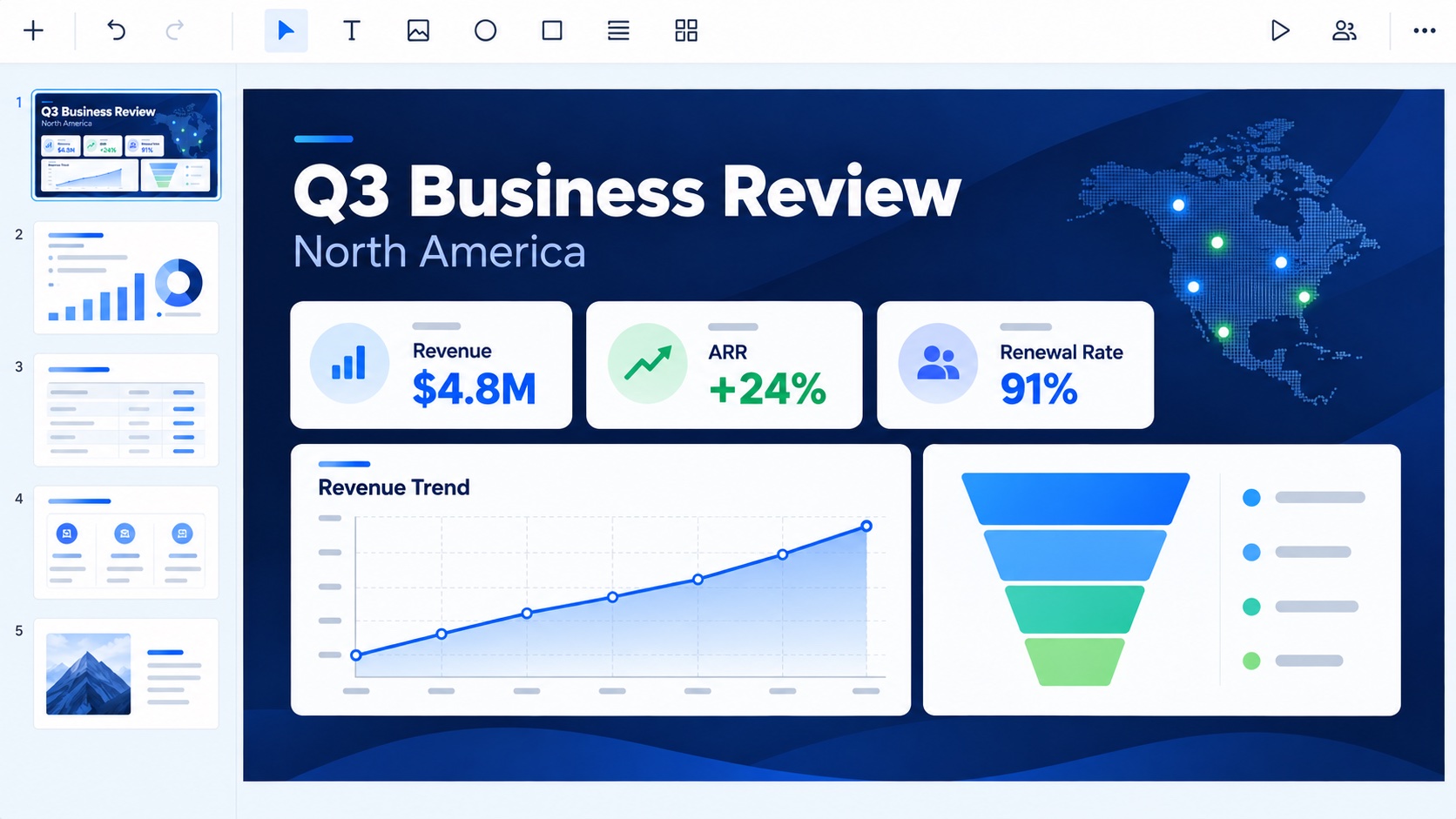
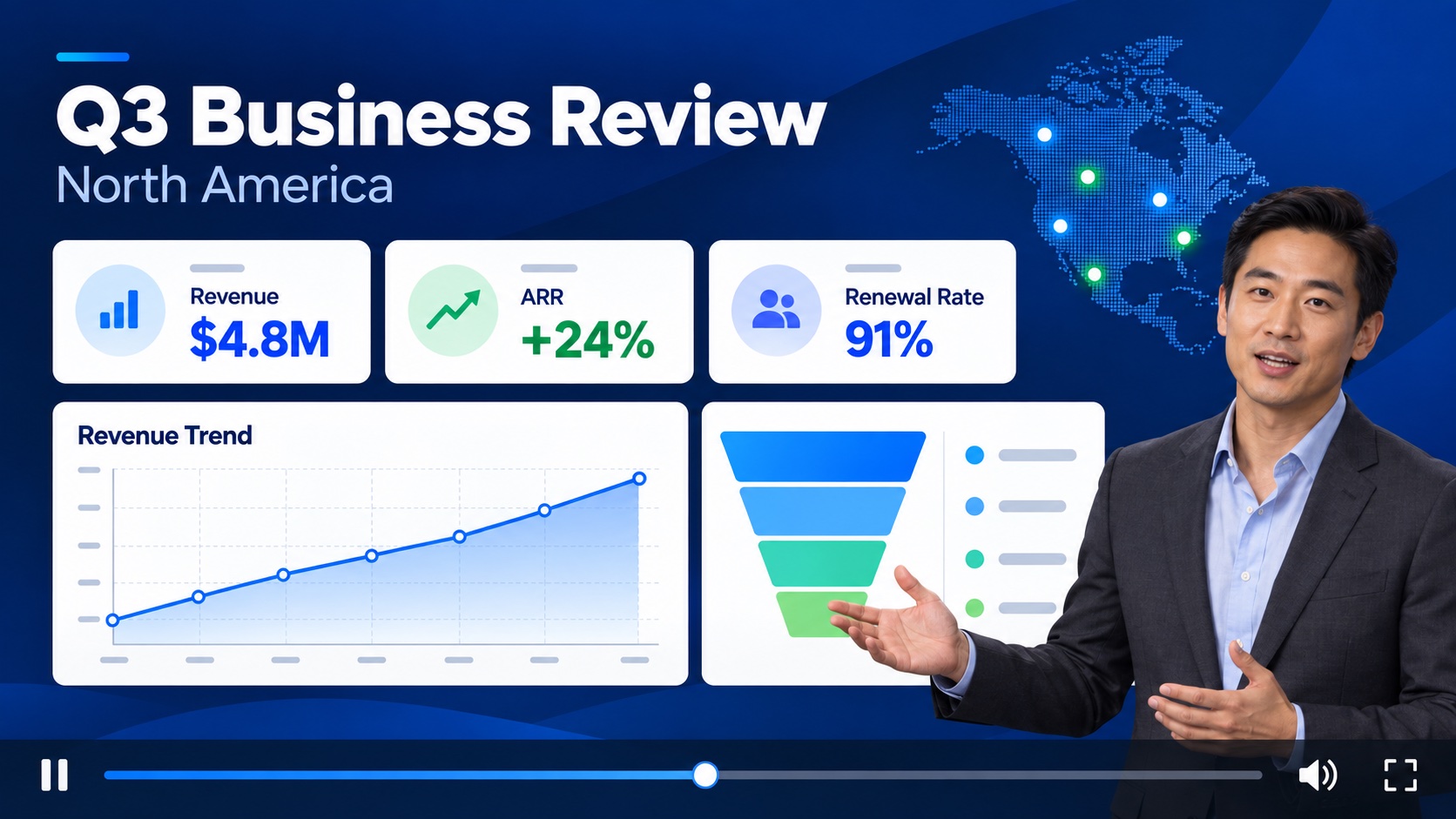
Turn quarterly business review decks into presenter-led videos stakeholders can watch on demand.
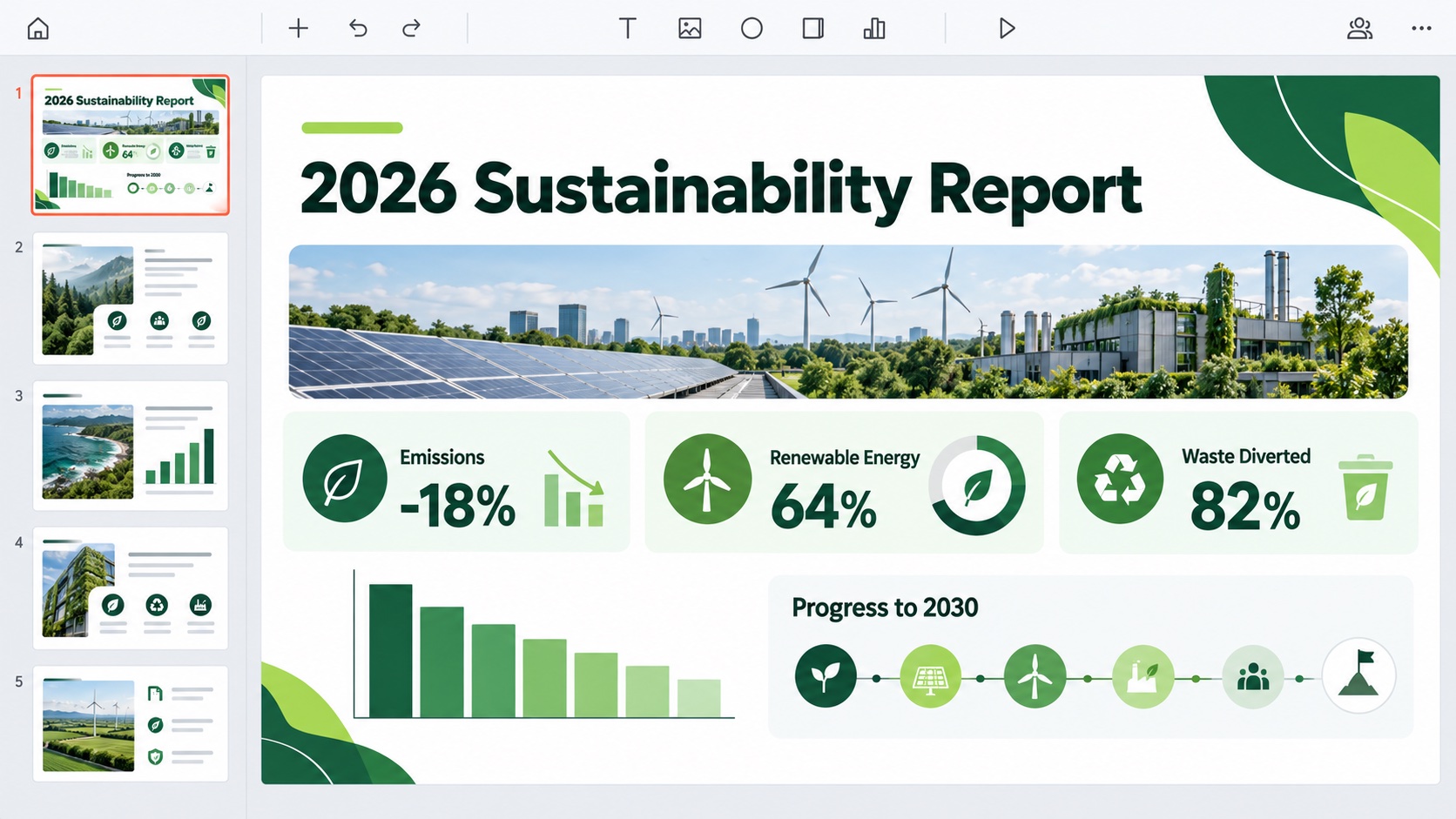
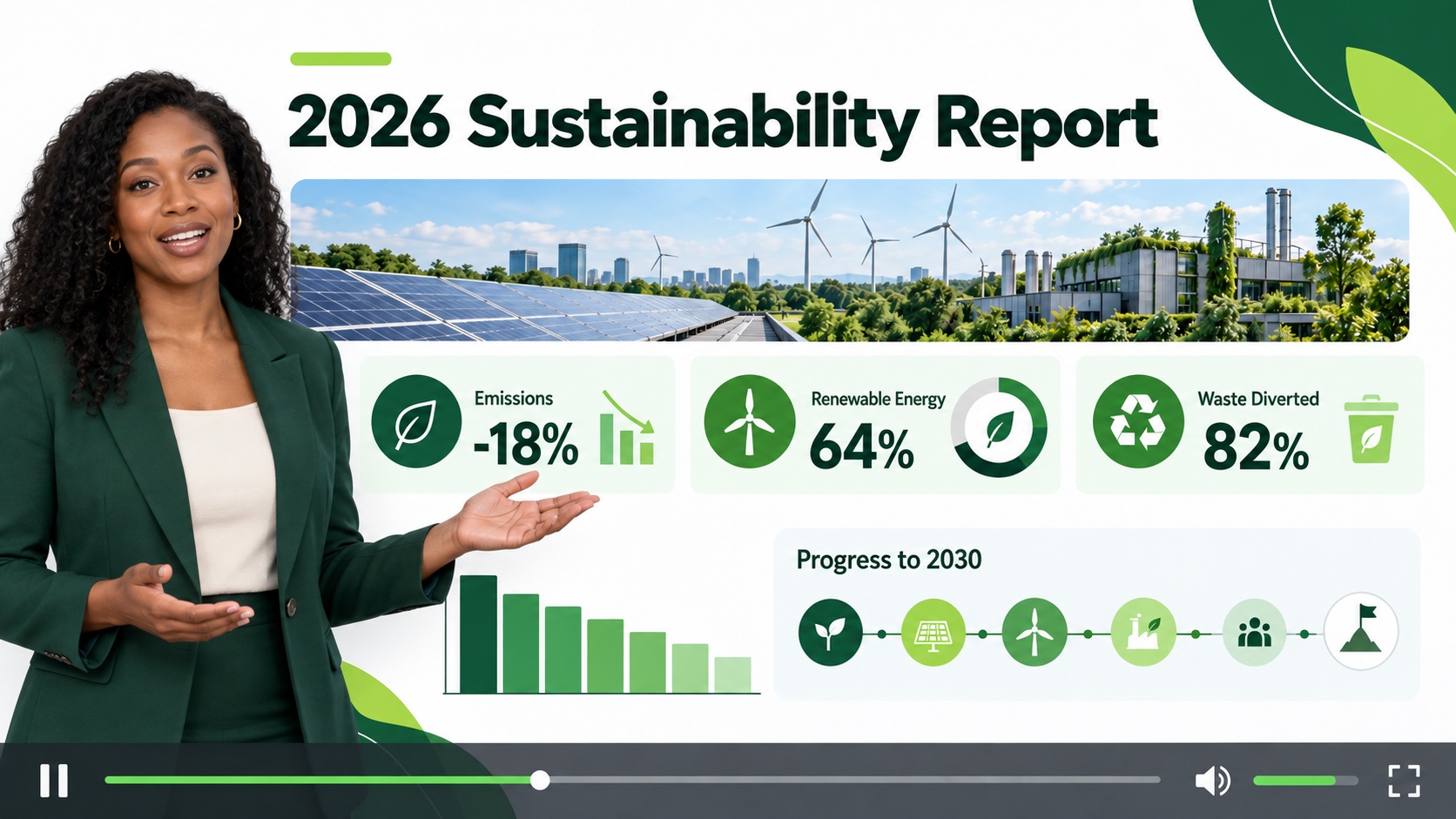
Convert sustainability and ESG report slides into narrated videos that are easier to share and review.
Use the presentation you already have as the starting point for video content viewers can follow without a live presenter.
Combine your slides with spoken explanation so the presentation can stand on its own as video content.
Add an AI presenter to deliver your presentation without filming yourself on camera.

Use your own recorded narration or generate speech from text and sync it with each slide.
Turn one-time presentations into video assets people can watch again for training, learning, sales, or internal communication.
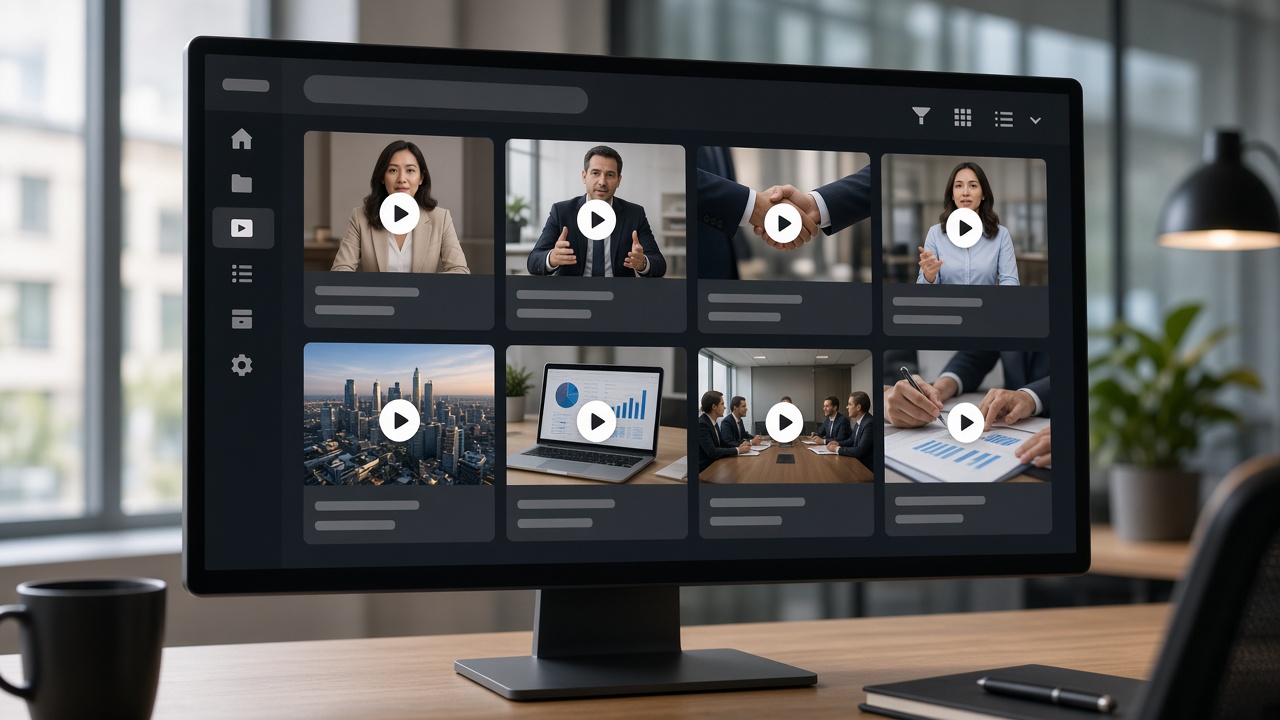
Create a narrated presentation video from the slides and content you already have.
01
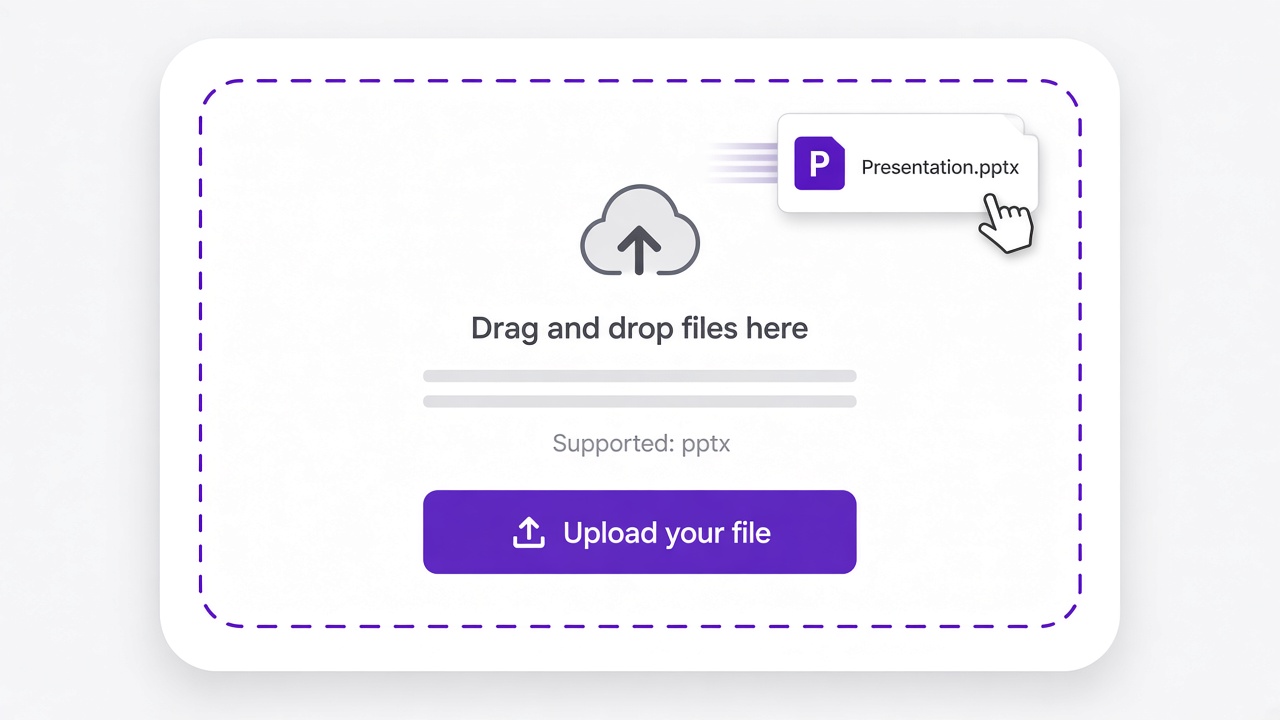
Upload the PPT presentation you want to turn into a video.
02
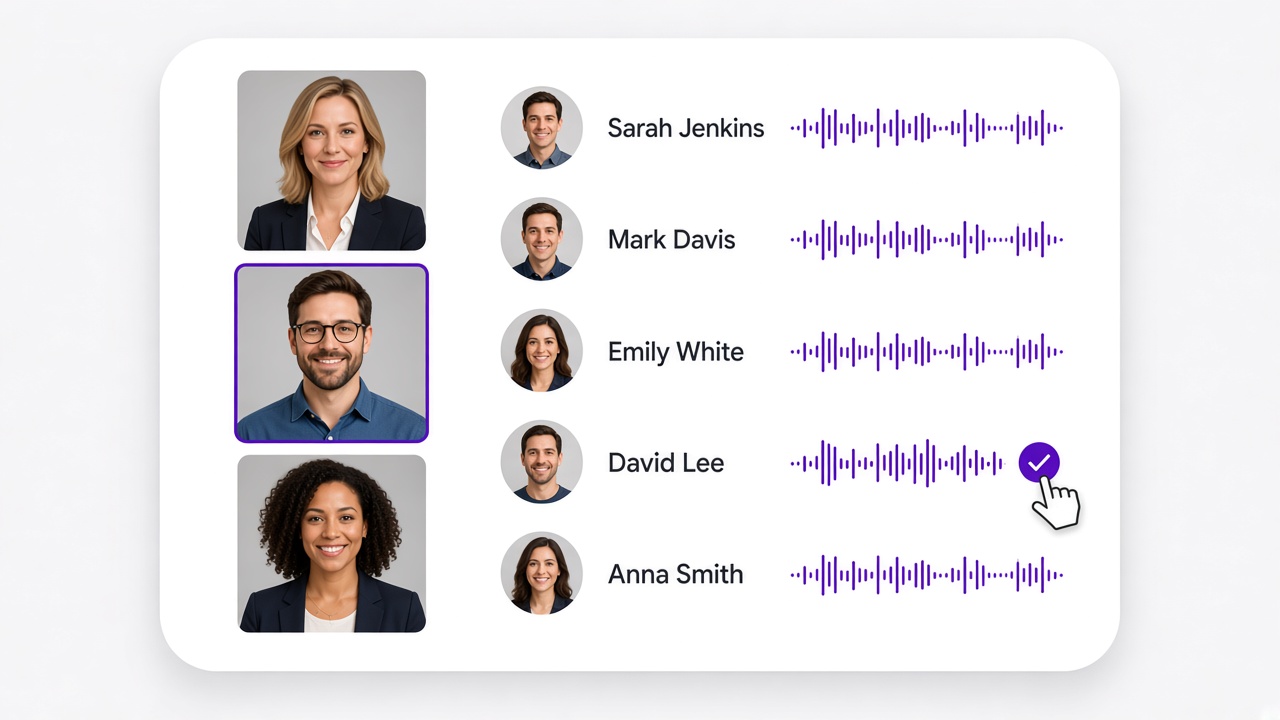
Upload your own audio, or enter text and generate narration with AI text-to-speech.
03
Combine your slides and narration with an AI presenter, then generate the finished presentation video.
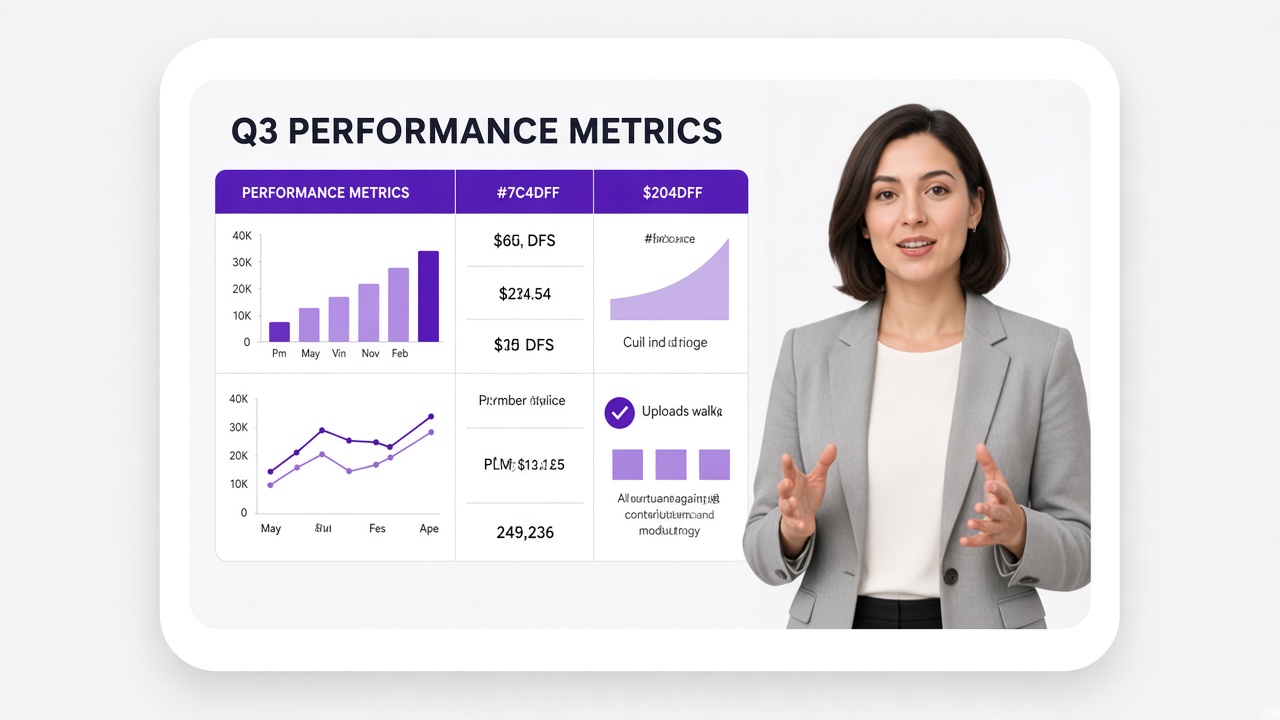
A presentation is easier to follow when viewers can hear the explanation instead of reading slides on their own. Add narration and an AI presenter directly to your presentation workflow.
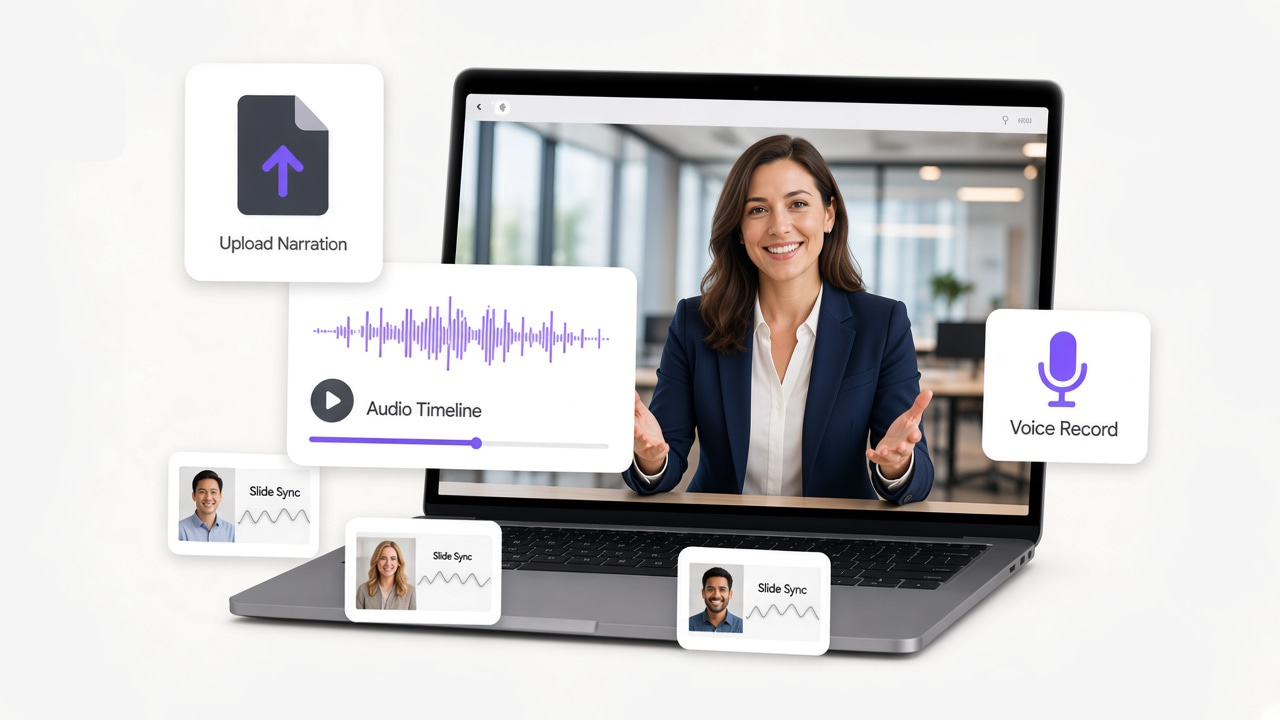
Already recorded your narration? Upload the audio and use it with your presentation.
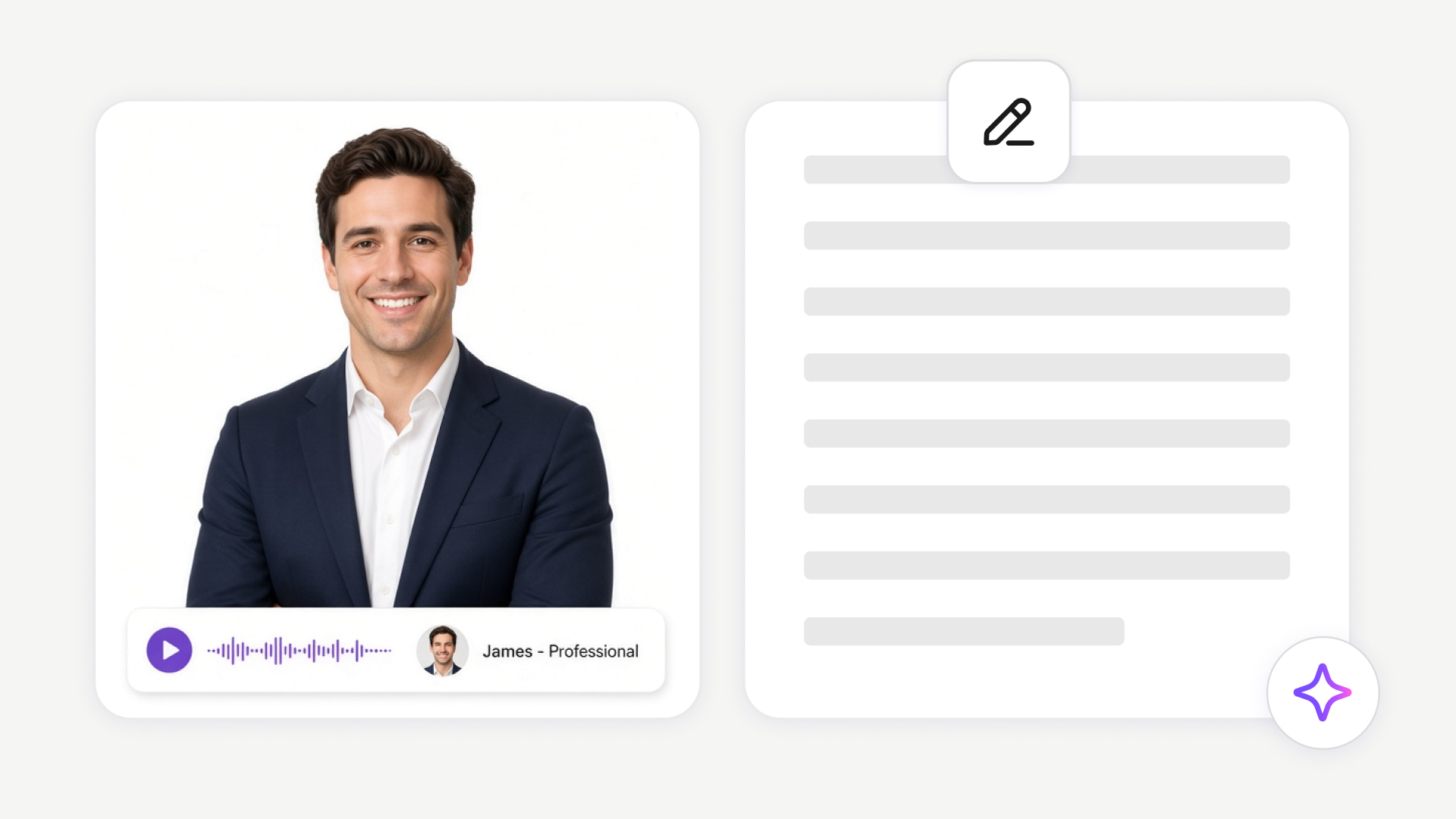
Do not have a recording? Enter your narration as text and generate spoken audio with AI text-to-speech.

Add a presenter without setting up a camera or recording yourself.
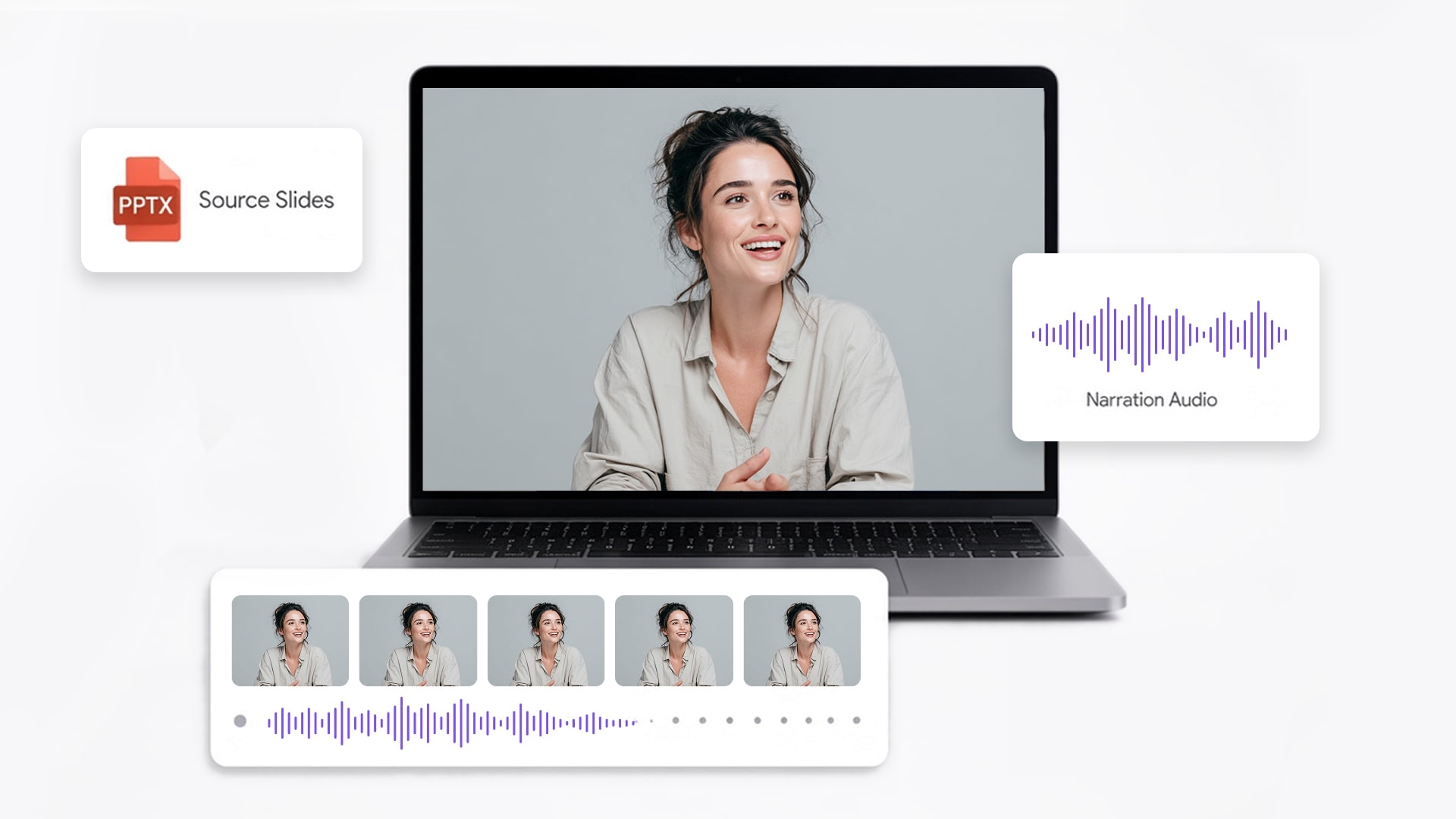
Combine the visual content of your presentation with spoken explanation to create a video that can stand on its own.
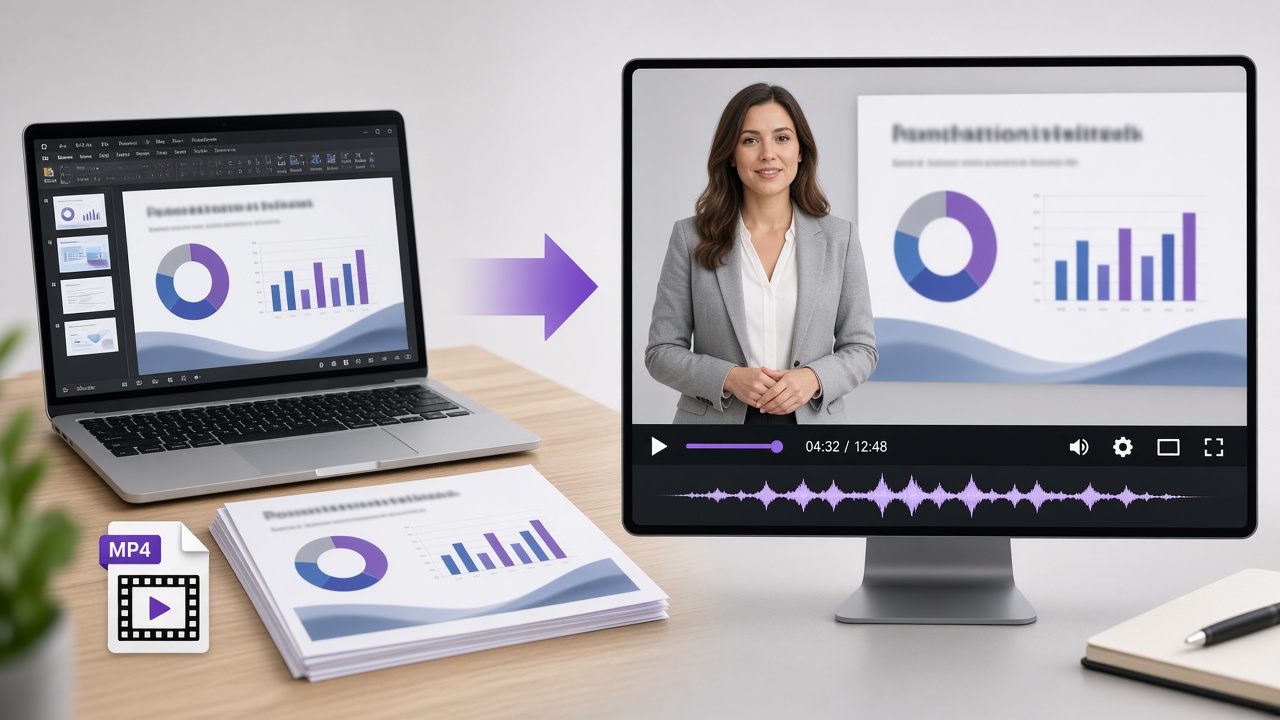
A basic converter turns presentation slides into a video file. VMEG turns your PowerPoint into a narrated presentation by combining slides with audio, AI-generated voice, and an AI presenter.Instead of simply turning slides into a sequence of video frames, create a presentation that explains the content for your audience.
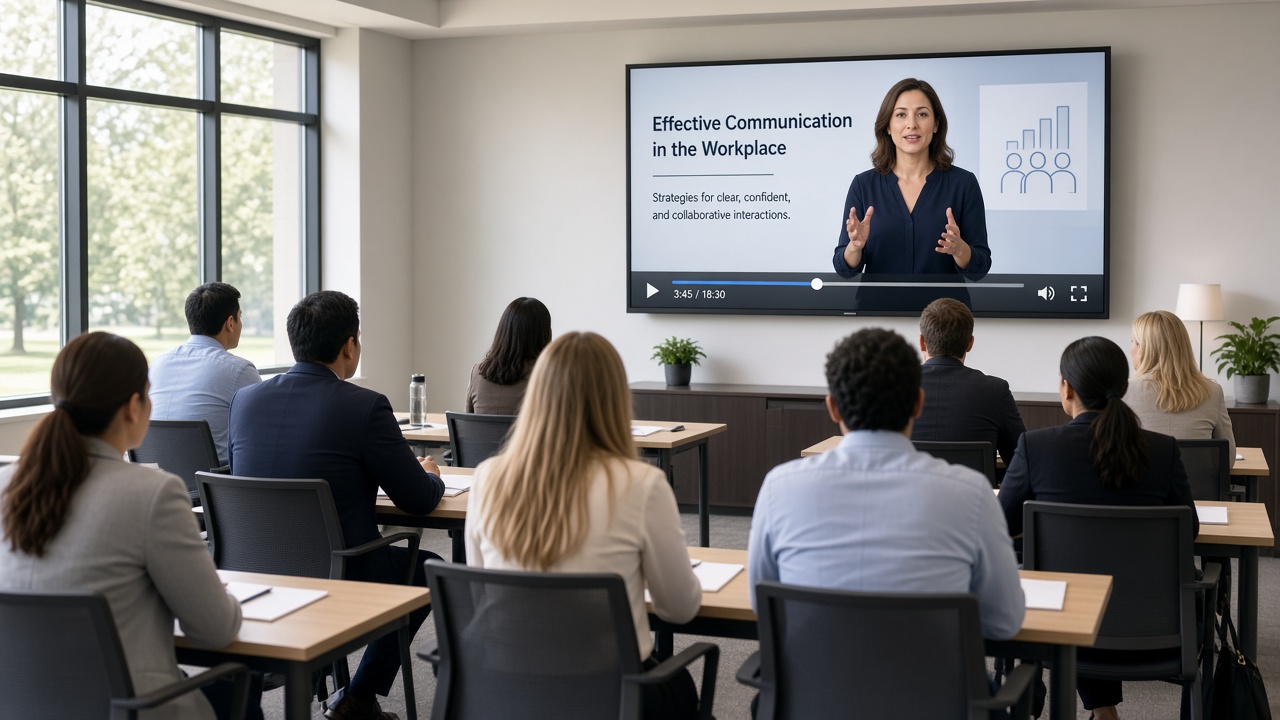
Turn onboarding decks, compliance materials, SOPs, and employee training presentations into videos teams can watch on demand. Best for: Onboarding, compliance, L&D, SOPs, internal training.
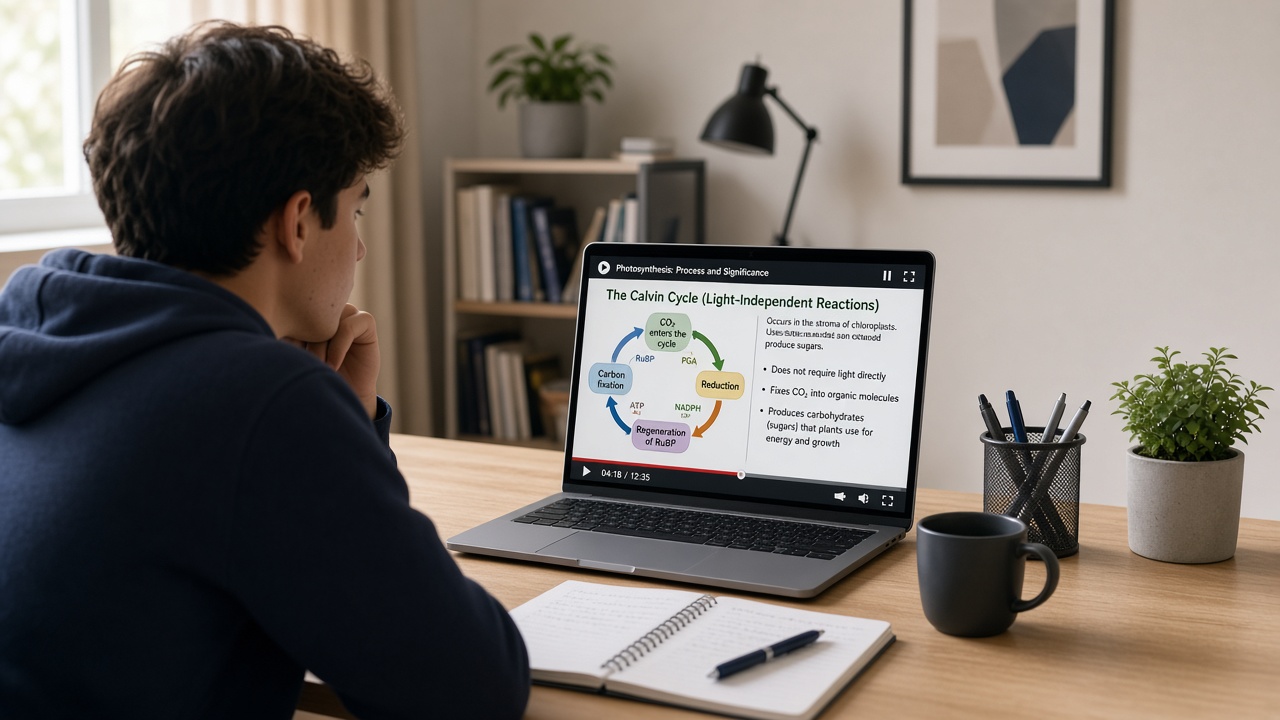
Create narrated video lessons from teaching slides and course presentations. Best for: Online courses, lectures, tutorials, educational content.
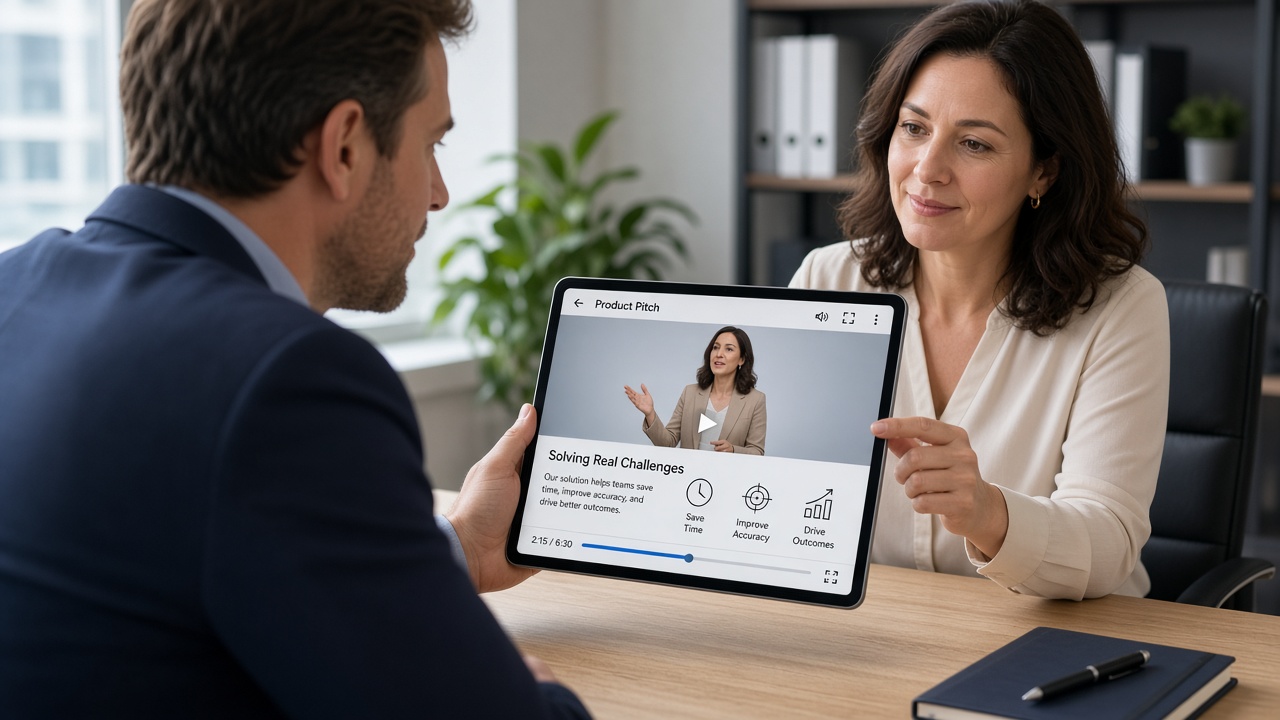
Turn pitch decks, product presentations, and feature explanations into videos customers and prospects can watch asynchronously. Best for: Sales presentations, product introductions, customer education, partner training.
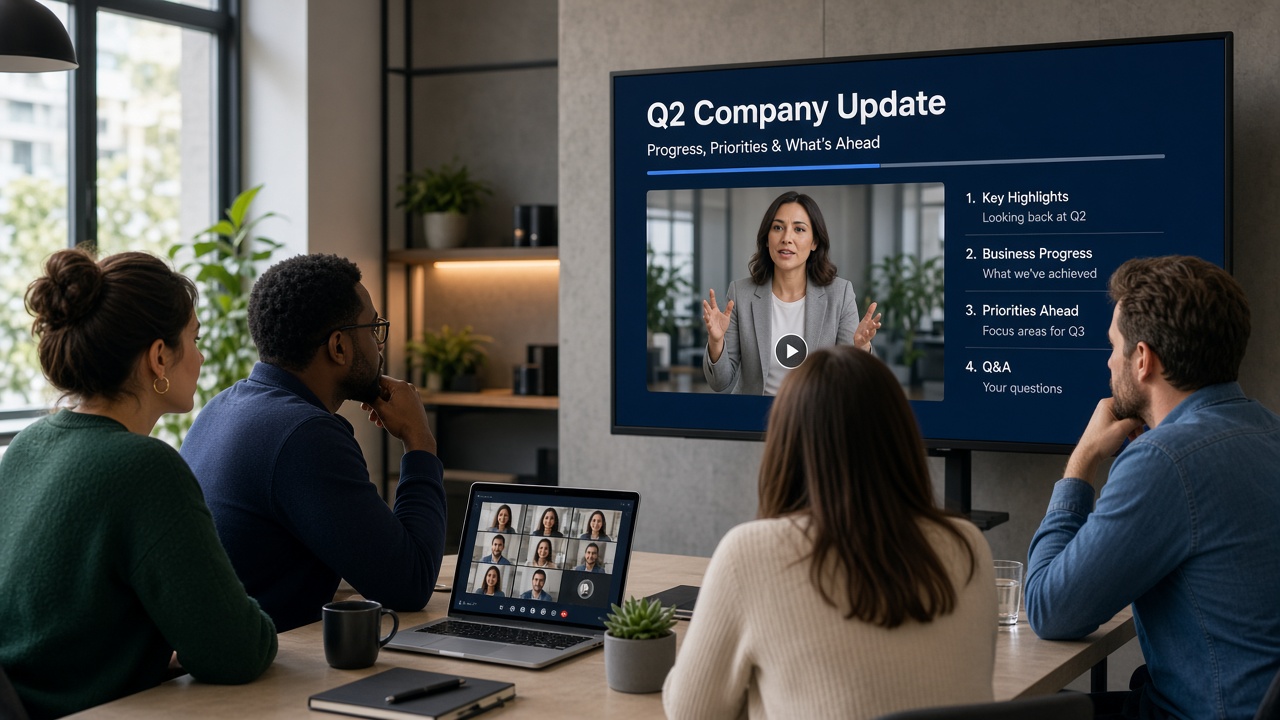
Convert reports, company updates, and knowledge-sharing decks into reusable video content. Best for: Distributed teams, internal documentation, company updates, knowledge transfer.
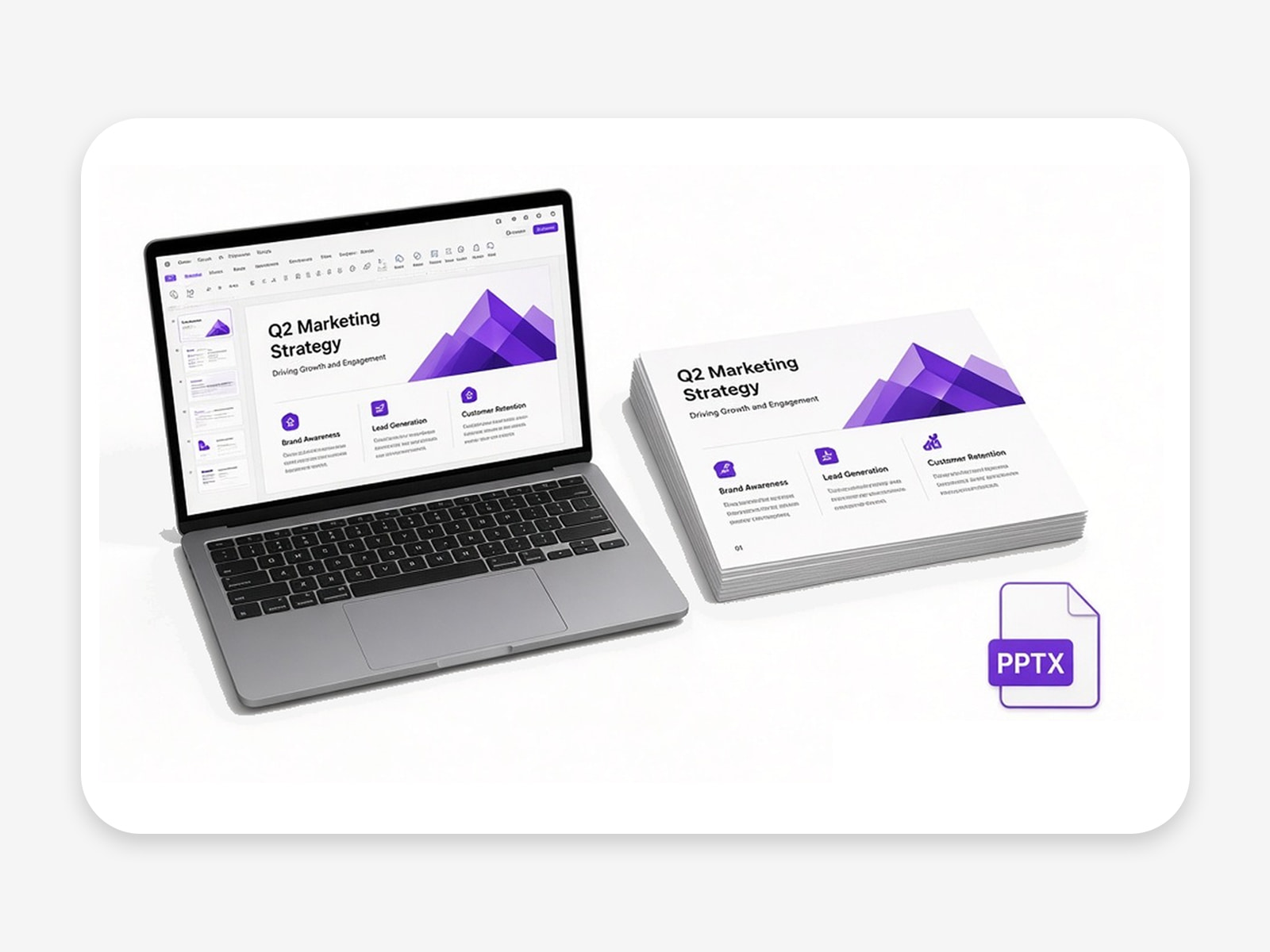
Start with your existing PowerPoint instead of rebuilding the presentation from scratch.
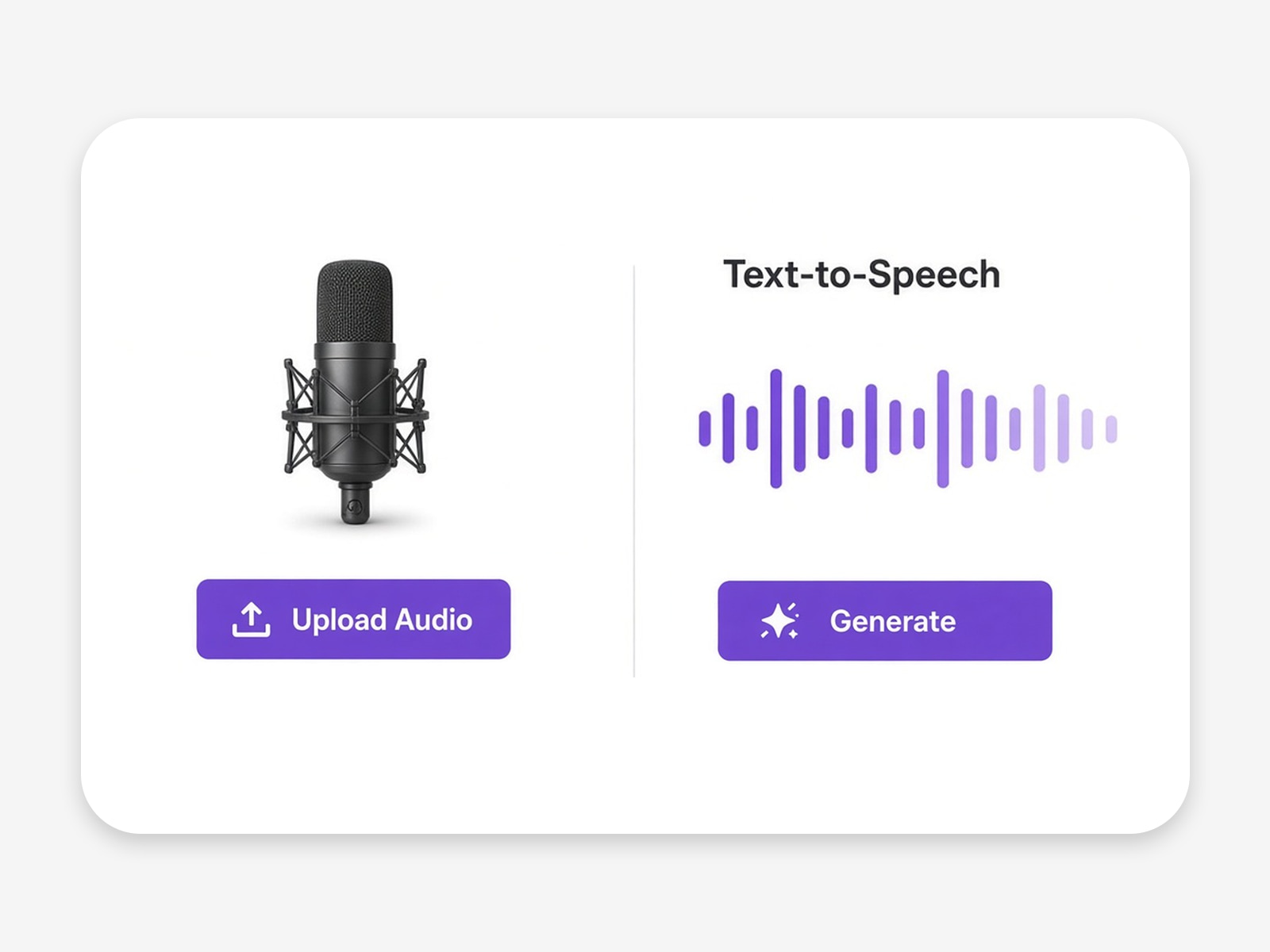
Use recorded narration when you have it, or turn text into speech when you do not.
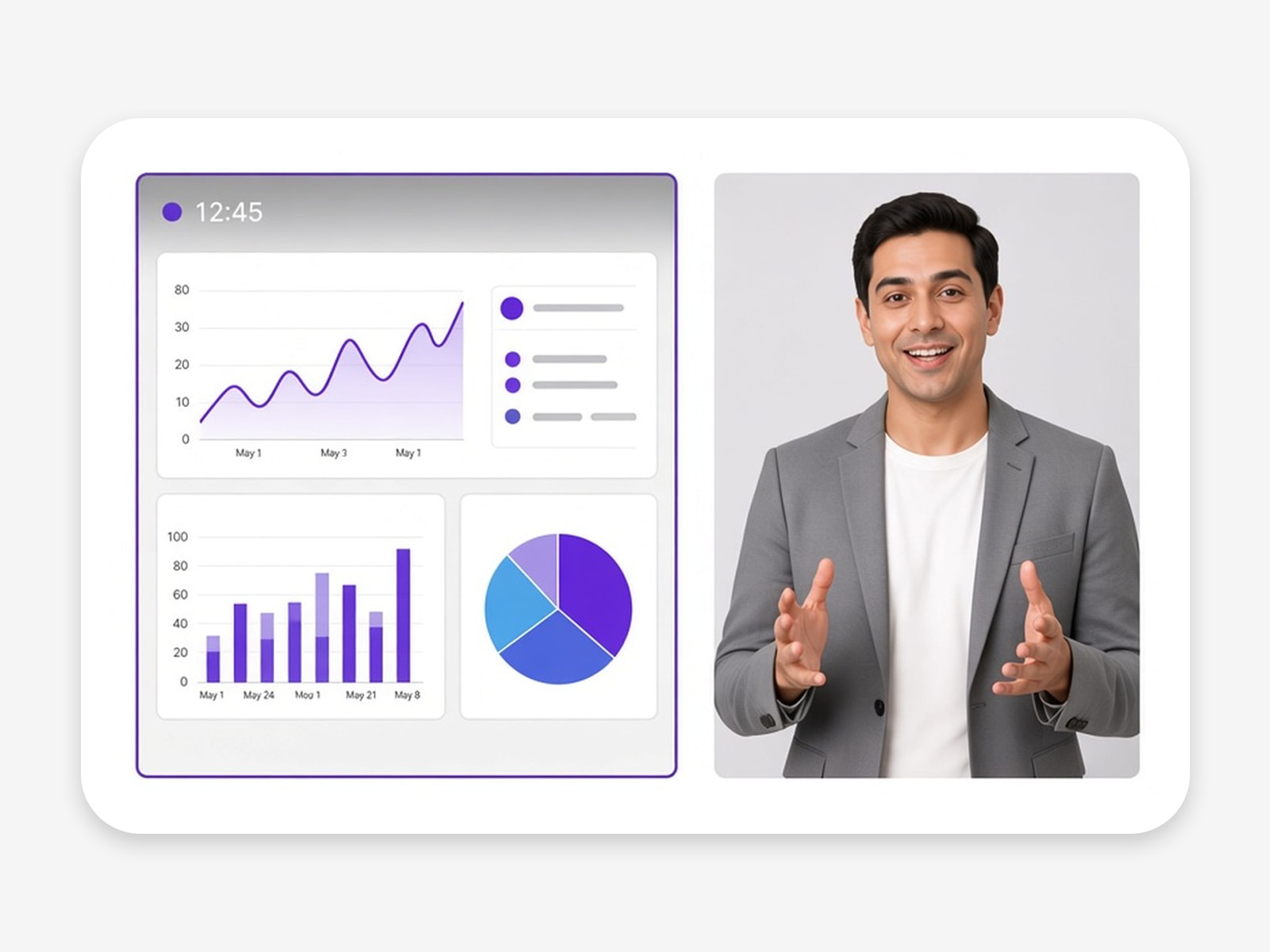
Create a presenter-led video without setting up a camera or filming yourself.
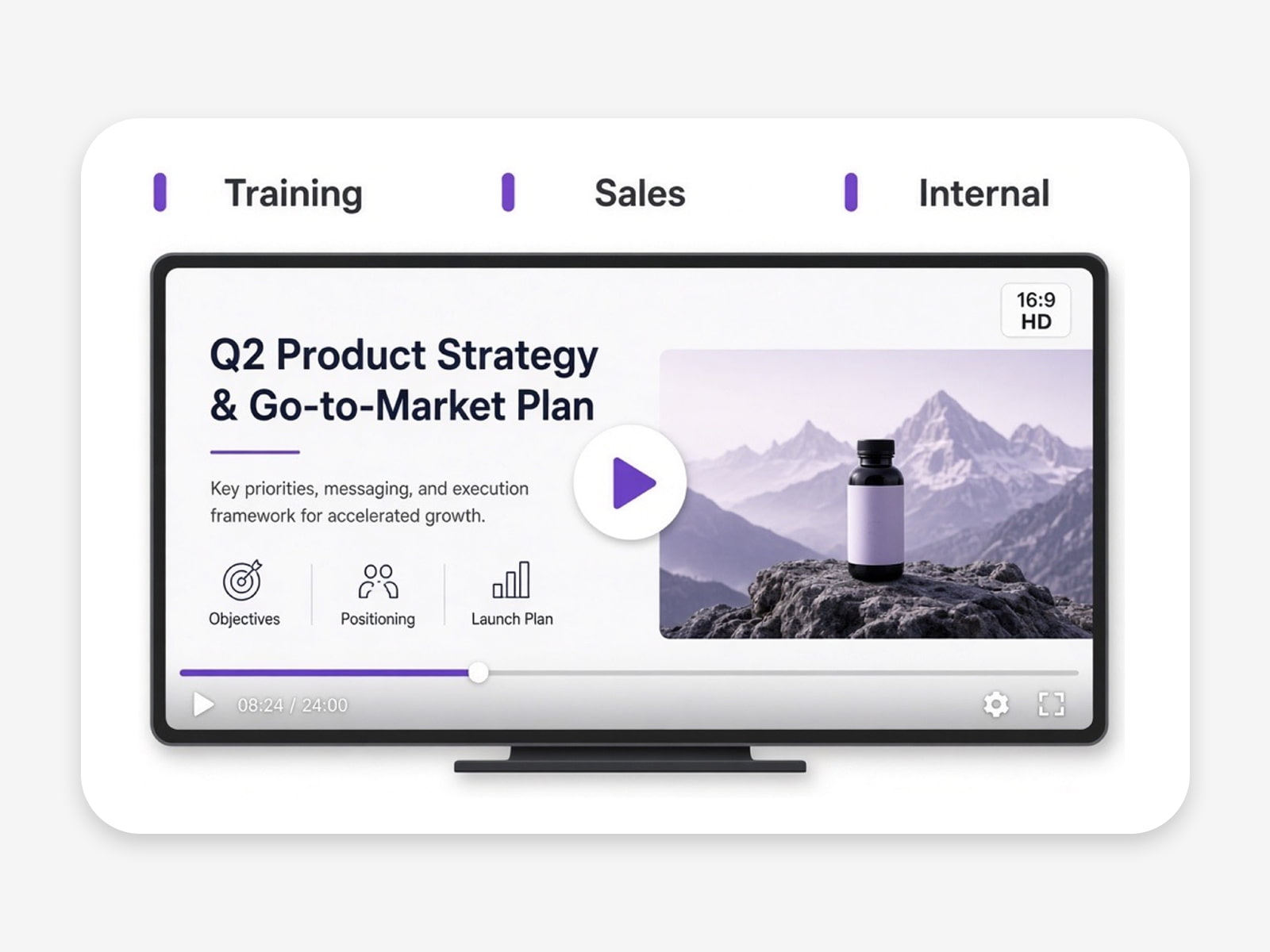
Turn presentations into on-demand videos for training, learning, sales, and internal communication.
A PPT to video converter turns a PowerPoint presentation into video content. VMEG goes beyond basic slide conversion by combining the presentation with narration and an AI presenter.
Upload your PowerPoint to VMEG, add recorded audio or narration text, and generate a presentation video based on your slides.
Yes. You can upload existing audio and use it as the narration for your presentation video.
Yes. If you do not have recorded audio, enter your narration as text and use AI text-to-speech to generate the voice.
Yes. VMEG can combine presentation slides, narration, and an AI presenter to create a presenter-led presentation video.
Yes. Instead of recording yourself presenting every slide, you can use text-to-speech narration and an AI presenter.
Exporting PowerPoint as MP4 mainly turns slides into a video file. VMEG can also combine your slides with uploaded audio, AI-generated narration, and an AI presenter to create a more complete presentation video.
PPT-to-video workflows are useful for training, education, internal communication, product presentations, sales enablement, and other presentation-based content.
Yes. You can upload existing narration and combine it with your presentation.