English
EN

Gemini Video Translator

Connect VMEG to Gemini CLI to translate, dub, and localize videos in 170+ languages from your terminal. Use VMEG through the Gemini CLI MCP config or the VMEG Remote MCP server to add AI-powered video translation to Google's command-line agent.

What Is a Gemini CLI Video Translator?

A Gemini video translator is a workflow that pairs Google's Gemini CLI agent with a video translation engine. You add a VMEG MCP server to Gemini CLI's settings, and the agent can take a video file or link, hand it off to VMEG for translation and dubbing, then return the localized output, all from your terminal.

Gemini CLI is a text-and-code-first agent. It does not decode the audio in an MP4 on its own. To translate a video "with Gemini CLI," you connect it to a tool that handles the media pipeline. VMEG is that tool. Once connected through the Gemini CLI MCP config, Gemini can:

  • Receive a video file path or YouTube link in the chat
  • Call the VMEG MCP tools (`vmeg_create_video_translation_task`, etc.)
  • Wait for the translated, dubbed, and lip-synced output
  • Return the finished file path back to you in the terminal

This is useful for engineers and technical teams who prefer Google's Gemini models but want first-class video translation without leaving the command line.
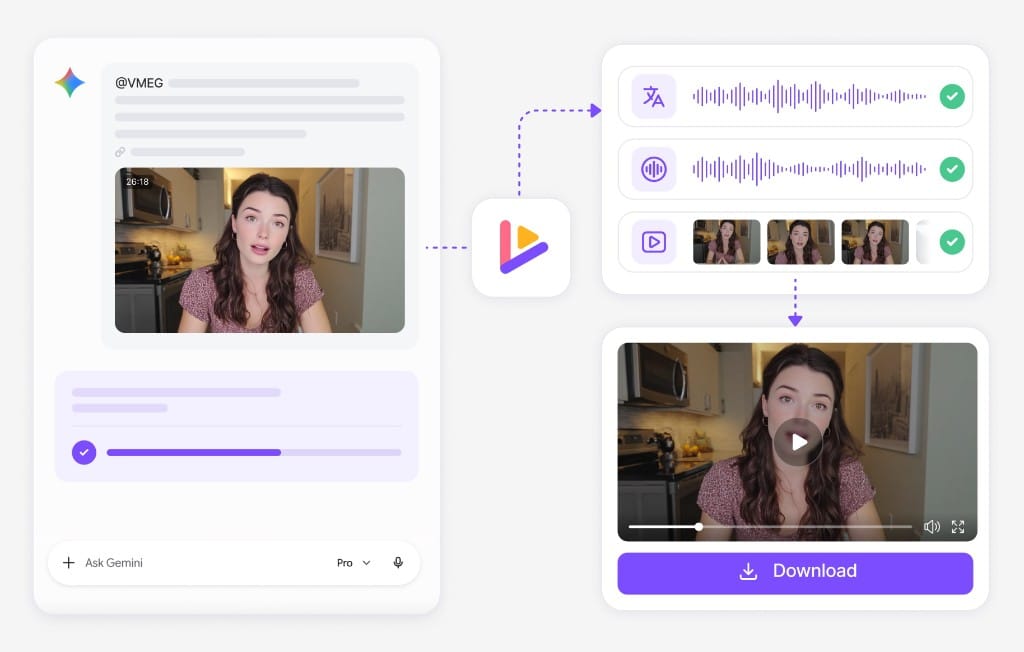
Gemini CLI connected to VMEG video translation workflow

How to Translate a Video with Gemini (Step by Step)

You have two ways to get started.

Option 1

Option 1 — Add VMEG through the Gemini CLI MCP directory

MCP

upload

Dubbing

1. Open Gemini CLI and run /mcp.

2. Open the MCP Directory.

3. Search for VMEG. Select VMEG and choose Install.

4. Sign in to your VMEG account (or authorize with OAuth) to complete the connection.

Gemini CLI MCP directory

Option 2

Option 2 — Manual MCP setup (works today)

API key

settings.json

Dubbing

1. Install the latest Gemini CLI and generate a VMEG API Key from API Configuration.

2. Open your Gemini CLI configuration file:

  • All projects: ~/.gemini/settings.json
  • Project root: .gemini/settings.json

3. Add the VMEG MCP server under mcpServers:

  • URL: https://www.vmeg.ai/api/mcp
  • Authorization: Bearer YOUR_API_KEY

4. Save the configuration and restart Gemini CLI.

5. Run /mcp to verify that vmeg appears with its available tools, then start using VMEG with natural language prompts.

Full instructions

Why Use VMEG as Your Gemini Video Translator

Real Video Translation, Not Just Transcripts

VMEG re-dubs audio, syncs lips, and clones the speaker's voice. Most tools stop at SRT files — you get a production-ready localized video back.

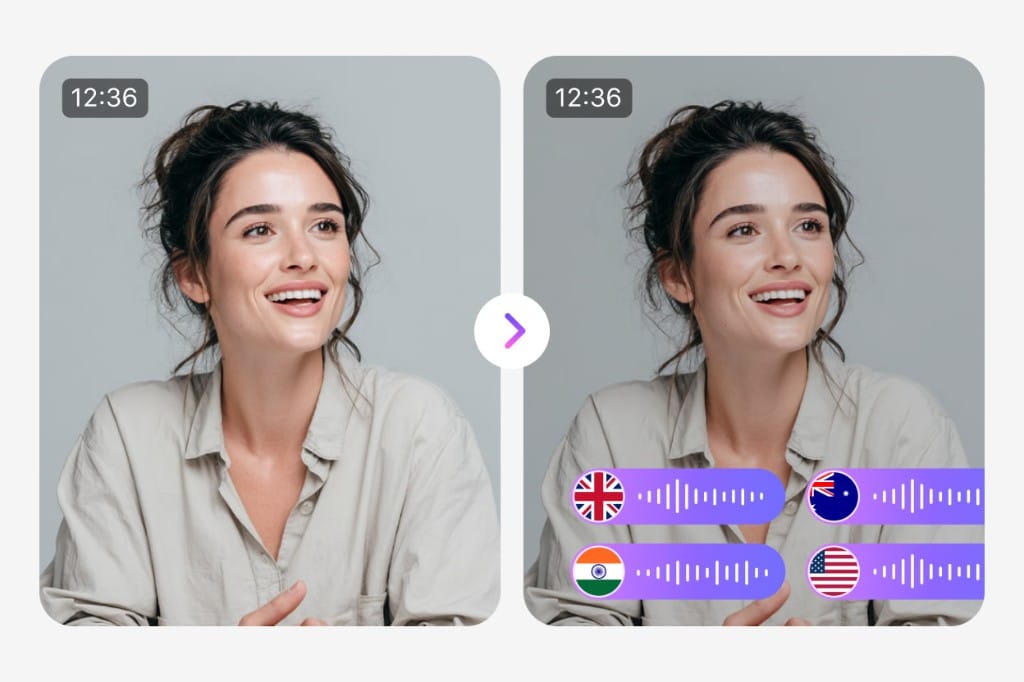
Original video translated into multiple dubbed language tracks

Translate Without Leaving Gemini CLI

Pass a file path or YouTube link in chat. Gemini calls VMEG MCP tools and returns the dubbed output — no upload portal, no context switching.

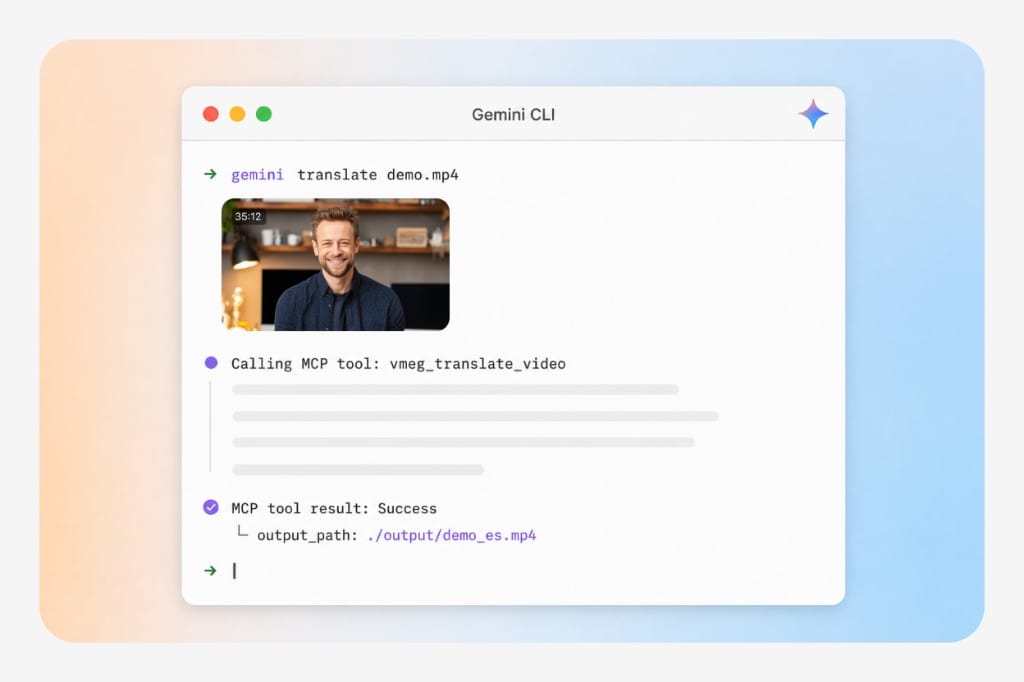
Gemini CLI session calling VMEG translate MCP tool

One Platform, No Extra Cost

MCP usage draws from your existing VMEG plan. Every request runs on the same production engine that powers vmeg.ai.

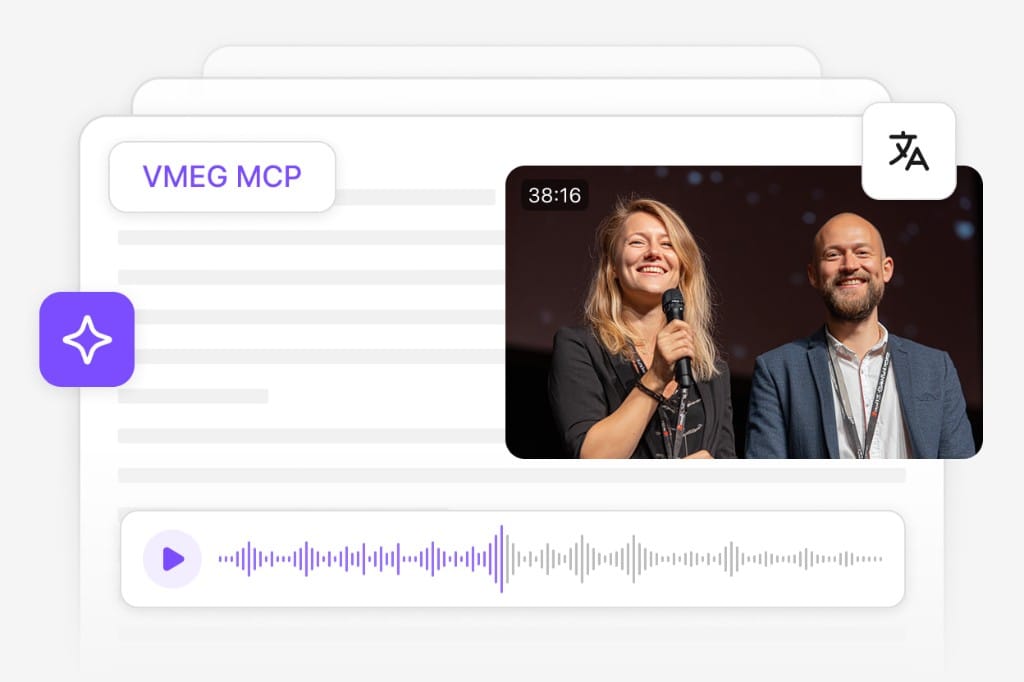
VMEG MCP shared credits and production pipeline

What You Can Translate with Gemini CLI + VMEG

One secure platform for professional AI dubbing pipeline

Media type
Local video file
Local audio file
YouTube link
Subtitle file
Supported inputs
MP4, MOV, WEBM, MKV
MP3, WAV, M4A
Any public YouTube URL
SRT, VTT
Output
Translated + dubbed video with optional lip-sync
Translated audio in target language
Translated + dubbed video
Translated subtitles in target language

170+ target languages

**Voice cloning** to keep the original speaker's tone

Lip-sync

for translated mouth movement

Speaker detection

with auto-labeled multi-speaker output

Subtitle generation

burned-in or exportable SRT/VTT

Full instructions

Common Use Cases

Developer advocates

Localize conference talks and tutorial recordings from the same terminal session that builds the slide deck.

Indie hackers

Dub product demo videos in CI as part of the release pipeline.

Engineering teams on Google Cloud

Keep all AI work inside the Google ecosystem while still getting first-class video translation.

Frequently

Asked

Questions

Can Gemini CLI translate a video by itself?

No. Gemini CLI is a text-and-code agent. To translate a video file, connect Gemini CLI to a video translation engine through MCP. VMEG is that engine.

Do I need a paid Gemini plan?

Gemini CLI itself is free, but it uses your Google AI Studio / Vertex AI quota. VMEG has a free tier; production usage draws on VMEG plan credits.

How long does a 5-minute video take?

Usually 5–15 minutes, depending on language pair and whether lip-sync is enabled.

Can I keep the original speaker's voice?

Yes. VMEG's voice cloning preserves the original speaker's tone, pacing, and timbre in the target language. You can also pick from 100+ stock voices.

Does the output come back with lip-sync?

Yes, lip-sync is on by default for video outputs. You can disable it in the task settings for faster rendering.

What languages are supported?

170+ languages including Spanish, French, German, Mandarin, Japanese, Korean, Arabic, Hindi, Portuguese, Russian, Italian, Dutch, and more. Full list at https://www.vmeg.ai/.

Is my video uploaded to Google?

Files are processed by VMEG through an encrypted MCP channel. You retain ownership of your content. See VMEG's privacy policy for details.

Can I use VMEG tools from a shell script?

Yes. Every VMEG capability is exposed as an MCP tool, so Gemini CLI can call them from any prompt or scripted workflow.

What if the Gemini CLI MCP directory doesn't list VMEG yet?

Use the manual `settings.json` setup above. It works today. The one-click directory install is rolling out this week.