
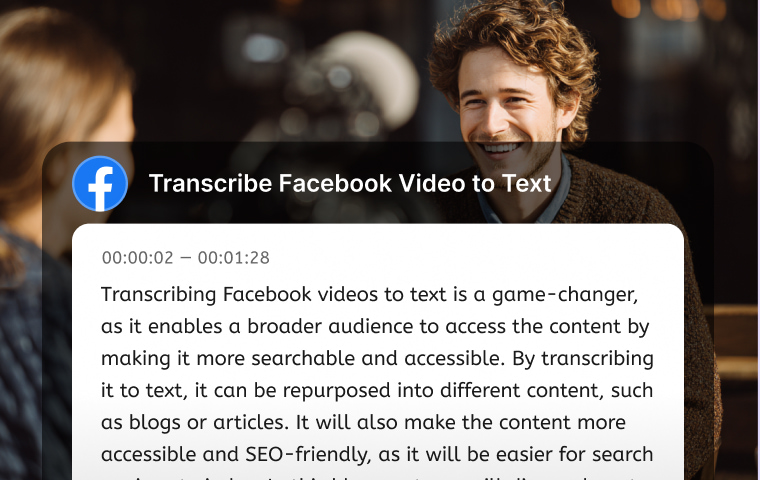
A reviewed transcript can be repurposed into notes, captions, articles, or other text-based content. If you publish useful, indexable supporting content, it may support discoverability, but it does not guarantee search rankings.
This guide explains how to transcribe a Facebook video to text, compare the main methods, and review the result before reuse.
How to Transcribe a Facebook Video to Text with VMEG AI
With the right workflow, you can turn an accessible Facebook video or an authorized source file into editable text. The key is to choose a method that matches your access, output, and review needs.
Step 1: Copy the link or download the Facebook Video you want to transcribe.
Some tools accept video uploads, while others can process supported, publicly accessible links. Check the tool's current input options first. If it supports a Facebook video link, copy the link. If you use an upload workflow, use a source file you own or are authorized to process. Do not download or reuse someone else's video without permission.

Step 2: Use VMEG AI’s video-to-text feature to transcribe a Facebook Video to text.
VMEG AI provides an online video-to-text workflow for creating editable transcripts. It supports transcription and translation in 170+ languages, with language and speaker settings to help configure multilingual or multi-speaker projects. Review current access, plan, and input requirements on the product page before starting.

Step 3: Upload the video you want to transcribe.
Click the "Upload Video" button, select the video you want to transcribe, and wait for the video to upload.
Step 4: After the video has been uploaded, choose the original language used in the video.
Then select your preferred transcription mode. Balanced Mode is intended for a consistent speed-and-quality workflow, while Accurate Mode is intended for projects that need more precision.
Select the number of speakers, choose the original language or auto-detection option, and set a target language if translation is needed. Check your preferences, then click Submit.
Select the number of speakers, choose the original language or auto-detection option, and set a target language if translation is needed. Check your preferences, then click Submit.
Step 5: Proofread and Edit.
After the Facebook video has been transcribed to text, you can copy, edit, or download it. Proofread and edit it to make sure it is easy to read and the message is clear.

Alternative Methods to Convert Facebook Videos into Text
Besides VMEG AI, you can transcribe Facebook videos manually, use an upload or link-based transcription workflow, or use a browser tool for quick reference. Each option has different trade-offs for access, editing, privacy, and review.
Method 1: Manually Transcribe the Video
Listen to the video and type the words yourself. Watch the video, listen carefully, and record it. You can use Word or Google Docs to type it. Adjust the playback speed so you can understand and hear it clearly for high accuracy. This is a good option if you want to take notes and create a summary.
Pros
- It is free, with no costs involved.
- You will be 100% in control.
- Good accuracy, but still relies on the transcriber's listening skills.
Cons
Time-consuming, as you have to type or write it manually, especially when transcribing long videos.
Method 2: Use an Automatic Transcription Tool
Upload a Facebook video you own or are authorized to process, or use a publicly accessible link when the transcription tool supports it. After processing, review the transcript, correct important details, and export the text or subtitle format you need.
Pros
- Saves manual typing once the source video is available to the tool.
- Quality depends on the source audio, speaker clarity, background noise, and terminology, so a final review is still needed.
- Saves time and effort.
Cons
- Some tools or websites may require sign-ups.
- Some cost money after a free trial.
- May require minor editing, such as correcting punctuation, spacing, spelling, and grammar.
Method 3: Use AI tools or Chrome Extensions
Browser tools or extensions can be useful for quick reference when they work with the Facebook video and your device. Before installing one, check its permissions, privacy policy, supported sites, and export options. Then review the generated text, correct errors, and save only the content you are authorized to use.
Pros
- Convenient for quick reference because the workflow may stay in the browser.
- May avoid file uploads when the extension supports the current page and video.
Cons
Accuracy varies, as it may struggle with accents or background noise.
Why You Might Want to Transcribe a Facebook Video
Transcribing a Facebook video helps maximize the content's value and reach a wider audience. The transcript can make the video more accessible and valuable, as the audience can effortlessly search, quote, or share it.
Accessibility
Transcribed videos help viewers, especially those with hearing impairments, to clearly understand their message. Also, it will be helpful for those who prefer reading text-based content.
Content repurposing
It can turn a reviewed video into blog posts, captions, notes, articles, or other text-based content that is easier to search, quote, and reuse.
SEO benefits
Text can be easier for people and search engines to understand when it is published as useful, indexable supporting content. A transcript can support discoverability and content reuse, but it does not by itself guarantee reach, rankings, or traffic.
Quoting or referencing
Quoting or referencing will be easier, and the audience can easily quote it, giving you more authority in the field.
Understanding the Different Types of Facebook Videos
There are different types of Facebook videos, so it is best to familiarize yourself with them to ensure that the videos you want to transcribe align with the platform's and users' terms and conditions, thereby avoiding any issues.
Public Videos vs. Private Videos
Public videos are the ones accessible to everyone, while private videos have limited accessibility. Please note that not all public videos can be downloaded and transcribed without the owner’s permission.
Downloadable videos vs. live streams
Recorded posts, reels, and other videos can be transcribed when you have a permitted source file or an accessible link. For a live stream, wait until a recording is available unless your chosen tool explicitly supports a permitted real-time workflow. Audio quality and access—not the post type alone—determine how easy the transcript is to review.
Respect copyright and privacy laws
Always respect other people’s work. It is always best to ask permission from the owner before downloading and transcribing videos to text.
Best Practices for Accurate Transcriptions
To make a transcript useful, follow a short quality-control process after processing. This is especially important for names, numbers, technical terms, multiple speakers, or material you plan to publish.
1. Choose a reliable tool
The tool used for transcribing text plays a crucial role in accuracy, so it is best to choose a reliable one. You can check the reviews of other people who have already tried or used the service or tool.
2. Choose a method that works best for you
There are different methods for transcribing Facebook videos into text, which can be done manually or automatically using online tools.
3. Check punctuation and speaker labels
After the video has been transcribed, proofread it to correct any punctuation errors and speaker labels, especially if there are multiple speakers.
4. Use timestamps if needed
You can use timestamps to easily navigate to the specific part of a video you want to check or read, especially if the video has multiple parts or subtopics.
5. Always proofread AI-generated transcriptions
Proofread AI-generated transcripts for names, brands, numbers, terminology, punctuation, and grammar. For multiple speakers, also check speaker labels and timestamps. If the transcript will become subtitles, review line breaks, timing, and readability before publishing.
Conclusion
Choose a transcription method based on the access and output you need. Use a manual approach for short, high-value clips; use a transcription workflow for editable text, language settings, and exports; or use a browser tool for quick reference when its permissions and privacy approach fit your needs.
Before publishing or repurposing the result, review the transcript for accuracy and confirm that you own the source video or have permission to process and reuse it.
Before publishing or repurposing the result, review the transcript for accuracy and confirm that you own the source video or have permission to process and reuse it.
Frequently Asked Questions
How can I turn a Facebook Video into text?
You can transcribe it manually, upload a video you own or are authorized to process to a transcription tool, or use a supported publicly accessible link. Review and edit the result before reusing it.
Is there a free tool to transcribe a Facebook video to text?
Some tools offer limited free access, but task limits, file limits, and sign-in requirements can change. Check the current product page before starting.
Can I transcribe a Facebook Video to text using a phone?
Yes. Use a mobile-compatible tool and make sure the video is accessible and authorized for processing. For long videos or detailed editing, a desktop workflow is often easier to review.
How do you transcribe a video on Facebook for free?
You can transcribe it manually or use a tool with free access when available. Use a source file you own or are authorized to process, or a publicly accessible link that the tool supports.
How to convert Facebook videos to text safely?
Confirm that you have permission to access, transcribe, and reuse the video. Avoid uploading private or sensitive material to tools whose privacy practices you have not reviewed, and check copyright and personal-information considerations before publishing the transcript.


The VMEG Team
Behind VMEG stands a passionate team of creatives, engineers, and language lovers. At the crossroads of AI and storytelling, they craft tools that bridge languages and cultures.