


01
Upload the Video You Want to Clean
Add a video containing the title, timestamp, label, caption, or other text you want to erase.
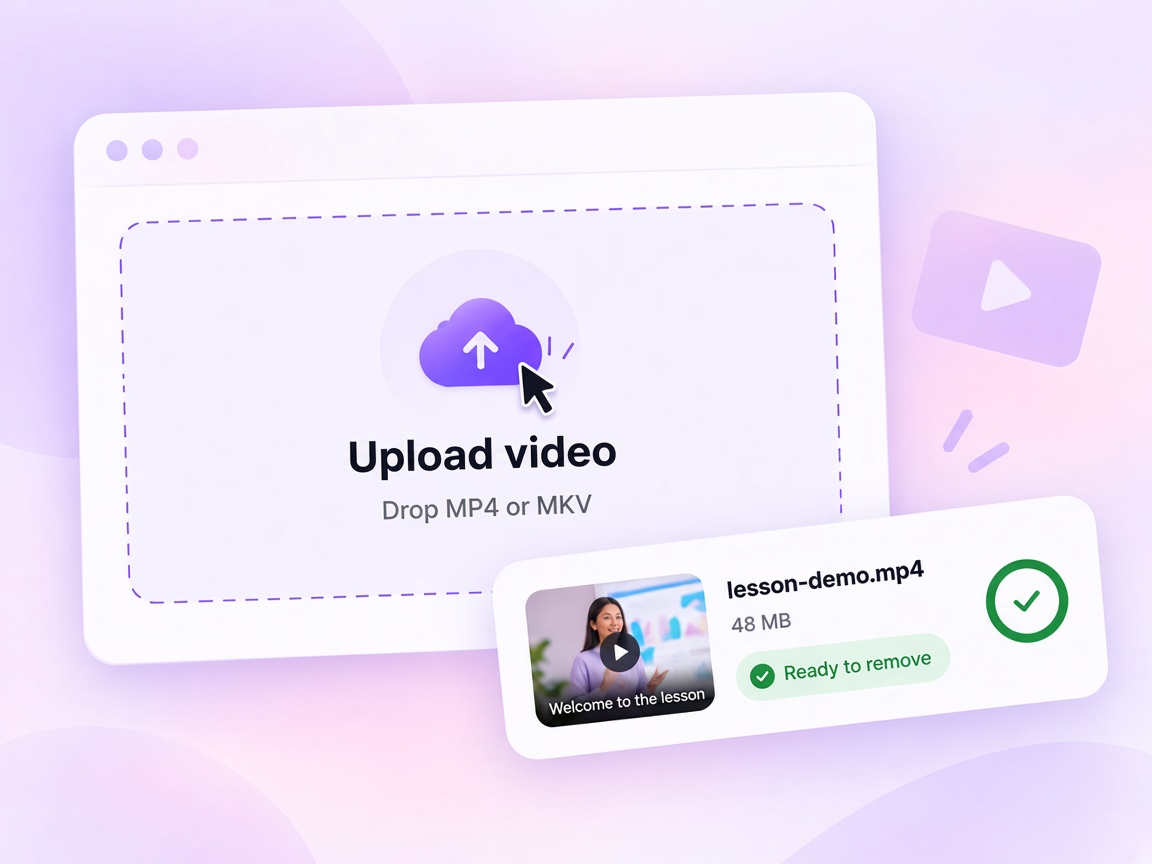



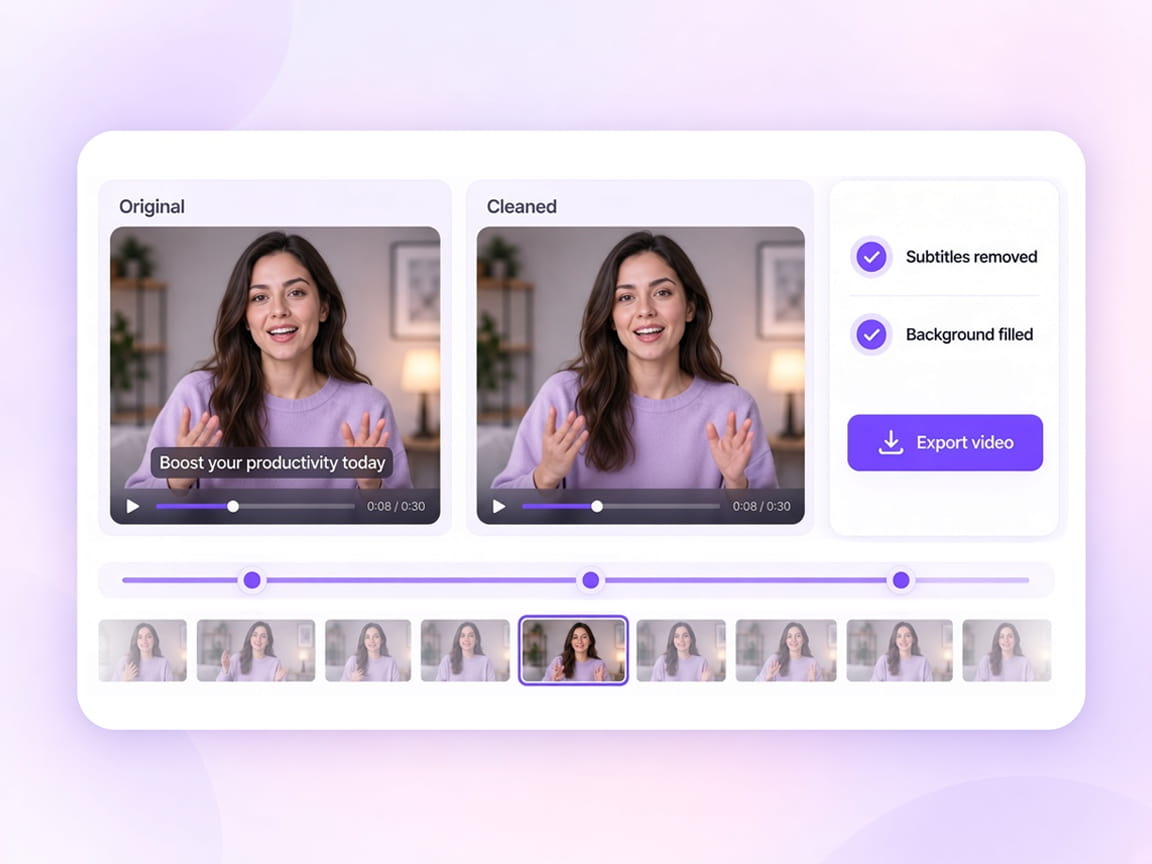
Remove unwanted words from any part of a video frame. VMEG's AI video text remover lets you target titles, timestamps, labels, captions, and other visible text, then clean only the moments where that text appears.
Deleting text should not mean cutting away part of the picture. VMEG removes the selected text and reconstructs the surrounding visual details so the original composition stays usable.


Prepare course footage for a fresh caption track after removing embedded dialogue.


Clean burned-in marketing captions so campaigns can be re-edited or restyled.


Use a video caption remover when social captions are already part of the published file.


Clear training and safety videos of burned-in captions while keeping the scene intact.


Remove hardcoded captions from film and animation frames without cropping the picture.
Use this online text remover workflow to mark areas, match models to the text style, and refine the clean version before you export.
01
Add a video containing the title, timestamp, label, caption, or other text you want to erase.
02
Select the exact part of the frame containing unwanted text, then limit removal to the relevant moments instead of processing that region throughout the entire video.

03
Use different models depending on whether you're removing plain text, bordered labels, gradient lettering, or more complex graphic text.
A timestamp may stay in one corner while a title appears only for five seconds and a label shows up later elsewhere. Treat each piece of text as its own removal target with independent timing.
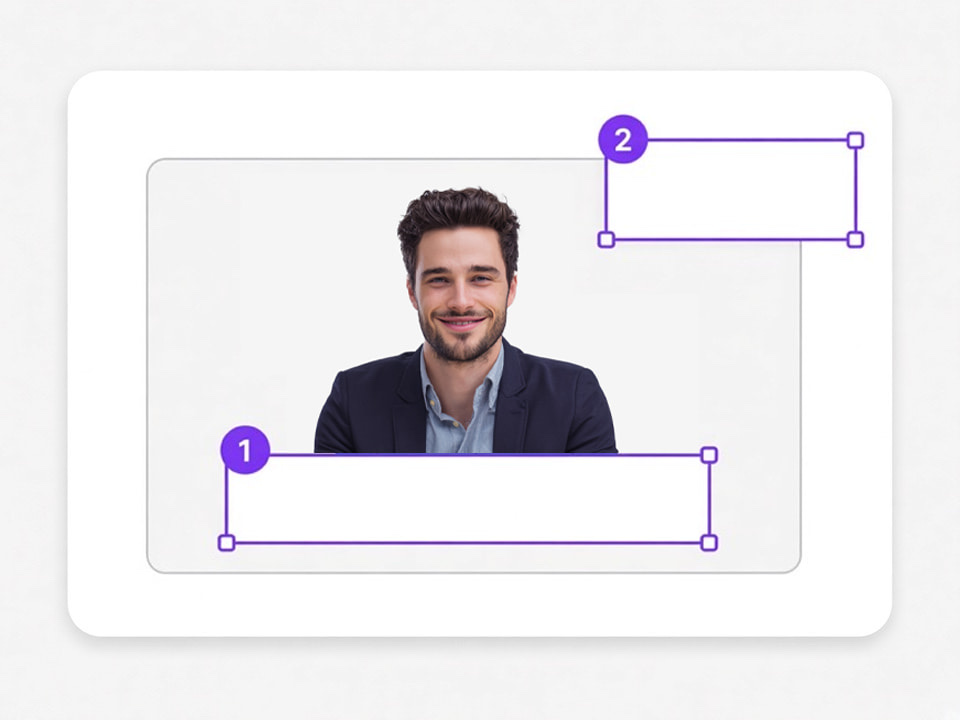
Use separate areas for titles, labels, timestamps, captions, or text located in different parts of the frame.
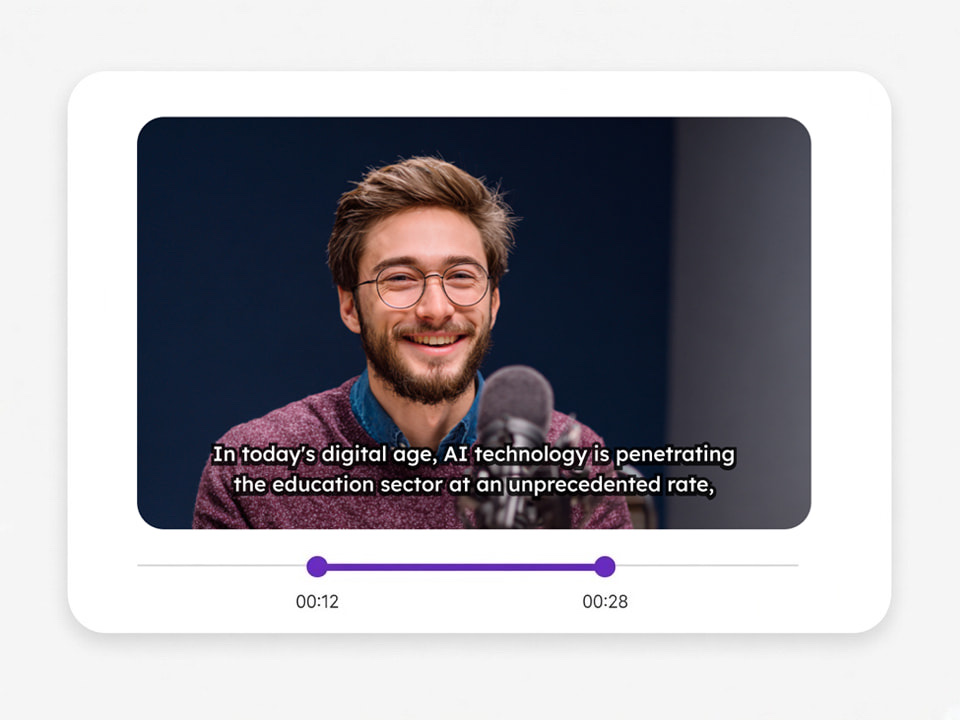
A text area can stay active throughout the video or only during one or more selected segments.
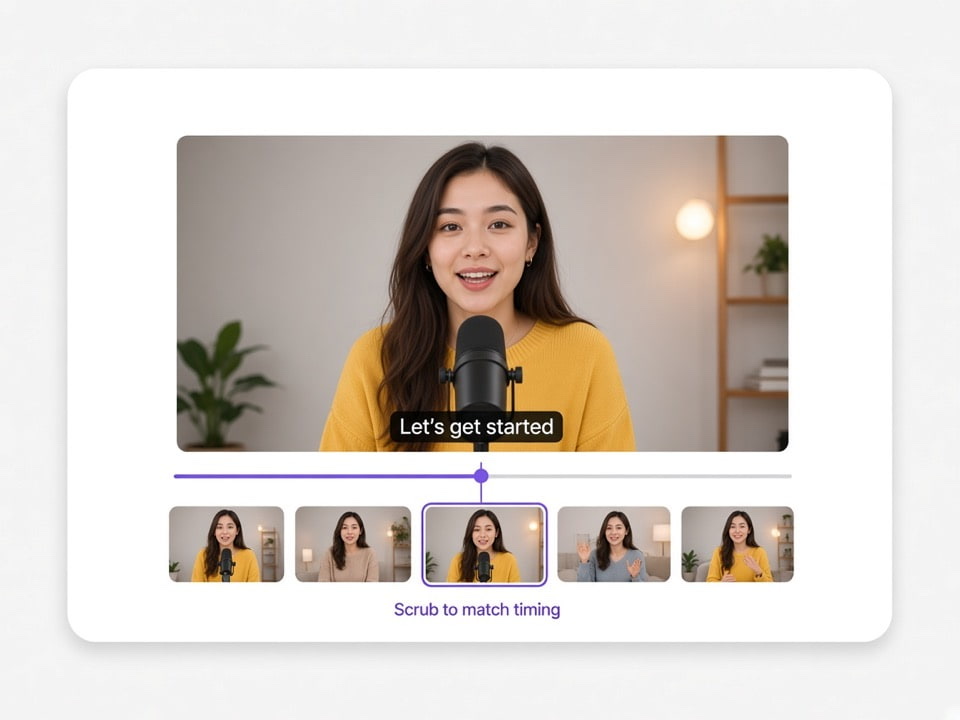
Scrub the timeline while editing each range to confirm that the selected text is actually present in those frames.
Designed for straightforward text placed over relatively uncomplicated areas of the frame.
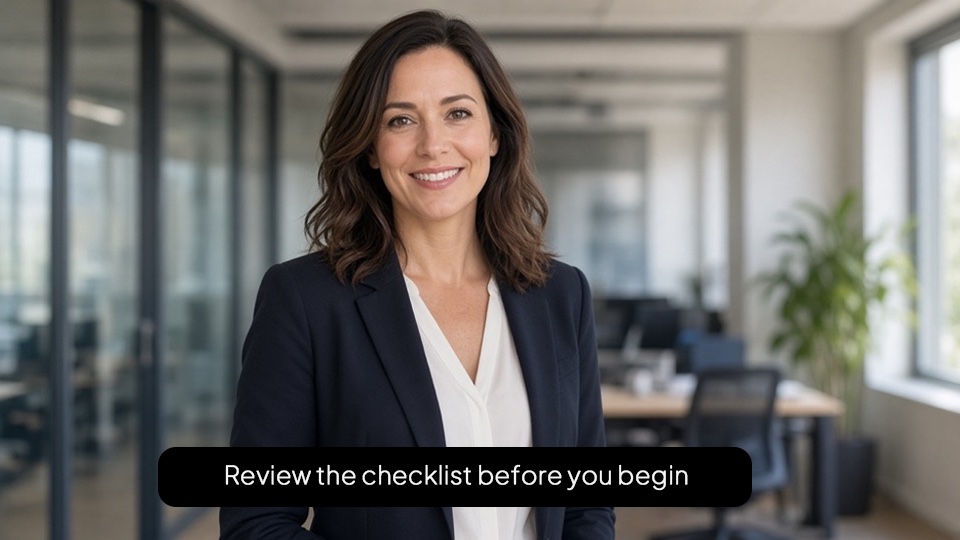
A stronger option for labels or text with borders, shadows, outlines, or background panels that make the edges harder to reconstruct.
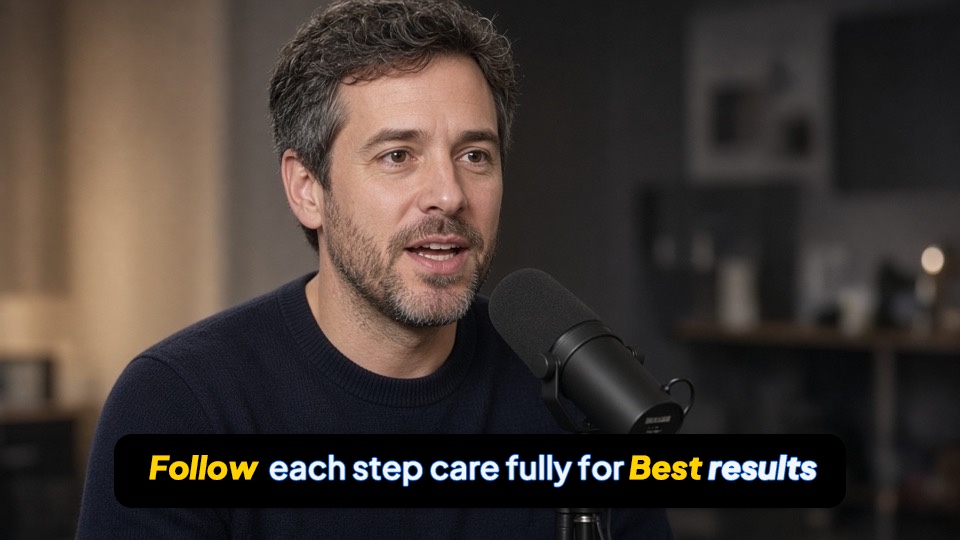
Intended for decorative lettering, gradients, stylized titles, and other graphic text that blends more heavily into the scene.

Match the model to the difficulty of the text and background, with estimated usage shown before processing.
Text removal is useful only if the space left behind still looks believable. VMEG reconstructs the selected region using the surrounding frames and visual context instead of replacing the text with a simple patch.


Remove the unwanted on-screen text first, then continue editing, republishing, or localizing the video.

Remove burned-in titles before restyling the video for another channel.

Erase labels and on-screen notes from an existing training asset before creating a new version.

Turn a final export with permanent on-screen text back into a more flexible master.

Reuse older videos even when the text-free master file is no longer available.
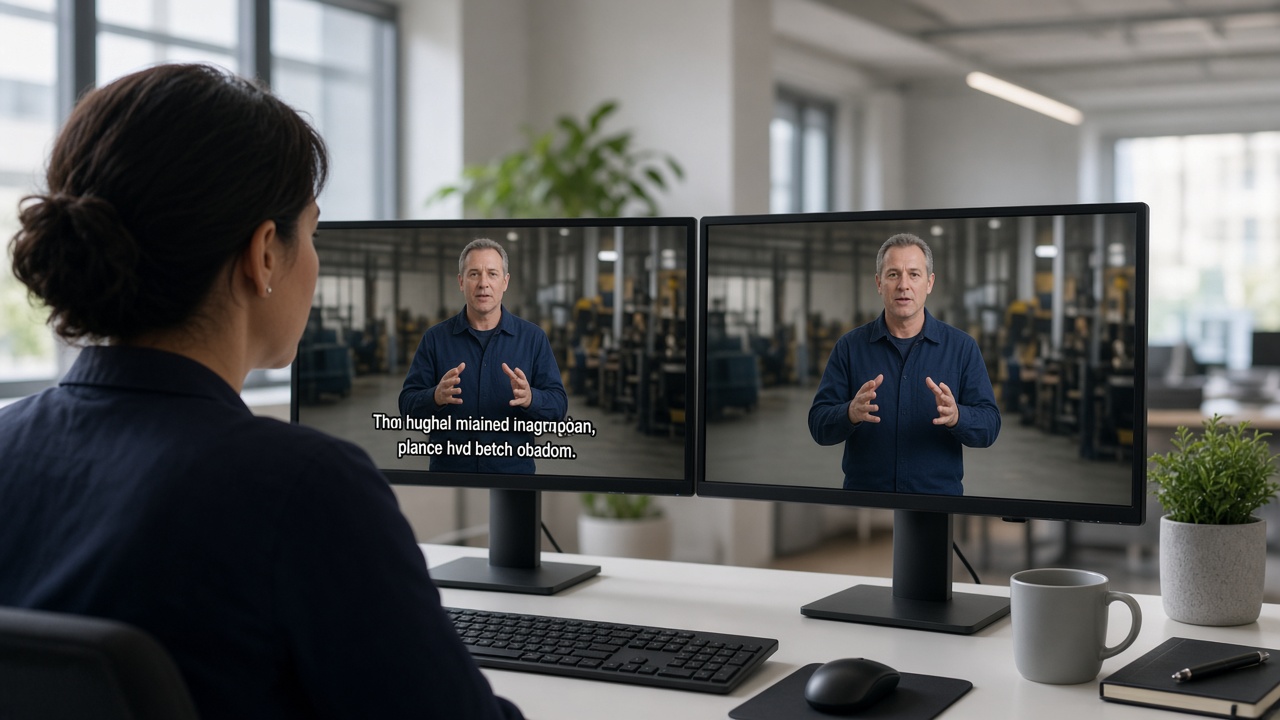
Remove old titles or translated text before adding updated copy for a new market.

Clean finished client videos so teams can restyle on-screen text without rebuilding from a missing master.
When text overlaps a detailed background, the first result may need a small correction. Work directly from the processed video and adjust only the affected areas.

Recover a visual element if the selected text region also removed nearby content that you still need.

Mark a missed word, edge, or separate text element and process only that new correction.

A failed correction does not replace the earlier usable output, making it easier to experiment with another removal model or region.
VMEG can remove titles, lower thirds, timestamps, labels, boxed text, and decorative lettering that is already part of the frame.If the text is a separate subtitle or caption track, deleting that track is usually a better solution than AI visual removal.

Continue from a clean frame into caption cleanup, subtitle removal, translation, or a fresh subtitle track.
Remove burned-in subtitles from dialogue-heavy videos and restore the picture underneath.
Try Video Subtitle Remover for free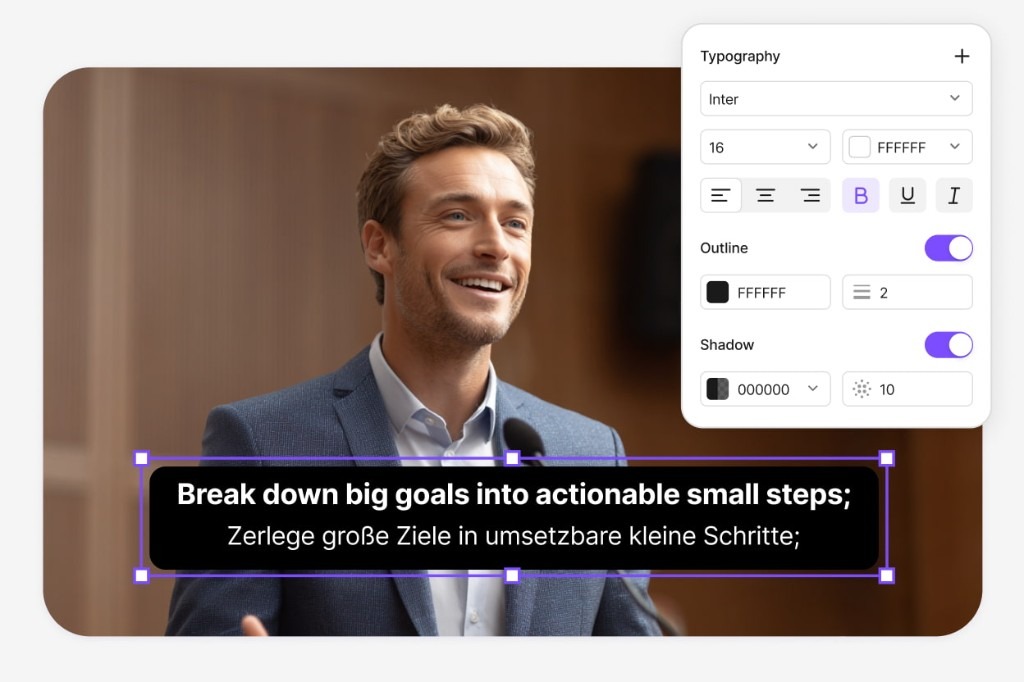
Remove embedded captions from creator, social, and edited videos while keeping the original frame ready for reuse.
Try Caption Remover for free
After you remove text from video, localize speech and export a finished multilingual MP4.
Try Video Translator for free
Generate and translate a fresh subtitle track once the unwanted on-screen text is gone.
Try Subtitle Translator for free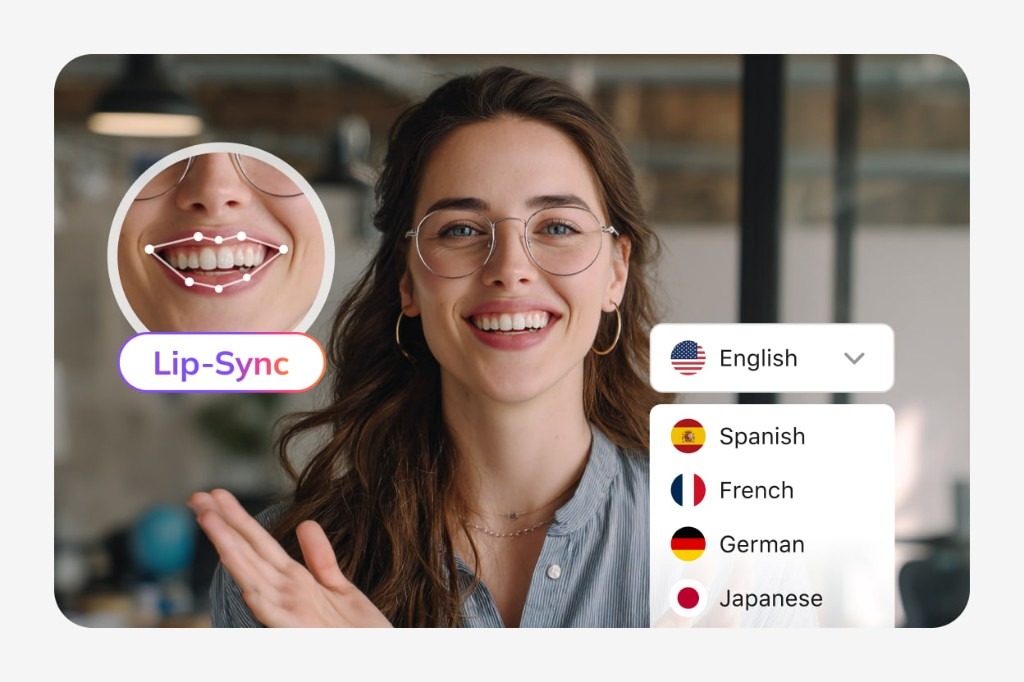
Yes. VMEG can remove selected visible text from video frames and reconstruct the area behind it using AI.
You can target titles, timestamps, labels, captions, annotations, instructions, decorative text, and other selectable on-screen wording.
Yes. You can create up to 5 separate text areas and control the active time range of each area independently.
Yes. Each selected region can be limited to one or more specific time ranges rather than applying to the whole video.
Yes. Enhanced Removal handles outlined or boxed text, while Effects Removal is designed for gradients, decorative lettering, and more complex visual treatments.
Yes. Add another removal region for the remaining text or restore an area if the first pass removed too much.
No. The current product is designed for subtitles and other selectable on-screen text, not logo removal.