
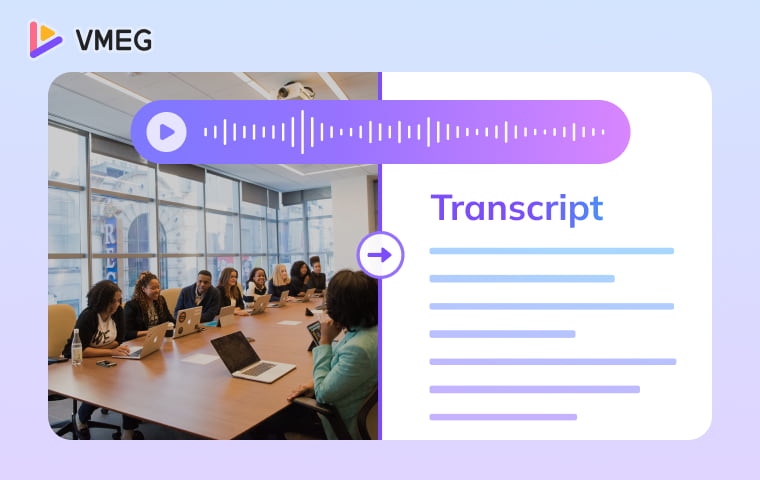
Here, you can explore 5 proven methods to get the complete transcription of a video with ease, enhance your understanding of the video content, or repurpose it in text.
Why Do Video Transcripts Matter?
A video transcript is a written record of all spoken dialogue and audio in a video. It makes your content accessible and searchable. A video transcript matters because:
- Accessibility: Makes content available to deaf and hard-of-hearing audiences.
- Content Adaptation: Instantly convert videos into text for blogs, social snippets, podcasts, or training materials.
- Faster Editing & Collaboration: Text is easier to scan and edit - ideal for reviewing, marking cuts, or team workflows.
- Enhanced Learning: Ideal for educational content - viewers follow complex tutorials better and retain more information.
- Reliable Records: Creates verifiable documentation for interviews, legal depositions, and official recordings.
How to Transcribe a Video with VMEG Online
Online AI transcription tools can create a practical first draft for many files. The final quality still depends on audio clarity, language, speaker overlap, terminology, and review. You just need to simply upload your video to the transcription platform, select the target language or any specific settings, and download the whole transcription in your preferred format.
For this workflow, VMEG is an AI-powered video localization platform that can turn video or audio into editable text. With the video transcription tool, you can convert video to editable text and export it immediately for your needs. It can support YouTube, online learning, marketing, interviews, and other content workflows when you review the transcript before using it.
Key Features of VMEG Transcription
- It integrates transcription and translation, converting 170+ languages & accents into text, and translating video to any language in the same workflow.
- Speaker and language settings. Set speaker preferences, choose the original language or Auto Detect, and enable multiple languages when needed.
- Editable exports. Review the transcript, then export the original or translated text in TXT, SRT, VTT, STL, XML, or SBV.
- Responsible uploads. Before uploading client, interview, or internal meeting footage, confirm that you have permission to process the content and review the current privacy terms.
- Transcript editing. Edit the source or translated text, then export the format that fits your publishing workflow.
Steps to Transcribe Video to Text with VMEG
Step 1. Navigate to the video transcription landing and click to upload a video. Once uploaded, click Transcribe Video to Text Now.

Step 2. Sign in if required. Set the transcription mode, speaker preferences, original language, and—if needed—a target language for translation. Then click “Submit.”

Step 3. When processing is complete, edit the original or translated text. Check names, numbers, terminology, speaker labels, and timestamps before exporting.
Pros & Cons of Online Transcription Tool
How to Use YouTube's Built-in Features
If you need to get a transcription of a YouTube video, you can also use YouTube's built-in features: Show transcript for videos that already have captions, or YouTube Studio automatic captions for videos you manage. Automatic captions are a draft and should be reviewed before use. Here is step-by-step process:
Use Show transcript for Published Video
Step 1. Open a publicly accessible YouTube video that provides captions. Click “...more” below the video.
Step 2. Scroll down and tap on “Show transcript”.

Step 3. The transcript panel pops up. Copy and paste the whole transcription. If you need to remove timestamps, click the three dots on the top right of the transcript panel and click Toggle timestamps.

Use Automatic Captioning for Unpublished Video
Step 1. Upload a video you own or are authorized to process, then manage its captions in YouTube Studio.
Step 2. Wait for captions to process, then review and edit any errors.
Step 3. Repeat the steps from “Show transcript”.
Pros & Cons of YouTube’s Built-in Features
How to Get a Transcript of a Video on Mobile
Mobile transcription apps let you convert video to text directly from your smartphone or tablet. Best for on-the-go transcription needs.
Top Mobile Apps for Transcription
1. Transcribe: iOS app with good accuracy for clear audio.


Pros & Cons of Getting Transcription on Mobile
How to Transcribe Video via Free Video Transcription Software
Several free desktop transcription software can help you transcribe videos without any cost, though they may have limitations on file size or processing time. Best for budget-conscious users with basic needs.
Here are Some Popular Free Options:
Google Docs Voice Typing: Play video while using voice recognition.

Windows Speech Recognition: Built-in Windows transcription. Open system settings > Time & language > Speech > Set speech language, microphone, etc.

Pros & Cons of Free Desktop Transcription Software
How to Get a Transcript of a Video Manually
Manual transcription involves listening to your video and typing out the content yourself. It gives you the most direct control, but still needs a final proofread.
Manual Video Transcription Process
- Set up your workspace with the video player and text editor.
- Use keyboard shortcuts to pause, rewind, and control playback speed.
- Type as you listen, pausing frequently to catch every word.
- Include timestamps for important sections.
- Proofread thoroughly for accuracy and formatting.
Tools to Help with Manual Transcription
- Express Scribe: Professional transcription software with foot pedal support.
- oTranscribe: Free web-based tool with easy controls.
- VLC Media Player: Excellent for controlling playback speed.
Pros & Cons of Manual Transcription
Video Transcription Methods Comparison
Methods | Pricing | Processing Speed | Best For | Review Required |
|---|---|---|---|---|
Online Tool - VMEG | Check current plans and limits | Varies by file and task volume | Editable content workflows | Yes — before external use |
YouTube Built-in Features | Free | Depends on caption availability | Captioned public videos or videos you manage | Yes — especially auto captions |
Mobile Apps | Varies by app and plan | Varies by app and file | On-the-go transcription needs | Yes |
Video Transcription Software | Free | Varies by setup and audio quality | Basic or occasional needs | Yes |
Manual Transcription | Free | Usually slower than an AI first draft | Short or high-control work | Yes — final proofread |
How to Choose the Right Transcription Method
For Business & Content Creators: Choose an AI workflow when you need editable transcripts, speaker handling, exports, and a review step before publication.
For Students: YouTube captions can be a useful starting point for public lecture videos, but check the transcript before quoting or submitting notes.
For Researchers: Use a workflow that supports speaker labels, timestamps, and a documented review process; manual transcription remains useful when close control is required.
FAQs about Transcribing Video to Text
Conclusion
Choose a transcription method based on the source access you have, the level of review required, and whether you need plain text, timed captions, or a translated transcript.
For recurring video work, an AI workflow can reduce the first-draft workload. Plan time to check names, terminology, speaker labels, timestamps, and permissions before publishing.
Ready to turn video into searchable, editable text? Try VMEG with a sample clip, review the transcript, and export the format your publishing workflow needs.

