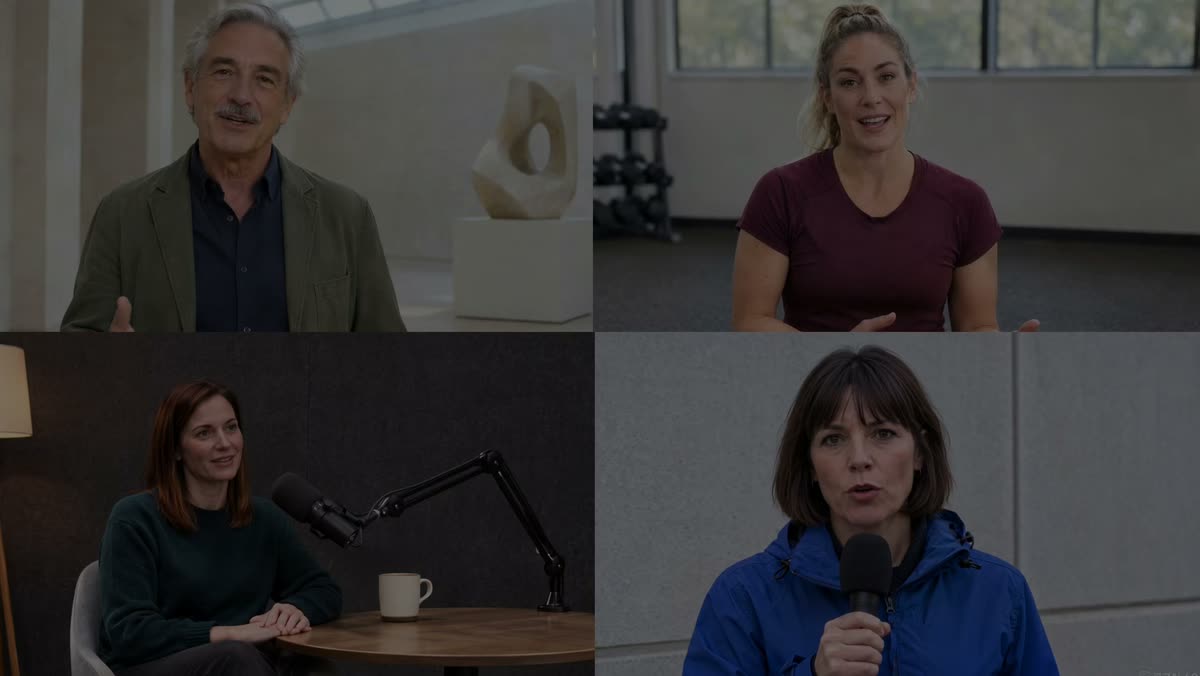
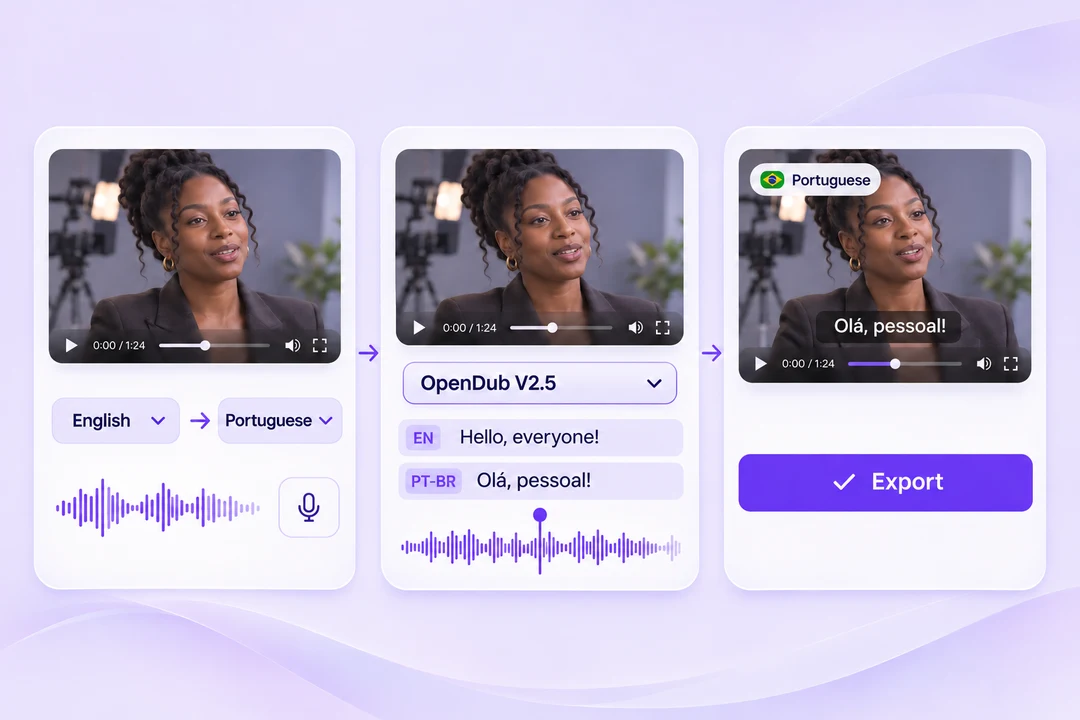
How to Use VMEG OpenDub V2.5
- 1
Upload Your Video
Upload the video you want to translate and select your target language to get started.
- 2
Select VMEG OpenDub V2.5
Choose VMEG OpenDub V2.5 as your translation and dubbing model. Let AI handle speech recognition, context-aware translation, and voice generation. Model availability depends on your account.
- 3
Review, Refine, and Export
Preview your translated video, fine-tune the dubbing and timing in the editor as needed, and export your localized video.
What’s Improved in VMEG OpenDub V2.5?
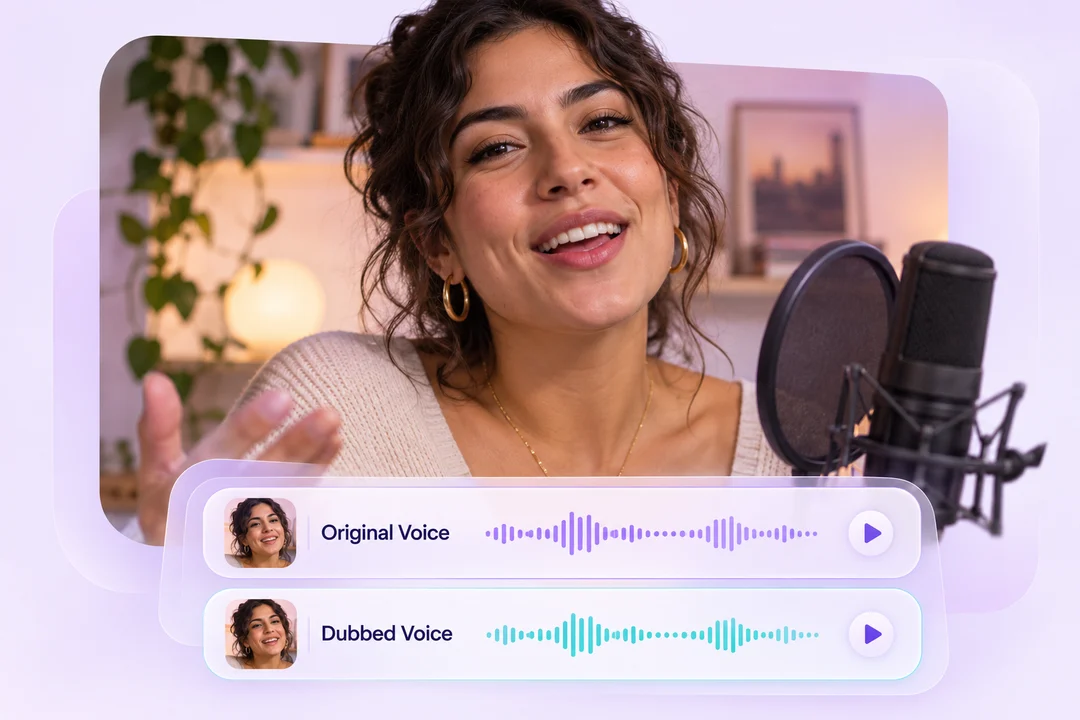
Better Recognition. Closer Sync. More Natural Voices.
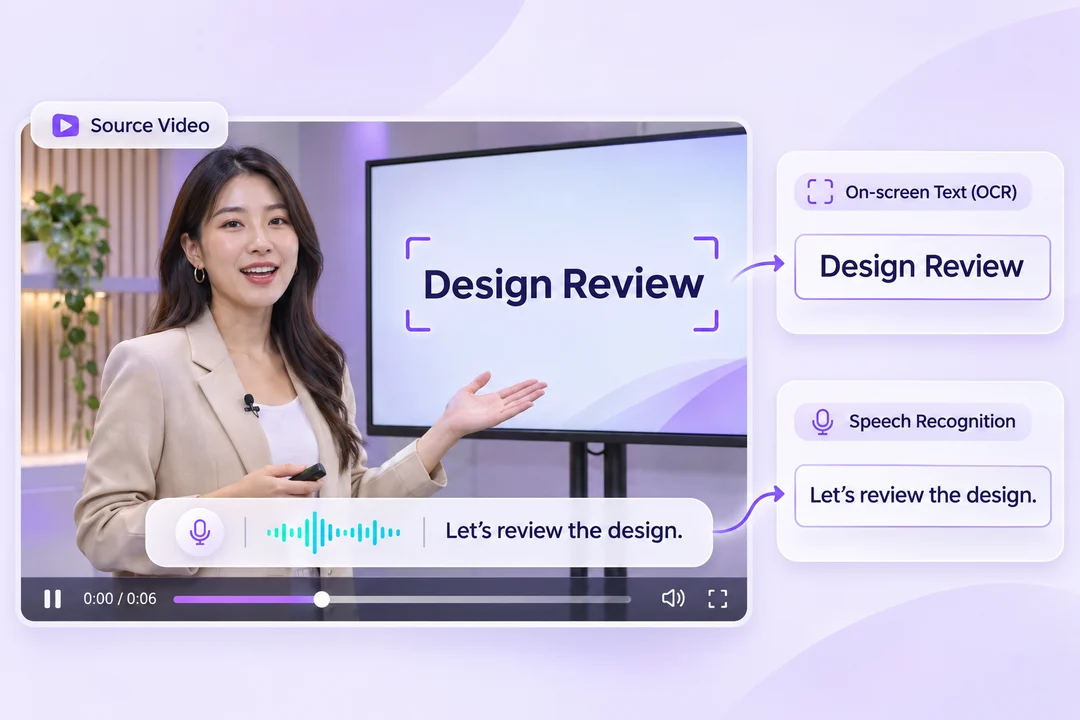
Capture More from Every Scene.
Enhanced ASR and OCR capabilities improve the recognition of spoken words and on-screen text, providing a more reliable foundation for video translation.
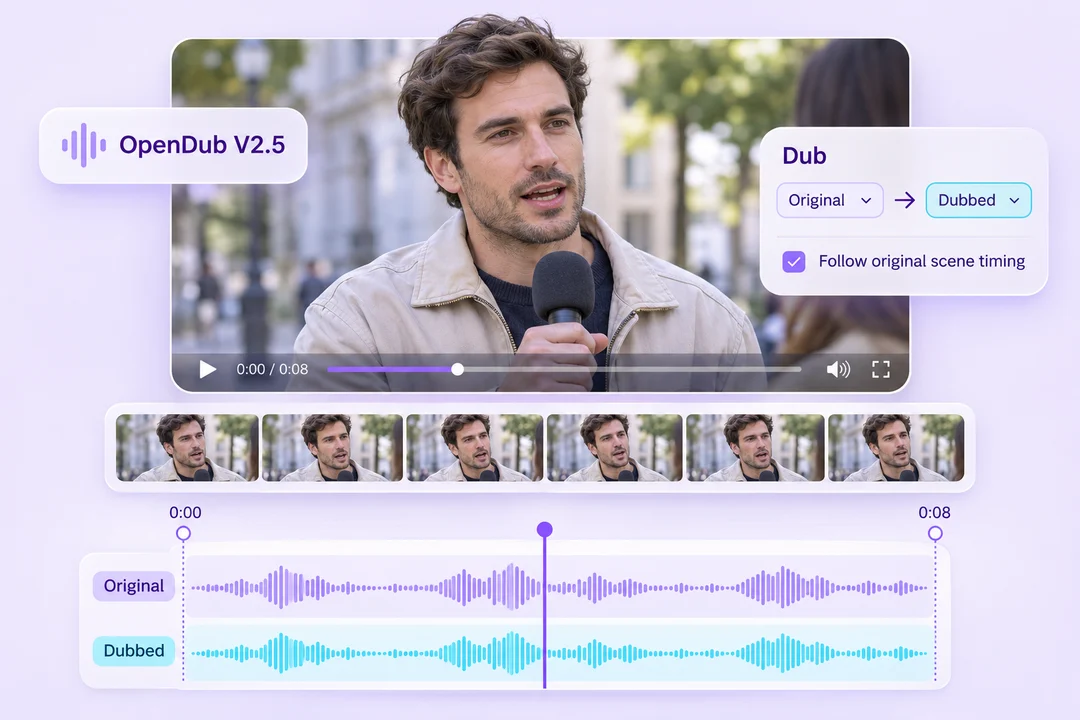
Stay Closer to the Original.
From scene-level audio-visual synchronization to overall video duration, improved timing control helps translated videos stay closer to the original.
Preserve the Voice. Carry the Emotion.
Improved accent reproduction, voice similarity and consistency, and emotional expression help dubbed speech sound more natural and true to the original performance.
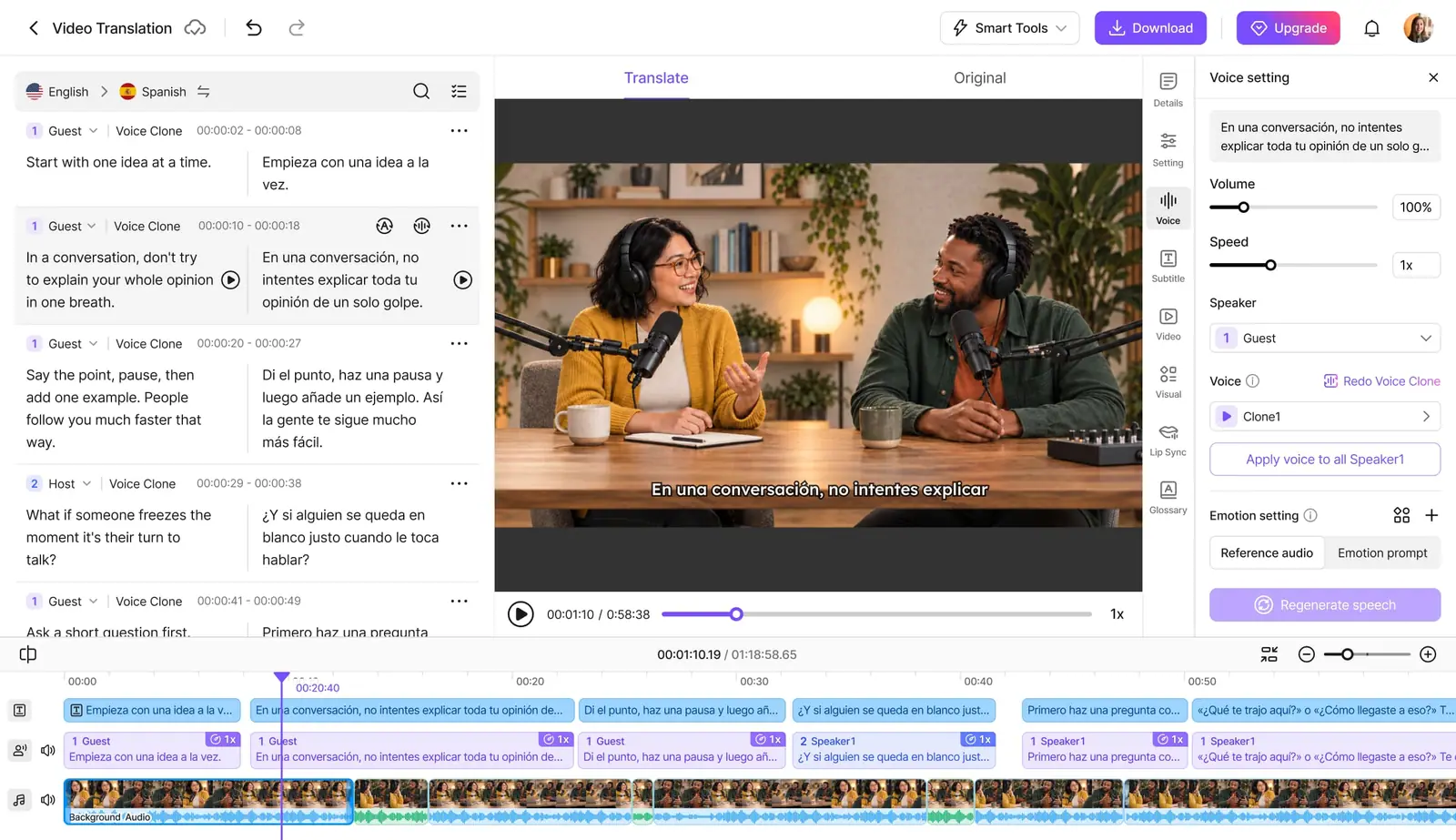
OpenDub V2.5 Editing Studio: More Control. Less Manual Work.
Take video localization further with advanced dubbing controls, reusable voices, synchronized timeline editing, and a smarter AI Agent.
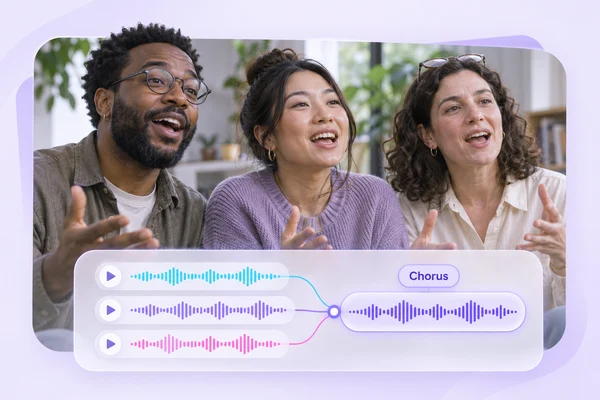
Chorus Effect: Make Group Voices Sound Like One.
Recreate moments when multiple speakers say the same words or react in unison, with layered voices that capture the natural overlap and energy of the original scene.
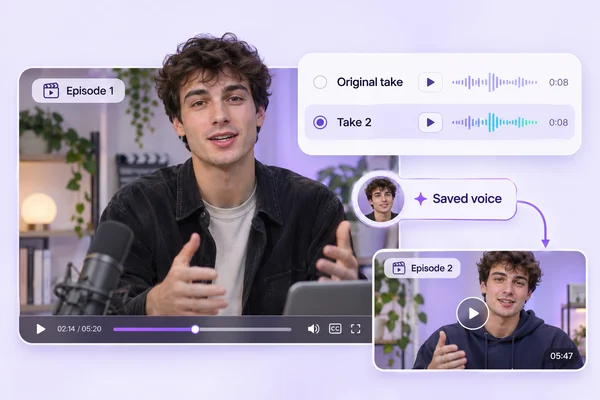
Voice History & Reuse: Find the Right Voice. Use It Again.
Revisit previous dubbing results and switch between versions, including the original AI-generated take. Reuse saved voices across episodes to keep recurring characters sounding consistent.
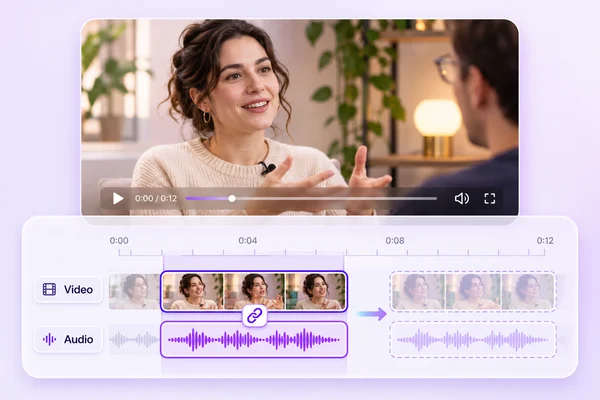
Audio-Video Linkage: Keep Every Edit in Sync.
Link secondary-track elements to the main video track so they move, change speed, or get deleted together. Make timeline adjustments without manually updating each element.
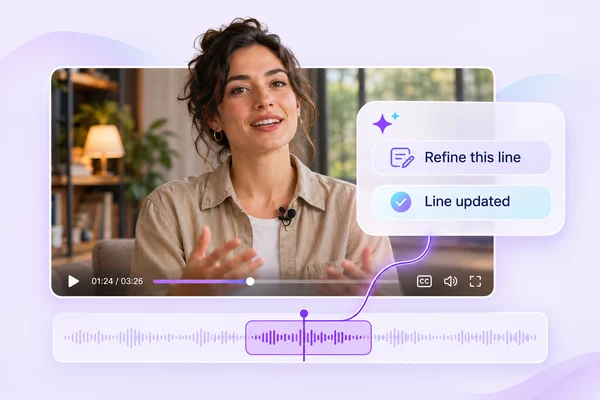
AI Agent: Editing Agent That Understands Your Content.
Work with a smarter AI Agent that understands your video context and helps you perform editing tasks directly in the editor, reducing repetitive manual work.
Localize Every Layer of Your Video
Use these VMEG tools to translate on-screen text, remove embedded subtitles, turn slides into narrated videos, and transcribe dialogue.
On-screen Text Translator
Translate titles, labels, and other text that appears in your video.
Try On-screen Text Translator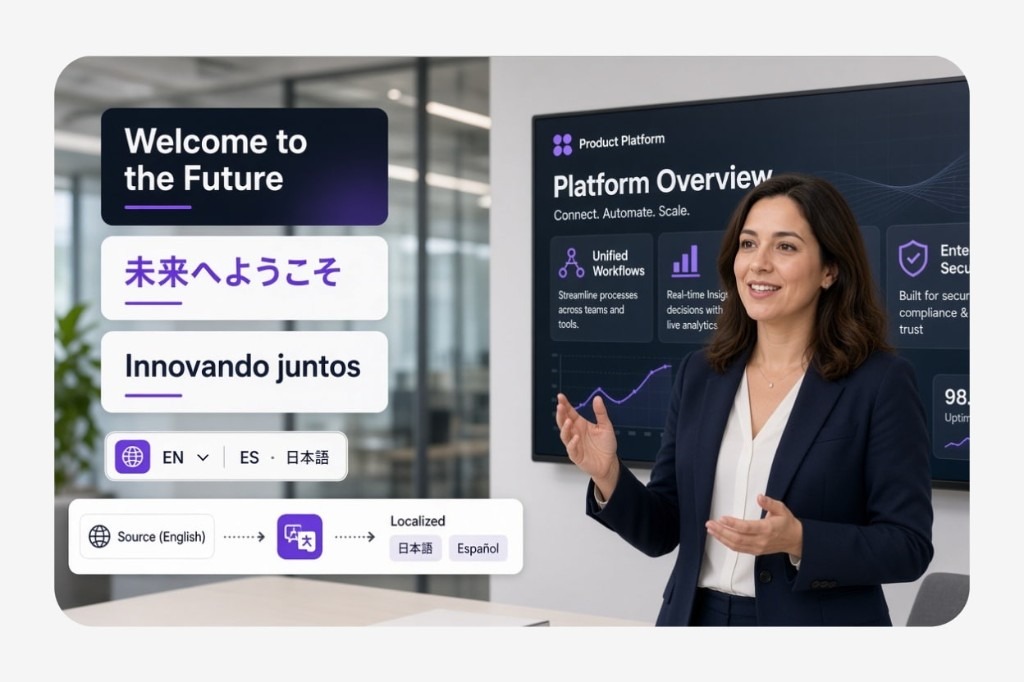
Subtitle Remover
Remove burned-in subtitles to prepare a clean video for new captions.
Try Subtitle Remover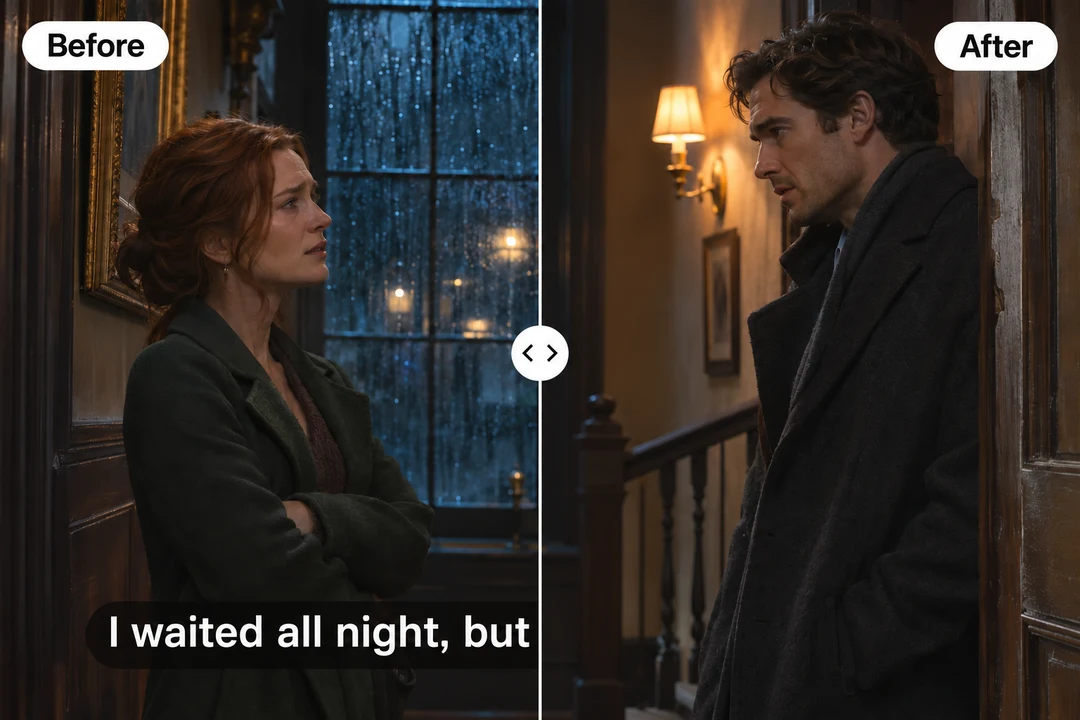
PPT to Video
Turn PowerPoint slides into narrated videos with an optional AI presenter.
Try PPT to Video
Video to Text
Transcribe interviews and tutorials into editable text you can review and export.
Try Video to Text for free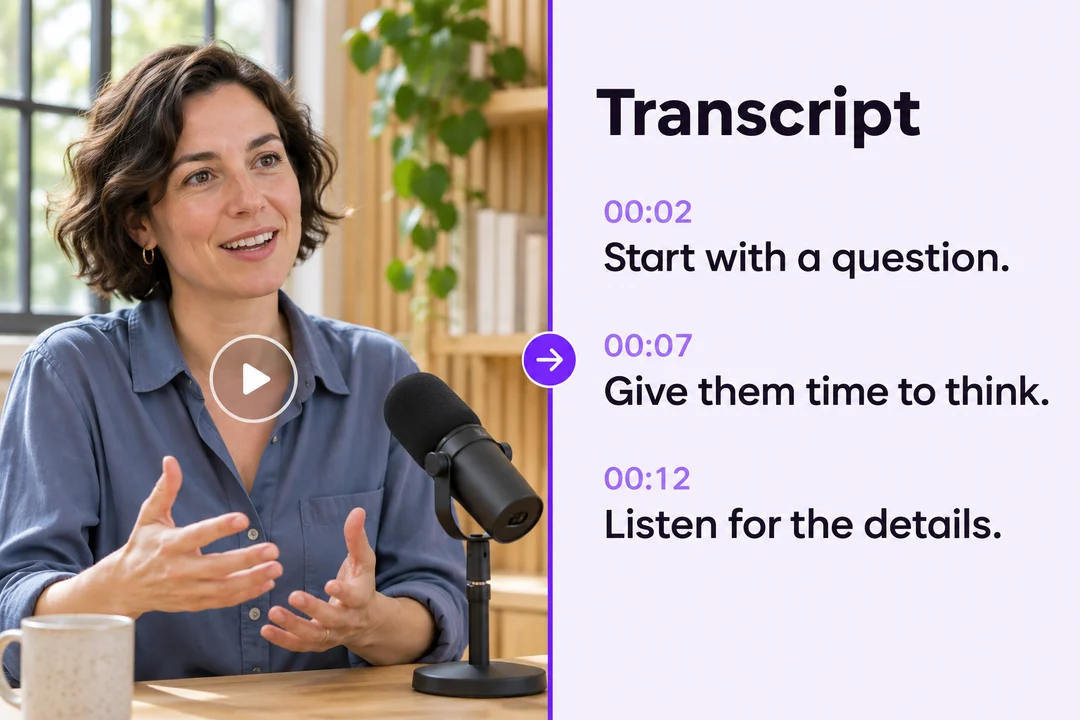
Preview the localized video before export to check that the dialogue, captions, and visuals work together.
FAQs about VMEG OpenDub V2.5
How much does VMEG OpenDub V2.5 cost?
Pricing for VMEG OpenDub V2.5 depends on your video localization needs and the applicable VMEG plan. Check the latest pricing details to find the right option for your workflow.
What's the difference between VMEG OpenDub V2.5 and V2?
VMEG OpenDub V2.5 builds on V2 with enhanced speech and on-screen text recognition, improved context-aware translation, and better dubbing synchronization. It also improves accent reproduction, voice similarity, consistency, and emotional expression, helping deliver more reliable results with less manual refinement.
What is VMEG OpenDub V2.5 best suited for?
VMEG OpenDub V2.5 is well suited for multilingual video localization, especially projects that require consistent voices, natural dubbing, and close alignment with the original video. It's a strong fit for episodic content, educational videos, and large-scale localization workflows where quality and efficiency matter.
Can I change just one line?
Yes. You can review individual lines and adjust the words, voice, or timing where those controls are available.
Can I reuse a voice?
You can save supported voices and use them again across the lines and projects available to your account.
Can I adjust how speech fits the video?
Yes. Review the timing in Editing Studio and fine-tune the moments that need attention.