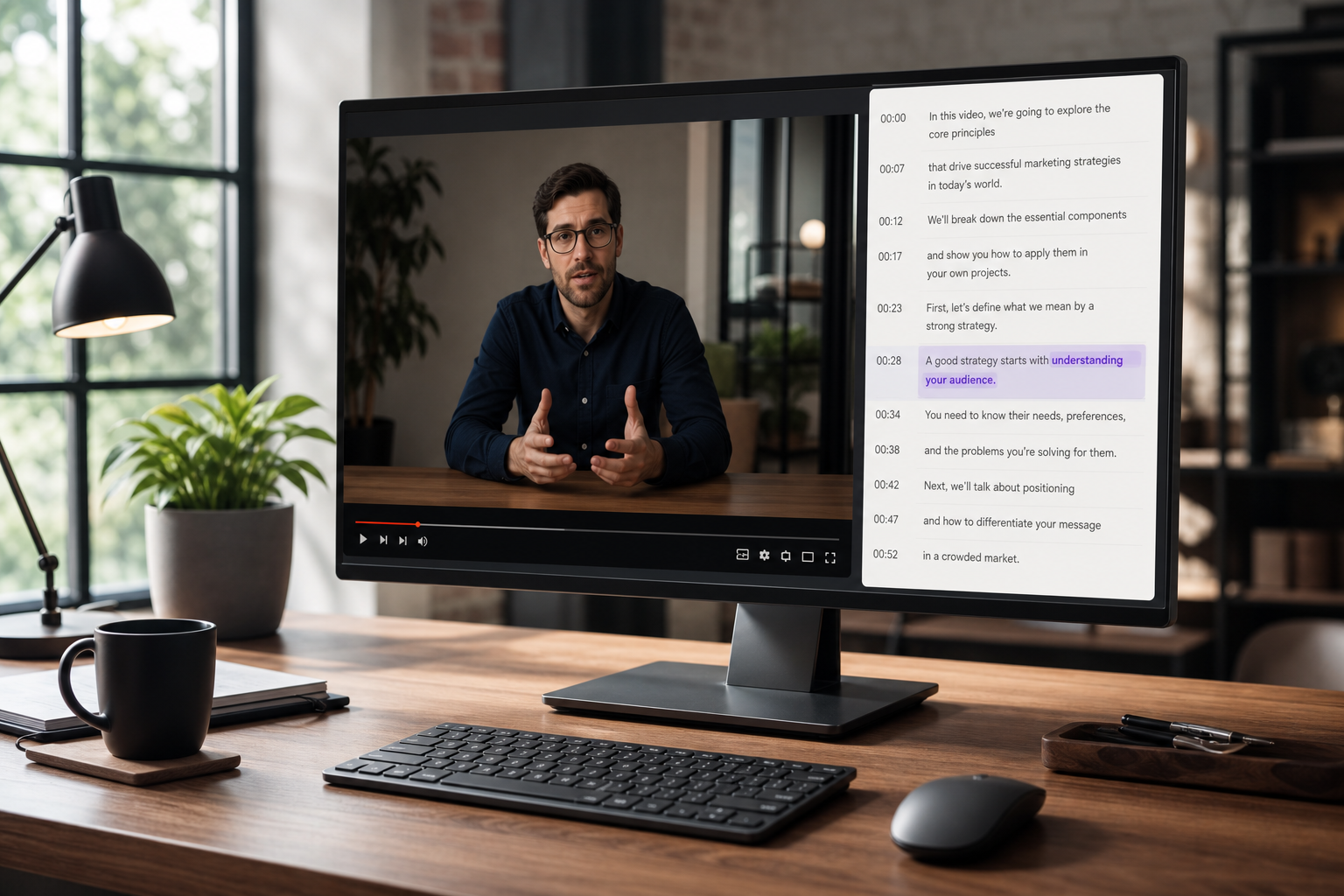
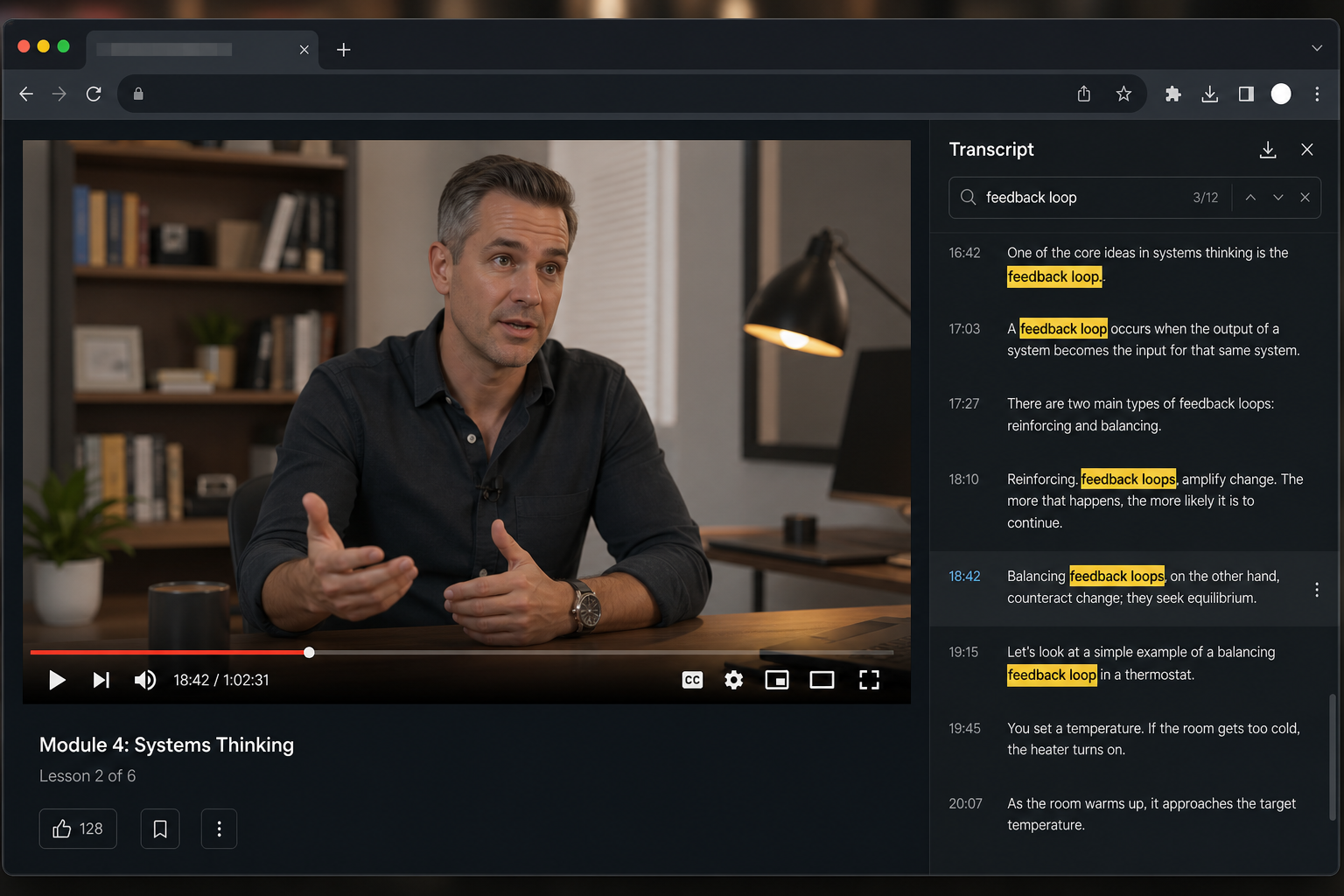
YouTube’s main search bar looks at titles, descriptions, and other metadata. It does not search the words spoken inside a single video. To search a YouTube transcript, open the video on desktop, click Show transcript in the description, then use your browser Find shortcut (Ctrl + F on Windows/Linux, Cmd + F on Mac). Type the word or phrase, jump between matches, and click a transcript line to seek the player to that timestamp.
That workflow is enough for most one-video lookups. Longer research jobs need a clearer path: native search first, then export or regenerate text when captions are weak or missing, then (for whole channels) a local or developer search setup. This guide covers each path, the failure cases, and a short QC checklist before you quote or clip what you find.
Try VMEG’s YouTube Transcript Generator: paste a YouTube URL, get clean searchable text, then find the line you need with Ctrl/Cmd+F.
Key takeaways
- Transcript search finds spoken words inside a video. Site search does not.
- Desktop is the reliable native path. Open Show transcript, then use browser Find and click timestamps.
- Mobile apps are limited. Use a desktop browser, request the desktop site, or work from an exported transcript.
- No transcript means no captions track. YouTube’s panel only displays caption text that already exists (manual or auto-generated).
- Auto-generated captions can mis-hear names, accents, and noisy audio. Verify important lines before citing them.
- Pick the method by scope. One video → native Find. Clean export or missing captions → regenerate/export. Many videos on one channel → local/channel tooling.
YouTube search vs transcript search
These are different jobs:
| Goal | What to use |
|---|---|
| Find videos about a topic | YouTube search + filters (title/description/metadata) |
| Find videos that have captions | Search filters → Subtitles/CC (YouTube Help) |
| Find a word or quote inside one video | Transcript panel + browser Find |
| Find a phrase across many videos on a channel | Download/index transcripts locally or use a specialized search tool |
If you only remember one distinction: searching YouTube and searching a YouTube transcript are not the same feature.
Method 1: Search the built-in transcript on desktop
This is the fastest free method when the video already has captions.
YouTube’s own help docs explain the core viewer actions: open Show transcript from the video description, then click any line to jump to that part of the video (View video transcripts). Searching that text is then a browser Find action on the loaded transcript panel.
Step-by-step
- Open the video in a desktop browser (Chrome, Edge, Firefox, or Safari).
- Expand the description under the player.
- Click Show transcript. A timestamped panel opens (usually beside the player).
- If more than one caption track exists, pick the language or track that matches the speech you care about. Prefer a creator-uploaded track when both uploaded and auto-generated options exist.
- Press Ctrl + F (Windows/Linux) or Cmd + F (Mac).
- Type the keyword, name, or short phrase.
- Use Find’s next/previous controls to move between highlights.
- Click the matching transcript line to jump the video to that timestamp.
Practical tips for better matches
- Search short, distinctive strings. Brand names, proper nouns, and uncommon phrases beat filler words such as important or basically.
- Try alternate spellings. Auto-captions often mangle names (VMEG → V meg, Vue → view).
- Watch for page-wide Find noise. Browser Find searches visible page text, not a private transcript index. Matches can appear in comments, titles, or recommendations. Stay focused on the transcript panel highlights.
- Toggle timestamps if the UI allows it. Some layouts let you hide timestamps so the panel is easier to scan or copy.
What this method is good for
- Finding a quote in a podcast episode you already identified
- Jumping to a definition in a lecture
- Checking whether a webinar mentioned a product name
What it cannot do
- Search across an entire channel in one query
- Recover speech from a video with no caption track
- Guarantee exact wording when the track is auto-generated
Method 2: Search transcripts on mobile
The YouTube mobile app is weaker for transcript search than desktop. If you only have a phone:
- Open the video in a mobile browser (not only the app).
- Request the desktop site.
- Open Show transcript the same way as on desktop.
- Use the browser Find-in-page feature if available.
If Find-in-page is awkward on your device, copy the transcript text into Notes or a docs app and search there. For frequent mobile research, export a text or subtitle file on desktop once, then search offline on your phone.
Method 3: Export or regenerate a searchable transcript
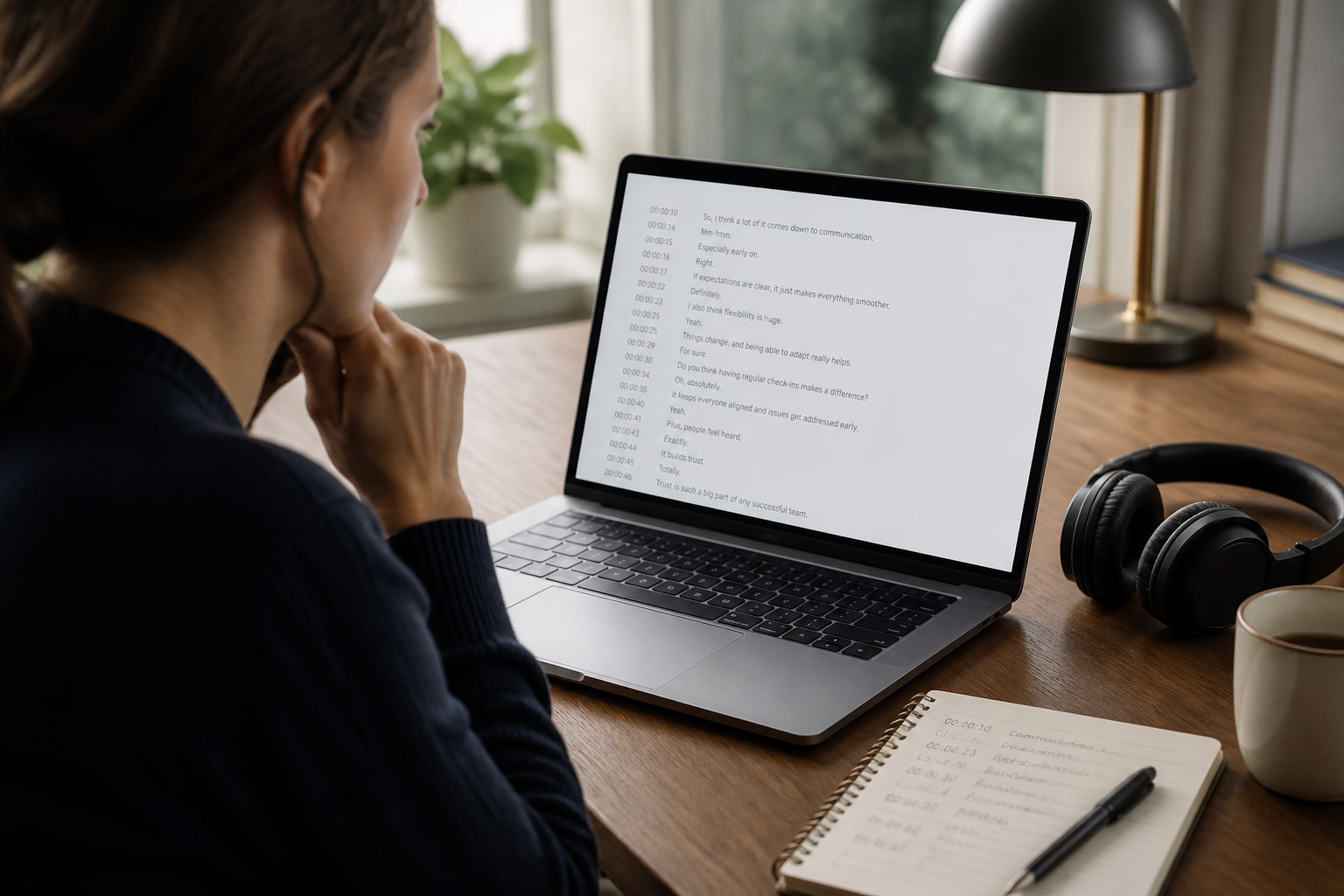
Use this path when:
- The native panel is missing
- You need offline search, annotations, or shared notes
- Auto-captions are too noisy for reliable Find matches
- You want a clean file (TXT/SRT/VTT) for a research folder
Option A: Copy from YouTube’s panel
With the transcript open on desktop, select the text, copy it, and paste it into a text editor. Then search inside that document. This is still limited by caption quality, but it removes page-wide Find clutter.
Option B: Get a fuller export workflow
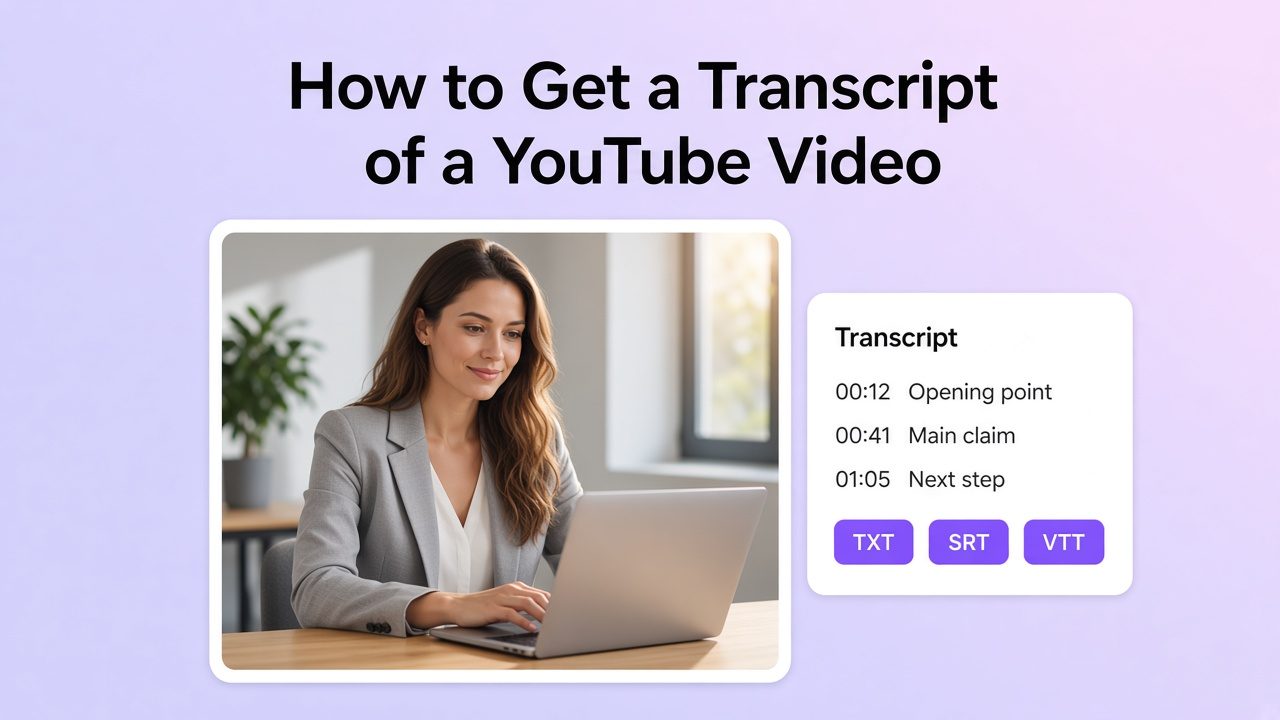
If you need downloadable formats, speaker-aware cleanup, or a path that continues into translation, use a dedicated transcription flow. For a YouTube-focused walkthrough of obtaining the full text, see How to Get Transcript of a YouTube Video. When captions are missing or too rough to search, paste the URL into VMEG’s YouTube Transcript Generator (linked in the CTA above) to produce editable, exportable text, then run Find (or editor search) on the result.
Option C: Paste into an AI chat for meaning-based questions
Keyword Find only matches strings. If you do not know the exact wording, for example a pricing discussion versus a spoken list price, paste a cleaned transcript into an AI chat and ask for the section, paraphrase, or claim. Still verify any quote against the audio and original timestamp before publishing.
Method 4: Search across a channel (developer / local index)
Native YouTube search does not return every video where someone said a specific phrase. For channel-wide work, researchers often:
- List videos for a channel (YouTube Data API or a channel archive)
- Fetch each available caption/transcript
- Store the text locally
- Run keyword search across that corpus
Open-source projects such as olincollege/youtube-transcript-search follow this pattern: download channel transcript data first, then search keywords or phrases in the terminal and rank videos by hit count. Expect setup cost (API key, download time, storage) and incomplete coverage wherever captions were disabled or never generated.
Use this when you monitor competitor channels, lecture series, or interview archives. Skip it for a single known video.
Decision framework: which method should you use?
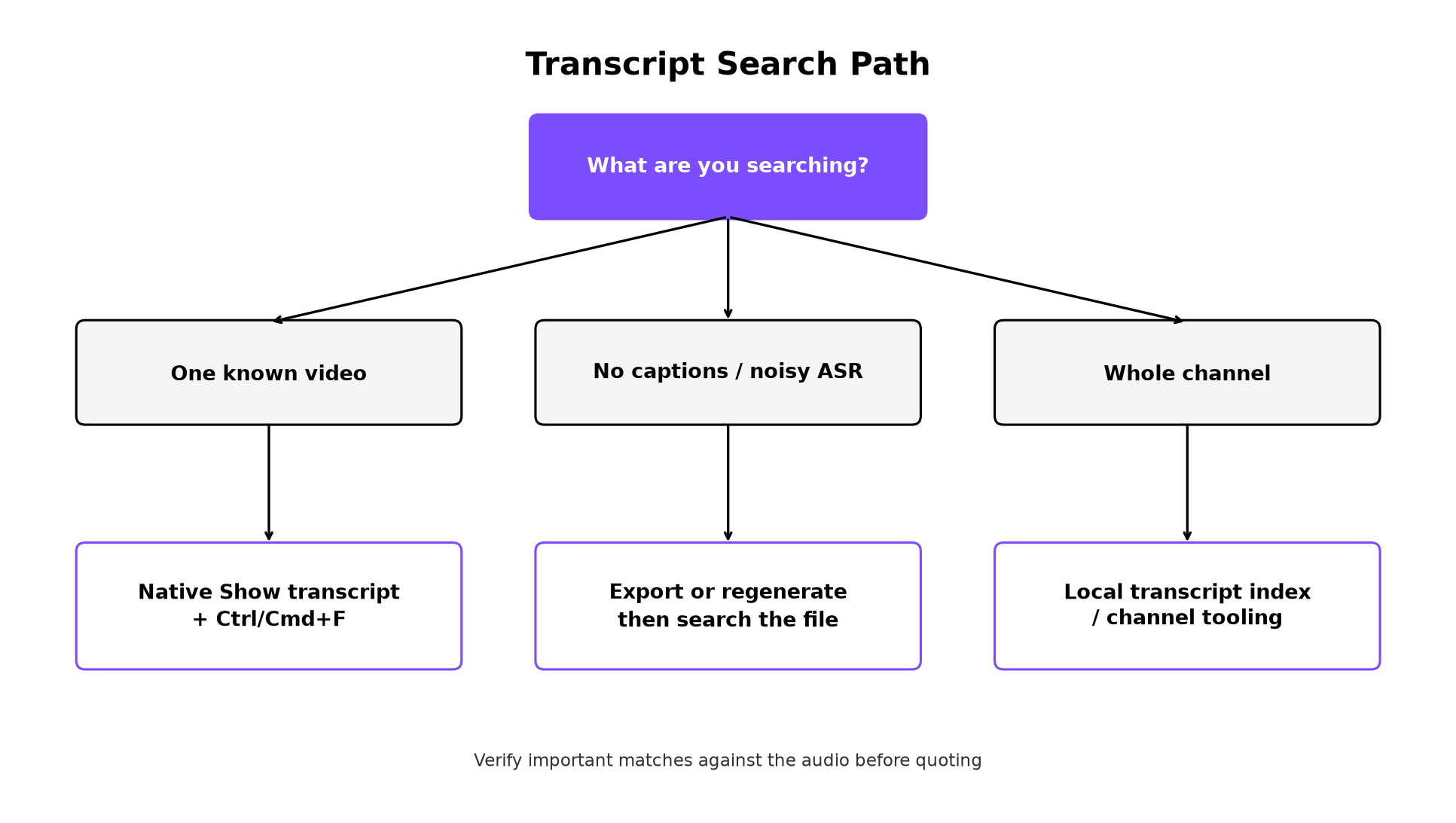
| Your situation | Best starting method | Escalate to |
|---|---|---|
| You know the video; you need one quote | Desktop transcript + Ctrl/Cmd+F | Copy into a text editor if Find is noisy |
| You are on a phone | Desktop site in browser | Export earlier from desktop |
| No Show transcript control | Confirm captions exist; wait if the upload is new | Regenerate/transcribe from audio or URL |
| Auto-captions miss the term you expect | Try spelling variants | Export + human listen-through of likely segments |
| You need the same phrase across dozens of videos | Local/channel transcript index | Keep a glossary of search aliases (product names, people) |
| You found the moment and need another language | Clip or mark the timestamp | Translation / localization workflow |
When search fails (and what to do)
1. There is no transcript panel
YouTube can show a transcript only when a caption track exists (View video transcripts). Common reasons there is nothing to show:
- Captions were never uploaded and auto-captions never finished
- The creator disabled or removed captions
- Audio is mostly music, silence, or speech YouTube cannot recognize
- The video is still processing
YouTube notes that automatic captions may not be ready at upload time, and processing depends on audio complexity. Auto captions can also fail when the language is unsupported, the video is too long, sound quality is poor, the opening is long silence, or speakers overlap / mix languages (Use automatic captioning).
What to do: Wait if the upload is fresh. Check whether CC is available on the player. If captions are permanently off, the only path is transcription from the audio (or a tool that transcribes rather than only reading existing captions).
2. Find returns nothing, but you heard the word
Likely causes:
- Wrong caption language track
- Mis-transcription (homophones, brand names, accent errors)
- The word was on-screen text, not spoken
- You searched a paraphrase, not the spoken wording
What to do: Try stems and misspellings, scan nearby chapters manually, or regenerate a cleaner transcript and search again.
3. Find highlights the wrong place on the page
Browser Find is not a dedicated transcript-only search API. Collapse the description extras if needed, ignore comment hits, and click only lines inside the transcript panel.
4. The match exists, but the wording is wrong for citation
YouTube states that automatic captions may misrepresent speech because of mispronunciations, accents, dialects, or background noise, and creators should review them (Use automatic captioning). The same caution applies to viewers who quote from those tracks.
QC checklist before you quote, clip, or brief a team
Use this short pass whenever the result matters (article citation, legal/PR review, customer research, localization source text):
- Play 5–10 seconds of audio around the timestamp. Confirm the words.
- Capture the URL with timestamp (for example &t=125s) so teammates land on the same moment.
- Note caption type if visible (auto-generated vs uploaded). Treat auto text as a pointer, not a finished transcript.
- Normalize names and terms in your notes (correct spelling next to the raw caption string).
- Mark uncertain spans instead of silently correcting them.
- If you will translate or subtitle the segment, clean the source line first. Garbage in the source becomes garbage in every language.
After you find the moment: notes, clips, localization
Transcript search is often step one in a longer content workflow:
- Locate the claim, demo, or explanation with Find.
- Verify against audio.
- Extract a quote, clip, or outline note with the timestamp.
- Repurpose or localize if the audience needs another language or format.
For teams that turn long English (or source-language) YouTube explainers into multilingual versions, the natural next step after locking the source wording is translation and dubbing in a video translator workflow: keep the verified transcript as the source of truth, then translate, voice, and time the segment rather than re-scrubbing the original again.
FAQ
Does YouTube have a built-in transcript search box?
Not as a dedicated site-wide feature for spoken words. On desktop, you open the transcript panel and use your browser’s Find shortcut to search the text that panel loads.
Can I search YouTube transcripts on the mobile app?
Not as smoothly as on desktop. Use a mobile browser with the desktop site, or search an exported transcript file.
Why is Show transcript missing?
Usually because no caption track is available for that video, or captions are still processing. It is not a separate transcript database disconnected from captions.
Are auto-generated transcripts accurate enough to search?
They are often good enough to locate a topic. They are not always good enough to quote without listening. Names, numbers, and technical terms are common failure points.
How do I search across every video on a channel?
You need an index: fetch transcripts for the channel’s videos, store them, then run keyword search locally or in a specialized tool. YouTube’s consumer UI does not offer that as a one-box feature.
Is searching captions the same as searching on-screen text or slides?
No. Transcript search covers spoken (captioned) words. Slide text, thumbnails, and burned-in titles are outside that index unless someone also said them aloud.
Closing
If you already know which video holds the answer, desktop transcript search plus Ctrl/Cmd+F is usually the whole job: open the panel, find the string, click the timestamp. Escalate only when the panel is missing, the captions are too noisy, or the question spans a whole channel. Keep a short QC habit for anything you will quote or localize, and treat the transcript as a map to the audio, not a replacement for it.
When YouTube’s panel is missing, or auto-captions are too rough to trust for research notes, generate a cleaner transcript first, then search that file.
Try VMEG free: turn a YouTube link into searchable, exportable transcript text you can find, quote, and reuse.