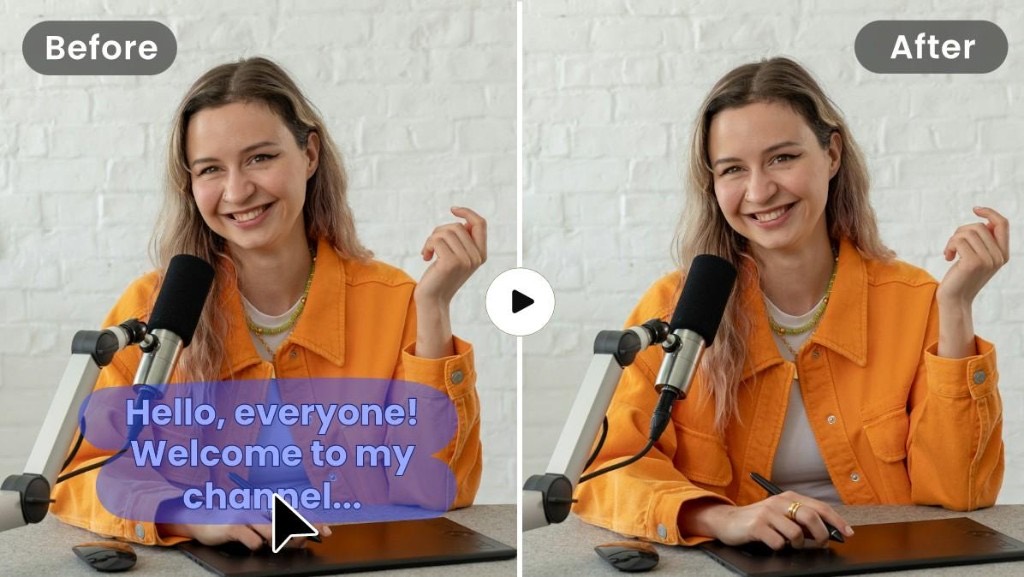
To remove subtitles from a video, first check whether they are stored as a separate subtitle track or permanently embedded in the video frames.
Soft subtitles can be turned off or removed directly. Hardcoded subtitles, also called burned-in subtitles, cannot simply be deleted because they are part of the picture. To remove them, you need the original subtitle-free video, crop the affected area, or use AI to reconstruct the background.
This guide covers three practical methods for removing subtitles from MP4, MKV, and other video files, including how to deal with subtitles that won't disappear.
Check What Type of Subtitles Your Video Has
Not all subtitles work the same way. Identifying the type will save you from using unnecessary editing tools.
| Subtitle Type | How It Works | How to Remove It |
|---|---|---|
| Soft subtitles | Stored in a separate SRT/VTT file or selectable subtitle track | Disable or delete the subtitle track |
| Hardcoded subtitles | Permanently embedded in the video frames | Crop the frame or use AI removal |
How to Check If Your Subtitles Are Hardcoded
You can check this using VLC Media Player:
- Open your video in VLC.
- Go to Subtitle > Sub Track.
- Select Disable, if a subtitle track is available.
- Check whether the subtitles disappear.
If the subtitles disappear, they are soft subtitles.
If the text remains visible, it is likely hardcoded into the video.
For example, subtitles added to a video during editing and exported as part of the final image are usually hardcoded. Simply switching off captions in a video player won't remove them.
Method 1: Remove Hardcoded Subtitles by Cropping
If subtitles are permanently burned into the picture, cropping is one of the simplest ways to remove them.
This method works best when the subtitles stay near the bottom of the video and the surrounding area does not contain important visual information.
How to Crop Out Subtitles
- Open your video in a video editor.
- Select the video clip and locate the crop settings.
- Crop the bottom portion of the frame until the subtitles are no longer visible.
- Adjust the framing if needed, then export the video.
Cropping does not reconstruct the area behind the text. Instead, it removes that part of the picture entirely.
For example, cropping may work for an interview where subtitles appear in the lower black bar. However, if the subtitles overlap a person's hands or important objects, cropping may remove useful content.
When should you avoid cropping?
If you need to preserve the original framing, especially when subtitles overlap important parts of the scene, consider using AI subtitle removal instead.
Method 2: Remove Hardcoded Subtitles Using AI
For videos with burned-in subtitles that cannot be removed as a separate track, AI video editing tools can reconstruct the area covered by the text.
This process is commonly called video inpainting. Instead of cutting out or blurring the subtitle area, the AI uses surrounding visual information to generate a replacement background.
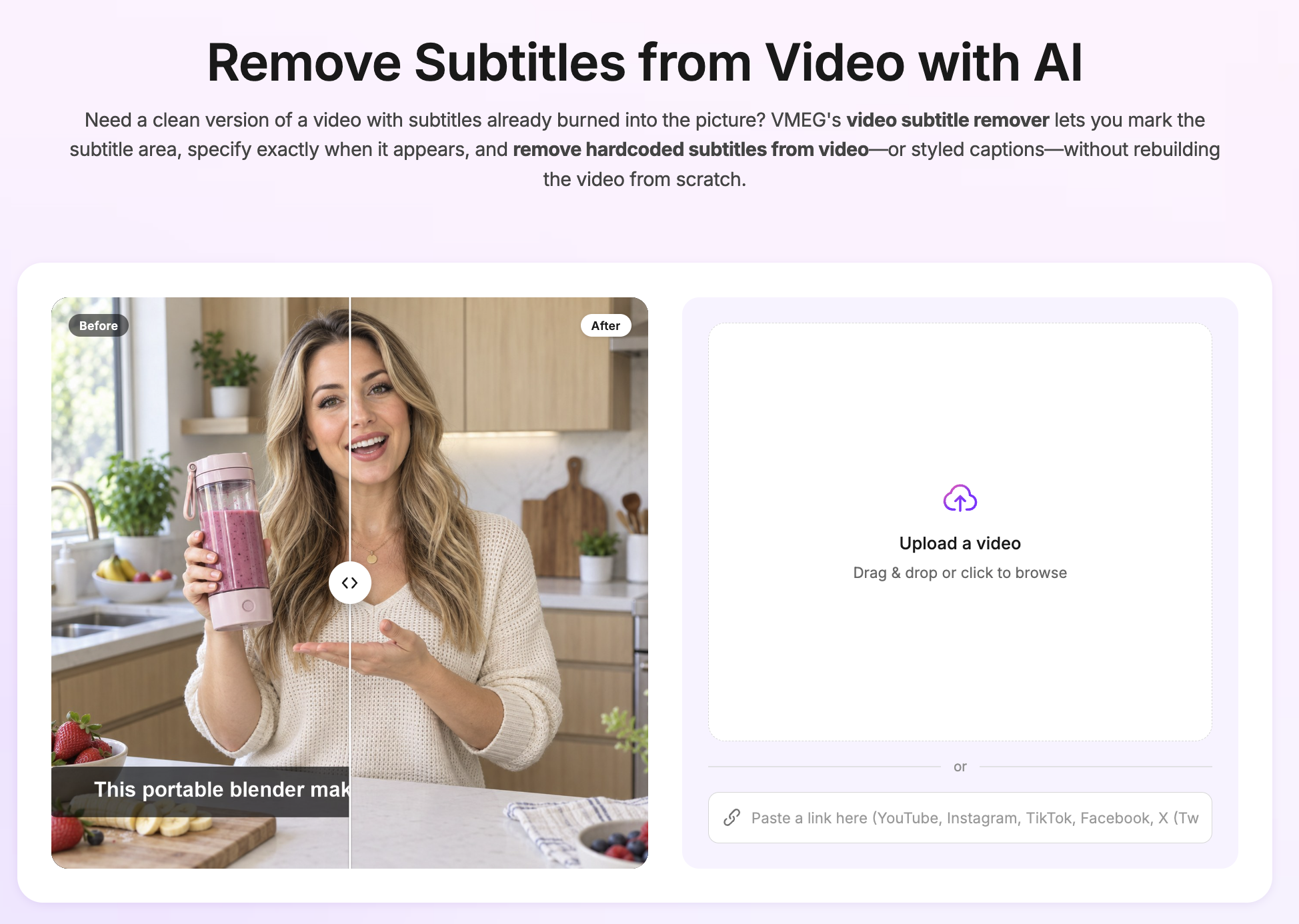
One way to do this is with VMEG's Video Subtitle Remover.
Step 1: Upload the Video
Open the subtitle remover and upload your video.
Move through the video timeline to locate a frame where the subtitles are visible.
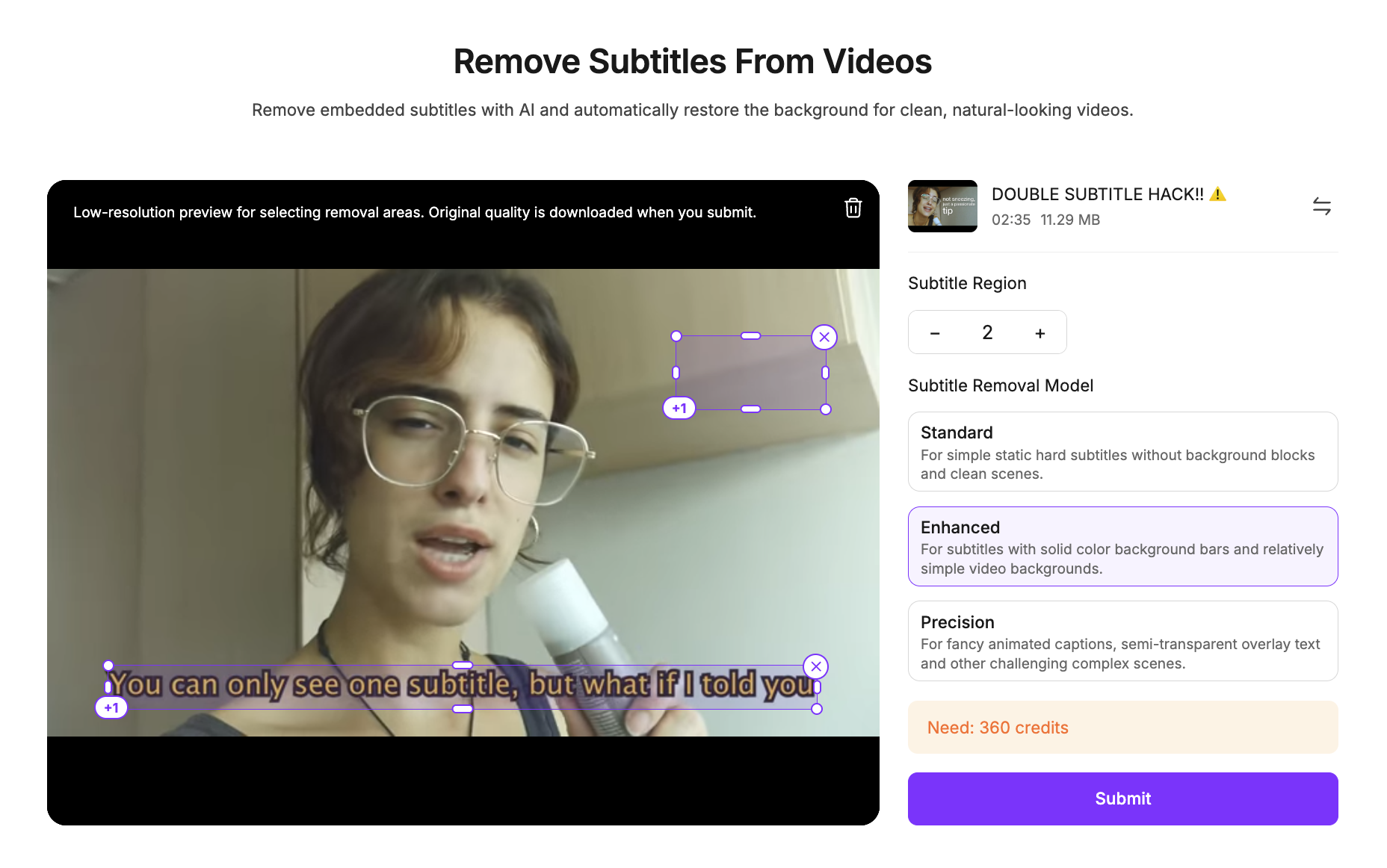
Step 2: Mark the Subtitle Area
- Draw a bounding box around the target text. Make sure to cover the entire line including any outlines or shadows, while keeping unnecessary background areas to a minimum.
- Set Multiple Removal Regions (Enhanced and Precision Modes): In these modes, VMEG supports up to five custom removal regions, allowing you to target subtitles in different areas of the video.
💡 Tip: If subtitle positions shift during the video, set up separate removal regions for each location.
Step 3: Select a Removal Model
The best processing method depends on the subtitle style.
For instance, plain white dialogue subtitles are generally easier to remove than captions with thick outlines, background boxes, or animated effects.
VMEG provides three processing options:
- Basic Removal: For ordinary subtitles with relatively simple backgrounds.
- Enhanced Removal: For subtitles with outlines, shadows, or boxes.
- Effects Removal: For stylized captions, including karaoke-style text and gradients.
Choose a model based on the type of subtitles in your video, then review the estimated credit usage before processing.
Step 4: Process and Review the Video
Start processing the selected subtitle areas.
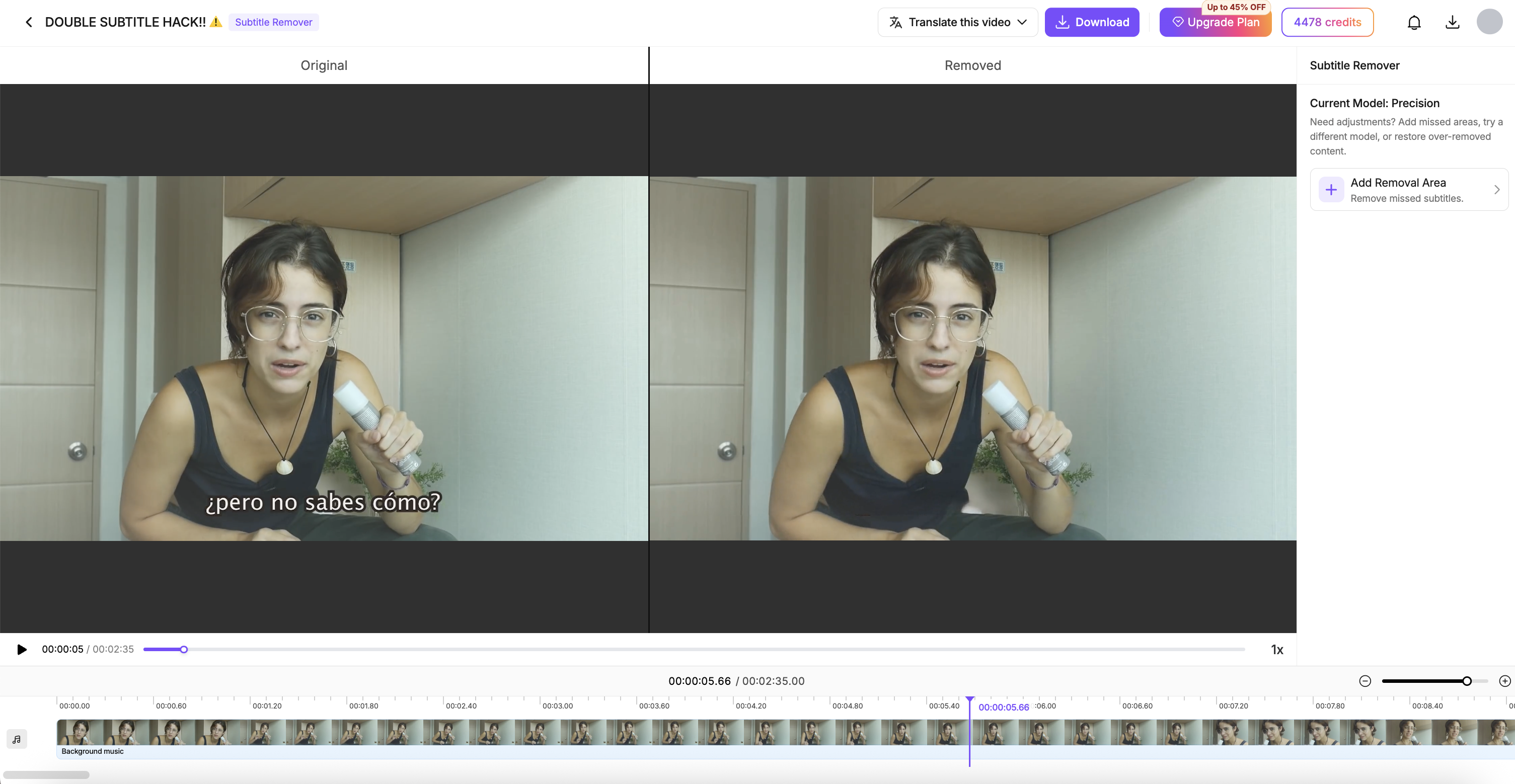
Once the result is ready, compare the cleaned video against the original.
Don't check only one frame. Play through the video and look for:
- Remaining characters or subtitle outlines.
- Flickering where the subtitles used to be.
- Distorted objects or unnatural background textures.
- Subtitle fragments appearing when the text changes.
Pay special attention to scenes with moving objects or detailed backgrounds.
Step 5: Correct Any Remaining Problems
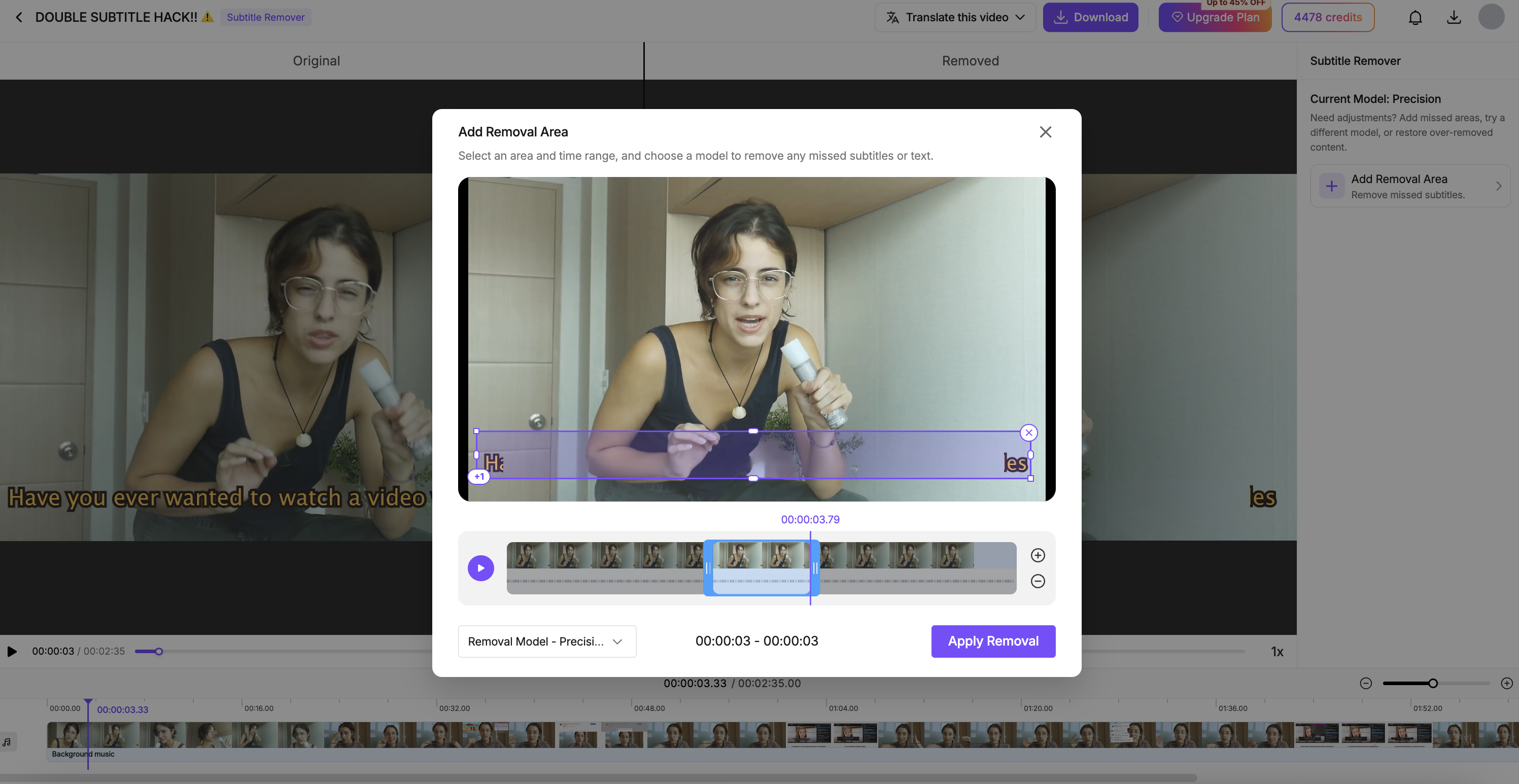
AI subtitle removal may not produce a perfect result on the first attempt. If some subtitle fragments remain, or if you missed a section, you can fine-tune the result directly in the editor:
Add or Adjust Removal Areas: Create a new removal region for any un-erased or missed text, and adjust its position and timing on the timeline.
ℹ️ Note on Credits: Reprocessing a removal area consumes additional credits. Each new subtitle removal task is charged separately.
Here's a demonstration of VMEG's Video Subtitle Remover in Precision Mode.
(Note: Sample video is for demonstration purposes only. No copyright infringement intended.)
Method 3: Remove Soft Subtitles Without Re-encoding
If your video has a separate subtitle track, removing it is straightforward. You don't need an AI tool, and you don't need to modify the picture.
Option A: Turn Off Subtitles While Watching
In VLC, go to Subtitle > Sub Track > Disable.
This hides the subtitles during playback, but it does not permanently remove them from the video file.
Option B: Permanently Remove the Subtitle Track
If you want to export a new video without the subtitle track, you can use FFmpeg.
For example:
ffmpeg -i input.mp4 -map 0 -c copy -sn output.mp4
This command copies the compatible video and audio streams while excluding subtitle streams from the output file.
Because the video and audio are copied rather than re-encoded, their original encoded quality is preserved. However, the output container must support the copied streams.
If the subtitles are provided as a separate .srt or .vtt file, you can simply exclude that file when distributing the video.
Important: This method only removes separate subtitle tracks. It will not remove text that is already visible inside the video frames.
Why Are Some Hardcoded Subtitles Difficult to Remove?
Hardcoded subtitle removal involves more than deleting text. The software must estimate what the picture would look like without the subtitles.
Several factors can affect the result.
The Subtitles Overlap Moving Objects
Suppose a subtitle covers someone's hand while they are speaking.
The hand changes position across frames, so the AI needs to reconstruct both the background and the movement hidden by the text.
What to try: Keep the removal region tight and check the affected frames. If artifacts remain, adjust the region or process the problem section separately.
Subtitle Outlines or Shadows Remain Visible
Some subtitles contain several visual layers, including text, borders, shadows, and colored backgrounds.
A removal area that covers only the main characters may leave parts of those effects behind.
What to try: Expand the selection slightly to include the complete subtitle styling. For complex designs, use a removal model suited to outlined or decorative text.
The Background Looks Blurry or Distorted
This can happen when a subtitle covers detailed textures, faces, or objects that are difficult to reconstruct.
What to try: Reduce the selected area, adjust the processing time range, or restore parts of the image that were unnecessarily modified.
AI can generate a visually plausible replacement, but it cannot guarantee recovery of the exact original pixels hidden behind the subtitles.
Which Subtitle Removal Method Should You Use?
The right method depends on the video file and the result you need.
| Your Situation | Recommended Method |
|---|---|
| Subtitles can be disabled in a player | Turn off or remove the subtitle track |
| Subtitles are provided as an SRT/VTT file | Remove or exclude the external subtitle file |
| Hardcoded subtitles are in an expendable border | Crop the video |
| Hardcoded subtitles overlap the picture | Use AI subtitle removal |
| Subtitles move between different positions | Use region-based removal with time ranges |
| You still have the original editing project | Remove the subtitle layer and export again |
If the original subtitle-free video is available, using it is usually the most reliable option. It avoids reconstruction artifacts altogether.
Frequently Asked Questions
Can You Remove Subtitles from an MP4 Video?
Yes. If the MP4 contains a separate subtitle track, you can remove it without modifying the video frames. If the subtitles are burned into the picture, you'll need cropping or an AI-based visual removal method.
Can Hardcoded Subtitles Be Completely Removed?
Hardcoded subtitles can often be removed visually, but the result depends on how much of the underlying image is obscured. AI can reconstruct a plausible background, although complex motion or detailed scenes may still produce visible artifacts.
Can I Remove Subtitles Without Cropping the Video?
Yes. AI video inpainting can remove burned-in subtitles while keeping the original frame dimensions. Unlike cropping, it attempts to reconstruct the background behind the text instead of removing part of the picture.
How Can I Remove Subtitles from a Video for Free?
If the video has soft subtitles, you can disable them with VLC or remove the track using free tools such as FFmpeg. For hardcoded subtitles, some manual editing techniques may work, while AI processing tools may charge based on usage. For example, VMEG AI offers free trial credits to get started, with flexible credit packs available if you need higher volume.
Does Removing Hardcoded Subtitles Affect the Audio?
Subtitle removal that modifies only the video image does not inherently require changing the spoken audio. However, the output file may still be re-encoded depending on the tool. Check the exported video to confirm that the audio remains intact and synchronized.
Final Thoughts
The key to removing subtitles from video is identifying how they were added.
If they're stored in a separate track, remove the track directly. If they're permanently embedded in the picture, cropping can work when framing is flexible, while AI removal is an option when you need to preserve the full image.
For hardcoded subtitles, start with the smallest practical removal area and review the result across multiple frames. This is especially important when text overlaps moving objects or detailed backgrounds.
If you need to remove embedded subtitles while keeping the original framing, you can try the VMEG Video Subtitle Remover.