How to Transcribe Audio to Text
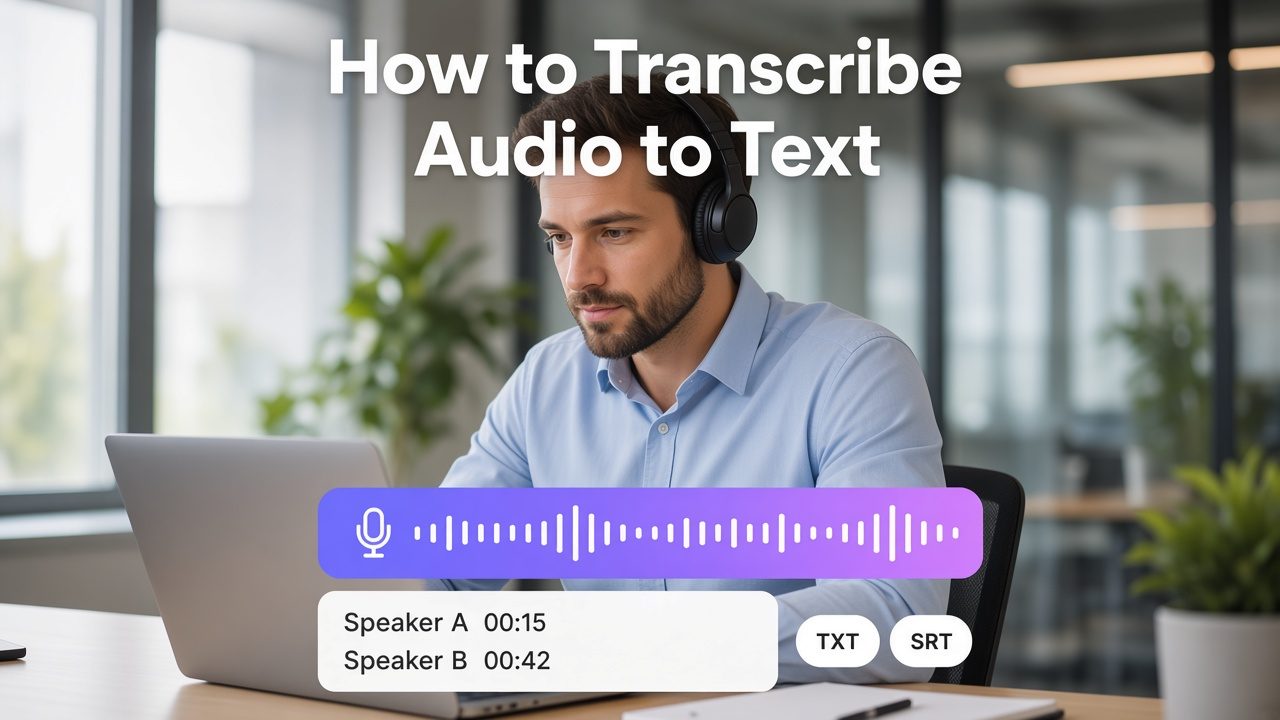
To transcribe audio to text, take a recording of speech and turn it into a written transcript you can edit. Upload the audio file, set the spoken language, and ask for speaker labels if more than one person talks. When the draft appears, correct names, numbers, and unclear lines. Then export plain text for notes, or a timed file such as SRT or VTT if you need captions.
That job is file transcription. Dictation types while you speak. Translation rewrites the words into another language. If your source is a video file, follow a video workflow instead of treating the picture as the thing being transcribed. This guide is for an audio file you already have: a podcast episode, interview, meeting, lecture, or voice memo. A sound file means the same thing here, as long as it contains speech you want written down.
You need a file you are allowed to transcribe, a working idea of the spoken language, and a decision about the export. Clear speech and low background noise make the first draft easier to correct. VMEG can run this path in the browser after you decide you need a transcript of a recording, rather than live typing.
Key takeaways
- Transcribe from audio to text by uploading the file, setting the language, then editing the draft before you export it.
- An audio transcript is the spoken words in the same language. A translation is a second step.
- Export TXT for notes and scripts. Export SRT, VTT, TTML, or SBV when a player or editor needs timestamps.
- Speaker labels and timestamps are extra outputs. They still need a human check when voices overlap or sound similar.
- Names, numbers, and noisy sections are where automatic drafts usually fail. Proofread those first.
What you need before you start
Start with the recording you actually want quoted or captioned. A second-generation export, such as a file that was passed through a voice memo app and then a chat upload, often sounds worse than the original. If you still have the recorder’s file, use that.
Decide the transcript style before you run the job:
- Clean read: drop fillers, false starts, and repeated words so the text is easy to publish or skim.
- Verbatim: keep those words when the exact speech matters, such as an interview quote or a research note.
Most automatic tools produce a near-verbatim draft. They do not know which style you wanted. You apply that choice while editing.
Also decide the downstream file. Notes, show notes, and articles need a TXT transcript. Captions need time codes. A different language needs a translation after the source transcript is reliable. Picking this now stops you from exporting the wrong file and redoing the job.
How a file becomes a transcript
A transcription system does not understand the conversation the way a listener does. It cuts the audio into short slices, estimates which sounds it heard, and then chooses word sequences that are likely in that language. The text you see is that word sequence, split into lines or turns.
Three outputs are often confused, and they are not the same step:
- The transcript is the words.
- Speaker labels come from grouping stretches of audio that sound like the same voice, a step often called diarization. The system can swap two speakers when they sound alike or talk over each other.
- Timestamps attach a start and end time to a word or a line so a caption file can stay in sync with playback.
OpenAI’s speech-to-text guide treats ordinary file transcription, speaker labels, and word timestamps as separate options. That split is a useful mental model even when you are clicking a product form instead of calling an API. VMEG’s audio to text page does not publish its model stack, so this article does not name an engine.
The practical consequence: a readable paragraph, a speaker-labeled interview, and a caption file can all come from one recording, but you still have to check each layer. A correct sentence can sit on the wrong speaker. A correct sentence can also sit on the wrong time range.
How to transcribe an audio file
The steps below use VMEG’s audio to text page as the worked example, because that is the in-house path for this task. The checks are the same if you use another file-transcription tool: language, speakers, an edit pass, then the export your next step actually needs.
Prepare the recording
Use the cleanest speech you have. Music under the voice, room echo, and phone-speaker playback recorded by a second phone all increase missed words. If you can turn the music down or export a voice track before you upload, do that first.
Leave overlapping speech as it is. Splitting two people who talk at once is a review problem, not something a format conversion will fix.
If the uploader rejects the file, the public audio to text page does not list a size cap or a format allow-list. Convert to a common spoken-word type such as MP3 or WAV and try again, or split a very long recording into parts. Do not assume a limit copied from a different VMEG tool page.
Upload the file
On the audio to text page, upload from your device or from your VMEG workspace. The same page also lets you paste a YouTube link when the speech lives in a public YouTube video and you do not already have a separate audio file. For a voice memo, interview, or podcast master, upload the file.
Set language, mode, and speakers
Choose the spoken language when you know it. Use auto-detect when you are unsure. Auto-detect is a convenience, not a guarantee: a strong accent, code-switching, or a noisy intro can still lock the wrong language onto part of the file. If the recording changes language midway, read those stretches yourself.
The page describes two modes. Accurate mode is framed as maximum precision at high speed. Balanced mode is framed as a mix of speed and quality. Start with Accurate when you will quote the words or the audio is difficult. Balanced is enough for a first pass over clear, single-speaker speech that you will edit anyway.
For interviews, meetings, and podcasts, turn on speaker detection. The page says VMEG can auto-detect speaker changes. Treat the labels as a draft. Rename “Speaker 1” to the person’s name after you confirm the voice, and watch for swaps after crosstalk.
Set a target language only when you want a translation in the same run. If you still need to fix the source transcript, skip translation, edit the original, and translate after. Otherwise you will correct the same names twice.
Edit the draft
The page says you can edit in the browser before export, and that processing often takes seconds to a few minutes depending on length. There is no fixed turnaround. When the text appears, play the audio against the lines and fix the draft before you download it.
Edit in this order:
- Proper nouns: people, brands, product names, and places.
- Numbers, emails, URLs, and codes.
- Lines marked unclear, or lines where the audio is music, laughter, or silence.
- Speaker names, after you have heard each voice once.
- Timestamps, if the export will be a caption file. A wrong time hurts more than a slightly informal word.
Export
The audio to text page lists TXT, SRT, VTT, TTML, SBV, and related formats. Download TXT when the transcript is for reading. Download a timed format when the words must follow playback. The page also states that uploads are encrypted. That is a product statement about storage, not a reason to skip the edit pass.
Choose TXT, captions, or a translation
Match the file to the job. A transcript that reads well in a document can still be useless as captions, because captions need time ranges and short lines.
| Next job | Export | Why |
|---|---|---|
| Notes, quotes, show notes, a script | TXT | You need the words, not cue times. Speaker names can live in the text. |
| Captions in a player or editor | SRT or VTT | SRT is the usual interchange file. VTT is the usual web-caption file. Both need accurate in and out times. |
| A broadcast or vendor format | TTML or SBV, if the destination asks for it | Use the format the receiving tool imports. Do not convert blindly if the destination already accepts SRT. |
| Readers in another language | Source transcript, then a translation | Fix names in the source language first. Transcription and translation solve different problems. |
Check the transcript before you use it
Read the lines that are expensive to get wrong, not the whole file at the same speed. This pass is the difference between a draft and a transcript you can hand to someone else.
- Homophones: “their” and “there”, or a product name that sounds like a common word.
- Overlap: two voices in the same second often become one mashed line or a speaker assigned to the wrong person.
- Music and noise: intros, ads, and hold music may be transcribed as words. Delete those lines or mark them as non-speech.
- Code-switching: a sentence that changes language mid-way is a common miss. Fix it in the editor instead of trusting one language setting for the whole file.
- Style: remove fillers only if you chose a clean read. Keep them if the quote must be verbatim.
Do not treat an automatic transcript as a certified legal, medical, or compliance record. Use it as a working draft, then have a qualified person review any file that will be filed, published as a quotation, or used to make a decision about a person.
When file transcription is the wrong job
Use dictation when you are speaking now and want the words to land in a document. Microsoft Word’s Transcribe feature is a related but different path: you can record in Word, or upload an existing .wav, .mp4, .m4a, or .mp3 file, then add the transcript to the document. That is documented for Word. It is not a description of VMEG’s uploader.
If the source is a video file, convert a video file to text instead of extracting a random audio track and hoping the container was the problem. Picture resolution rarely matters. The speech track does.
A general chatbot is also a different path. Some accounts accept an audio upload and some do not, and the result is still a draft you must check. If that is the question you started with, read whether a chatbot can transcribe the file, then come back to a file tool when you need speaker labels, timestamps, and a caption export.
If you only wanted a summary, transcribe and correct names first. A summary of a bad transcript repeats the wrong names with more confidence.
Put the transcript to work
Once the same-language text is solid, you can reuse it. A TXT file becomes show notes, an article, or meeting notes. A timed file becomes captions. A reviewed transcript can then be translated for a second audience.
For the file path in this guide, open the audio to text converter, upload a short sample before a long episode, run the higher-precision mode, fix proper nouns, and export TXT plus SRT if you need both notes and captions. One corrected pass covers both.
FAQ
How do I transcribe an audio file to text?
Upload the file, select the spoken language or use auto-detect, set speakers if more than one person talks, and submit. Edit names and unclear lines, then download TXT or a caption format. On VMEG, that flow is upload, settings, edit, export.
Can I get an audio transcript with more than one speaker?
Yes, if the tool supports speaker detection. VMEG’s audio to text page says it auto-detects speaker changes for interviews, meetings, and podcasts. Rename the labels after you confirm who is speaking, and recheck any stretch where people talk at the same time.
Should I convert a sound file to TXT or SRT?
TXT if a person will read the words. SRT if a video player or editor needs timed captions. You can export both from the same edited transcript. Do not use TXT as a caption file. It has no cue times.
Why did the transcript miss words?
Typical causes are music under the voice, echo, overlap, a wrong language setting, or words the model has rarely seen, especially names. Fix the audio if you can, set the language manually, and correct the remaining lines in the editor. There is no public accuracy percentage that predicts your file.
Can I transcribe audio and get another language?
You can. The audio to text page lets you pick a target language. If the source transcript still has name errors, fix those before you translate, or you will translate the mistakes.
How long does it take?
The product FAQ gives a range of seconds to a few minutes, depending on file length. It does not promise a fixed speed. Edit time is usually longer than processing time, because names and timestamps are manual.
Sources
- VMEG audio to text, https://www.vmeg.ai/tools/audio-to-text/ , product steps and FAQ, reviewed 2026-09-22. The clickable product link is in the closing section. Do not add a second anchor to this URL in the published body.
- Microsoft Support, Transcribe your recordings, for the Word upload formats cited above.
- OpenAI, File transcription, for the distinction between plain transcription, speaker labels, and word timestamps. Not a claim about VMEG’s models.