What Is Subtitle Translation?
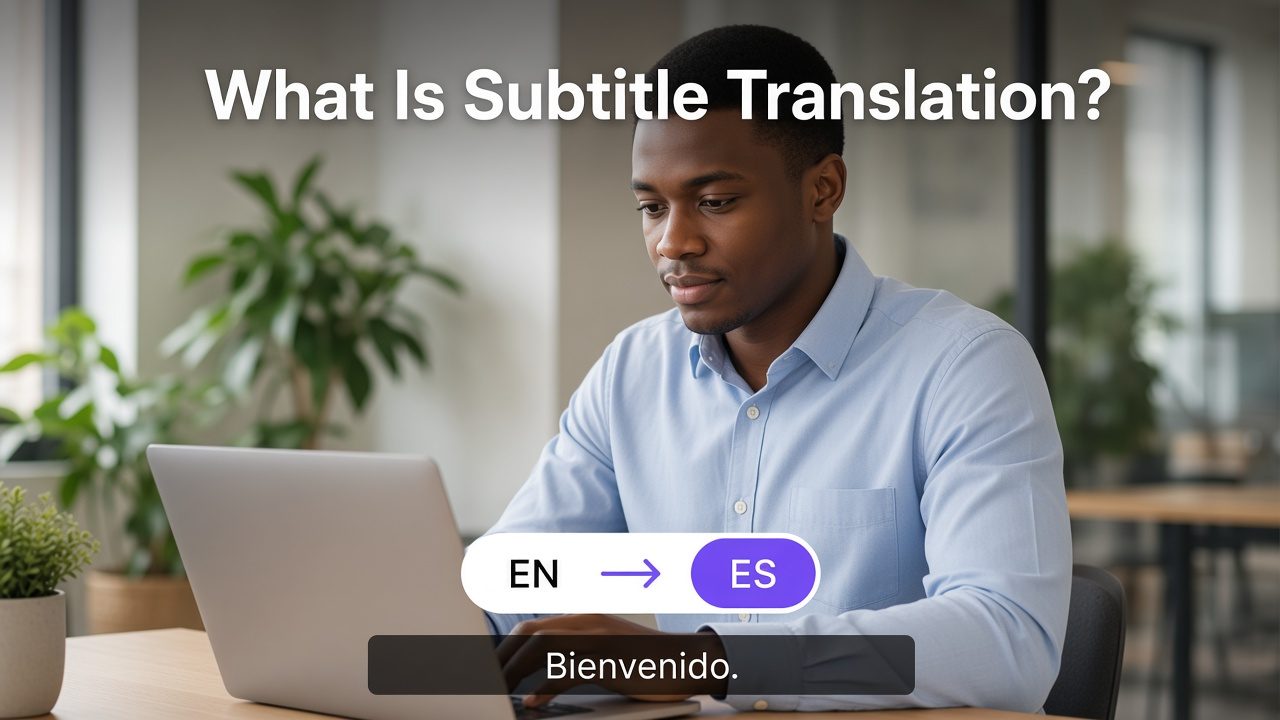
Subtitle translation rewrites the timed dialogue of a video into another language while the original audio stays in place. Viewers read the new language on screen. The work is narrower than translating a whole video: you change the subtitle text, keep or adjust the timing, and then decide how that text is delivered.
To put translated subtitles on a video, start with an accurate source track, translate the cue text, and check that each line can still be read in the time it appears. Export a separate subtitle file when the player can offer a language choice, or render the text into the picture when the platform will not keep a sidecar file. YouTube can auto-translate existing captions for a viewer. That translation stays in the player. It does not become a subtitle track you have reviewed and published on your channel.
Key takeaways
- Subtitle translation changes the words in a timed text track. It leaves the original performance in the audio.
- Translate the cue text first, then edit line length and timing. A correct sentence can still be unreadable if it is too long for the cue.
- A separate subtitle file can be swapped without re-encoding the video. Burned-in text is part of the picture and has to be exported again to change a line.
- YouTube's automatic captions are in the video's default language. Viewer auto-translate needs a caption track that already exists.
- Reading-speed limits are not the same in every language. A limit copied from an English guide will not fit Korean.
What subtitle translation changes
A subtitle is timed text that represents spoken dialogue. Subtitle translation takes those cues in the spoken language and produces a new set of cues in the target language. The cue still has a start time and an end time. The words inside it change.
Same-language subtitles and translated subtitles solve different problems. Same-language text helps a viewer who can hear the language but wants to read along, or who is watching without sound. Translated subtitles help a viewer who does not understand the spoken language. Captions and subtitles also differ: captions can label sounds, music, and speaker changes for people who cannot hear the audio. A translation pass for a hearing audience usually covers the dialogue, plus on-screen text the viewer needs in order to follow the story.
Dubbing is a different deliverable. Dubbing replaces the spoken track with speech in the target language. Subtitle translation keeps the original voices and adds text. Many projects need both, but they are not the same task. If the goal is a new voice track, timing, and possibly lip sync, that is video translation, not a subtitle file on its own.
What stays fixed in the file
A common subtitle file, such as SRT, is a sequence of cues. Each cue has an index, a timecode range, and one or more lines of text. How an SRT file is built matters here because a translation should not rewrite the structure by accident.
1
00:00:12,400 --> 00:00:14,000
Wait here.
On the first translation pass, the index and the timecode stay. Only the text line changes. A later pass may split a cue, shorten a line, or move a line break, because the translation is often longer or shorter than the source. Doing both jobs in one uncontrolled paste is how timecodes get corrupted and how a 40-character line becomes a paragraph.
How to translate video subtitles
The reliable order is: get a clean source track, translate the text, then fit the translation to the picture. Skipping the first step multiplies every source error into every target language.
- Get a timed source in the spoken language. Use an existing subtitle file if you trust it. If the video has no file, transcribe the audio into cues with timecodes. A plain transcript is not enough for a subtitle track, because it has no in and out times.
- Fix the source before you translate it. Correct names, numbers, and speaker changes on the source track. A wrong name in the source becomes the same wrong name in every language you generate from it.
- Translate the cue text. Keep the index and timecodes on this pass. Translate for the viewer, including idioms and tone, instead of replacing each word in order. Leave proper names as the project requires. Netflix's English subtitle guide, for example, says not to translate proper names unless an approved translation is provided.
- Fit the new text to the time on screen. Check characters per line, number of lines, and reading speed. If the translation is too long, shorten it or split the cue. If it is too short, avoid leaving a cue up for so long that it covers the next shot.
- Preview against the picture. Look for overlap with titles, lower thirds, and faces. Read the track at playback speed, with the picture, after you read it as a text file.
A subtitle translator is the tool for this sequence when you start from a video or from an existing subtitle file and need a target-language track you can edit. The mechanics above stay the same whichever editor you use.
How to put translated subtitles on a video
Putting the translation on the video means choosing a delivery format. There are two durable options, plus a third option that only exists inside a player.
| Delivery | What the viewer gets | Use it when |
|---|---|---|
| Soft subtitle file | A separate timed file the player can turn on or off | YouTube long-form, a player that loads SRT or VTT, or any place with a language menu |
| Burned-in subtitles | Text rendered into the video frames | TikTok, Reels, Shorts, and other feeds where viewers will not open a caption menu |
| Player auto-translate | A temporary translation of an existing caption track | A viewer wants a language you did not publish, and a caption track already exists |
Keep a soft file when the platform can store a track
A soft file sits beside the video or is uploaded as a caption track. YouTube Studio accepts a timed subtitle file through Subtitles, Add language, then Upload file. You can also add subtitles during upload. The practical file for this handoff is usually SRT, because it is plain text with cue numbers and timecodes. Confirm the file type in Studio at upload time, because YouTube's help page tells creators to check that the type is supported rather than treating every extension as valid.
Soft files are the right default for YouTube long-form, course platforms, and any player that lets the viewer pick a language. You can replace a bad line later without encoding the video again. For the click path inside YouTube Studio, use the existing guide on how to translate YouTube videos and treat this article as the decision about what to upload, not a second Studio tutorial.
Burn the text in when the feed will not keep a file
Short-form feeds often show one picture and no language picker. A sidecar SRT never appears. In that case, render the approved translation into the frames and publish one video per language. The post caption and on-screen text should be in that language too.
Burned-in text cannot be switched off, and a typo requires a new export. Style it for the frame: enough contrast to read, clear of faces and existing titles, and short enough for a vertical screen. Two lines is the usual ceiling in professional timed-text delivery. Netflix's general requirements set a maximum of two lines, a minimum duration of five-sixths of a second, and a maximum duration of 7 seconds per cue.
Can YouTube auto translate subtitles?
Yes, for viewers, when the video already has captions. No, if you mean a reviewed subtitle language published on your channel without you adding it.
YouTube's help article on adding subtitles says automatic captions are created with speech recognition and published in the video's default language only. The same article's section titled Auto-translate describes that default-language captioning. It does not describe a button that publishes a French or Japanese track for you. YouTube also says automatic captions can misrepresent speech because of accents, dialects, background noise, or mispronunciations, and that creators should review them.
Viewers have a separate control. YouTube's Android help article says: open the caption language list, and if the language is not listed, choose Auto-translate and select a language. That control has nothing to translate when the video has no captions. The Android article says that if the closed-caption control is missing, captions are not available for that video. The current computer help article explains how to turn captions on and how to change font, color, and size. It does not document an Auto-translate step. Recheck the desktop player before you publish a click path for computer viewers. Do not copy a 2024 screenshot of the gear menu into this article unless you confirm it on a current video.
If you want a language to exist as a track on your video, add it yourself in YouTube Studio:
- Sign in to YouTube Studio, open Subtitles, and select the video.
- Click Add language and choose the target language.
- Under Subtitles, click Add.
- Upload a timed file, type the lines, or use Auto-sync.
Auto-sync is not a translation feature. YouTube says the transcript must be in the same language that is spoken in the video, and that transcripts are not recommended for videos over an hour or with poor audio. Pasting a translation into Auto-sync asks speech recognition to align the wrong language to the audio.
One more setting changes later translations. If you correct the video's original language under Language and captions certification, YouTube says future translated subtitles will use that new language as the source. Subtitles you have already published or saved as drafts are left as they are.
Why a correct translation can still fail on screen
Reading speed is characters on screen divided by the seconds the cue stays up. A line can be an accurate translation and still fail because the cue is too short for the new character count. Professional buyers do not use one global number. Netflix publishes different limits by language.
| Netflix guide | Characters per line | Adult programs | Children's programs |
|---|---|---|---|
| English (USA), interlingual subtitles | 42 | 20 characters per second | 17 characters per second |
| Spanish (Latin America and Spain) | 42 | 17 characters per second | 13 characters per second |
| Korean, interlingual subtitles | 16 | 12 characters per second | 9 characters per second |
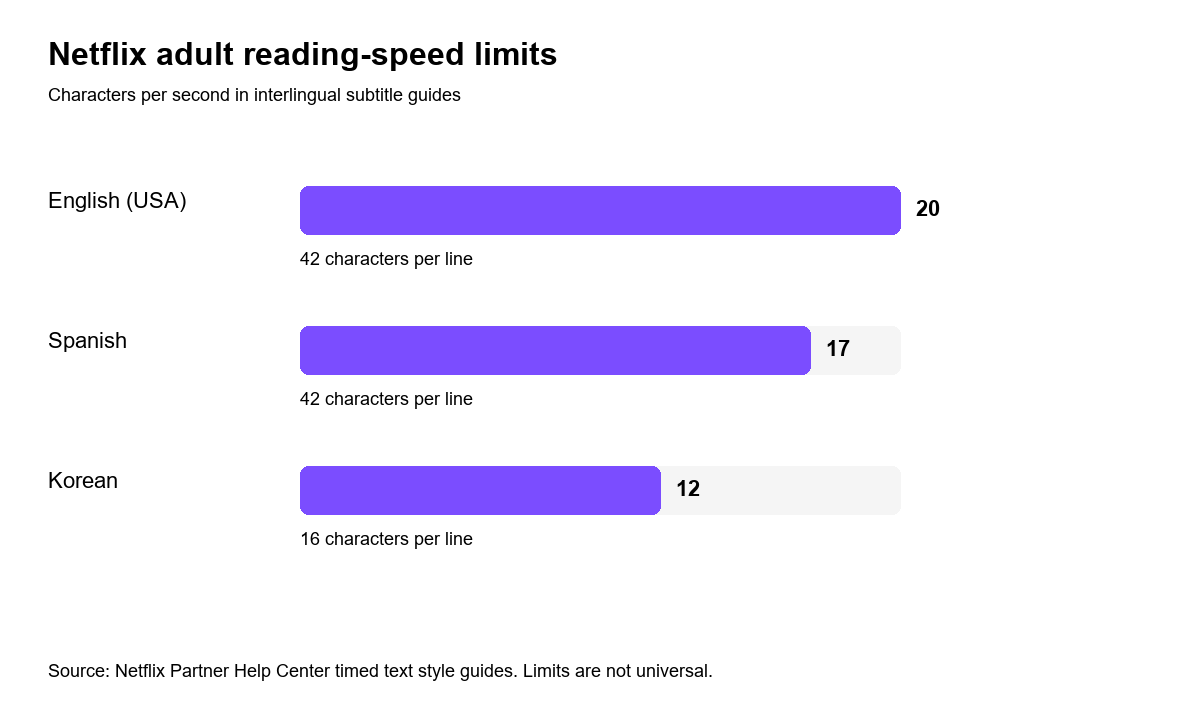
These figures are delivery limits from Netflix's timed text style guides, not a YouTube rule and not a score for every genre. They are useful because they show the spread. Korean's guide also counts Latin letters, spaces, and punctuation as half a character, so the "16" is not the same unit as the English "42." Copying an English line length into a Korean file will not produce a legal or readable cue.
A short illustration: a one-second cue that says "Got it." is 7 characters, about 7 per second. A fuller Spanish line such as "Entendido, no te preocupes." is 28 characters in that same second, above the 17-character adult limit in the Spanish guide. The Spanish can be the better translation and still be too fast to read. Shorten the line, or hold the cue only as long as the picture and the next line of speech allow.
Two other Netflix rules save review time on commercial work. Do not convert currency in the subtitle file. Keep a widely known brand name, use the local name, or use a generic term, and do not swap one company's trademark for another. Line breaks should fall after punctuation or before conjunctions and prepositions, and should not split a first name from a last name.
Check the track before you export
Use this pass on the target-language file, with the video playing.
- Names, product terms, and numbers match the source meaning.
- Idioms read as the target language, not as a word-for-word gloss.
- Each cue is within the line count and reading speed you are delivering to.
- Cues do not cover titles, buttons, or faces that the viewer needs to see.
- A cue does not stay on screen across a shot change unless the speech itself continues.
- The file still has valid timecodes after editing. A broken timestamp will fail at upload or drift out of sync.
YouTube's own caption guidance is the same kind of warning at platform level: review automatic text before you treat it as finished. A machine draft is a starting file.
Translate the track in VMEG
When you already have the video, or an SRT, and you need a target-language subtitle track, use a subtitle translator rather than a general document translator. A document tool will not protect cue numbers and timecodes.
On 22 September 2026, the public VMEG subtitle translator page showed this form: upload media or paste a media link, choose a target language, choose Subtitle Translation or Voice Dubbing as the output, and set the subtitle type to Translation, Original, or Bilingual.
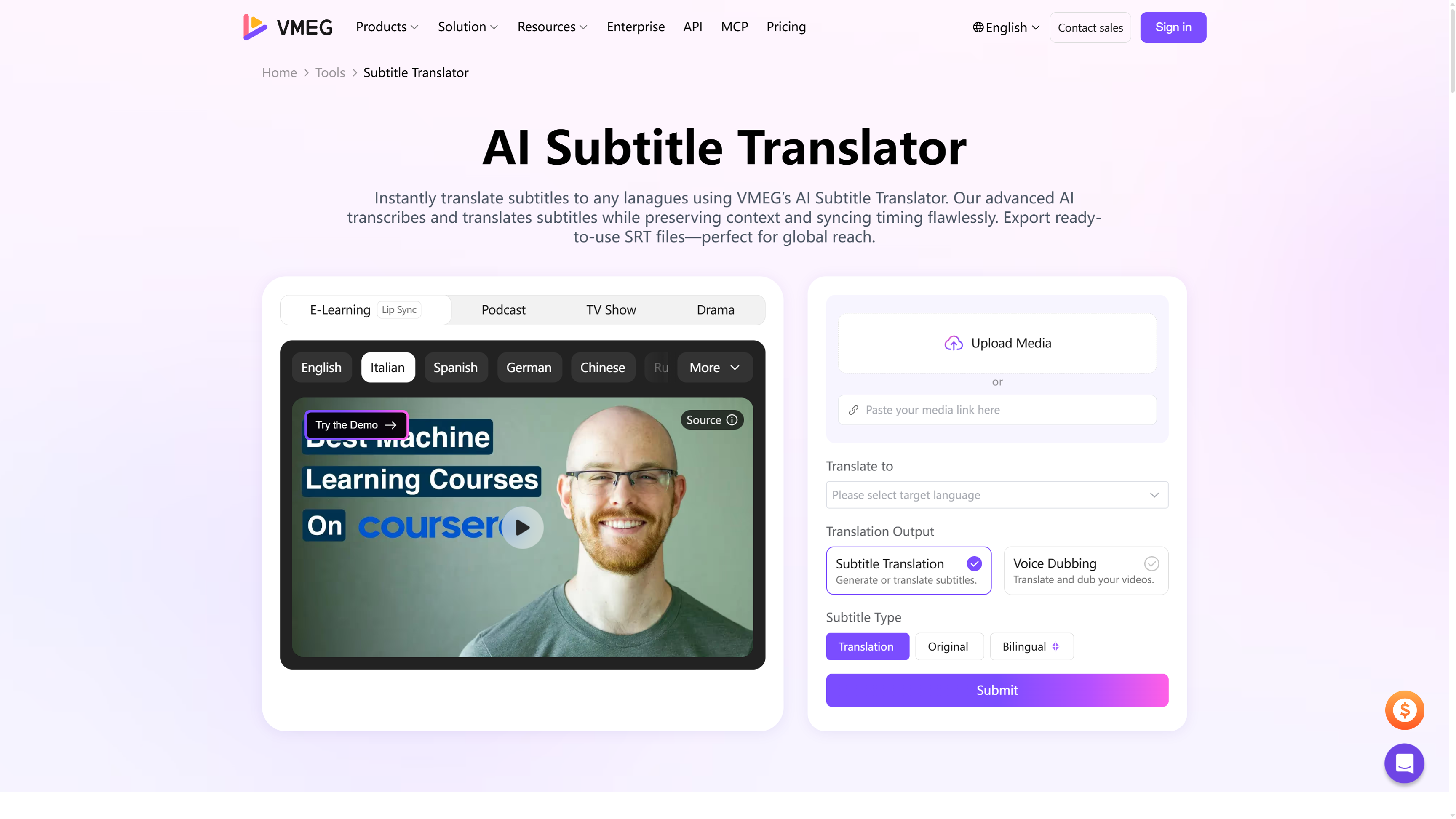
The same page's copy says you can start from an existing SRT, edit the translation, and export a burned-in video or an SRT, including for videos up to 2 hours, across 170+ languages. The separate page for adding subtitles to a video says the export can be a video with hardcoded captions or a separate SRT or VTT, and it lists MP4, MKV, AVI, and MOV as upload formats. An older VMEG article has described language support as 100+. Use the live product page at publication time, and do not print either number as a measured lab result.
Voice dubbing on that form is a different output. Turn it on only when you need a spoken track as well as text. Bilingual subtitle type shows two languages. It does not remove the reading-speed check, because two lines of text fill the frame faster than one.
After Submit, review the cues in the editor before you export. The landing page does not publish an accuracy rate, and this article does not invent one. Check names and timing on your own file.
Frequently asked questions
What is the difference between subtitle translation and captions?
Subtitle translation produces target-language dialogue text. Captions can also identify sounds, music, and speaker changes for viewers who cannot hear the audio. A project can need both a translated dialogue track and a same-language caption track.
How do I translate video subtitles if the video has no subtitle file?
Transcribe the audio into a timed track first, in the spoken language. Fix that track, then translate the cue text. A summary or an untimed transcript cannot be uploaded as subtitles until it has in and out times.
Should I burn translated subtitles into the video?
Burn them in for feeds that will not keep a subtitle file, such as many short-form posts. Keep a soft file for YouTube long-form and for any player that lets the viewer choose a language. You can do both from the same approved text.
Can YouTube auto translate subtitles?
Viewers can auto-translate when a caption track already exists. YouTube's Android help documents Auto-translate in the caption language list. Automatic captions that YouTube creates for the creator are in the video's default language only.
Does YouTube auto-translate publish a new language on my channel?
The viewer control does not add a language track to your video. To publish a language, add it in YouTube Studio and upload a reviewed file, type the lines, or align a same-language transcript with Auto-sync.
When should I dub instead of translating subtitles?
Dub when the viewer should hear the target language, or when the platform is watched without reading. Keep subtitles when the original performance should stay and the viewer can read. Some releases use both.