YouTube lets creators make content easier to understand across languages through translated metadata, subtitles, captions, and—where available—additional audio tracks. Uploading a video is only the first step; the quality and format of the language support matter too.
Choose the output that matches your goal. You may need translated titles and descriptions for discovery, subtitles for viewers who read along, dubbed audio for another listening language, or an editable transcript for a broader localization workflow.
This guide explains three practical methods: add translations in YouTube Studio, use available captions as a viewer, or create reviewable translated subtitles with VMEG when captions are unavailable or insufficient.
How to Translate Your Own YouTube Video in YouTube Studio
If you own the YouTube video, use YouTube Studio to add translated titles, descriptions, and subtitle tracks. Automatic captions can be a starting point, but review them before publishing because recognition quality can vary.
Step 1
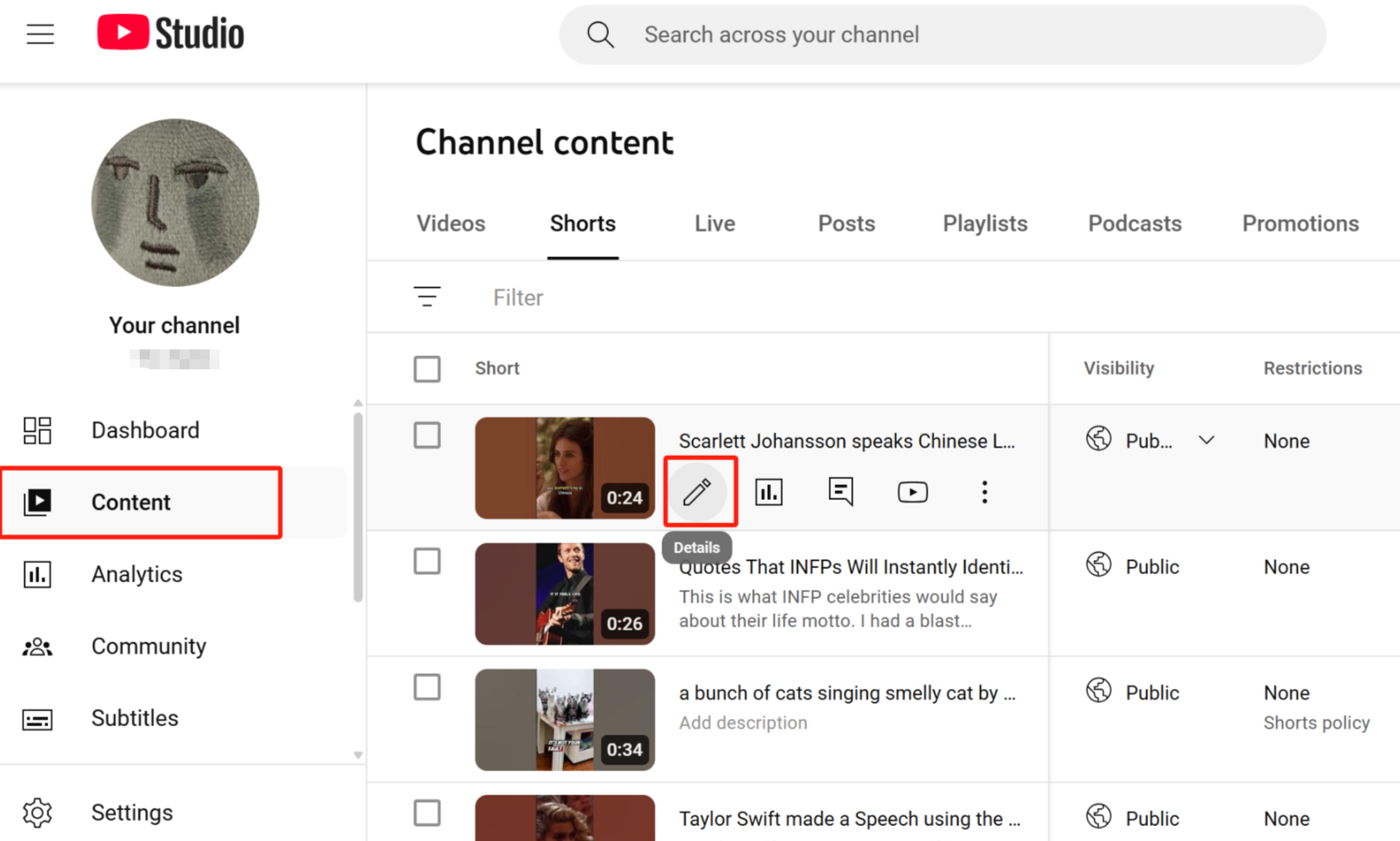
Open YouTube Studio. In the left-hand menu, select Subtitles, then choose the video you want to localize.
Step 2:
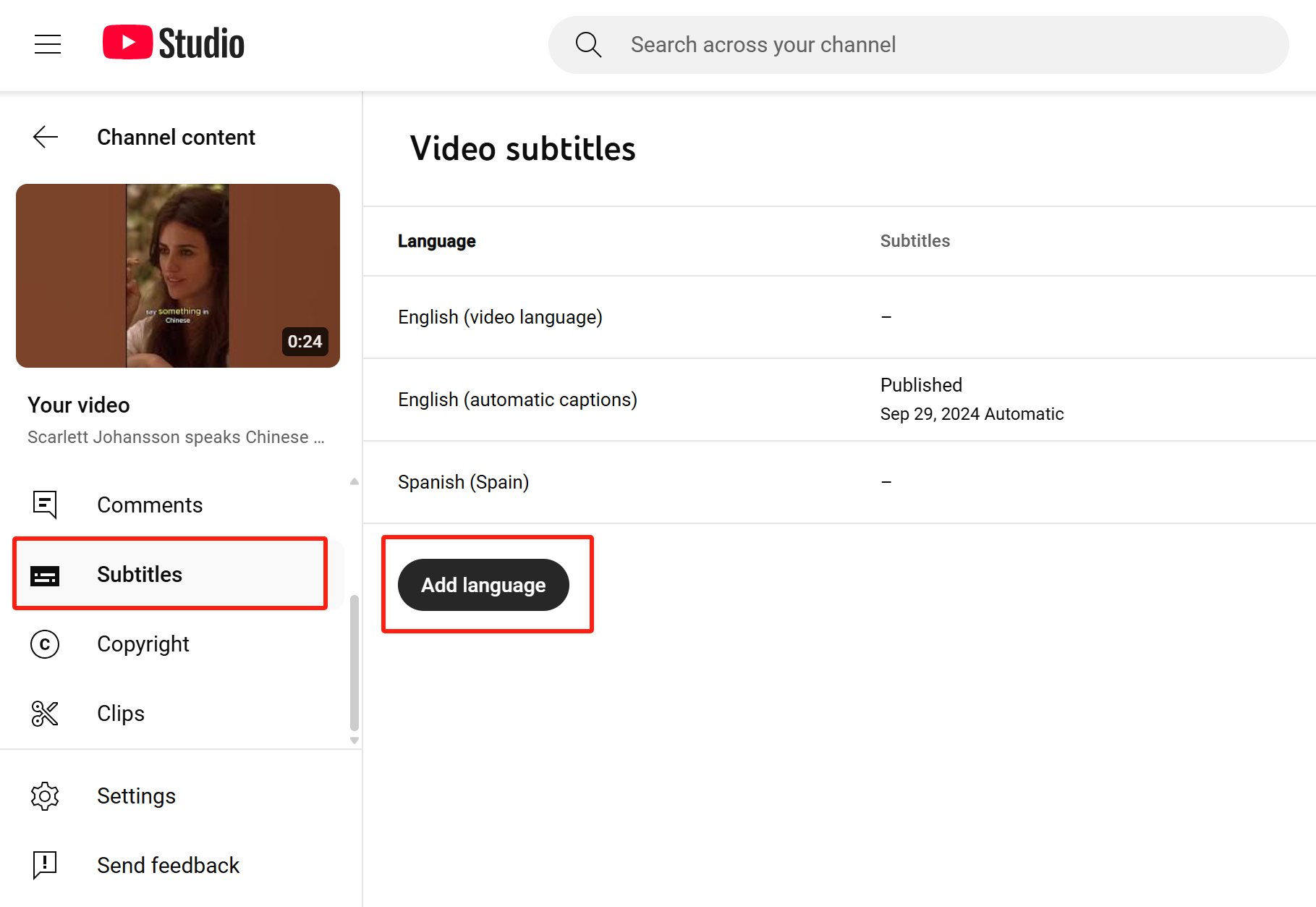
Select Add language, then choose the language you want to support. Add translated titles and descriptions so viewers can discover the video in their language, then add or upload the corresponding subtitle track.
Step 3:
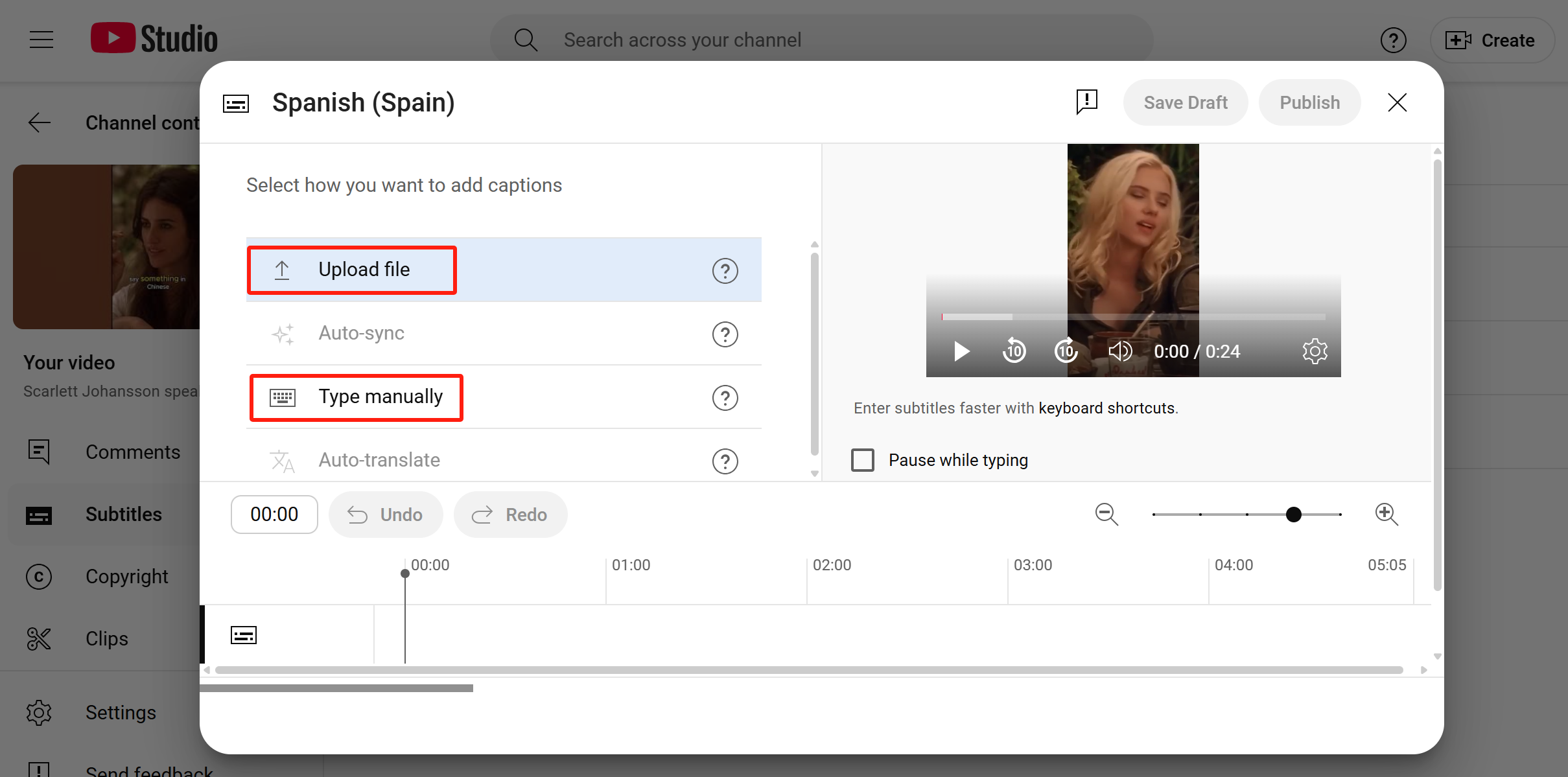
You can upload a reviewed subtitle file, create subtitles manually, or use automatic captions in the original language as a draft. Review wording, names, numbers, and timing before publishing translated subtitles.
Step 4:
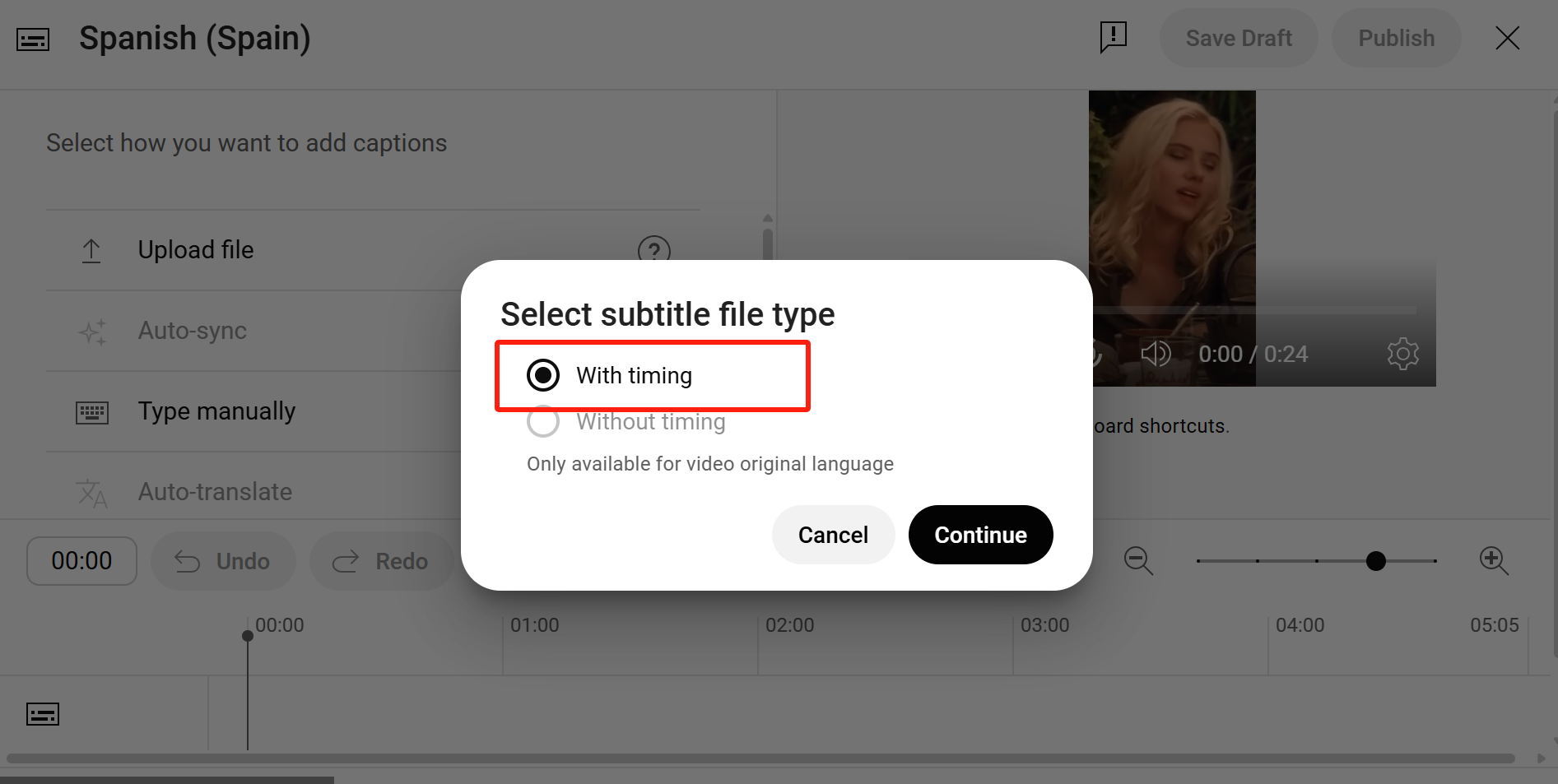
When uploading a timed subtitle file, choose the option that includes timing so captions align with the video. Check the final track in the player before publishing.
How to Translate a YouTube Video as a Viewer
Want to understand a video in another language? Use available captions and subtitle options in the YouTube player. Availability depends on the video, caption track, language, and viewer settings.
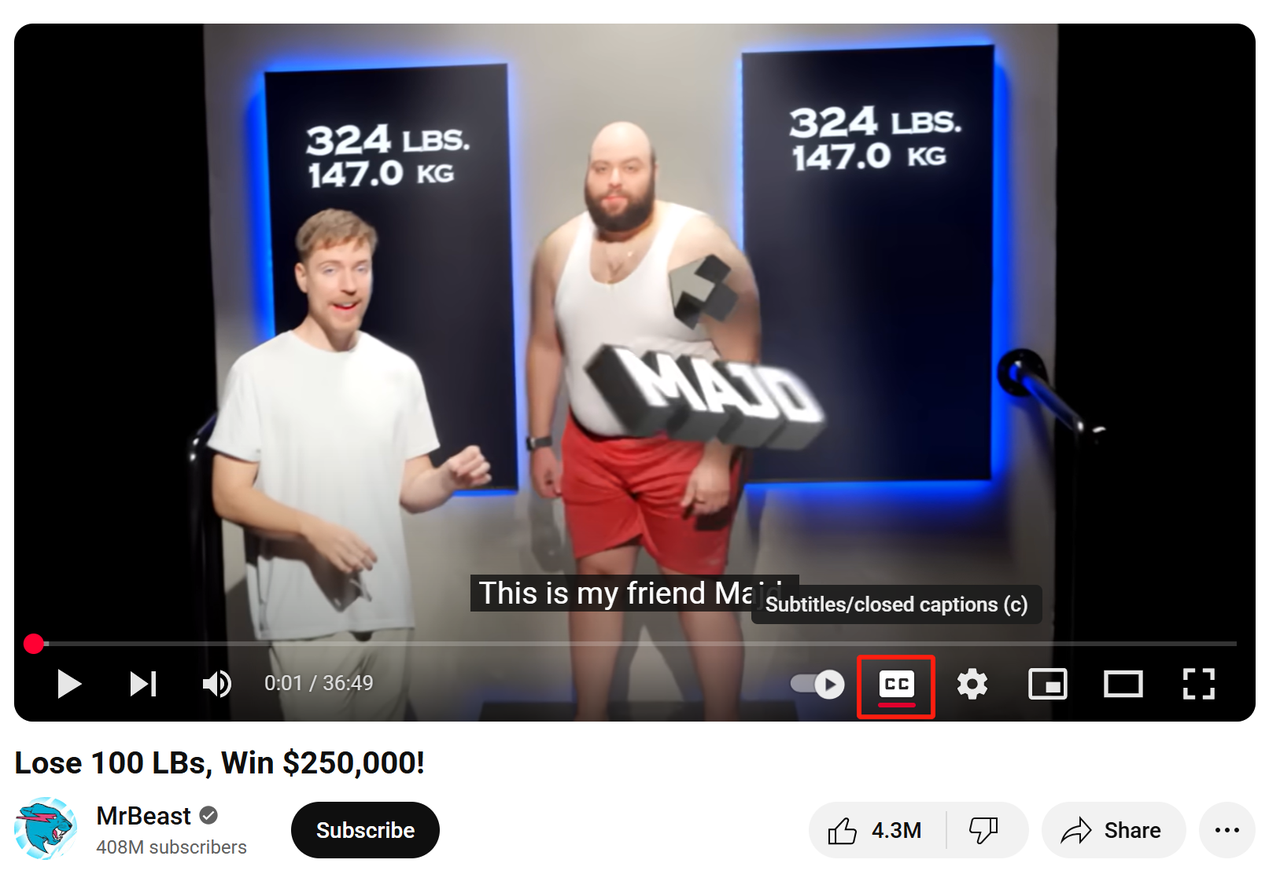
Step 1: Open the YouTube video and turn on captions when the CC option is available. Captions generally reflect the original audio language; automatic captions may not be available for every video and should not be assumed to be English.
Step 2:
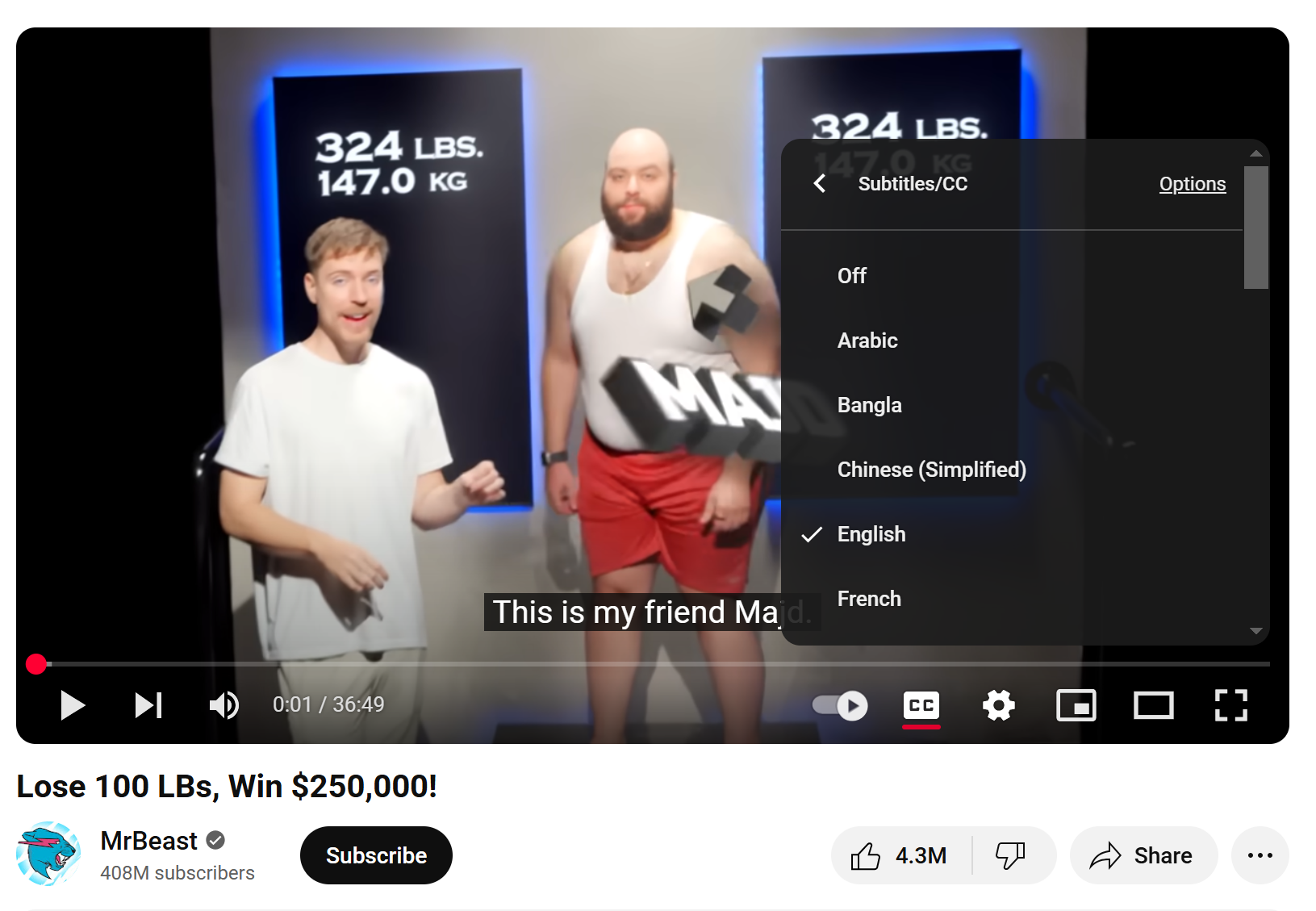
Open the player settings, then look for Subtitles/CC or available language options. If translated subtitles or auto-translate is offered for that video, choose the target language. Menu labels and available languages can vary.
How to Translate a YouTube Video Without CC
Pro Tip: Don’t have a usable subtitle file? Use a workflow such as VMEG to create an editable transcript, translate it, review the result, and export a subtitle file for upload. Process only videos you own or are authorized to use.
If a video does not have usable captions, use
VMEG Video Translator to upload an authorized video or paste a supported public link. Generate a transcript and translation, then review the text, timing, and speaker segments before export.
Upload Your Video
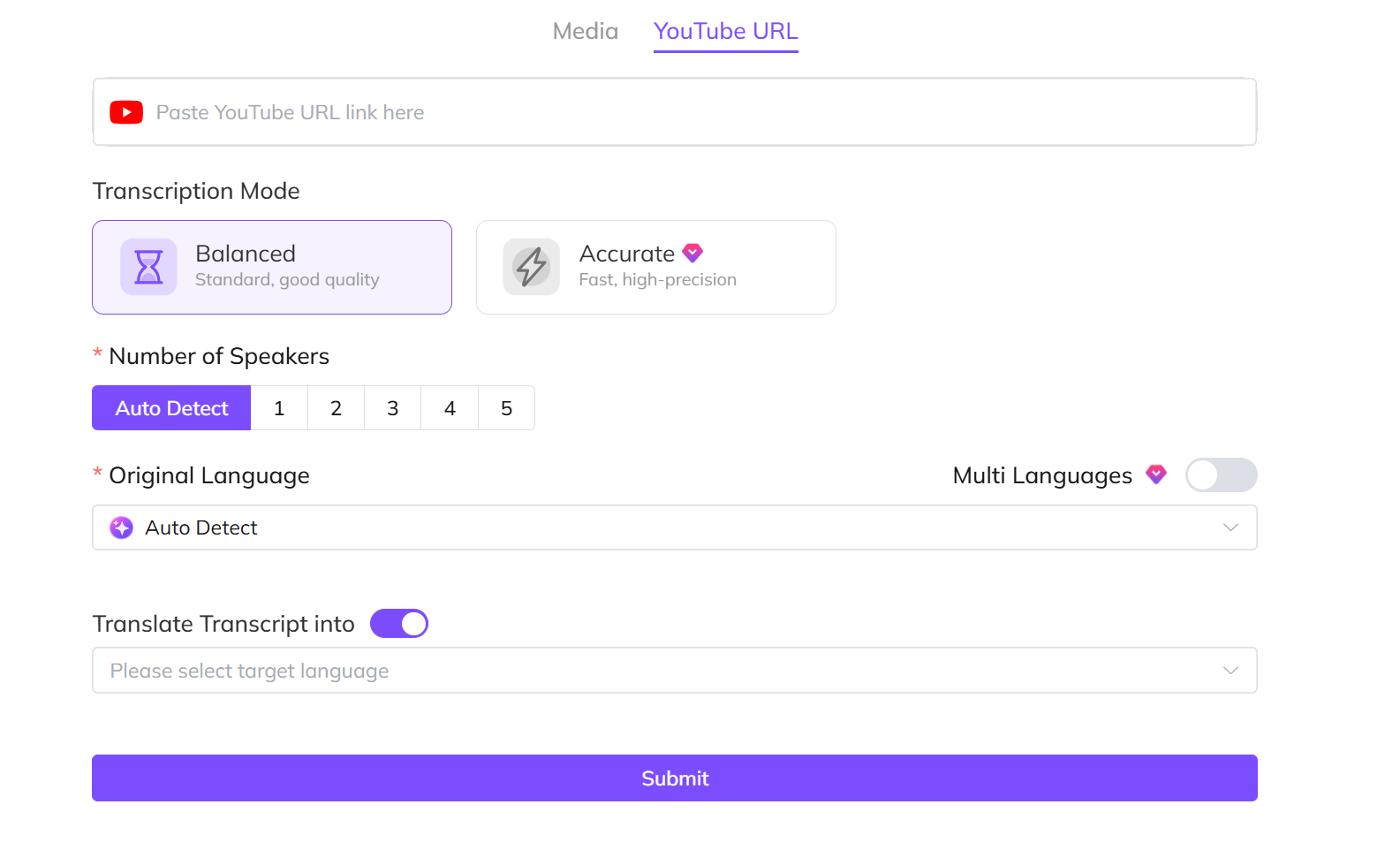
Paste a supported public YouTube URL or upload a video you own or are authorized to process. Select the number of speakers, choose the original language or auto-detection option, and choose a target language if you need translated subtitles. Enable Multi Languages when the source contains more than one language, then click Submit.
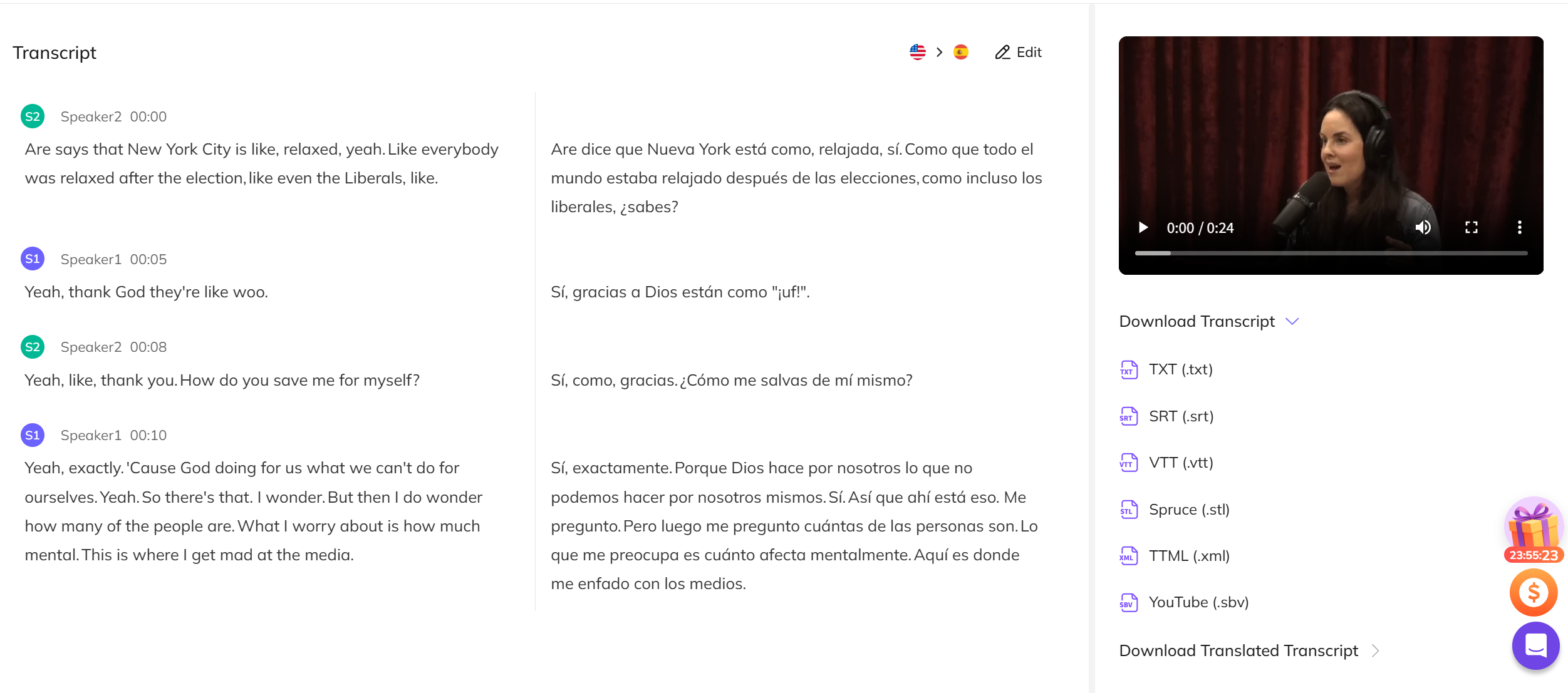
- Edit Your Script
After processing, edit the transcript and fine-tune the timeline. Check names, terminology, numbers, speaker labels, and timing before download. The original and translated transcripts can be exported in formats including TXT, SRT, VTT, STL, XML, and SBV.
Choose the translation method based on the result you need. Use YouTube Studio for translated metadata and subtitle tracks on videos you own. Use viewer controls when a video already provides captions or translated subtitles. Use VMEG when you need an editable transcript, reviewed translation, subtitle export, or a broader localization workflow.
Before publishing, review translated titles, descriptions, subtitles, names, terminology, timestamps, and audio choices. Translation can make content easier to understand across languages, but final quality depends on the source material and editorial review.
FAQs About Translating YouTube Videos
Can YouTube automatically translate videos?
YouTube can provide automatic captions for eligible videos and may offer translated subtitle options to viewers. Availability and quality vary by video, language, caption track, and settings.
Can I add translated subtitles to my own YouTube video?
Yes. In YouTube Studio, add a language, then create or upload a reviewed subtitle track. You can also add translated titles and descriptions for discovery.
Can viewers translate a YouTube video without captions?
Not reliably. Viewer translation depends on available captions or subtitle options. If you own the video, create a reviewed transcript or subtitle file instead.
Can I upload multiple audio languages to one YouTube video?
Eligible creators can add multiple audio tracks in YouTube Studio. This is different from subtitles and may require access to YouTube’s multi-language audio features.
How can I translate a YouTube video when captions are unavailable?
For content you own or are authorized to process, use a transcription and translation workflow to generate editable text, review it, and export subtitles or a translated video version.
VMEG Transcription Tool
Create editable translations, subtitles, and localized video outputs, then review them before publishing.

