Quick Summary: VMEG supports video translation for recordings up to 3 hours long, so you don't need to split your video into smaller clips. You can choose AI dubbing, translated subtitles, or both, then review and edit the results before downloading. For AI dubbing, processing typically takes about as long as the original video, although complex settings may increase the time required.
Translating a five-minute video is relatively straightforward. But what if you need to translate a two-hour lecture, a long podcast, or an entire documentary?
With longer videos, there is more dialogue to process, more terminology to keep consistent, and more content to review. You also need a tool that can handle large files and let you make corrections without translating everything again.
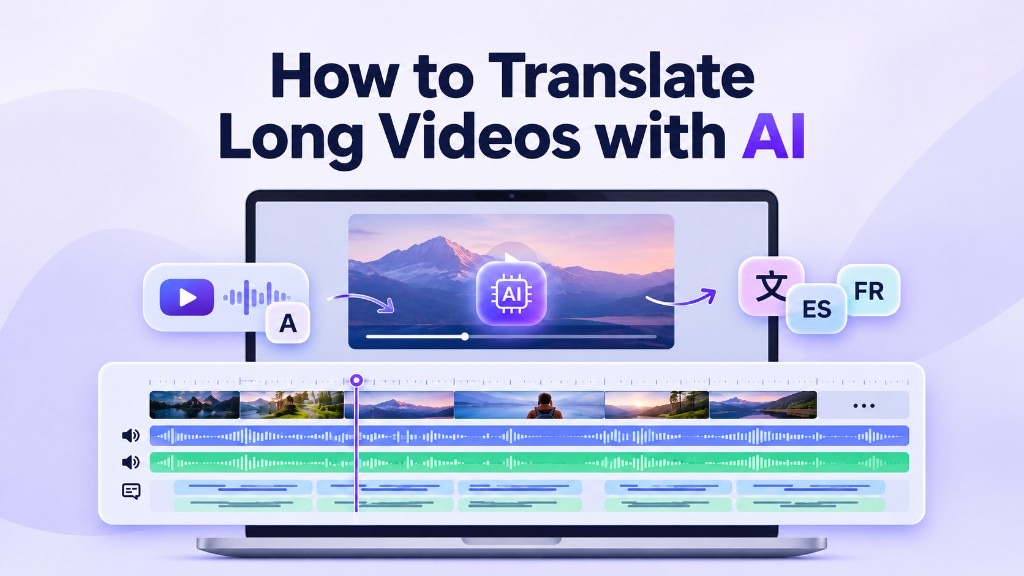
VMEG AI Video Translator supports videos up to 3 hours long, with tools for AI dubbing, subtitle translation, voice editing, and audio separation.
In this guide, we'll show you how to translate long videos with AI dubbing or subtitles only, and how to review, edit, and export the results.
Can AI Translate a 1-, 2-, or 3-Hour Video?
Yes. AI video translation tools can process long recordings and produce translated subtitles, dubbed audio, or complete videos with a new voice track.
However, not every tool supports the same video length. Some are designed primarily for short social media clips, while others can handle longer recordings.
VMEG supports individual videos up to 3 hours (180 minutes), making it suitable for a range of long-form content.
| Video Type | Typical Length | Translation Considerations |
|---|---|---|
| Online lectures | 60–180 minutes | Technical terminology and clear narration |
| Podcasts and interviews | 60–150 minutes | Multiple speakers and natural conversation |
| Webinars | 60–120 minutes | Presentation content and consistent terminology |
| Documentaries | 60–180 minutes | Dialogue, narration, music, and sound effects |
| Corporate training | 60–180 minutes | Accuracy and consistent instructions |
If a video is within the supported limits, you can upload it as a single file rather than manually splitting it into smaller clips.
For recordings longer than three hours, consider splitting the file at natural chapter breaks or contacting the VMEG team to discuss your project.
Should You Split a Long Video Before Translating It?
VMEG supports videos up to 3 hours long, so there's no need to split your recording if it's within the supported limits.
However, longer videos naturally take more time to process. If you'd prefer to start reviewing the results sooner, splitting the video into shorter sections can be helpful. Smaller files generally finish processing sooner individually, and you can submit multiple sections for processing at the same time, subject to available capacity.
For example, you could divide a three-hour lecture into three one-hour videos instead of processing it as a single file. This won't necessarily reduce the total processing time, but it allows you to work on completed sections while the others are still being processed.
If you decide to split your video, choose natural breaks between chapters or topics rather than cutting in the middle of a sentence.
How to Translate a Long Video with VMEG
The basic process is similar to translating a shorter video, but a few additional settings become especially useful as the recording gets longer.
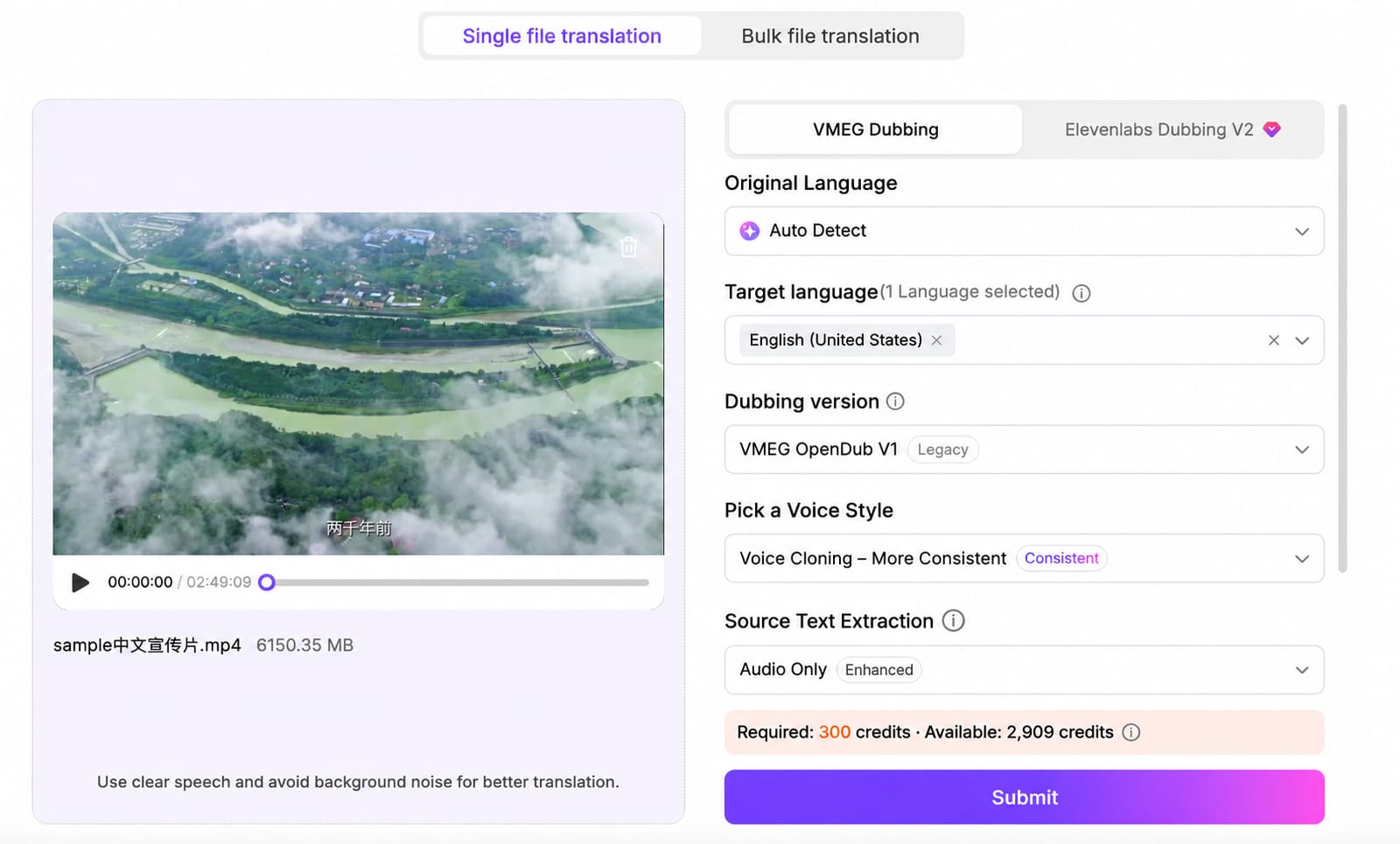
Step 1: Upload Your Video and Select the Languages
Open VMEG Video Translator and upload your recording.
VMEG supports common video formats including MP4, MOV, WebM, M4V, and MKV.
Choose the original language and your target language. If you want viewers to hear the video in another language, select AI dubbing. If you only need translated text on screen, you can choose subtitle translation without generating a new voice track. You can also use both, depending on your needs.
Before submitting a very long recording, check that the original video plays correctly and that the audio is clear throughout. Problems in the source recording, such as missing audio or heavily distorted speech, may also affect the translation.
Step 2: Set Up Translation Preferences
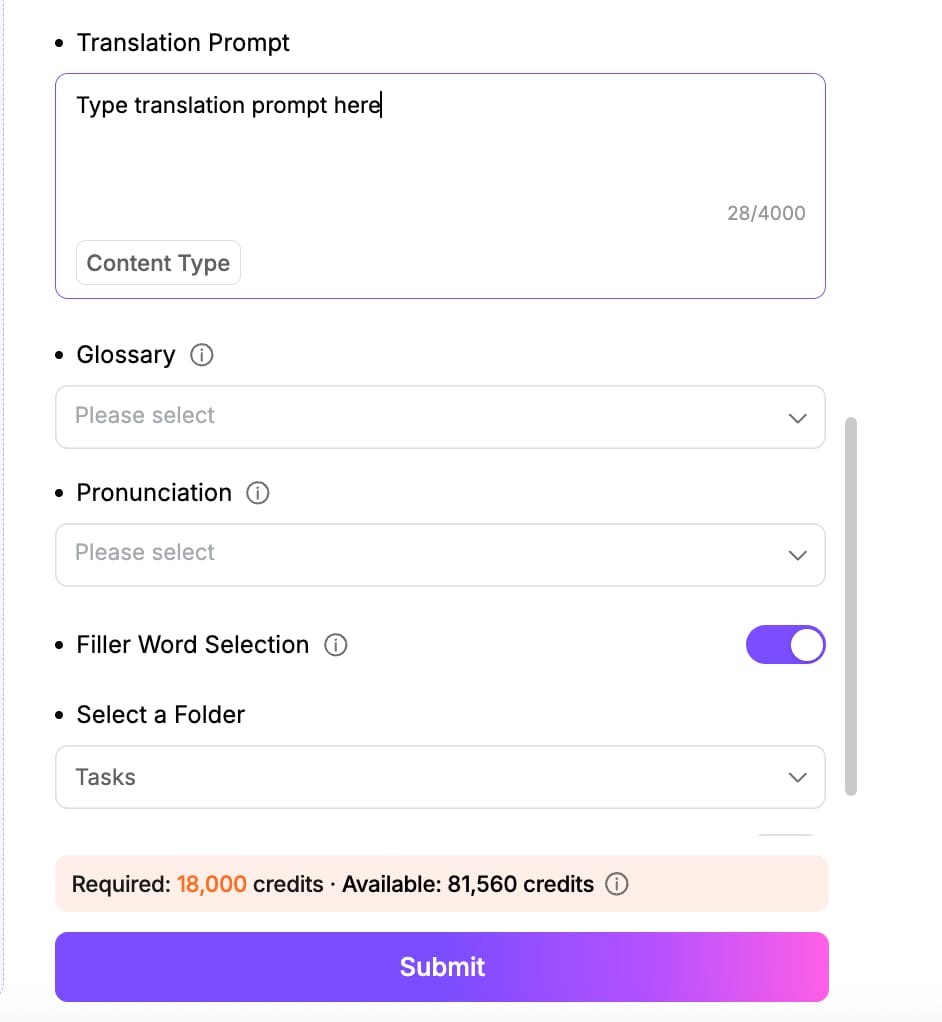
Long videos often contain repeated terms, names, and expressions. Setting up your preferences before translation can reduce the number of corrections needed afterward.
VMEG provides three useful features:
- Glossary: Specify how important terminology should be translated.
- Pronunciation Dictionary: Control how names, acronyms, brands, and technical terms should sound in the dubbed audio.
- Translation Prompt: Give the AI additional context about the subject and your preferred translation style.
For example, if you're translating a two-hour automotive engineering course from Chinese to English, you may want software names such as LS-DYNA and HyperMesh to remain unchanged, while technical explanations use standard English engineering terminology.
You could add a translation prompt such as:
Translate into natural, professional American English. Preserve software names and technical abbreviations. Use consistent engineering terminology and keep the explanations clear and accurate.
These settings can help guide the translation across the recording, although important terminology should still be checked during review.
Step 3: Generate and Review the Translation
Once you've configured the settings, submit your translation task.
Longer videos naturally take more time to process. As a general rule, VMEG's dubbing generation time is roughly equivalent to the video's duration (a 1:1 ratio). For example, a 2-hour video may take around 2 hours to generate, while a 3-hour video may take approximately 3 hours.
Enabling additional settings, such as Translation Prompt, Glossary, or Pronunciation Dictionary, may increase processing time further, as the system needs to apply these instructions throughout the video.
These are estimates rather than guaranteed processing times. Actual duration may vary depending on the audio complexity and selected settings.
If you're generating subtitles only, the process is generally faster because there's no need to generate a new voice track.
Step 4: Edit Your Long Video Without Starting Over
This is one of the biggest practical differences between translating a short clip and a two-hour recording.
Imagine you've translated a 120-minute training course. Most of the dubbing sounds natural, but you notice three issues:
- At minute 35, a technical expression needs a more accurate translation.
- At minute 78, one sentence sounds too fast.
- At minute 105, the AI voice mispronounces a product name.
You shouldn't need to regenerate two hours of audio just to fix those sentences.
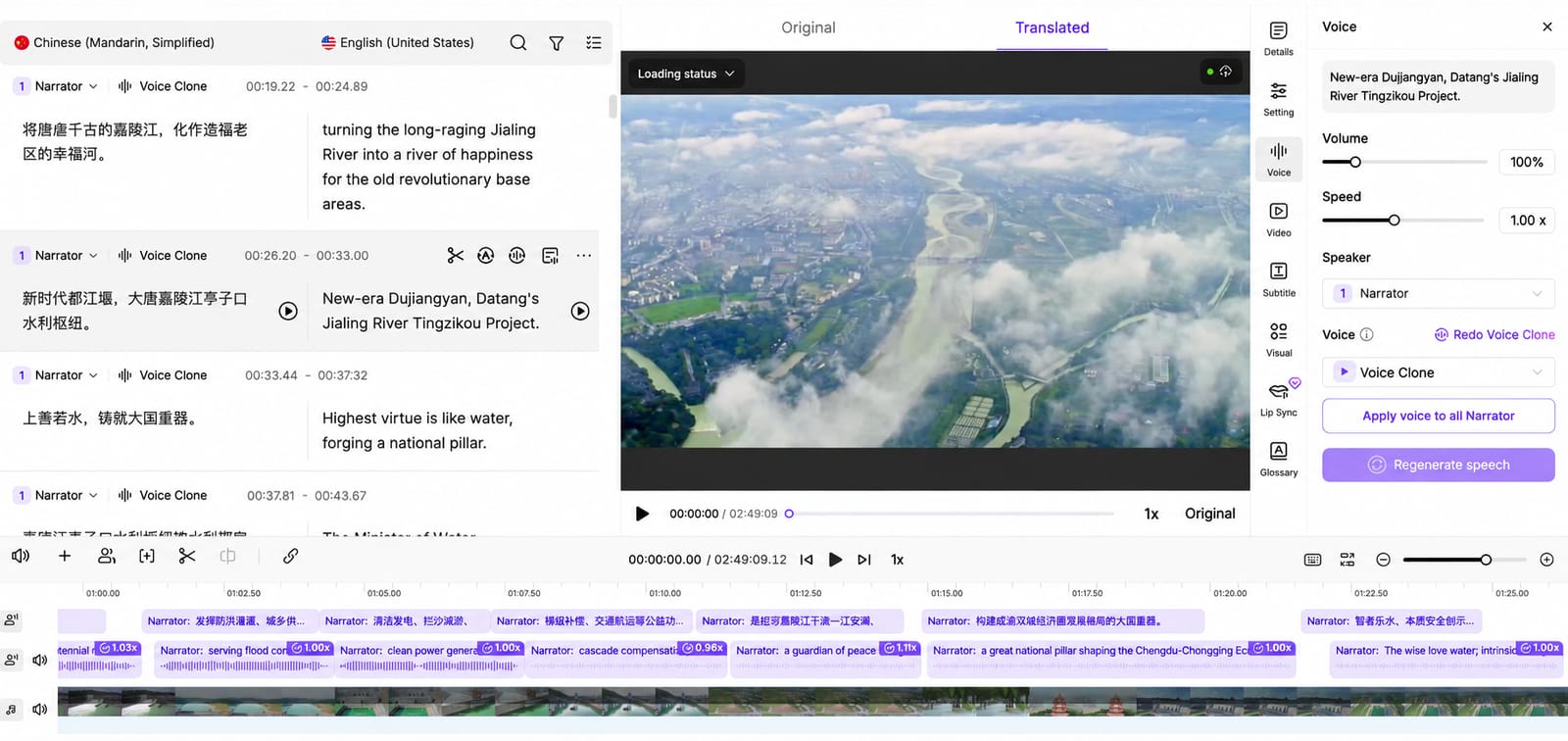
With VMEG's translation editor, you can locate individual sentences, edit the translation, and regenerate the corresponding dubbed audio.
You can also adjust speaking speed, volume, timing, and available voice settings to improve delivery.
For interviews and panel discussions, VMEG supports multi-speaker detection and voice assignment. This lets you review whether each speaker has an appropriate voice and make adjustments when necessary.
The editor is useful not only for correcting mistakes, but also for refining the final result. You might choose a more natural expression, adjust a pause, or change how an important sentence is delivered.
For long-form content, having this level of control makes the review process much more manageable.
Step 5: Review and Export Your Translated Video
Before exporting, review the sections you've edited and check the beginning, middle, and end of your video. Pay attention to translation accuracy, speaker voices, pronunciation, audio balance, and subtitle timing.
Once you're satisfied, click Download in the VMEG editor. If your final result hasn't been exported yet, select Export and Download to generate it.
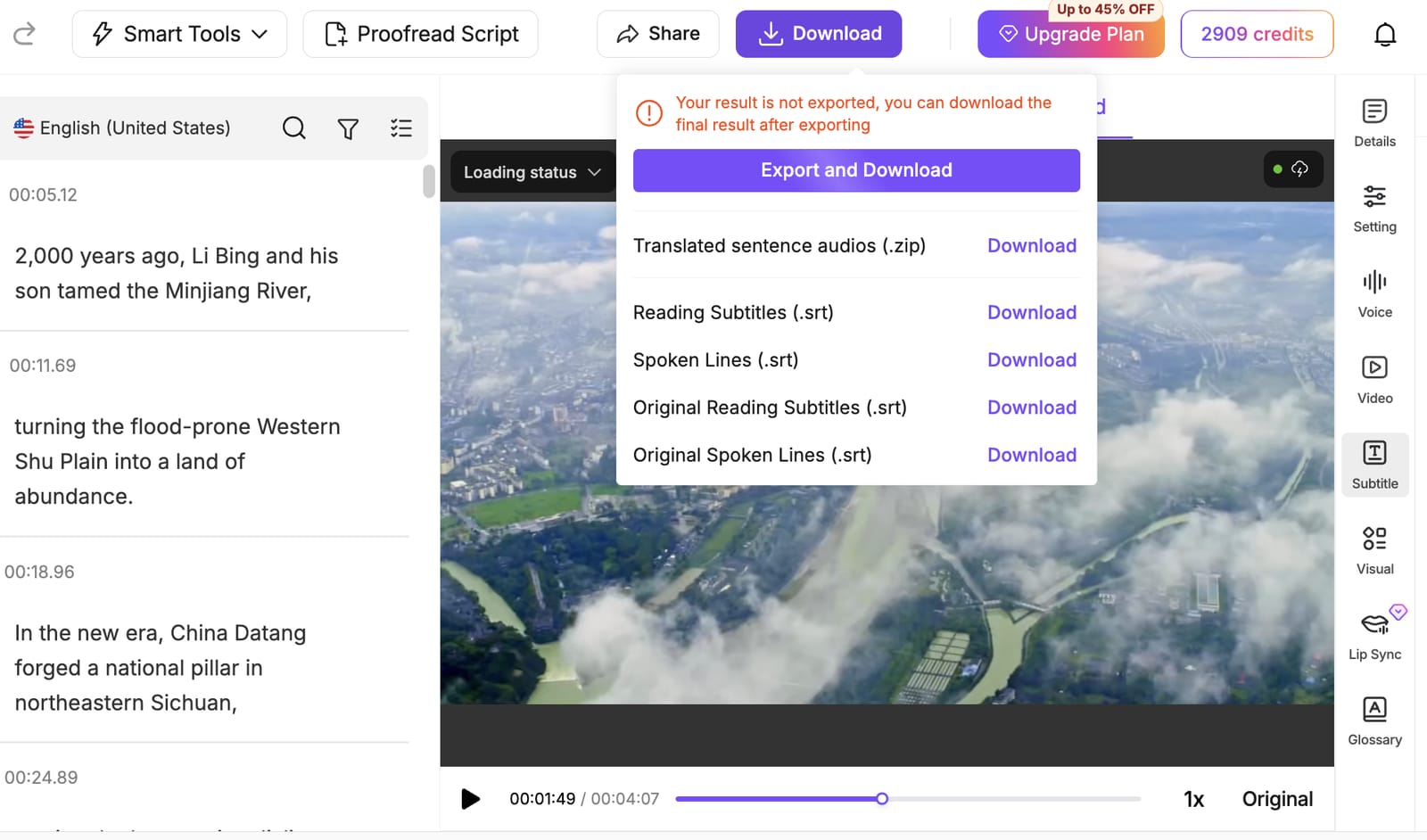
After exporting, you can download your content in several formats:
- Translated Video (.mp4): The complete video with translated dubbing.
- Translated Audio (.m4a): The dubbed audio track without the video.
- Translated Sentence Audios (.zip): Individual dubbed audio clips for further editing.
- Reading Subtitles (.srt): Translated subtitles formatted for on-screen reading.
- Spoken Lines (.srt): Translated subtitles aligned with the spoken dialogue.
- Original Reading Subtitles (.srt): Reading subtitles in the original language.
- Original Spoken Lines (.srt): Original-language dialogue subtitles.
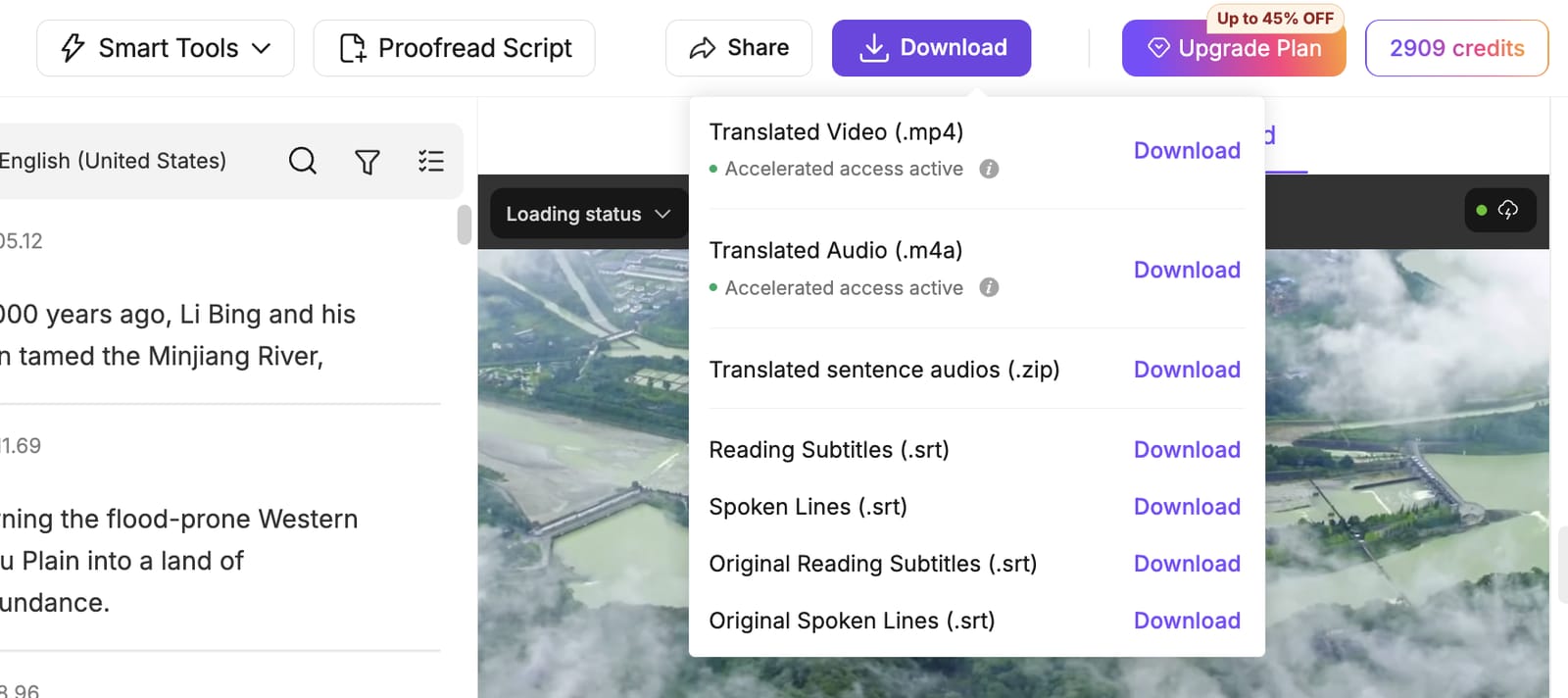
You can download the files you actually need, whether you're publishing a dubbed video, working with audio separately, or adding subtitles to another video.
For long recordings, it's worth opening the downloaded file and checking that everything plays correctly, especially toward the end.
How to Translate Long Videos with Subtitles Only
If you don't need AI dubbing, adding translated subtitles is another practical way to localize a long video. With VMEG, you can generate translated subtitles for videos up to 3 hours long without creating a new voice track.
Step 1: Upload Your Video and Select the Languages
To get started, open VMEG Subtitle Translator and upload your video. Then configure the following settings:
- Original Language: Select the language spoken in your video, or use Auto Detect.
- Target Language: Choose one or multiple languages for translation.
- Subtitle Type: Choose Translation, Original, or Bilingual subtitles.
- Subtitles Style: Customize how the subtitles appear on your video.
- Source Text Extraction: Select the appropriate method for recognizing the source dialogue.
Once your settings are ready, click Submit to generate the subtitles.
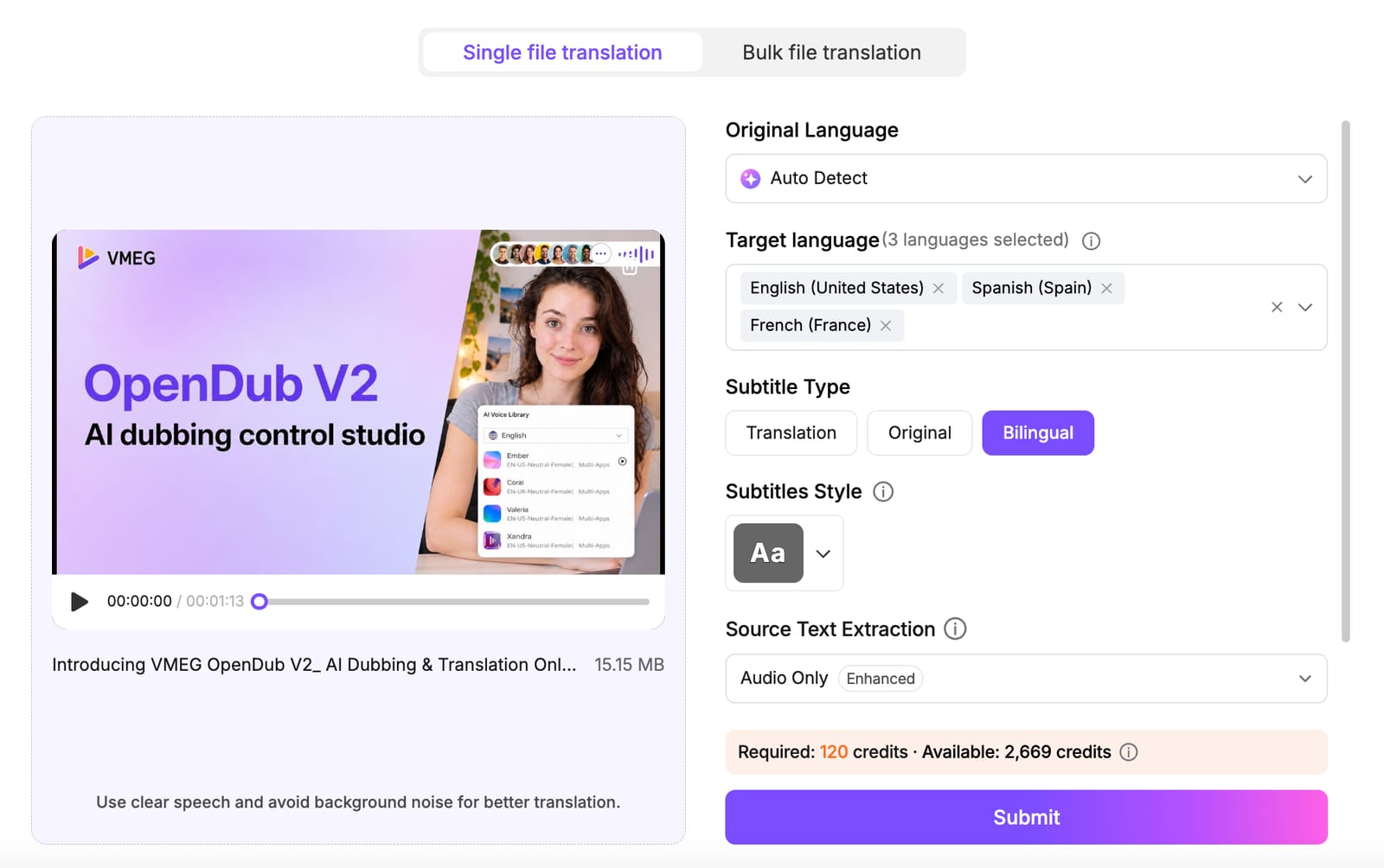
Step 2: Review and Edit Your Translated Subtitles
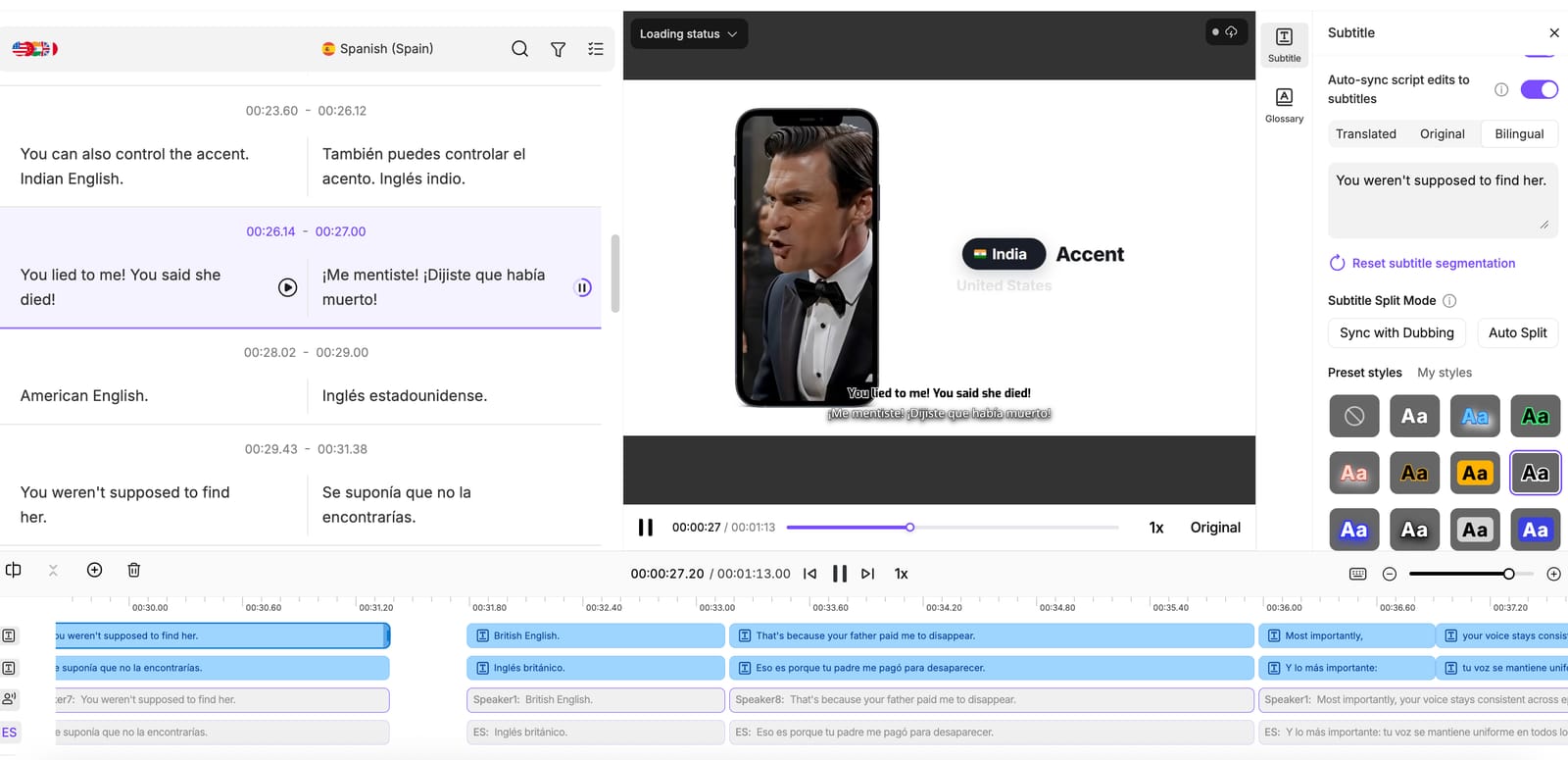
After processing, open the subtitle editor to review the original and translated text side by side. You can edit individual sentences, check technical terms, and adjust subtitle timing directly on the timeline.
The editor also provides options to:
- Display original, translated, or bilingual subtitles in the video.
- Auto-sync script edits to subtitles to keep the displayed text updated.
- Adjust subtitle segmentation using Auto Split or Sync with Dubbing.
- Customize subtitle styles, including preset text styles and positioning.
For long recordings, these controls make it easier to review and refine subtitles without manually recreating the entire subtitle timeline.
Once you're satisfied, click Download to export your subtitles as SRT files, including translated or original-language Reading Subtitles and Spoken Lines.
FAQs About Translating Long Videos
How can I translate a long video online?
You can upload your video to an online tool like VMEG, choose the languages, and decide whether you want AI dubbing or translated subtitles. Once the translation is ready, review the result, make any necessary edits, and download your video or subtitle files.
Can I translate a long video with subtitles only?
Yes. If you just need subtitles, there's no need to generate a new voice track. VMEG lets you translate videos up to 3 hours long, edit the subtitles, and download them as SRT files while keeping the original audio.
Do I have to translate the whole video again if I find a mistake?
No. If you spot an incorrect translation or an awkward sentence, you can fix it directly in the editor. For dubbed videos, you can also regenerate the audio for that sentence without redoing the entire recording.
Can AI translate long videos with multiple speakers?
Yes. VMEG can detect multiple speakers and assign different AI voices to them. It's still worth checking the speaker assignments, especially in interviews or group discussions where people sometimes talk over one another.
Translate Long Videos with VMEG
Whether you're dubbing a two-hour lecture or adding translated subtitles to a webinar, VMEG lets you handle long-form translation in one place.
You can work with videos up to three hours long, make adjustments where needed, and download the finished files in the format that suits your project.