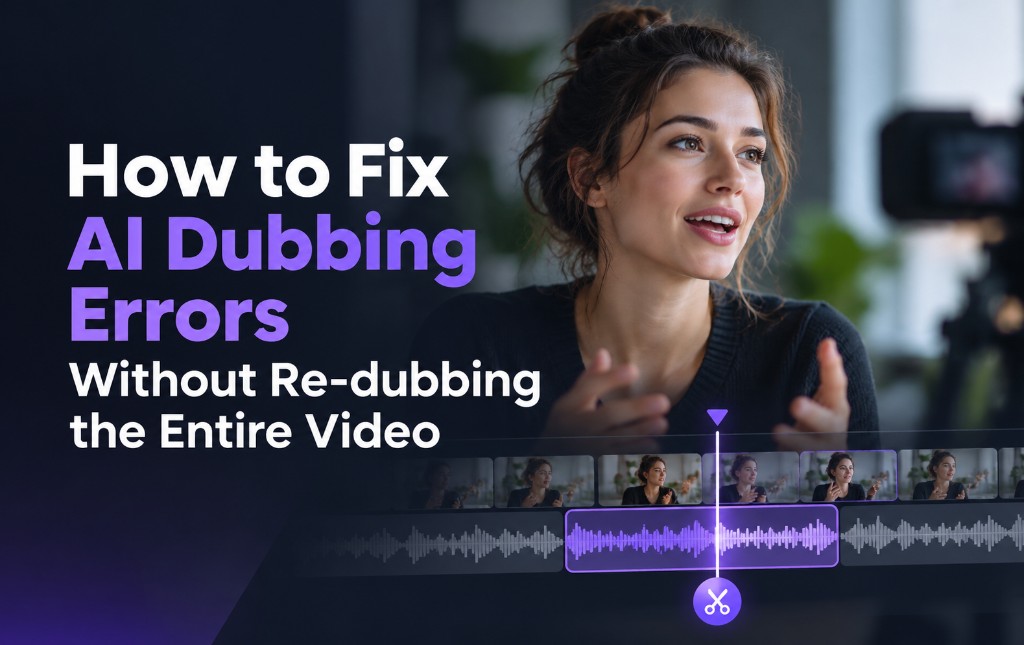
AI dubbing makes it easy to translate videos into different languages. But sometimes, you may want to fine-tune a few details before publishing, such as a translated phrase, a brand name's pronunciation, or the tone of a particular line. With VMEG AI, you can edit the text, pronunciation, voice delivery, and timing of individual speech segments without re-dubbing the entire video.
Here's how to make these adjustments in the VMEG dubbing editor.
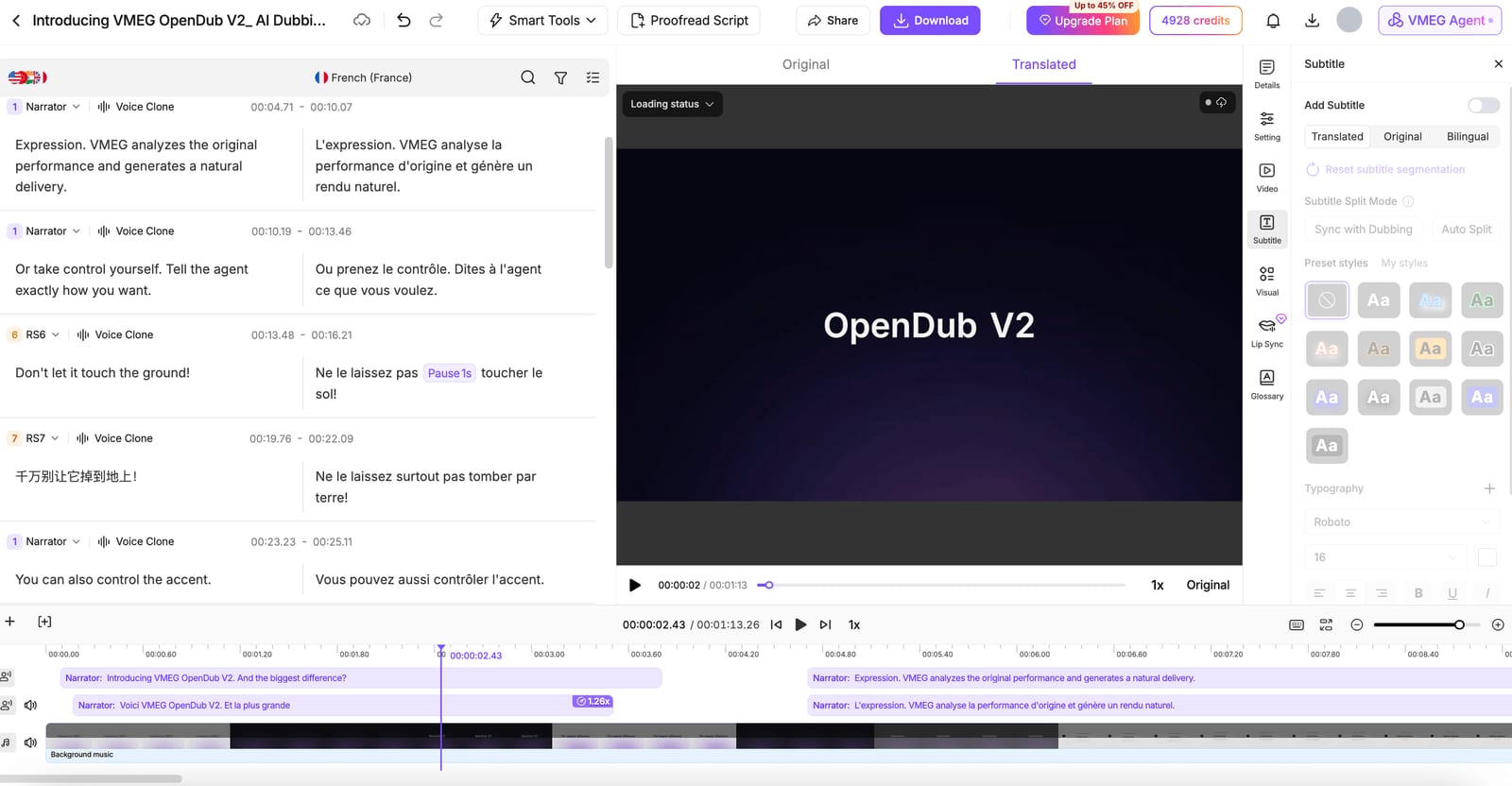
Edit Translations and Re-dub Individual Sentences
You may want to adjust a translated sentence to better match the original meaning, use more natural expressions, or follow your preferred terminology.
VMEG lets you edit both the original transcript and the translated script directly in the editor.
Option 1: Edit the translated text
If you already know how you want the sentence to sound in the target language:
- Open your completed dubbing task in the VMEG editor.
- Select the sentence you want to adjust.
- Edit the translated text directly.
- Click Redub to regenerate the updated sentence.
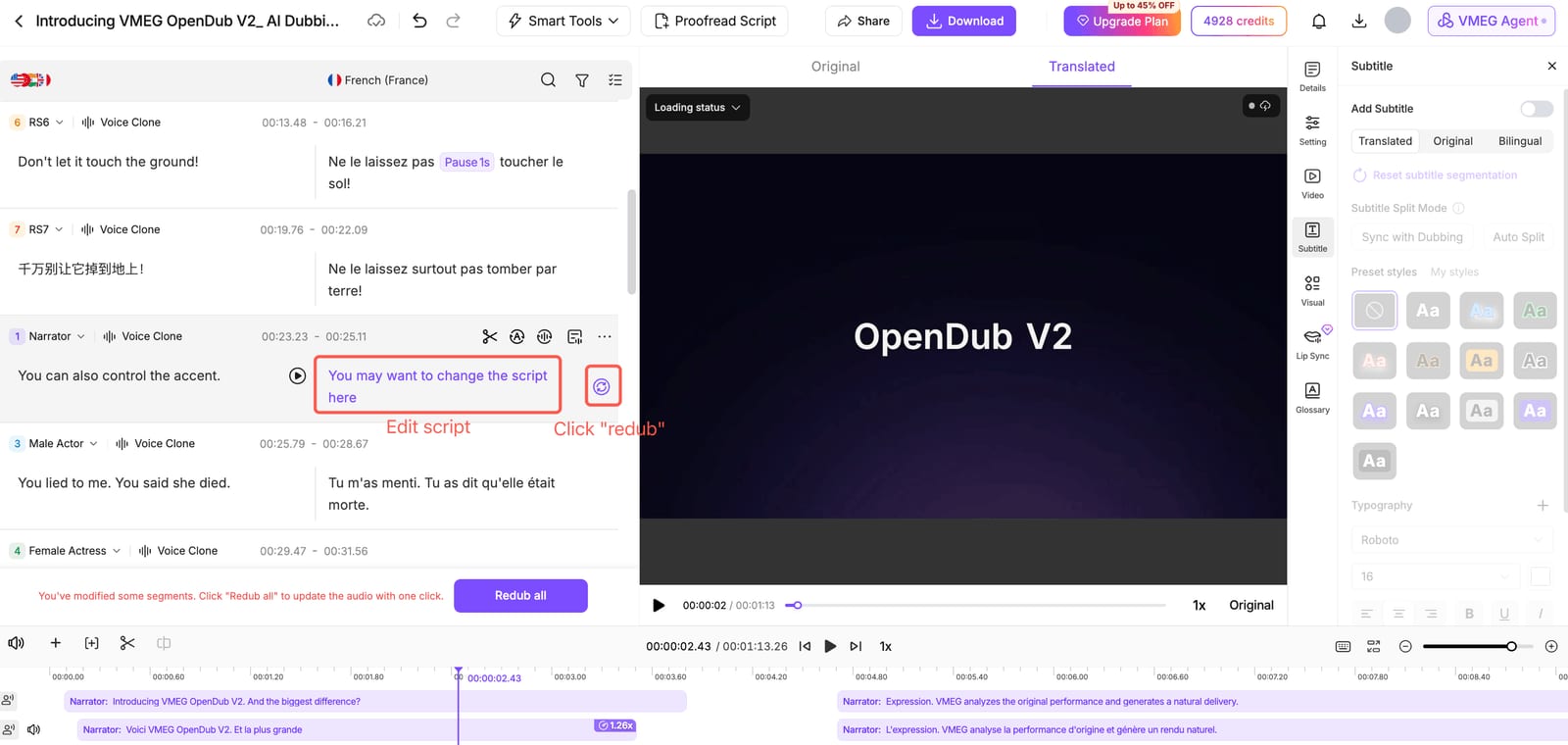
You can also edit the entire script and click Redub All to regenerate all sentences at once.
Alternatively, click Proofread Script to download and edit the script locally, then re-upload it. VMEG will highlight your changes in purple, and you can click REDUB ALL to regenerate the audio.
Option 2: Correct the original text and retranslate
If you'd like the AI to generate a new translation based on an updated original script:
- Select the corresponding sentence in the original transcript.
- Modify the source text.
- Click Retranslate to generate a new translation.
- Review the translated text and apply the changes to update the dubbing.
This is particularly helpful when refining product descriptions, technical terminology, or localized expressions.
Fine-Tune Voice, Accent, and Pronunciation
A natural-sounding dub isn't just about accurate translation. You may also want specific names, industry terms, or regional accents to sound a certain way.
VMEG provides several ways to refine these details.
Customize Pronunciation
For brand names, personal names, or specialized terminology, you can fine-tune pronunciation in two ways:
Method 1: Use a pronunciation dictionary
Double-click any word you want to adjust the pronunciation of to open the Pronunciation Dictionary.
Add words and specify their preferred pronunciations to help maintain consistency throughout your video. This is especially useful for brand names, technical terms, or words that appear repeatedly.
Method 2: Use phonetic spelling
For certain English or other foreign-language expressions, you can try replacing a word in the speech script with a phonetic spelling based on how it should sound in the target language.
For example, if an English voice doesn't pronounce the Chinese brand name "Xiaomi" as intended, you could test a phonetic spelling such as "shyaow-mee" to guide the generated speech.
Phonetic spelling is an approximation, so preview the result and adjust it when necessary. Keep the correct brand spelling in any displayed subtitles.
Once you've refined the pronunciation, Redub the selected sentence and listen to the updated result.
Adjust Emotion, Speaking Speed, and Delivery
The same sentence can sound very different depending on how it's delivered. A product announcement may need an enthusiastic tone, while a training video may benefit from slower, clearer narration.
With VMEG's supported dubbing models, including OpenDub V2, you can use natural-language prompts to guide how a line is spoken.
Here are a few examples:
| Desired effect | Example prompt |
|---|---|
| More excitement | Speak with excitement and energy, emphasizing the key message. |
| Calm and professional | Use a calm, confident, and professional tone. |
| Slower delivery | Speak slightly slower, with clear articulation and natural pauses. |
| More emotional expression | Deliver the sentence with warmth and sincerity. |
To refine the delivery:
- Select the sentence you want to adjust.
- Click "Redub sentence"
- Enter a prompt describing the intended speaking style.
4. Click Redub to generate three alternative takes.
5. Preview the result and refine the prompt if necessary.
You can also adjust the audio segment's duration and position on the timeline to fine-tune speaking pace and alignment with the video.
Tip: Keep prompts specific. Instead of simply writing "Make it sound better," describe the desired emotion, pace, or emphasis.
Use Split Audio to Edit Only Part of a Sentence
Sometimes, you may be happy with most of a sentence and only want to adjust one particular phrase.
That's where VMEG's Split Audio feature comes in.
Instead of re-dubbing the entire sentence, you can split the audio into smaller segments and work on just the portion you want to refine.
How to Split and Re-dub Audio
- Select the audio segment in the editor.
- Move the playhead to where you want to split it.
- Click Split Audio in the lower-left corner.
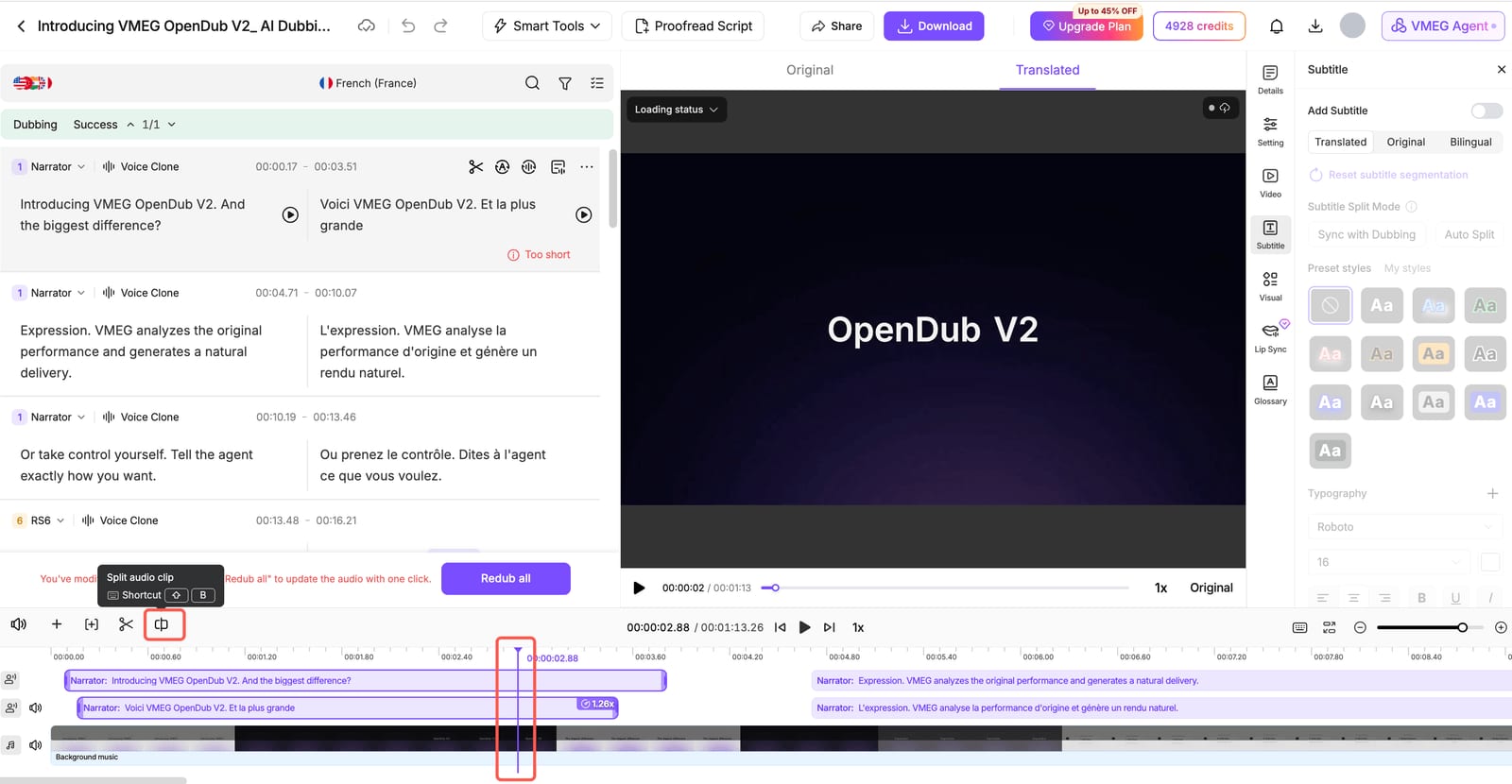
4. Repeat at the end of the phrase if needed.
5. Select the separated segment, make your adjustments, and Redub.
For example, suppose your dubbed sentence is:
"Our new product launches in September and will be available worldwide."
If you'd like to change the pronunciation or delivery of "will be available worldwide," you can isolate that phrase and regenerate it while keeping the rest of the sentence unchanged.
For a natural transition, try splitting at phrase boundaries rather than in the middle of a word.
This feature is particularly useful when making small adjustments to longer dialogue, especially during client reviews or final production.
FAQs
1. Can I Fix AI Dubbing Errors Without Re-dubbing the Entire Video?
Yes. VMEG lets you edit and re-dub individual sentences or audio segments without regenerating the entire video.
2. How Do I Fix Incorrect AI Dubbing Translations?
Edit the translated text directly, or correct the original transcript and click Retranslate to generate a new translation.
3. Can I Correct Pronunciation in AI Dubbing?
Yes. Use VMEG's Pronunciation Dictionary or phonetic spelling to correct names, brand terms, and mispronounced words.
4. Can I Re-dub Only Part of a Sentence?
Yes. Use Split Audio to isolate a specific phrase, then edit and re-dub only that section.
5. How Can I Make AI Dubbing Sound More Natural?
Use emotion prompts to adjust tone, emphasis, and speaking style. You can also fine-tune speed and timing in the editor. If you're not satisfied, you can regenerate the audio to explore alternative takes and choose your preferred version.
6. Does Editing or Re-dubbing Cost Extra Credits?
Paid plans do not charge extra editing credits for editing and regenerating audio in the same dubbing task. On the free plan, a task that has not been paid for separately includes one sentence re-dub. Another re-dub asks you to upgrade. Features billed separately can still use credits.
Fine-Tune Your AI Dubbing with VMEG
From adjusting translations and pronunciation to controlling emotional delivery and editing individual phrases, VMEG gives you more flexibility over the final dubbed video.
You can refine the details that matter to your content while keeping the rest of the audio intact.
Try VMEG AI Dubbing and explore its built-in editing tools.