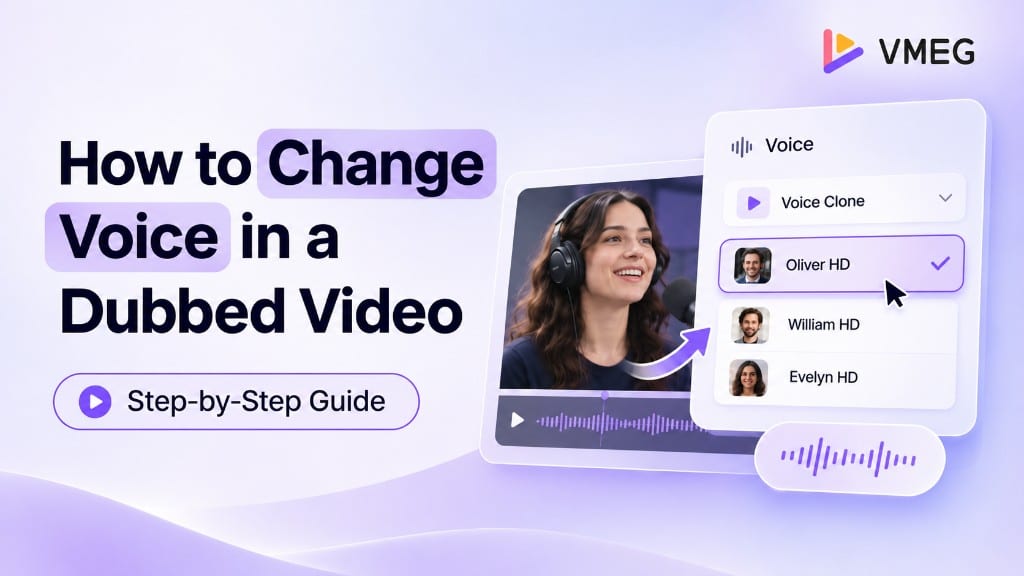
Want to change the voice in a video you've already dubbed? With VMEG AI, you can select a different AI voice, apply it to a specific speaker, or use voice cloning to preserve the original speaker's voice.
You can also customize individual lines, including their emotion, speaking speed, and volume, directly in the dubbing editor. There's no need to upload or translate the video again.
Here's how it works.
How to Change Voice in a Dubbed Video with VMEG AI
Once your video has been dubbed, you can change the assigned voice directly in the VMEG AI Dubbing Editor.
Step 1. Open Your Dubbed Video
Open a completed dubbing task in VMEG AI.
The editor displays the original and translated dialogue side by side, along with speaker assignments and timestamps. You can preview the video and review the dubbed audio on the timeline.
Step 2. Select the Voice You Want to Change
Find a dialogue segment belonging to the speaker whose voice you want to change.
Click the current voice name, such as Voice Clone, next to the speaker label. This opens the voice selection menu.
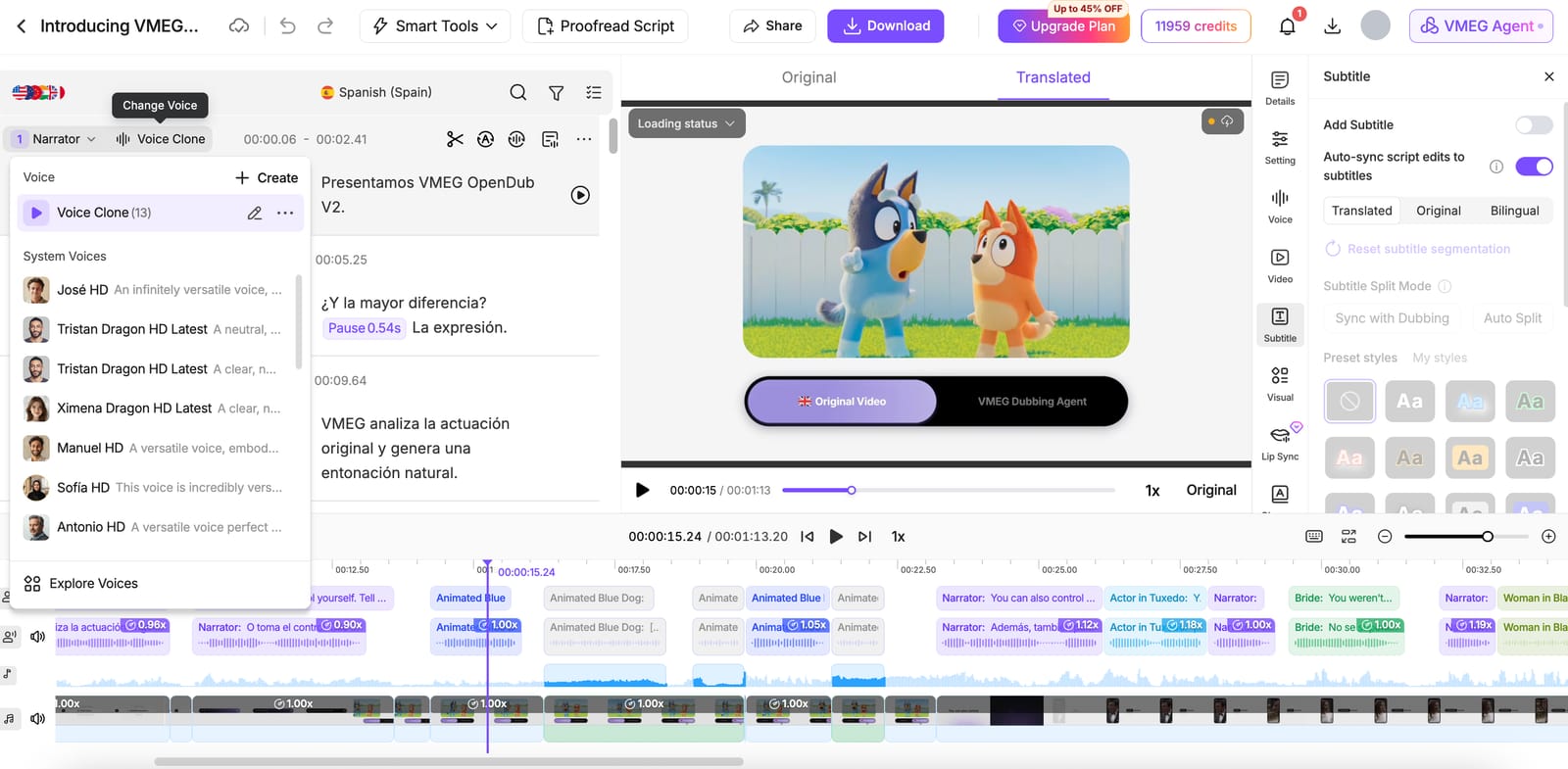
Step 3. Choose a New Voice
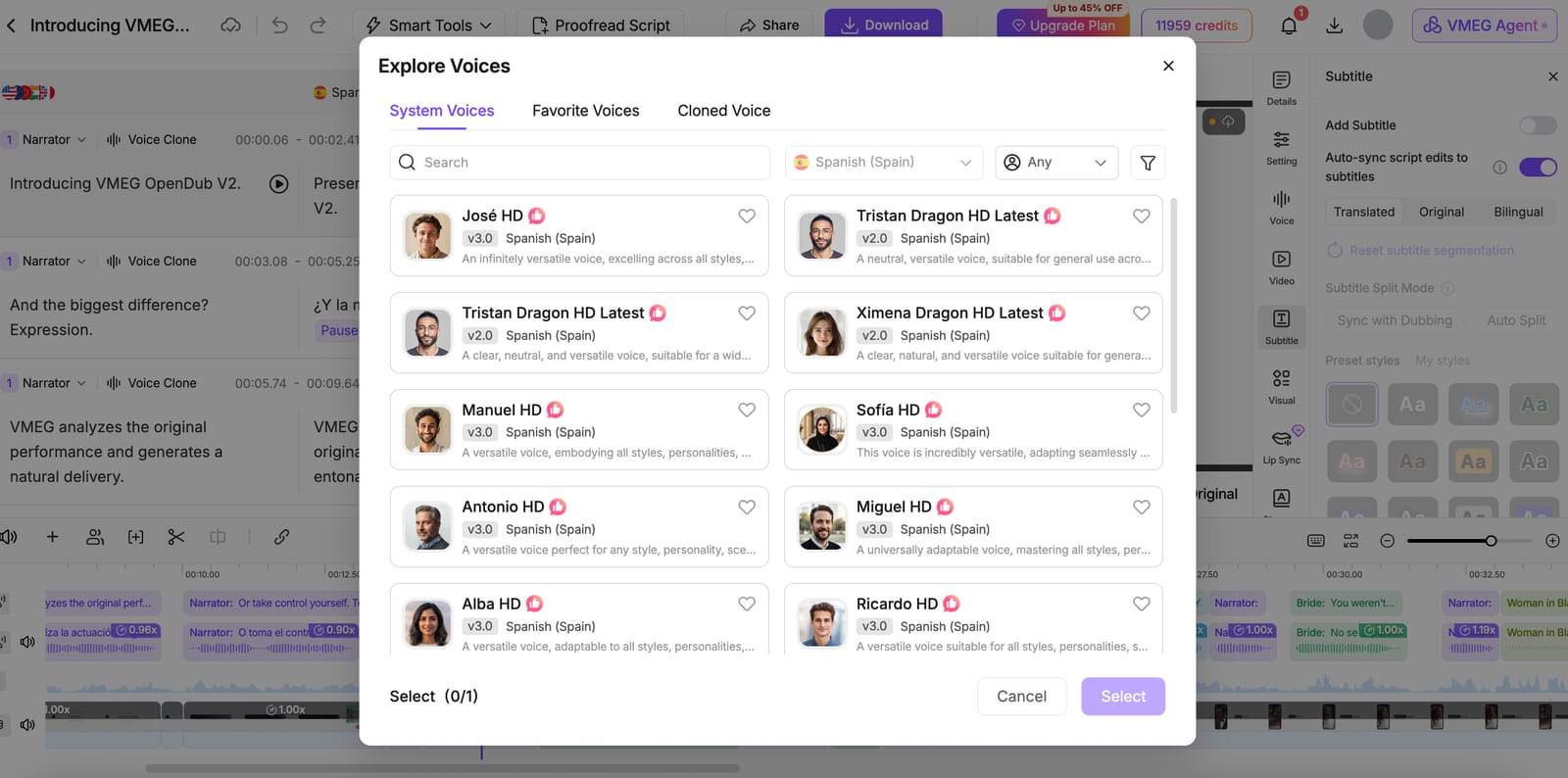
Click Explore Voices to browse the available voices.
VMEG AI provides three voice categories:
- System Voices: Ready-to-use AI voices available in different languages and vocal styles.
- Favorite Voices: Voices you've saved for quick access.
- Cloned Voice: Voices generated through voice cloning.
You can search for voices, filter by language and other available options, and listen to voice samples before making a selection.
For example, when dubbing a Spanish video into English, you can choose from English (United States) voices, depending on the narration style you prefer.
Step 4. Apply the New Voice to Your Speaker
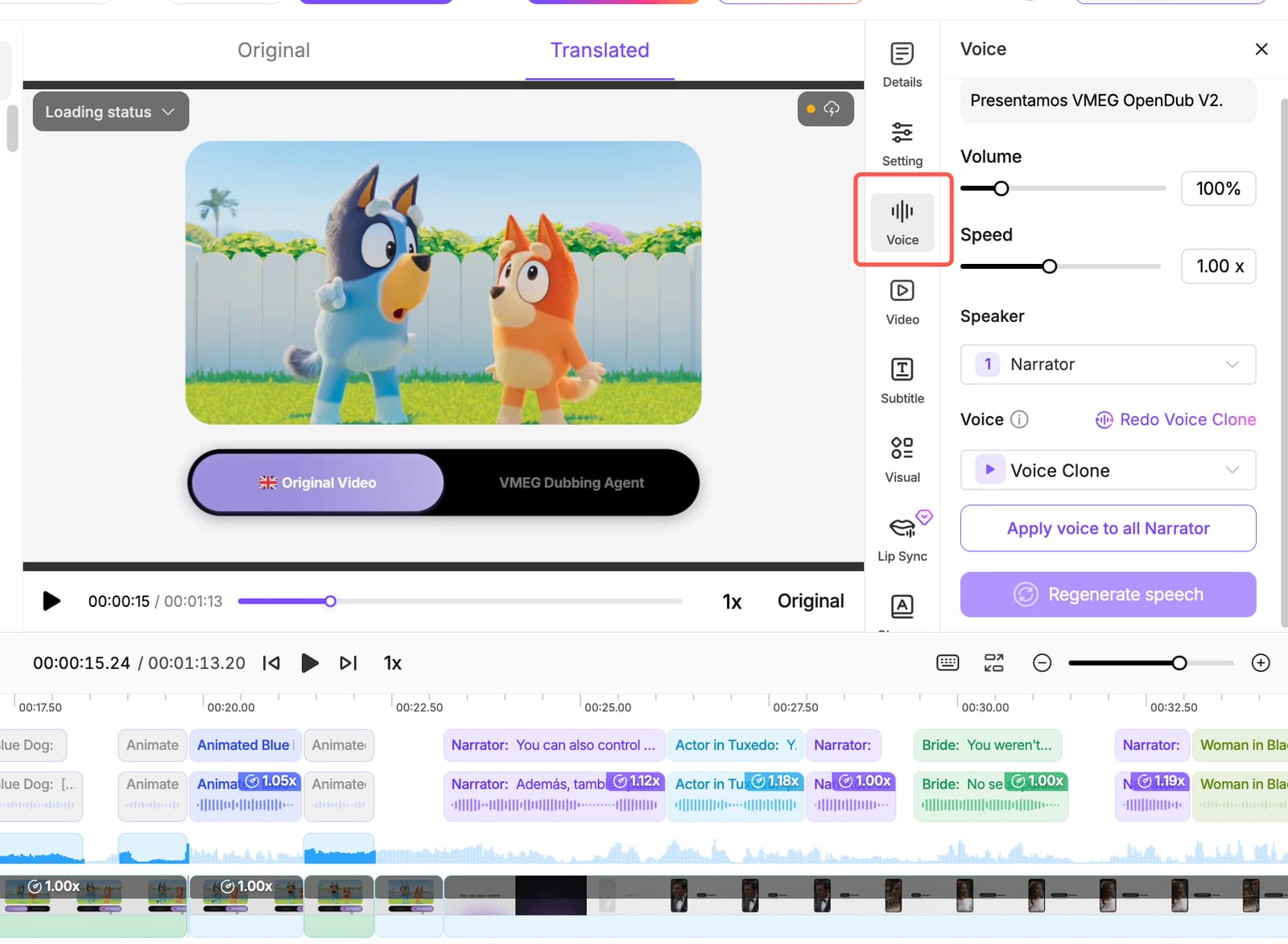
After selecting a voice, open the Voice settings panel.
To use the selected voice throughout a speaker's dialogue, click Apply Voice to All [Speaker Name].
For example, Apply Voice to All Narrator assigns the selected voice to the Narrator's dialogue throughout the video.
Click Regenerate Speech to generate the updated audio.
Step 5. Preview and Export Your Video
Play the updated audio in the editor to hear the new voice in context.
You can review the dialogue alongside the original video and make further adjustments to individual segments if needed.
Once you're happy with the result, click Download to export your dubbed video.
How to Change a Cloned Voice Using Different Voice References
If you want the translated dialogue to retain the original speaker's vocal identity, VMEG AI also lets you redo voice cloning using selected speech segments.
This is useful when you want to choose specific reference audio for the voice clone, such as a conversational introduction, an expressive dialogue scene, or a particular speaking style.
Step 1. Open Redo Voice Clone
Select a dialogue segment and open the Voice settings panel.
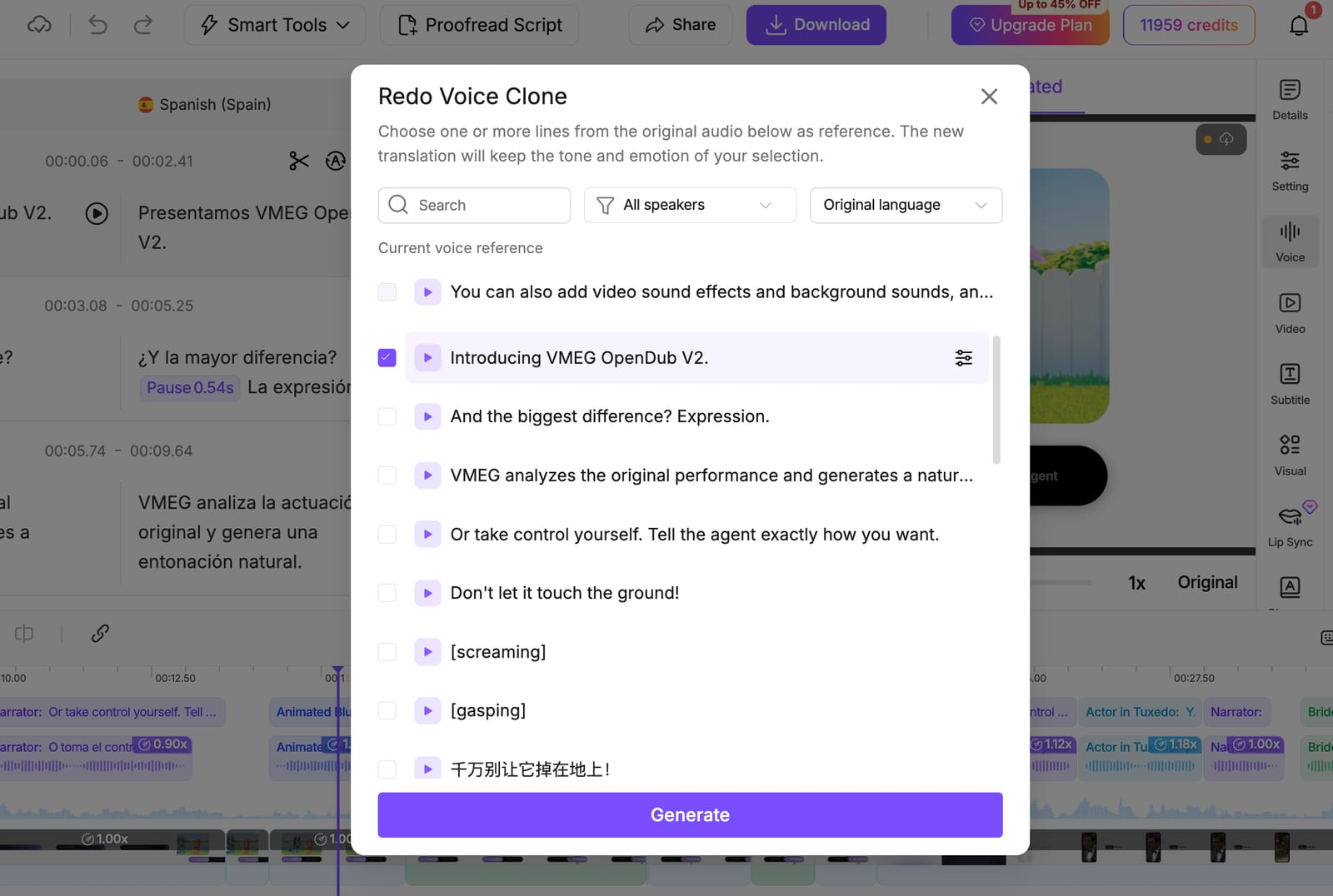
Click Redo Voice Clone to access the voice reference selection window.
Step 2. Select the Original Voice References
VMEG displays available dialogue segments from the original recording.
You can:
- Listen to the original speech segments.
- Select one or more lines as voice references.
- Search for specific dialogue.
- Filter segments by speaker and language.
For example, if you're dubbing an interview, you can select a few clear sentences from the interviewee's original speech as references for their cloned voice.
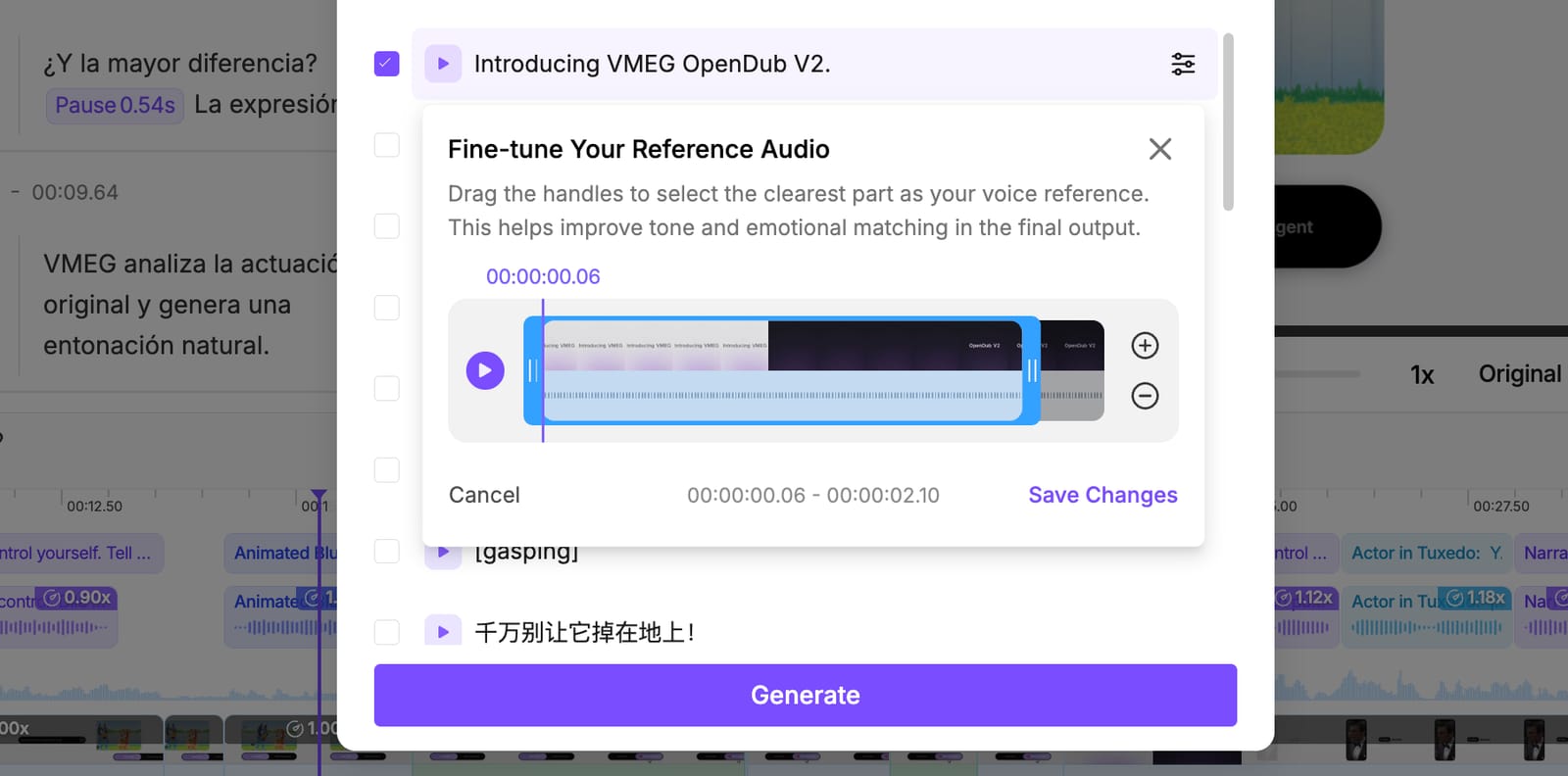
Step 3. Generate the Voice Clone
Click Generate after choosing your references.
The selected speech segments will be used to generate the new voice clone. You can then use the resulting voice for the relevant dubbed dialogue and preview the output.
Change Voice vs. Redo Voice Clone: Use Change Voice to select another available voice. Use Redo Voice Clone when you want to generate a cloned voice using different reference segments from the original recording.
How to Customize the Voice of Individual Dubbed Sentences
Beyond selecting a voice, VMEG AI provides sentence-level controls for adjusting how dubbed dialogue is delivered.
These tools are useful when different scenes or lines call for different emotions, pacing, or speaker assignments.
Adjust Voice Emotion with Redub Sentence
You can customize how an individual sentence is spoken while keeping the same assigned voice.
- Select the dialogue segment you want to customize.
- Click Redub Sentence.
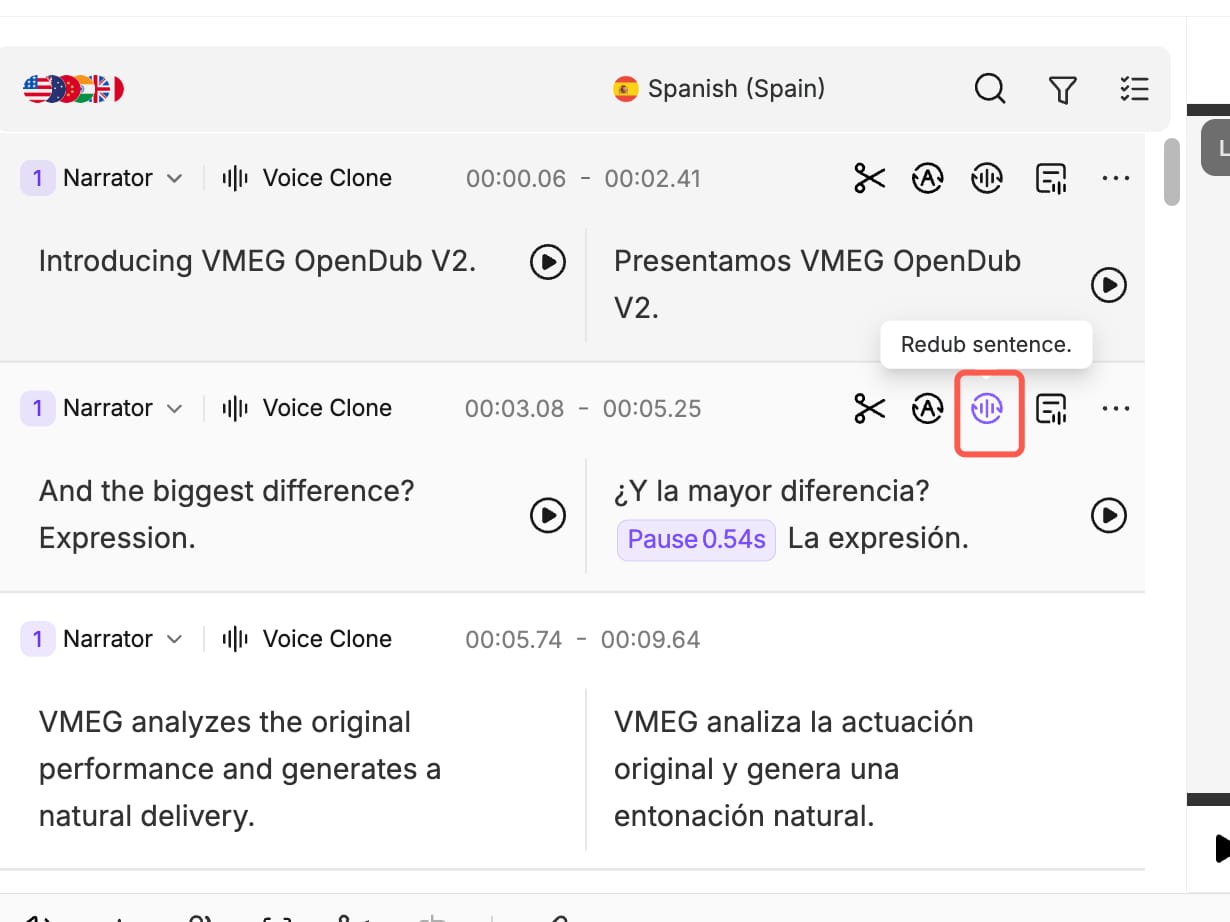
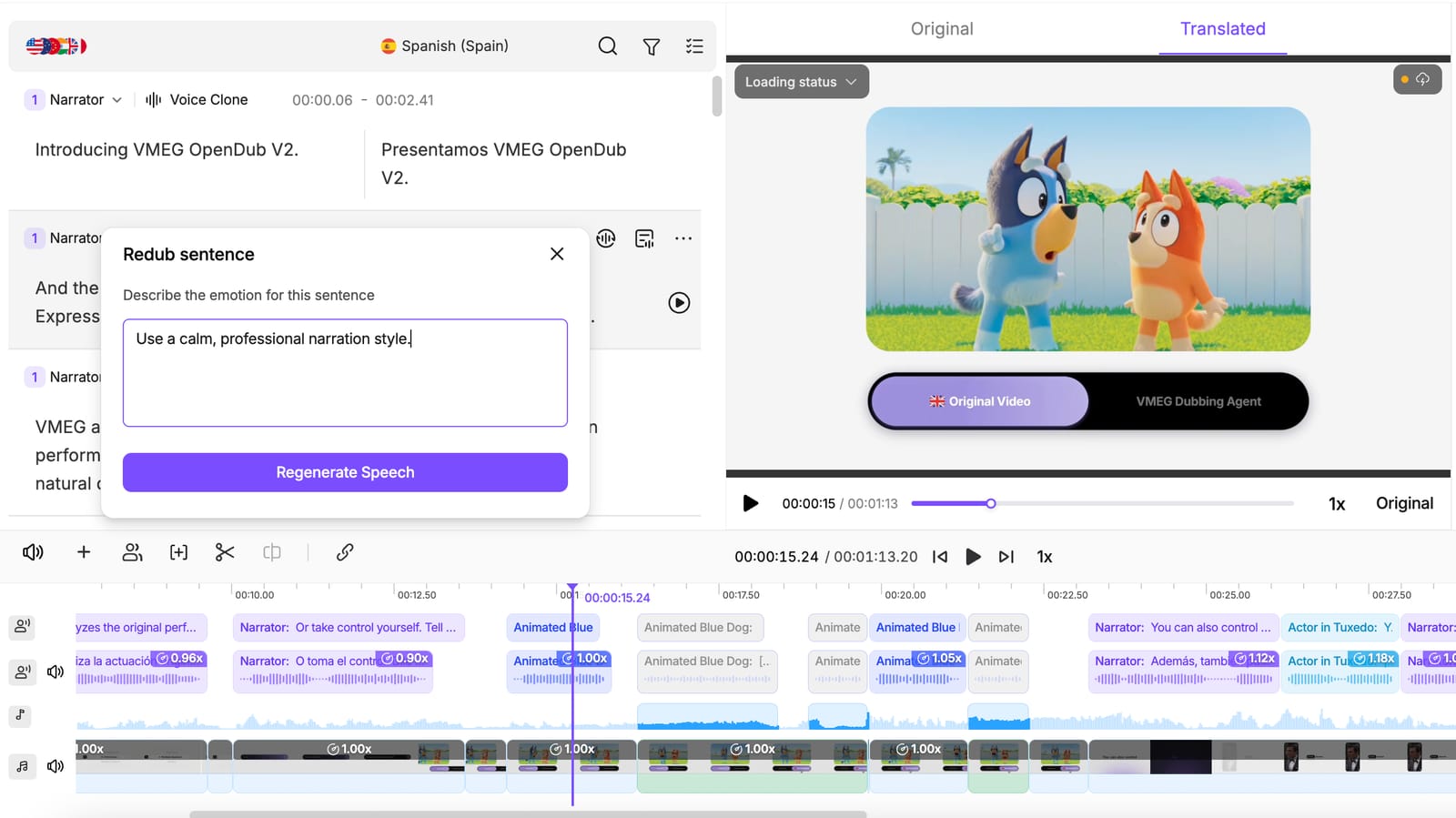
- Enter a description of the desired emotion or speaking style.
- Click Regenerate Speech to generate the new version.
For example, you can use prompts such as:
- "Speak in an enthusiastic, energetic tone."
- "Use a calm, professional narration style."
- "Deliver this sentence with curiosity and excitement."
Adjust Voice Speed and Volume
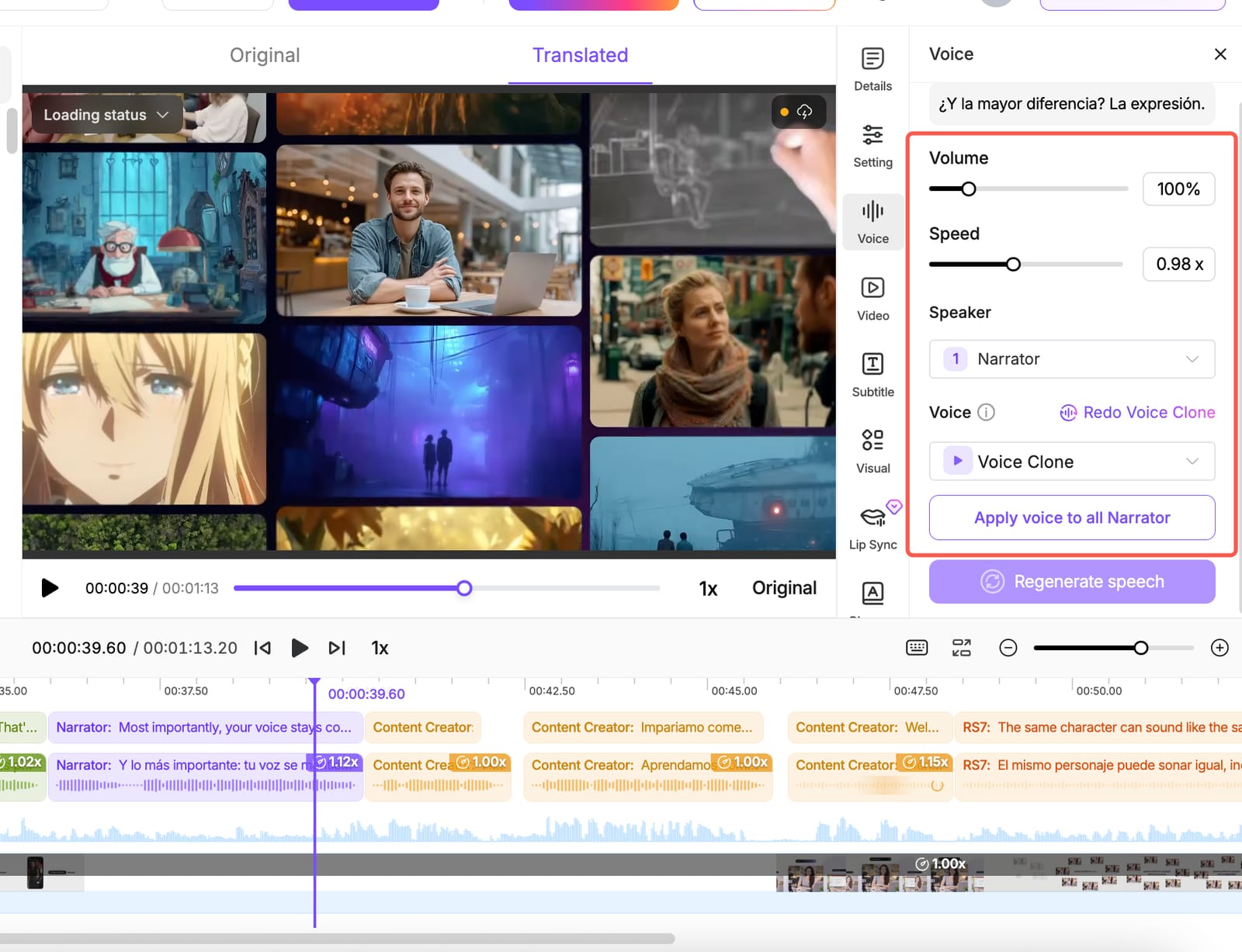
You can also control the speaking speed and volume of dubbed audio.
Select a dialogue segment on the timeline to access the Speed and Volume settings.
- Speed: Adjust how quickly or slowly the sentence is spoken.
- Volume: Increase or decrease the loudness of the selected audio.
For example, you can adjust the speech speed to fit a video's pacing or modify the volume to balance dialogue with surrounding audio.
Change the Speaker Assigned to a Sentence
For videos containing multiple speakers, VMEG AI also lets you manage speaker assignments.
Click the speaker label beside a dialogue segment to open the Speakers menu.
You can select an existing speaker or click Add a new speaker to create another speaker entry.
Once the dialogue is assigned to the intended speaker, you can select the voice you want that speaker to use.
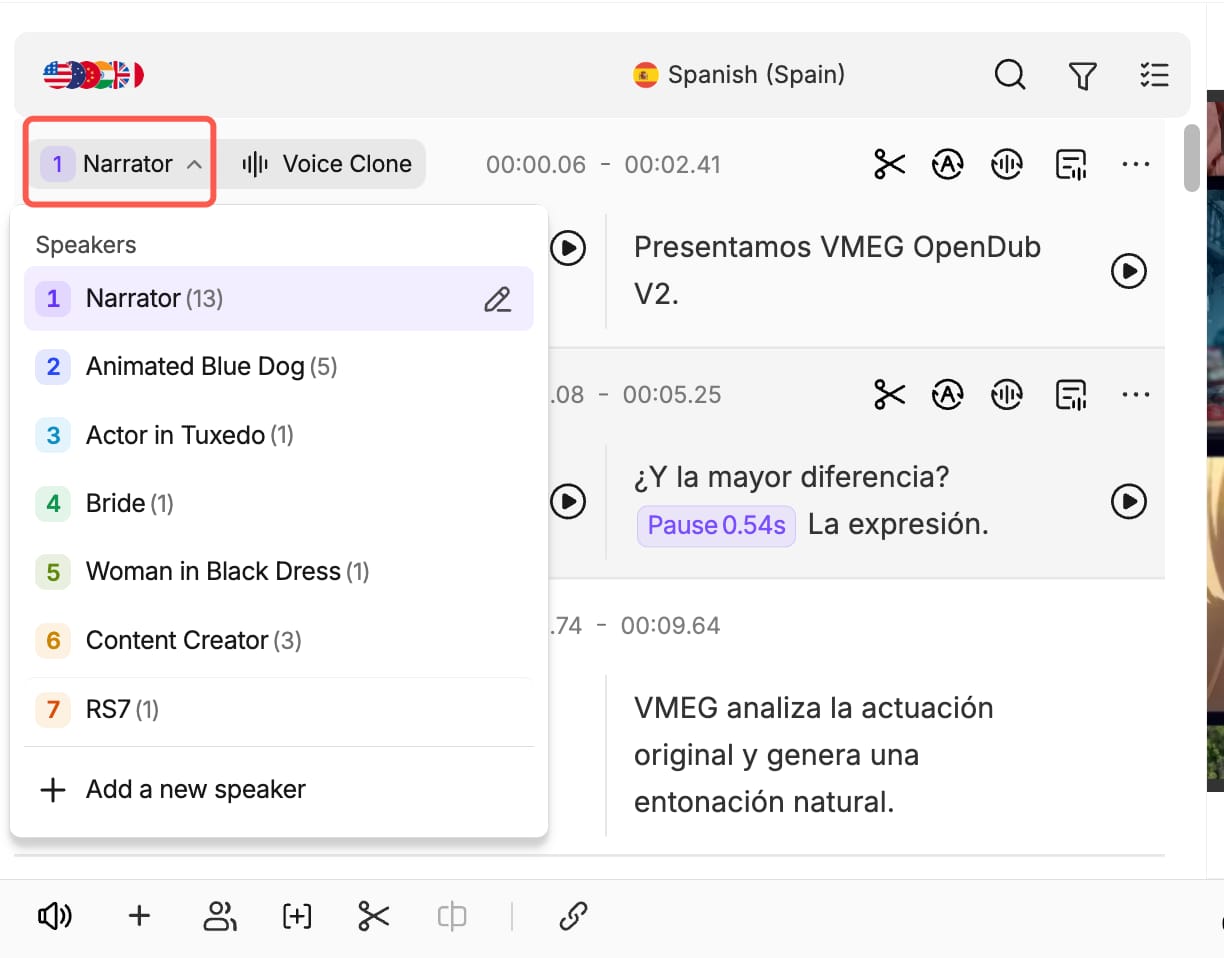
This is particularly useful for interviews, conversations, podcasts, and videos featuring multiple characters.
Which Voice Editing Feature Should You Use?
VMEG AI offers different voice controls depending on what you want to customize.
| Your goal | Feature to use |
|---|---|
| Replace an existing dubbed voice | Change Voice |
| Use one voice consistently for a speaker | Apply Voice to All |
| Preserve the original speaker's voice using selected audio references | Redo Voice Clone |
| Customize the emotion of a sentence | Redub Sentence |
| Adjust speaking pace or audio loudness | Speed and Volume |
| Assign dialogue to another speaker | Speaker Selection |
You can use these features individually or combine them within the same dubbing project.
For example, you might choose a system voice for the narrator, use voice cloning for an interviewee, and adjust the emotion of individual sentences in the introduction.
FAQs About Changing Voices in Dubbed Videos
Can I change the voice in a video after dubbing?
Yes. In VMEG AI, open your completed dubbing task, select a new AI voice, and regenerate the relevant audio. You don't need to upload or translate the video again.
Can I change the voice of only one speaker?
Yes. You can assign a different voice to a specific speaker and use Apply Voice to All to apply that voice to their dialogue.
Can I change the voice without changing the translated text?
Yes. The voice and translated script can be edited separately. You can keep the existing translation while selecting another voice for the dubbed audio.
Can I use my own cloned voice for video dubbing?
VMEG AI supports voice cloning, allowing you to select previously saved cloned voices directly from the dubbing editor's voice library. You can also use Redo Voice Clone to create a new voice clone using selected speech segments from the original recording.
Can I change the emotion of a voice?
Yes. Use Redub Sentence to describe the desired emotion or speaking style, then regenerate that sentence. You can also adjust speed and volume separately.
Do I need to redub the entire video to change its voice?
No. You can change voice settings and regenerate speech within the existing dubbing project without starting the translation workflow again.
Change Your Dubbed Voice with VMEG AI
A dubbed video's voice can be customized to suit different speakers, content styles, and audiences.
With the VMEG AI Dubbing Editor, you can switch between different voices, apply a consistent voice to a speaker, and control the delivery of individual sentences, all within the same project.
Try VMEG AI Dubbing to translate, dub, and customize your videos.