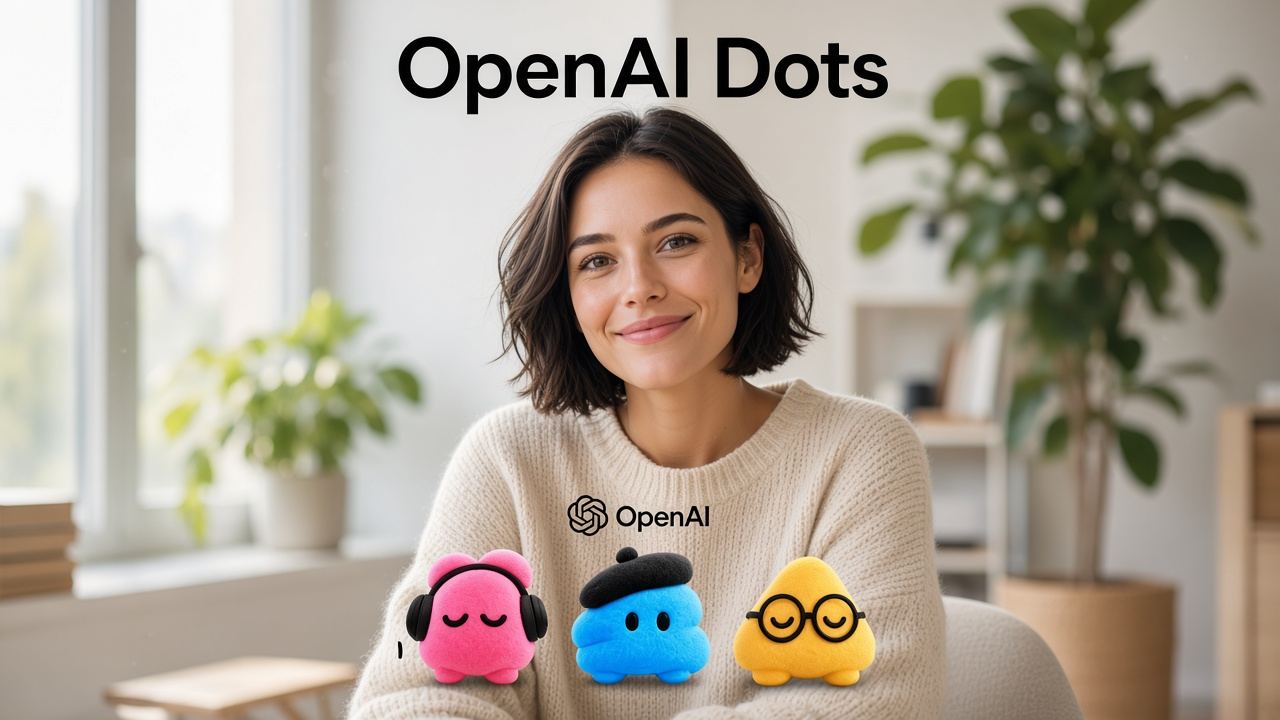
OpenAI Dots is an always-on AI agent inside ChatGPT, announced on 29 September 2026. A dot runs on its own cloud computer, can connect to more than 4,000 apps, and keeps working after you leave the chat. OpenAI says it is powered by GPT-6 Astra.
The rollout that day is for ChatGPT Pro and Business Premium in eligible markets. Enterprise, including Edu and Healthcare, is a beta a workspace admin turns on. Your first dot is included in Pro or Business Premium at no extra cost, with a higher allowance for deeper work during the first month. Chatting with the dot does not spend your ChatGPT usage limit. Tasks it starts in Codex or ChatGPT Work still do.
What OpenAI Dots Is as an AI Agent
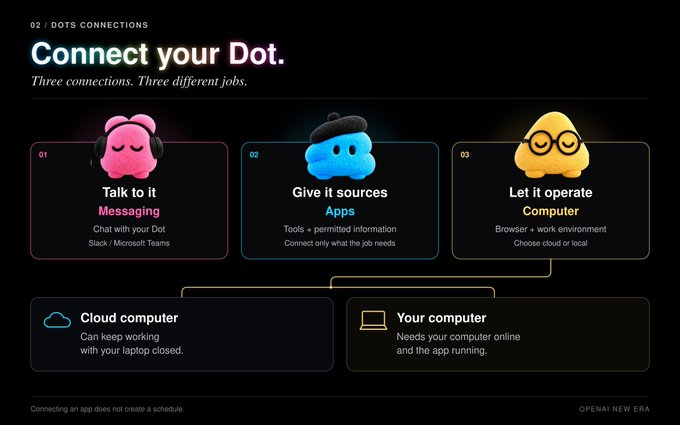
A dot is not a one-off answer in a thread. OpenAI describes it as an agent that learns what good looks like for you, works on its own computer, and can message you with progress or a decision it needs. You can reach it in ChatGPT on desktop, web, and mobile, on a voice call, and in Slack or Teams. Texting is listed as coming soon. Context is meant to carry across those channels.
You create the first dot in the ChatGPT desktop app or a desktop browser, connect apps, and let it introduce itself. Mobile messaging comes after that setup. You can open the dot's computer and watch the work. You can also allow it to use your own laptop. Until you do, OpenAI says your computer stays separate from the dot's machine.
How an AI agent plans and uses tools is a different question from whether this product is available on your plan. A dot can draft, file, and follow up. It does not, by itself, dub a video or time a translated voice track.
Who Gets OpenAI Dots, and What the First Month Includes
| Access | What OpenAI says |
|---|---|
| ChatGPT Pro and Business Premium | Rolling out in eligible markets. First dot included at no extra cost. |
| Enterprise, Edu, Healthcare | Beta, after a workspace admin enables it. |
| First month | Extended limits for deeper work. |
| Later | OpenAI says you will be able to add more dots, and to scale a dot's speed or how much work it takes on per month. No public price for that add-on is in the launch post. |
| Chat with the dot | Does not count toward ChatGPT usage limits. |
| Codex or ChatGPT Work tasks the dot starts | Count toward usage limits as usual. |
The launch post does not publish a monthly price for extra dots. Treat "add more later" as a plan, and confirm the live billing screen before you budget for a second one.
Five OpenAI Dots Examples
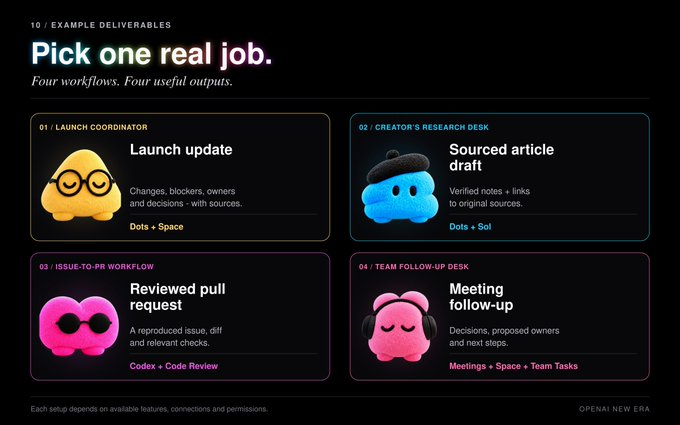
The launch post walks through five jobs. OpenAI's launch illustrations also give example dots names and colors. The pairing below follows those illustrated examples. The post's body describes the jobs. It does not print the color next to each name, so recheck the artwork before you treat a color as a spec.
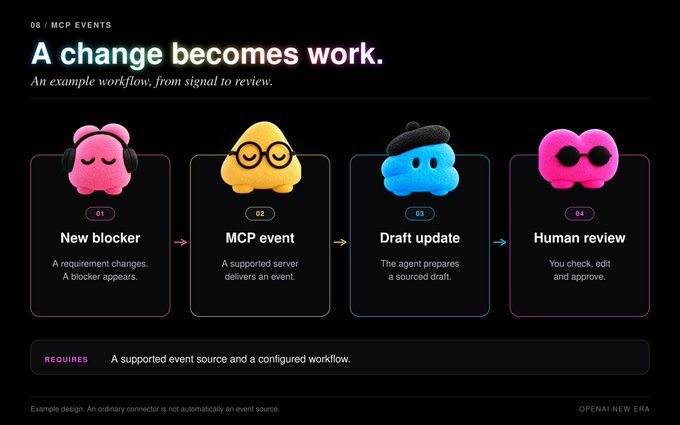
Iggy, the pink developer dot. Customer feedback comes in. The dot scopes a smaller fix, builds it, tests it, and brings you a pull request with a video of the change. You review the PR. The dot does not merge it for you in the example OpenAI tells.
Felipe, the blue launch dot. The product direction changes. The dot revises the story, the launch materials, and drafts of the assets and docs. You come back to a plan that follows the direction you already set.
Todd, the green research dot. New data arrives. The dot reruns the analysis, checks unexpected results, updates the paper's figures, and flags what you need to read yourself.
Alfred, the yellow sales dot. A customer requirement shifts. The dot checks the requirement and the account history against product docs, builds a proof of concept for a key integration, updates the proposal and the test plan, and flags open concerns. You and an engineer still approve what gets promised.
Jojo, the purple content dot. You hand it an interview transcript. It picks moments for short clips, prepares show notes, and drafts social posts for your approval. Your edits are meant to carry across those materials.
One story in the post is from an early tester, not from a lab claim in this review. His dot noticed he had forgotten to invoice a publication, prepared the invoice, and sent it after he approved. That is the shape of the product: it can notice a gap, and the send still waits on a person. Source: Introducing dots.
OpenAI Dots Safety Controls
The useful question is what a dot can do while you are away. OpenAI's own controls split into three layers.
The cloud computer is isolated. The dot works on its own machine. Your computer and its files stay separate unless you connect them. Signing in to a supported site can use a saved password without showing that password to the model. When you are not in the conversation, proactive research can look for ways to help, and OpenAI says those tools are read-only: they cannot send messages, change app content, or control your browser or computer. If monitoring flags a safety concern, it can pause or stop the work.
Permissions are tiered. You choose which apps the dot can access, using the ChatGPT app controls you already have. Custom Rules let you allow an action, require approval, or block it. Built-in safety rules still apply on top of those rules. Auto-review checks actions that could change your accounts or share information. Changing a password stays with you. The dot is not allowed to do it.
Activity View is the record. You can follow progress there, including work done in the background, and redirect the dot. OpenAI's last line on this section is the one to keep: dots can still make mistakes, so review consequential work.
A read-only background pass is not the same as permission to email, pay, or change an account. If a rule is unclear, set the action to require approval before you connect the app that can send.
Specialist Dots Inside an Organization
A personal dot works for one person. A specialist dot is a preview for a fixed job inside a company: its own identity, credentials, and access to the systems that job needs. OpenAI says early internal tests covered procurement, invoice processing, email marketing, customer support, and commercial contracting.
This is not a switch in every Business plan. OpenAI says it is starting with focused enterprise pilots. Its engineers work with the organization on the dot's duties, the tools it may use, and how people approve the work. A separate note says OpenAI is working with Microsoft so specialist dots can sit under Agent 365 governance. That is a stated direction, not a setup guide in the launch post.
Call VMEG MCP From OpenAI Dots
Jojo's example stops at clip picks, show notes, and social drafts. A transcript does not become a dubbed video inside that story. When the clip has to play in another language, have the dot call VMEG through Remote MCP.
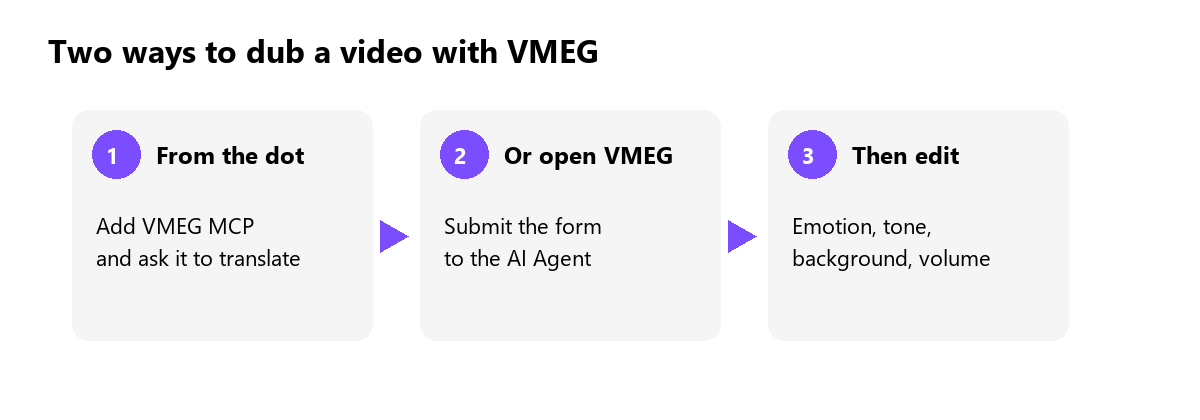
Setup follows the VMEG Remote MCP quick start:
- Create an API key in VMEG.
- In the dot, add a custom MCP connector. A marketplace one-click install is not the path.
- Set the server URL to https://www.vmeg.ai/api/mcp.
- Send the key as Authorization: Bearer plus the key.
- Ask the dot to translate the video. Name the target language and one source: a file already in the project, a public HTTPS file URL, or a YouTube URL.
The job is asynchronous. The dot should check task status instead of treating the request as finished. Translation spends credits on your VMEG plan. That bill is separate from ChatGPT usage limits, including the dot's own chat allowance. Free and paid VMEG accounts can connect. Submitting a task still spends credits.
After the task exists, review the script, speakers, and timing, then export. The dot can start the job. A person should approve the line readings. Emotion, tone, background audio, and volume are the next section.
Use the VMEG AI Agent Directly
You can also skip the dot and open the VMEG AI Agent yourself.
Submit the form on the VMEG AI dubbing page with the video and the target language. After that submit, the job opens in the editor. There, have the agent set the speaker's emotion and tone, separate background audio from the dialogue, and change the volume. Use those controls when the words are already right and the read is not: a line that should sound urgent, music that disappeared under the new voice, or a voice that is too loud for the scene.
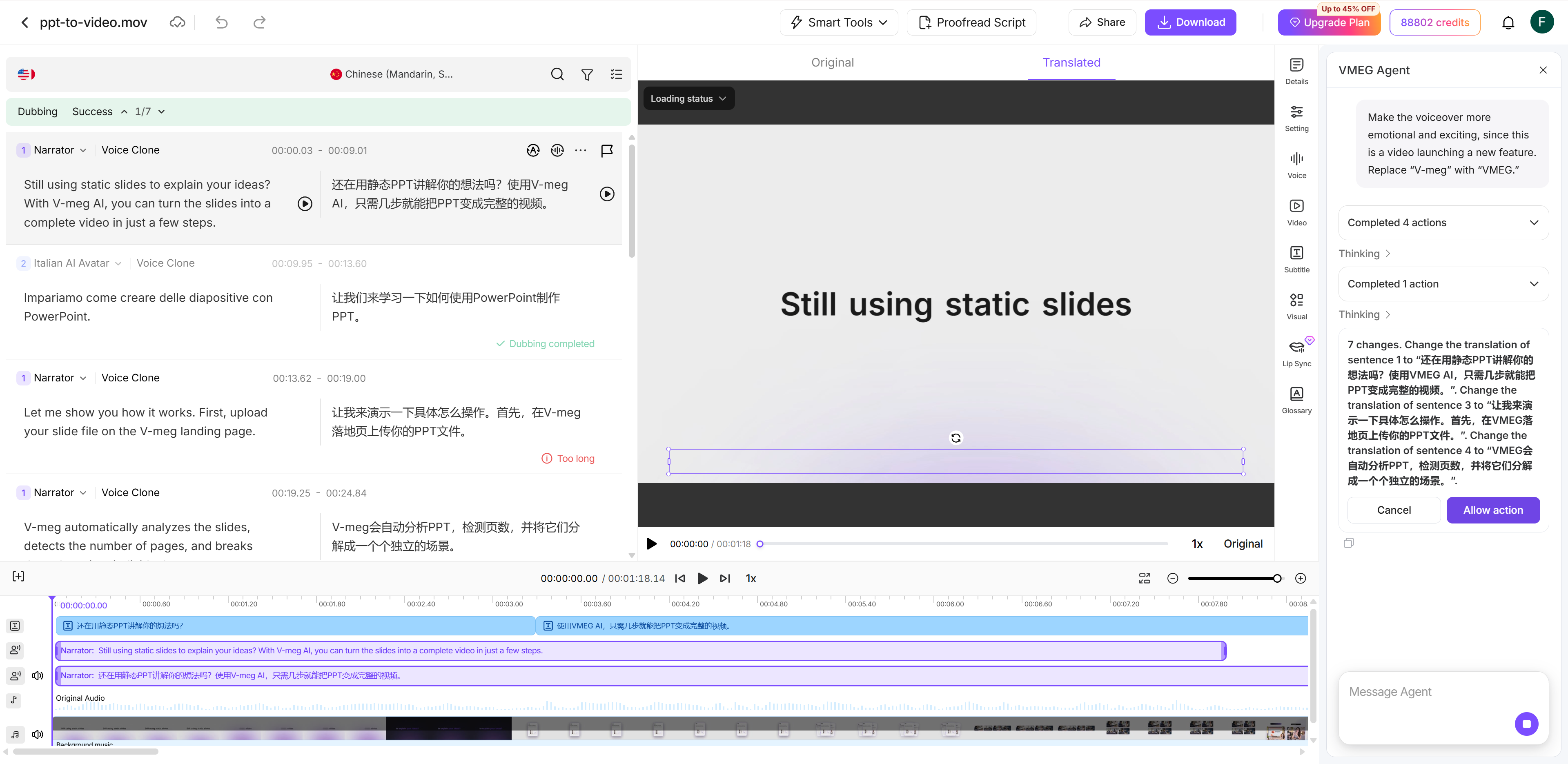
Play the line after each change. The agent applies the setting. You keep it only if the emotion, the background, and the level work together, then export.
Who Should Use This AI Agent Now
Use OpenAI Dots if your ChatGPT plan is Pro or Business Premium in an eligible market, and you want an agent that keeps a project moving across ChatGPT, Slack, or Teams. Read Activity View, and set Custom Rules before you connect an app that can send or spend.
Wait if you are on a plan the rollout has not reached, or if Enterprise access depends on an admin who has not enabled the beta. Skip the idea of hiring extra dots until OpenAI publishes a price. The launch post only says that option comes later.
Use a dot for the coordination: the PR, the revised launch draft, the flagged chart, the proposal, the clip list. When the deliverable is a dubbed video, either have the dot call VMEG MCP, or open the VMEG AI Agent and finish in the editor. You still approve anything that leaves the building.
OpenAI Dots FAQ
Who can use OpenAI Dots on day one?
Pro and Business Premium users in eligible markets. Enterprise, Edu, and Healthcare workspaces can try a beta after an admin enables it.
Does talking to a dot use my ChatGPT allowance?
Conversations with the dot do not count toward ChatGPT usage limits. Work it starts in Codex or ChatGPT Work still counts.
Can I pay monthly for more dots now?
Not from the launch post. The first dot is included. The first month has extended limits for deeper work. Adding dots, or scaling speed and monthly workload, is described as a later option, with no price published.
Can a dot change my password or send messages while I am away?
Password changes stay with you. Background proactive research is read-only and cannot send messages or edit app content. Other actions depend on Custom Rules and auto-review. Check Activity View for what it did, including background work.
Can this AI agent dub a video by itself?
It can pick clip moments and draft posts. For the dubbed file, have the dot call VMEG MCP, or submit the video to the VMEG AI Agent and set emotion, tone, background separation, and volume in the editor.
What is a specialist dot?
A preview of a dot with a fixed organizational job, such as procurement, invoices, or customer support. OpenAI is running that as enterprise pilots, not as a self-serve toggle.