English
EN

Free MP3 Cutter Online

Cut MP3 files online in your browser. Upload audio or video — video extracts the audio track locally — then trim songs, make ringtones, fade in and out, and export to MP3, WAV, M4A, or AAC.

Loading audio editor…

How to Cut MP3 Online with VMEG

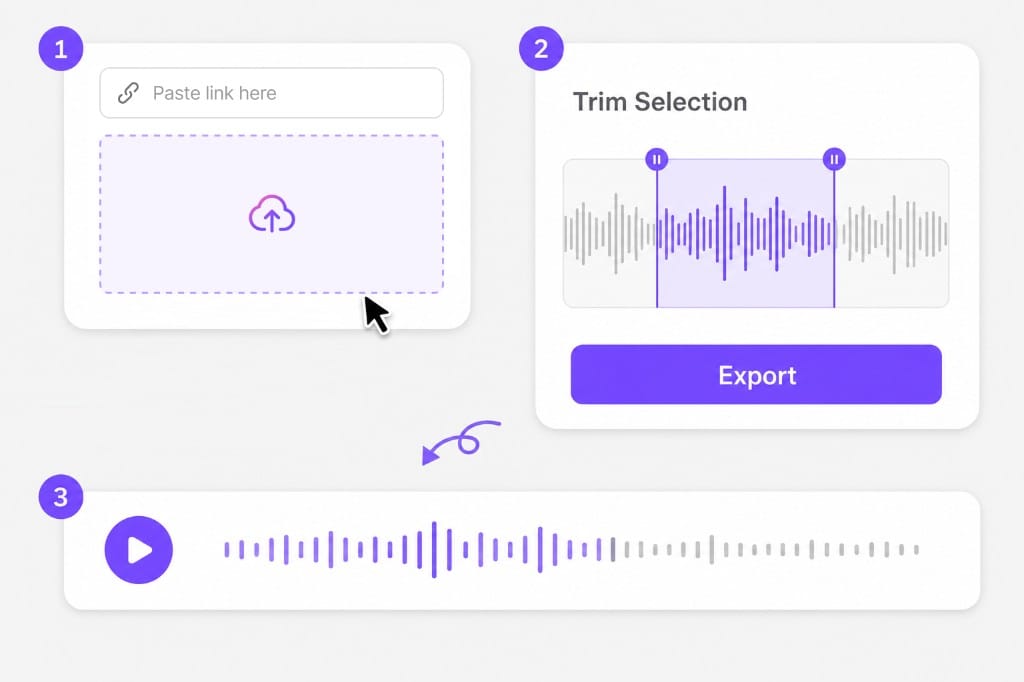
  1. 01Upload audio, video, or paste a link

    Drop an MP3, WAV, M4A, or a video file (MP4, MOV, WebM) — the browser extracts the audio track — or paste a URL.

  2. 02Select the part to keep or remove

    Drag the handles on the waveform to set start and end. Choose to keep the selection, remove it, or add fade in and fade out for a smooth ringtone — whether you uploaded audio or pulled audio from video.

  3. 03Export your cut MP3

    Switch volume, speed, or pitch tabs if needed, then click Export. Pick MP3, M4A, AAC, or WAV and save after sign-in — same workflow for audio and video sources.

MP3 cutter workflow: upload file, trim waveform selection, and export audio

Why Use VMEG MP3 Cutter

Quick MP3 trims, full editor controls, and private browser workflow — built for songs, podcasts, and ringtones.

Built for quick MP3 edits

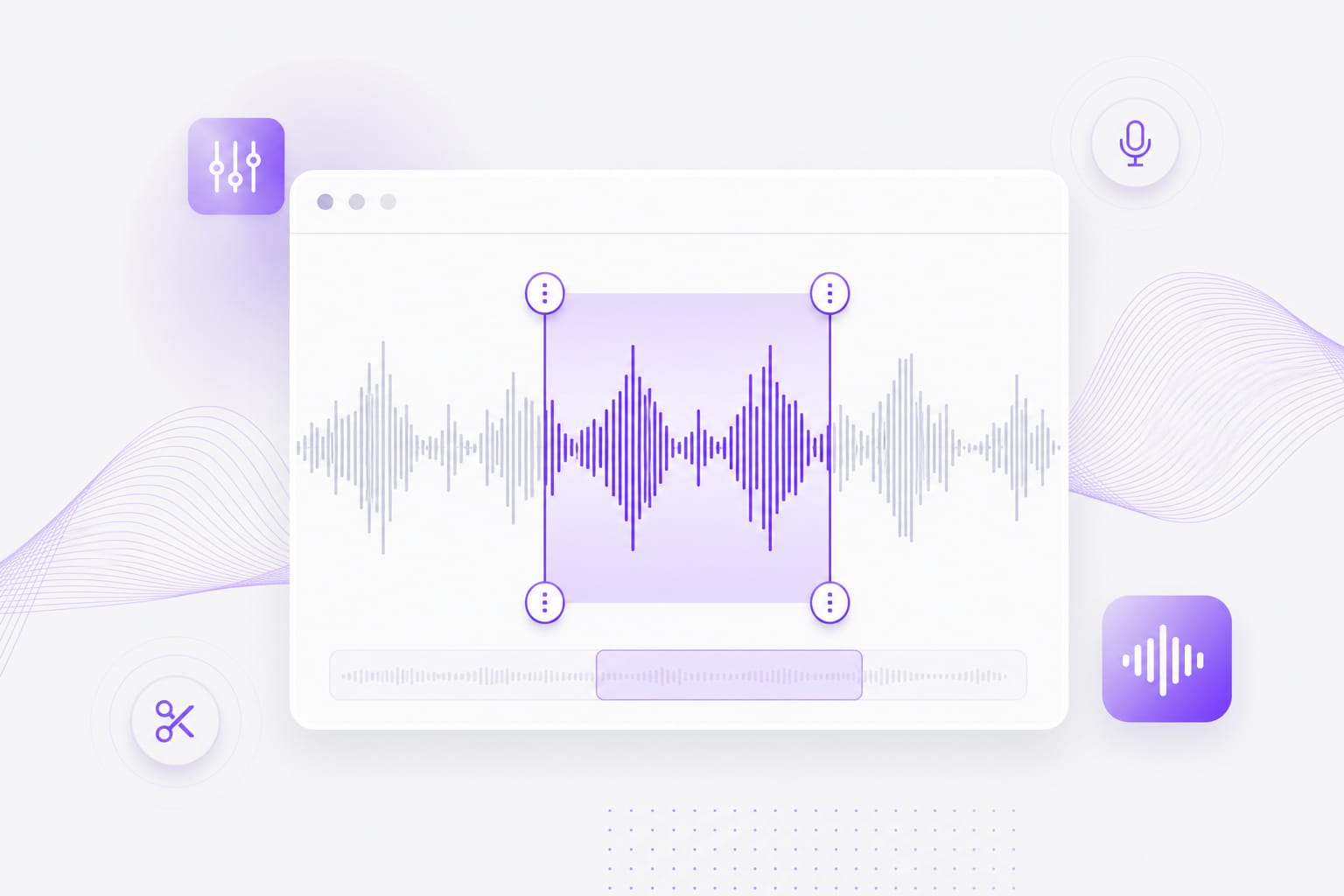
Cut songs, podcast clips, and audio pulled from video without desktop software. Upload MP3 or extract audio from MP4 and MOV in your browser — the trim tab opens by default so you can split tracks, remove intros, and make ringtones in minutes. Drag waveform handles for frame-accurate MP3 cuts instead of guessing timestamps in a generic player.

Waveform trim selection in the MP3 cutter

More than trim

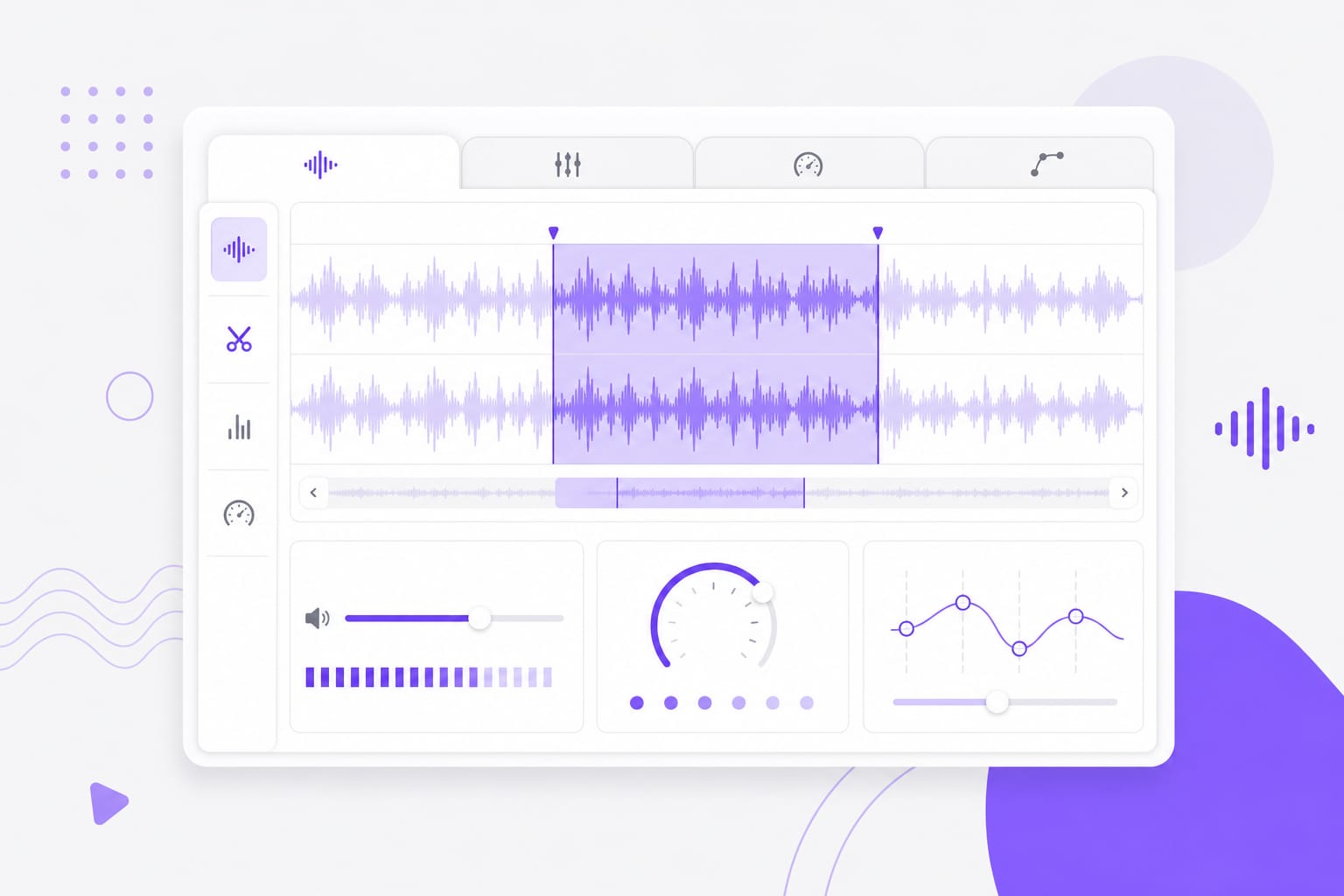
One browser-based MP3 cutter includes volume, speed, and pitch controls alongside trim — similar to full online audio suites, without leaving the page or installing plugins. Switch tabs after trimming audio or video sources in the same editor, then export MP3, WAV, M4A, or AAC from a single workflow built for everyday creators and marketers.

Audio editor with trim, volume, speed, and pitch tabs

Private browser editing

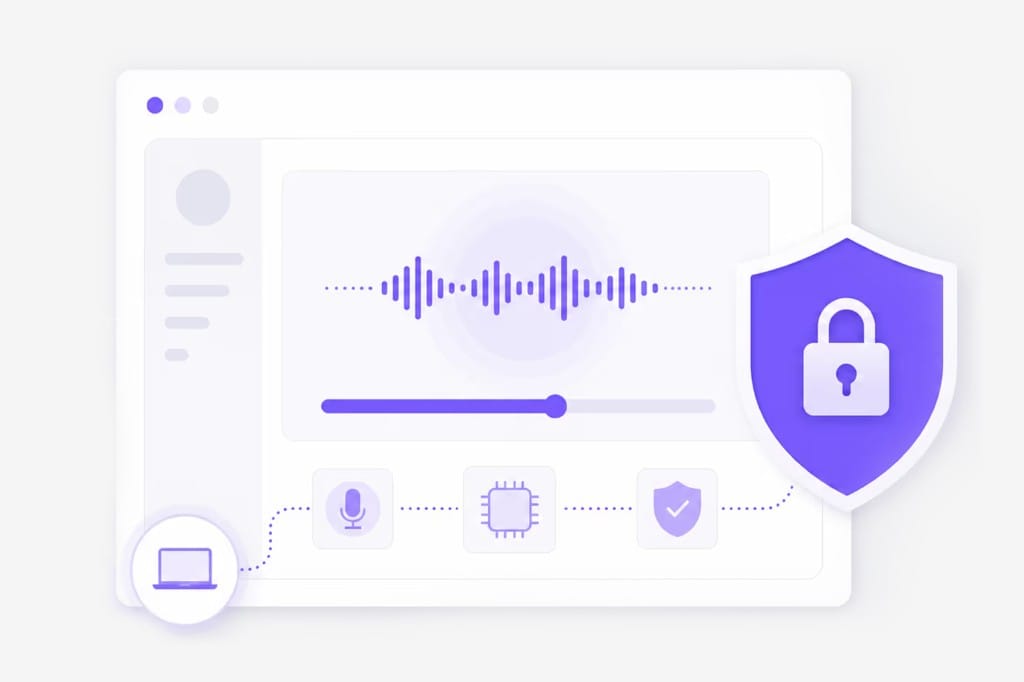
Process files locally in your browser. Preview cuts, fades, and volume changes without an account; sign in when you download your trimmed MP3 or converted format. Your source audio and video stay in the session until you choose to export, which keeps casual MP3 editing fast and predictable for one-off clips.

Local browser editing and sign-in to download

FAQs about MP3 Cutter

How do I cut an MP3 file online?

Upload an audio file, a video with sound (MP4, MOV, WebM), or paste a URL — video extracts the audio track in your browser. Set start and end on the waveform, choose keep or remove selection, add optional fade in and fade out, then export in your preferred format. The MP3 cutter opens on the Trim tab so song and podcast edits start immediately.

Can I cut MP3 from a video or URL?

Yes. Upload MP4, MOV, or WebM to extract the audio track, or use From URL when the link points to a supported media file. After the track loads, use the same waveform tools as a direct MP3 upload — trim, fade, adjust volume, and export without switching to another page.
Does the MP3 cutter add fade in and fade out?

Yes. Apply fade in and fade out on the trimmed clip — useful for phone ringtones, podcast intros, and clean edit points where a hard cut would sound abrupt. Preview fades in the editor before export so your MP3 ringtone or highlight reel ends smoothly.

Do I need an account to download?

Editing and preview are free in your browser. Sign in when you save your exported file so VMEG can deliver the download. You can test trim points, fades, and volume changes as many times as you need before signing in.

Which export formats are supported?

MP3, M4A, AAC, and WAV. MP3 is the default on this page for song and ringtone workflows, while WAV is available when you need a lossless handoff to another editor. Pick the format that matches your phone, DAW, or social platform after you finish cutting.

Start cutting MP3 online — free in your browser

Trim songs, fade ringtones, or pull audio from video with this online MP3 cutter. Trim, volume, speed, and pitch in one browser editor — no install.