Audio Trimmer

Trim audio online with a simple waveform editor. Cut MP3, WAV, M4A, or extract audio from video, add fade, then export — free browser audio trimmer.

Loading audio editor…

How to Trim Audio Online with VMEG

  1. 01

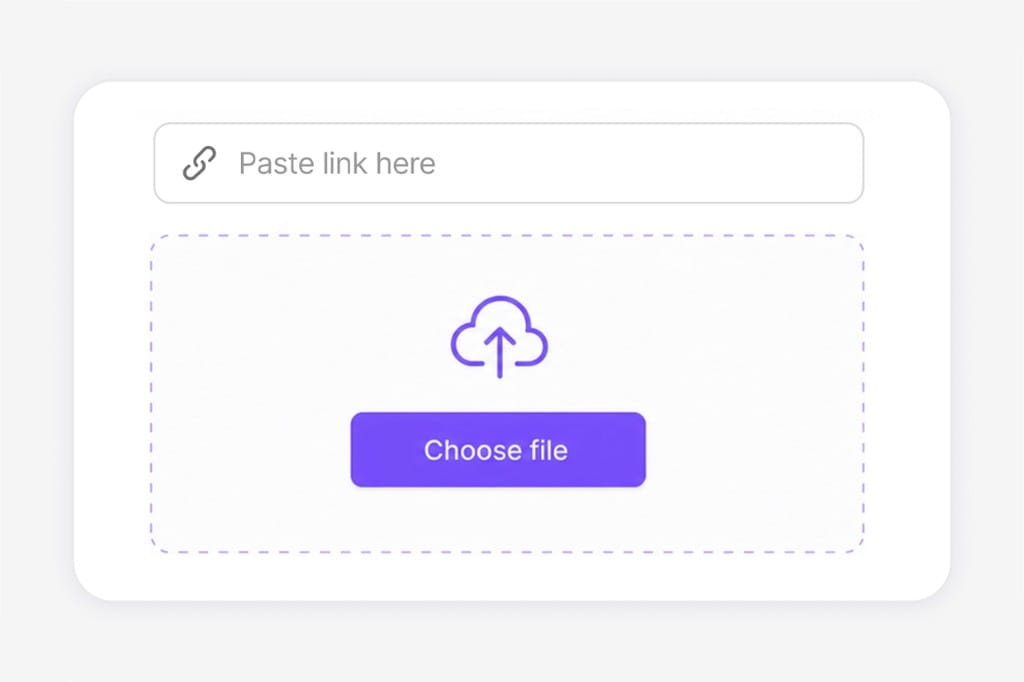
    Load audio, video, or a URL

    Upload audio, video, or paste URL to trim illustration

    Drop a music or podcast file, upload video to extract its audio track, or paste a direct media link.

  2. 02

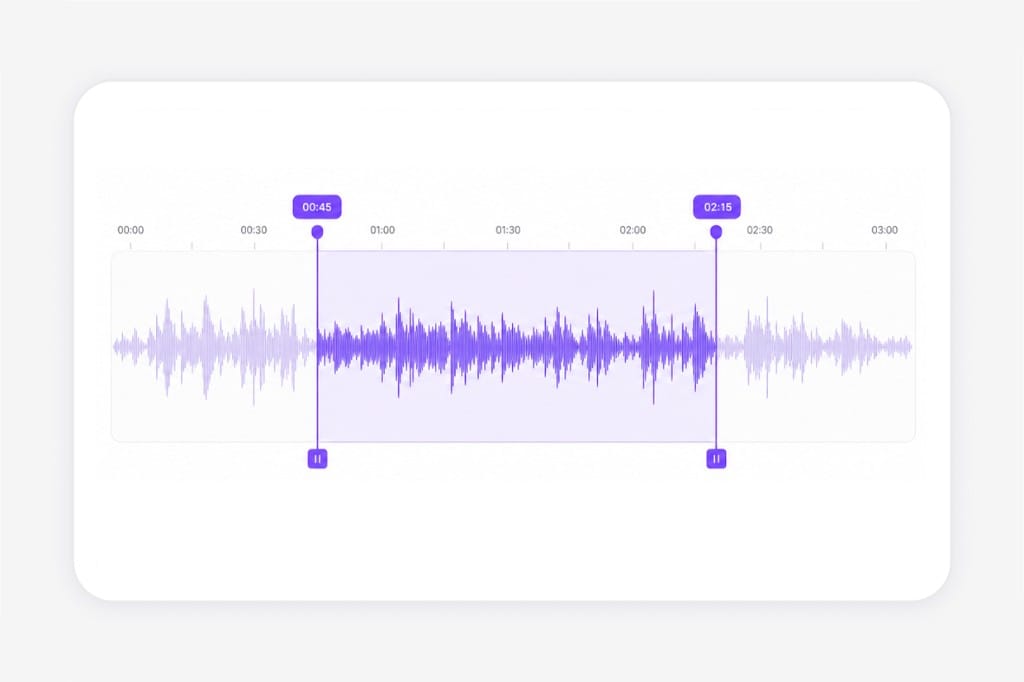
    Trim to length

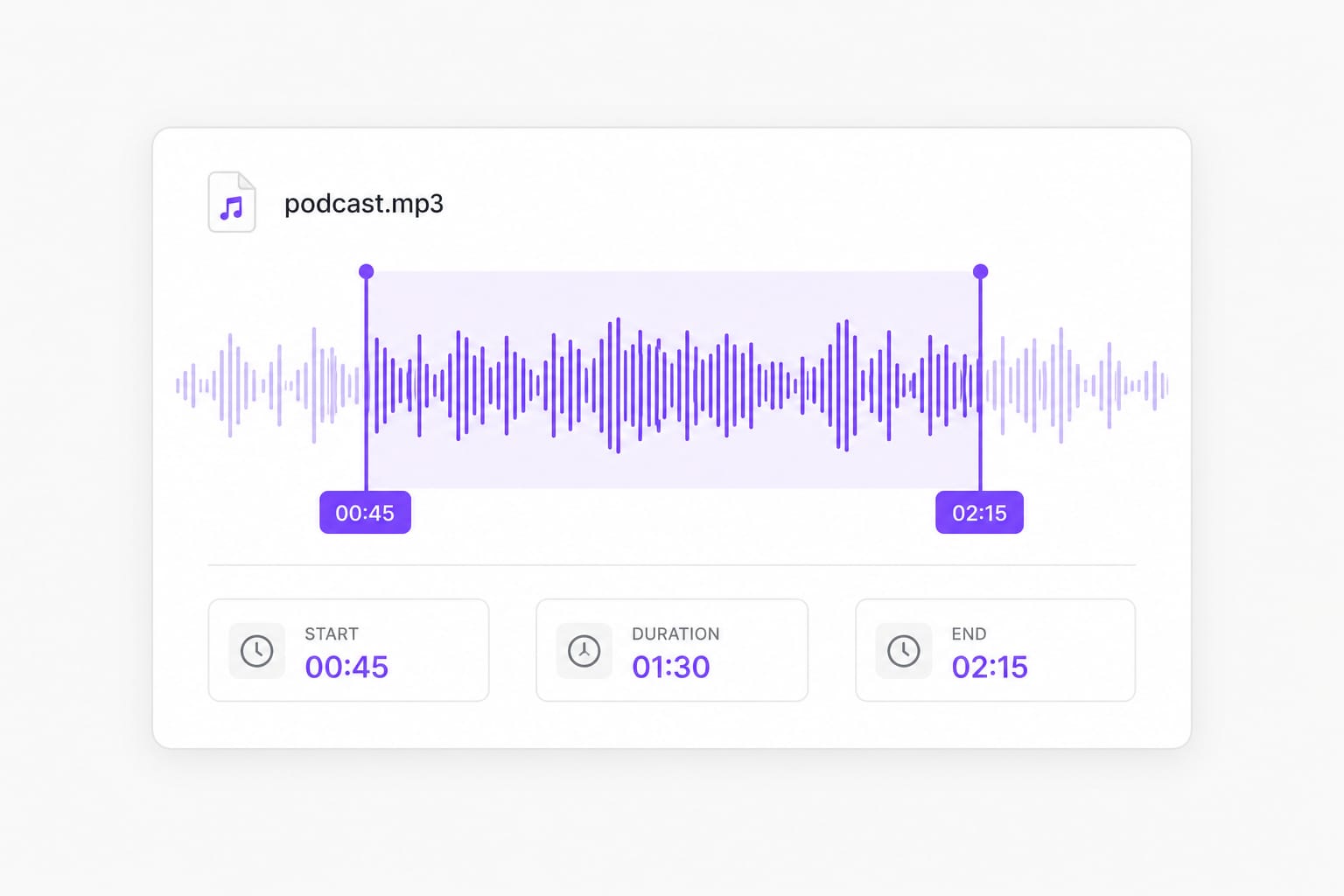
    Trim audio on waveform with selection handles illustration

    Move the left and right handles to trim audio to the exact length you need. Preview before export.

  3. 03

    Save the trimmed file

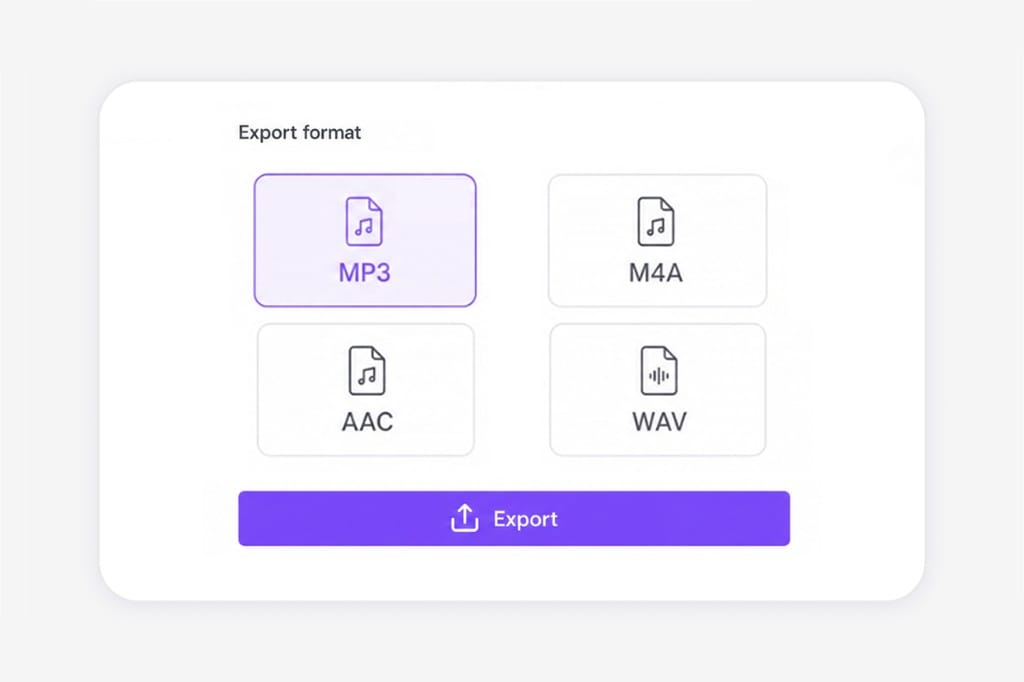
    Export trimmed audio file illustration

    Apply fades if you want softer starts and ends, then export and download after sign-in.

Why Use VMEG Audio Trimmer

Shorten intros, fade clean edit points, and preview before export — built for podcasts, reels, and voiceovers without a desktop timeline. Open the editor in your browser, adjust trim, volume, speed, or pitch settings, preview before export, and sign in only when you save the finished file.

Trim, not just cut

Focused copy and defaults for shortening intros, outros, and silence at the edges of a track. The audio trimmer highlights waveform handles and preview playback so you trim podcasts, voiceovers, and music beds to exact length without learning a full DAW timeline.

Trim audio to exact length on waveform handles

Preview before you commit

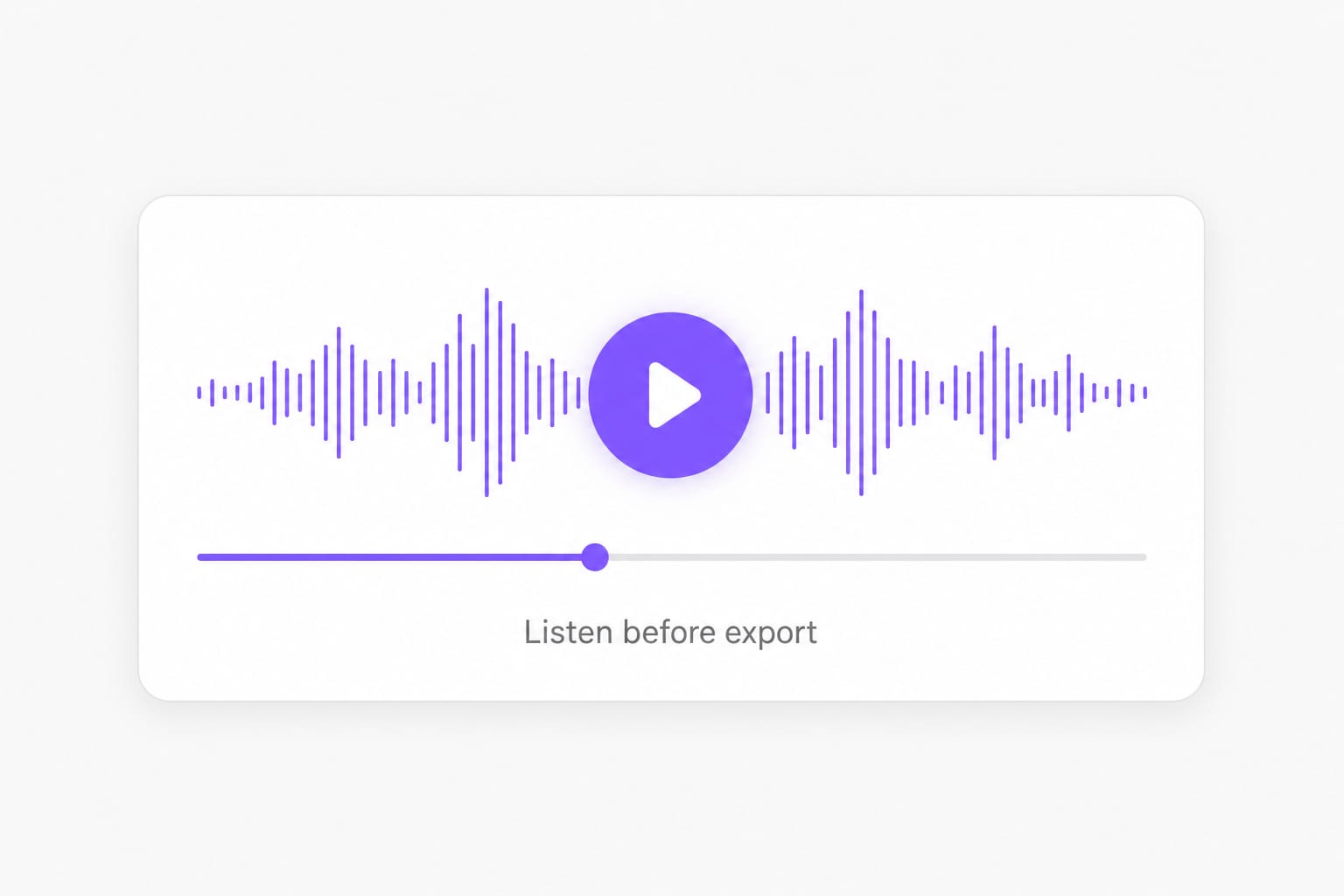
Listen to the trimmed section in the editor before exporting. Scrub the selection, check fade behavior, and confirm the new length fits your reel, lesson, or ad slot — especially when trimming audio extracted from video uploads or URL imports.

Preview trimmed audio before export

One page, full toolkit

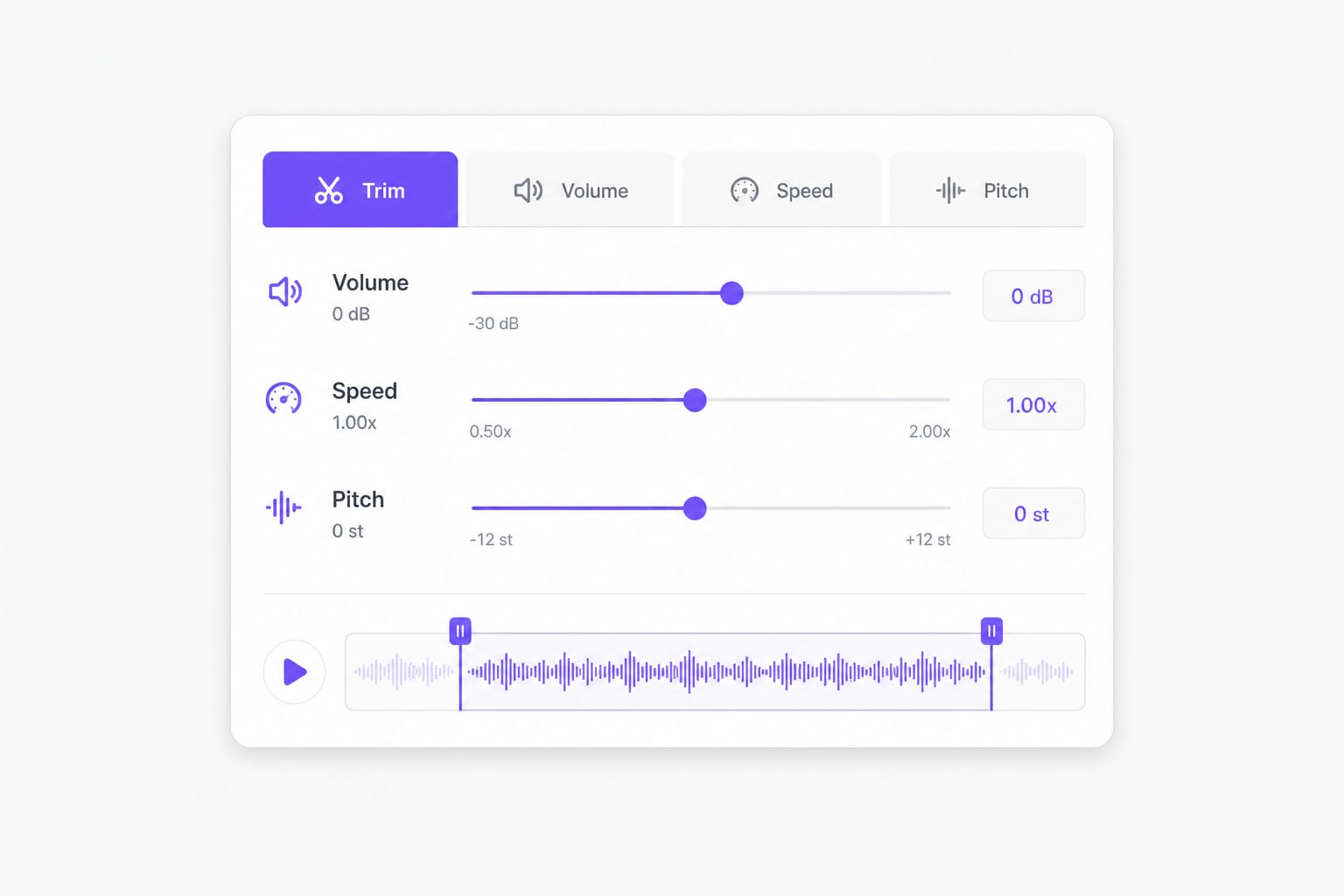
After trimming audio, adjust loudness or tempo without switching websites. Volume, speed, and pitch tabs sit beside Trim in the same VMEG editor, so one upload covers shorten-then-boost or trim-then-slow-down workflows for creators and teams.

Trim, volume, speed, and pitch in one browser editor

FAQs about Audio Trimmer

What is the difference between trim and cut?

Trim usually means shortening to a chosen start and end. Cut can also mean removing a middle section. This tool supports both keep-selection and remove-selection modes on the waveform, plus optional fade in and fade out for smoother edit points on trimmed audio.

Can I trim audio from a YouTube link?

Paste the URL in From URL when supported. If the link cannot be loaded, download the audio locally and upload it instead. Once the track is in the editor, trimming works the same whether the source was a file, video upload, or direct media URL.

Does trimming reduce quality?

Trimming selects a portion of the source. Quality on export depends on the format you choose — WAV is lossless; MP3 and AAC are compressed. Re-export only the trimmed segment so you avoid carrying unwanted silence or intros into the final file.

Do I need an account to download?

Editing and preview are free in your browser. Sign in when you save your trimmed file. You can iterate on handles, fades, and tab changes as often as needed before downloading MP3, WAV, M4A, or AAC.
Translate YouTube videos without re-editing

Paste a YouTube URL and dub or subtitle the full video online — keep pacing and speaker tone intact.