Link import, no rip step
Paste a public YouTube URL and run vocal removal on the fetched soundtrack. If the link is private, age-gated, or blocked in your region, upload the file you saved locally instead.
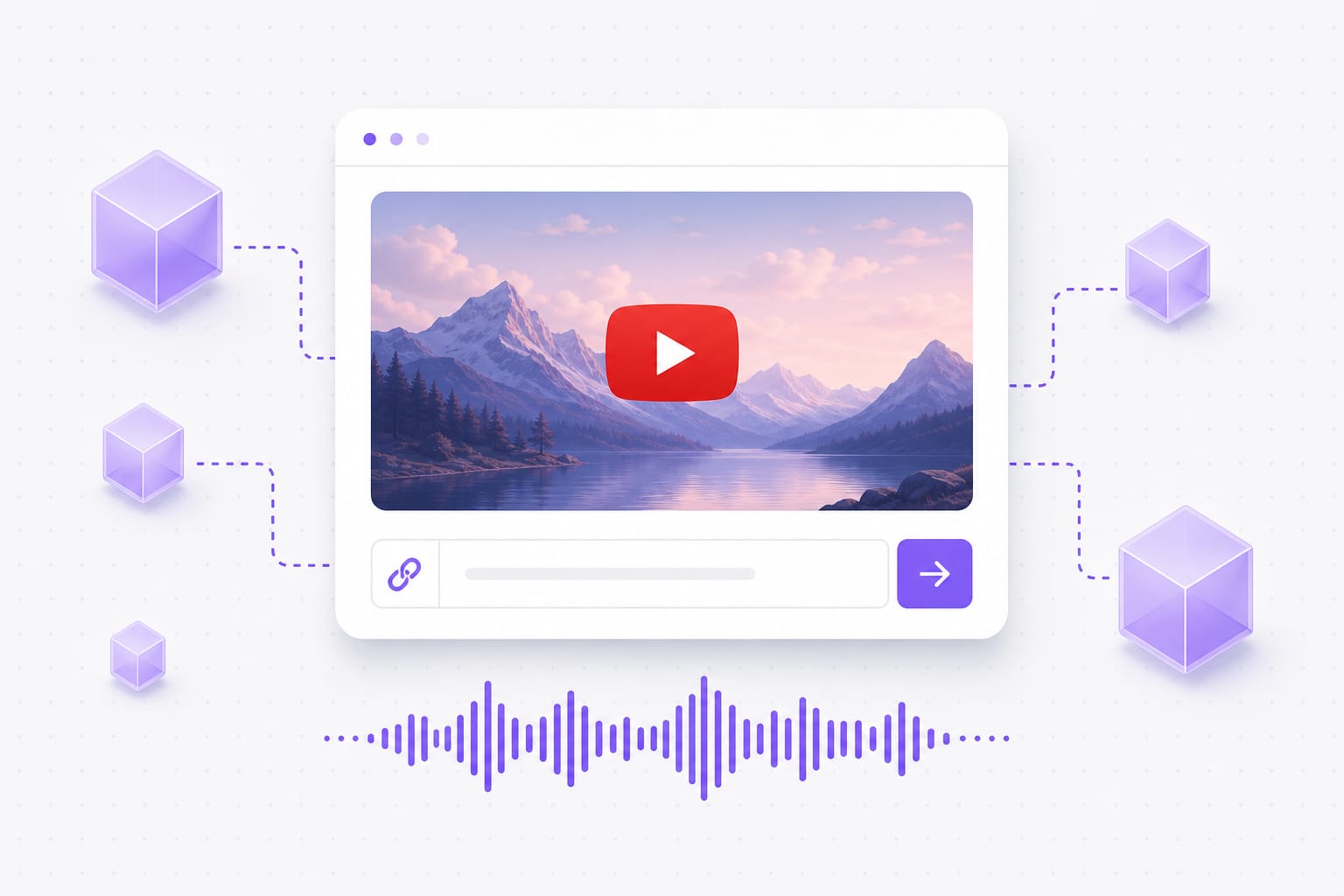
Paste a YouTube link and pull the lead vocal out of the mix. Get a karaoke-ready instrumental in your browser — no desktop software.
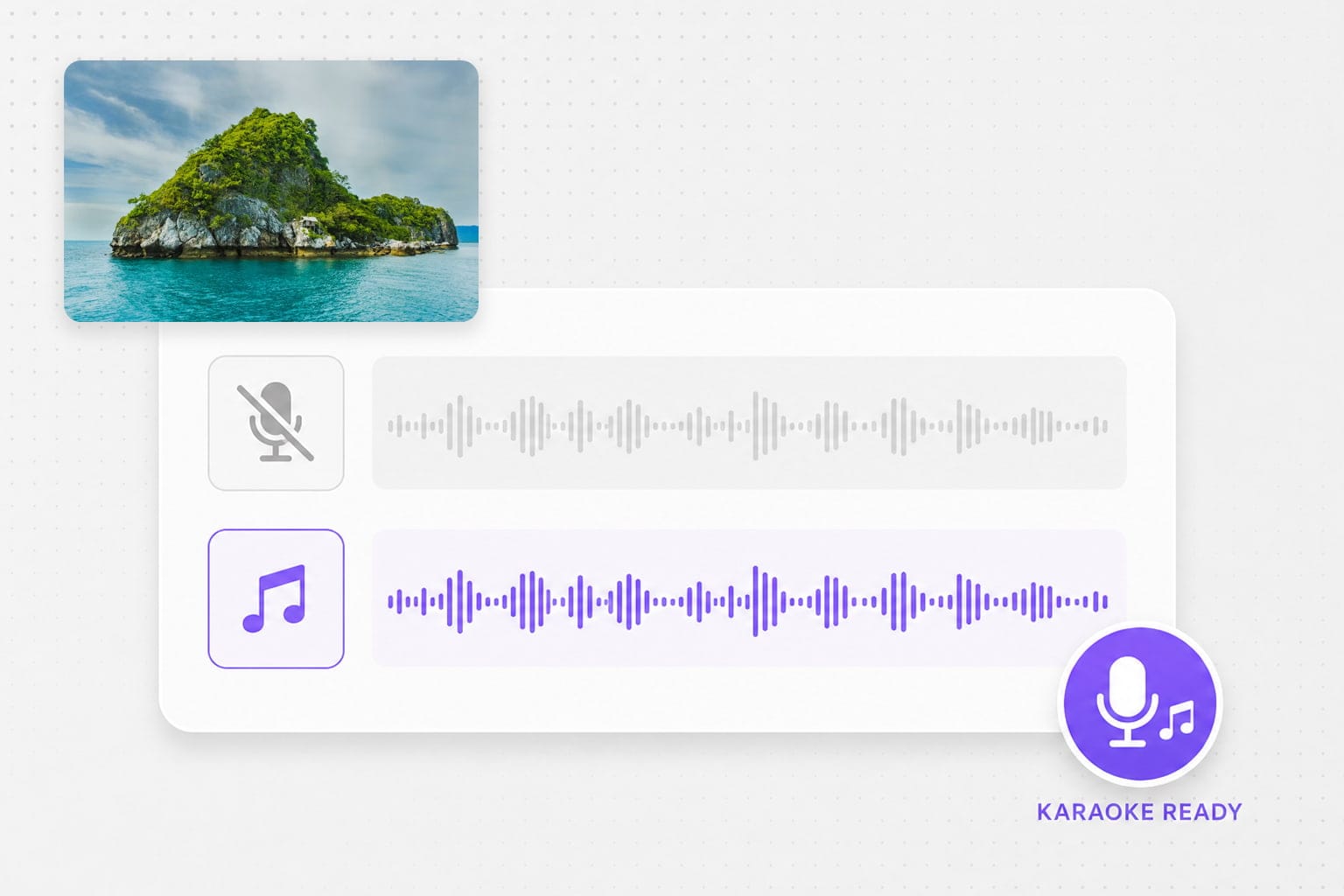
Hear the original YouTube mix next to the instrumental after the lead vocal comes out.
Turn a YouTube performance into a backing track for sing-alongs, cover uploads, and vocal drills.
Start a mashup from an instrumental when you cannot get the official label stems.
01Paste YouTube URL
Drop a public YouTube link into the box. VMEG pulls the audio track before vocal separation runs.
02Choose the Instrumental stem
Select Instrumental to drop the lead vocal, or pick vocals, drums, bass, piano, or guitar if you need a different lane.
03Preview and download the instrumental
Listen to the backing track in your browser, then save it for karaoke, cover practice, or a remix.
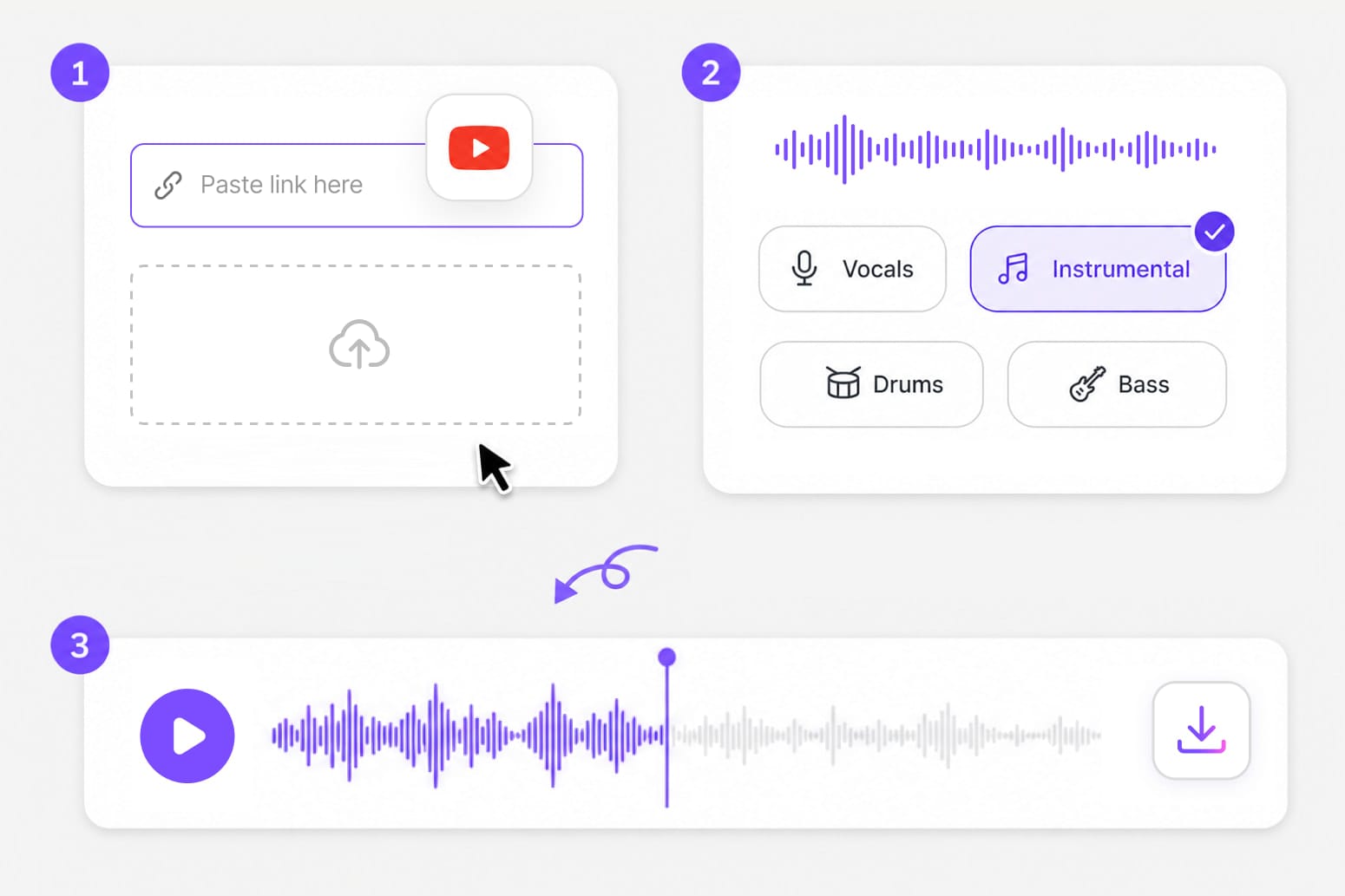
Most people do not have the studio stems — they have a YouTube link. Paste it here, split the mix, and grab the instrumental without installing a downloader first.
Paste a public YouTube URL and run vocal removal on the fetched soundtrack. If the link is private, age-gated, or blocked in your region, upload the file you saved locally instead.
Strip the lead vocal in one pass and get a track you can sing over. Handy for cover practice, sing-alongs, or dropping clean dialogue under a video edit.
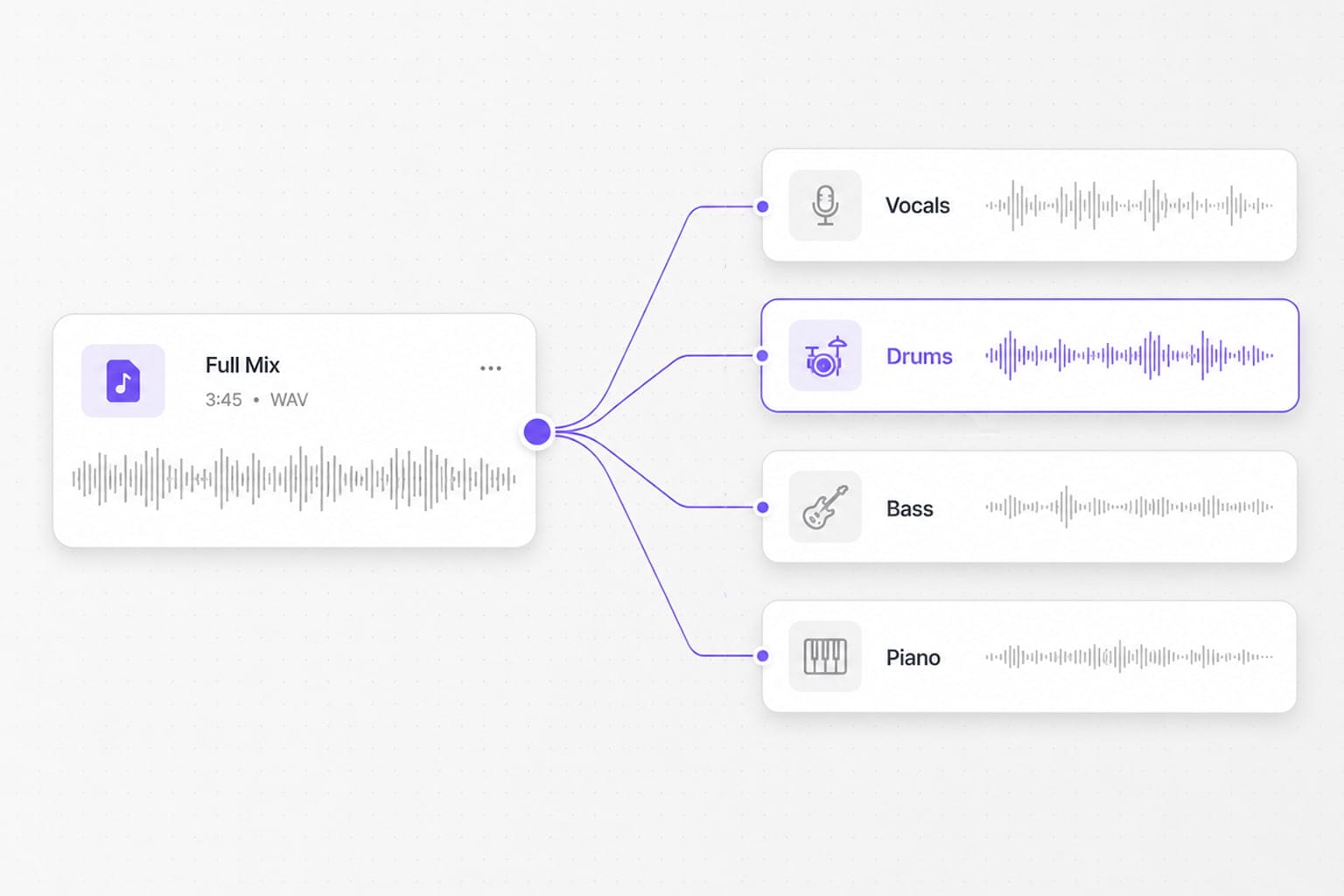
Need an acapella? Grab the vocal stem. Building a remix? Pull drums, bass, piano, or guitar on their own instead of guessing with EQ on the full mix.
Fallback only: if the YouTube URL is private, age-gated, or blocked, upload a saved copy here. For everyday file uploads (MP3, WAV, video), use Vocal Remover at /online-tools/vocal-remover/ — that page is built for local files.
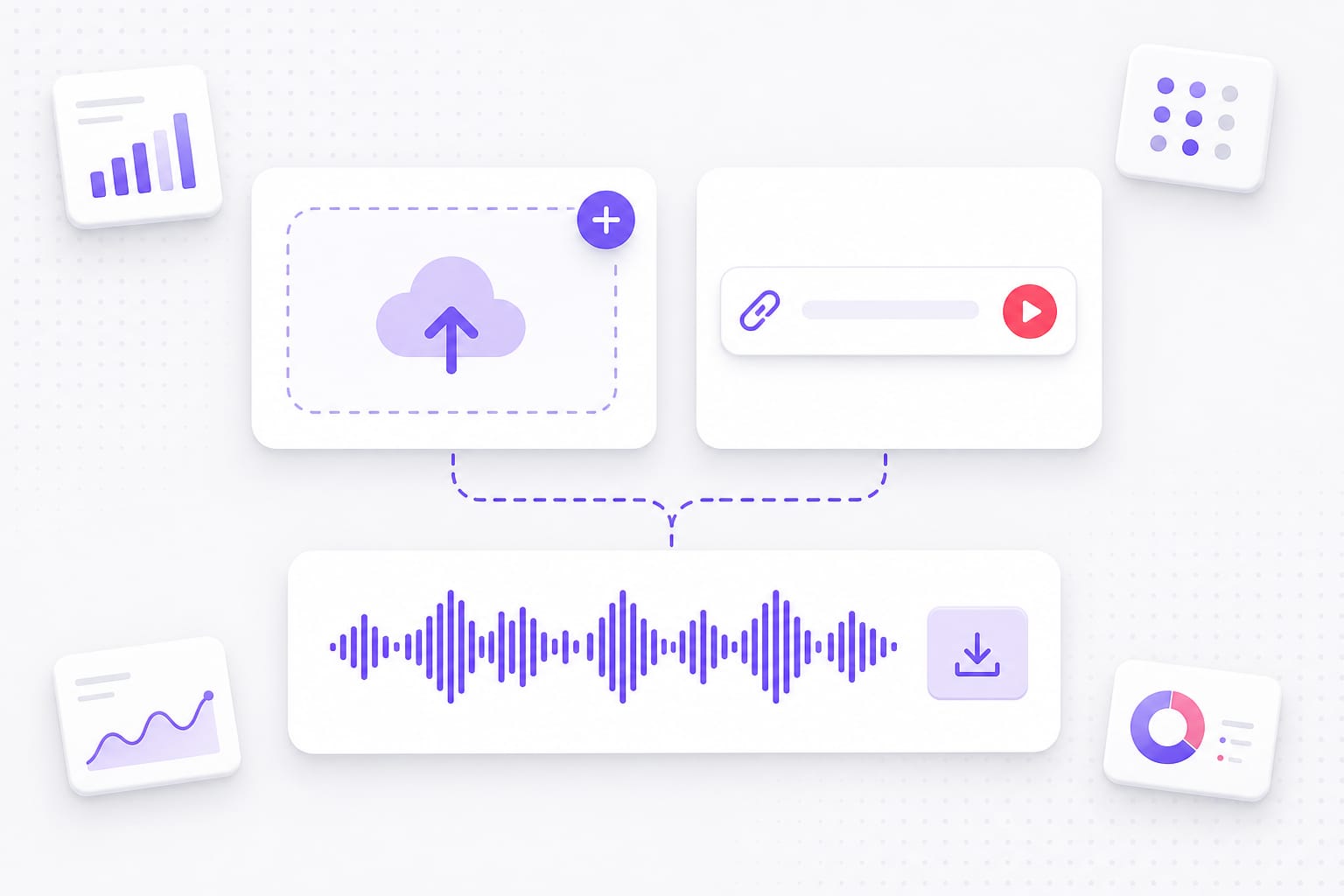
Public YouTube URLs work when link import is available. Private, age-restricted, or region-blocked videos often fail — upload a local copy in those cases.
Not when URL import works — VMEG fetches the audio from the link. If import fails, save the clip locally and upload the file.
No. This tool splits the mix into stems and removes the vocal so you get an instrumental, not one flat MP3 of the full song.
Vocals, instrumental, drums, bass, piano, guitar, or other. Pick the lane before processing, preview in your browser, then download after sign-in.
Only as a fallback when the YouTube link will not import. For file-first workflows, use Vocal Remover at /online-tools/vocal-remover/.
Use Remove Vocals from a Song at /online-tools/remove-vocals-from-a-song/ for a song file you already have. This page is for pasting a YouTube URL.
Yes. Free to use 3 times a day, shared across all VMEG online tools. Upgrade to Online Tools Unlimited for unlimited daily use. Sign in when you download the finished file.
Upload SRT or VTT files and localize every cue while keeping timestamps intact — ready for multi-market uploads.