Free Volume Changer Online
Change audio volume online. Increase or decrease loudness from audio or video files with a slider, then export MP3, WAV, M4A, or AAC — free volume changer.
Loading audio editor…
How to Change Audio Volume Online with VMEG
- 01
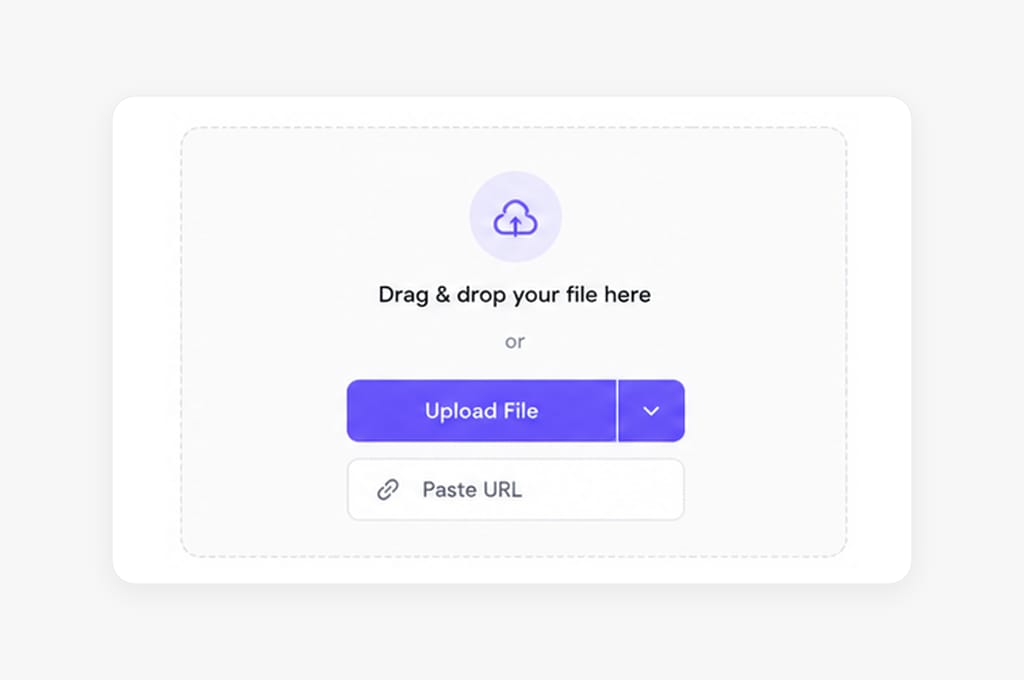
Open audio, video, or a URL
Upload MP3, WAV, M4A, a video file (MP4, MOV, WebM), or paste a link. The volume tab opens by default on this page.
- 02
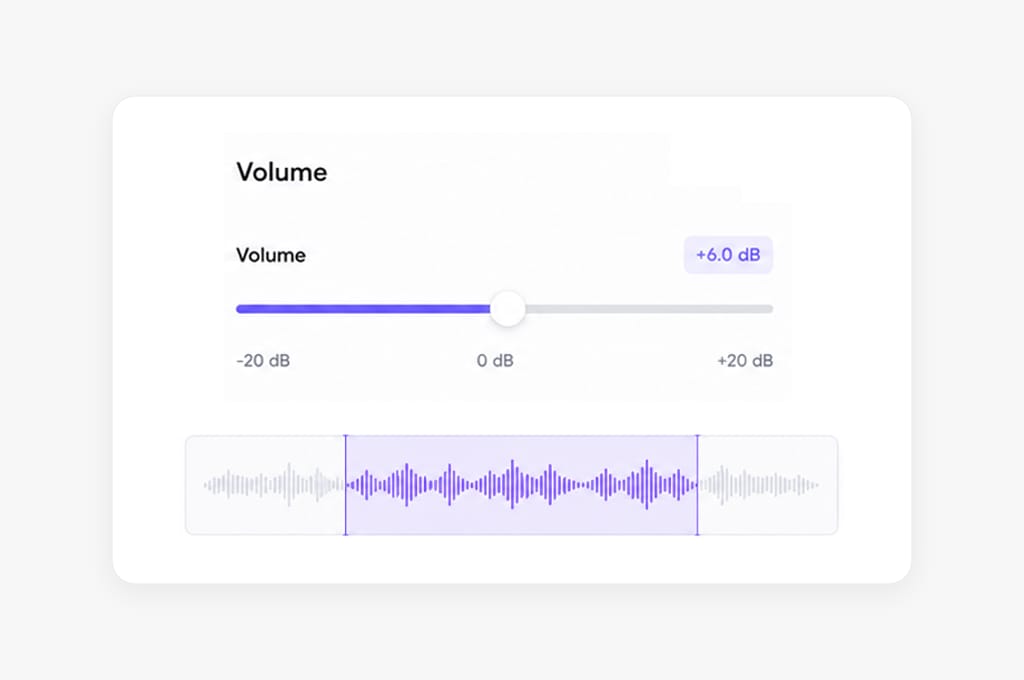
Move the volume slider
Increase or decrease loudness to the level you want. Preview playback before export.
- 03
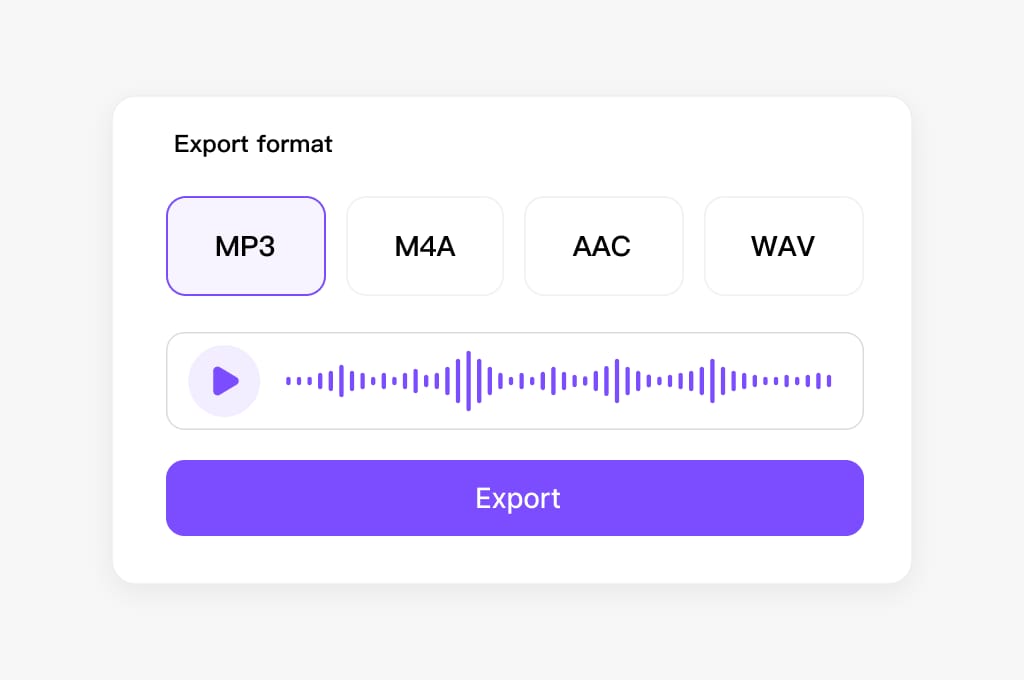
Save in your format
Export MP3, M4A, AAC, or WAV. Sign in to download.
Why Use VMEG Volume Changer
One slider for louder or quieter audio, any upload source, and trim/speed/pitch on the same page — no desktop meters required. Open the editor in your browser, adjust trim, volume, speed, or pitch settings, preview before export, and sign in only when you save the finished file.
Simple volume control
No meters or compressors to learn — one slider for quick audio volume control online. The Volume tab opens first on this page so you can normalize interviews, balance podcast levels, or tame hot clips immediately after upload or URL import.
Works on any source
Normalize quiet podcasts, lower hot clips, or balance voice memos from video files. Upload MP3, WAV, M4A, or extract audio from MP4 and MOV, then adjust loudness in the same browser editor without re-encoding in desktop software.
Part of a full audio editor
Trim, change speed, or shift pitch in other tabs without re-uploading. Many volume workflows start with trimming dead air, then boosting quiet speech — VMEG keeps those steps on one page with shared preview and export controls.
Preview before you export
Scrub the waveform and listen after each slider move before you commit. Catch clipping, harsh peaks, or an overly quiet export while the file is still open — especially when normalizing interviews or field recordings.
Upload a file or paste a URL
Start from a local MP3, WAV, M4A, or video upload, or paste a direct media link when your audio lives online. If a URL cannot be fetched, download locally and upload — the Volume tab works the same either way.
Export MP3, WAV, M4A, or AAC
Pick the format that fits your next step: MP3 for sharing, WAV for a DAW handoff, M4A or AAC for Apple-friendly workflows. Sign in to download after preview — no desktop volume tool required. Choose the export format shown in the picker, preview the result on the page, then sign in when you are ready to download from Volume Changer.
FAQs about Volume Changer
How do I change the volume of an MP3 online?
Upload the MP3 or paste a URL, open the Volume tab, adjust the slider, preview playback, and export. You can also upload a video file — the browser extracts the audio track so you change volume on dialogue or music pulled from MP4, MOV, or WebM.
Can I make audio quieter as well as louder?
Yes. The volume changer supports both increase and decrease for audio volume control. Lower loud peaks before sharing clips, or raise quiet field recordings until speech is easy to hear in headphones or conference playback.
Will changing volume reduce quality?
Moderate adjustments stay clean. Extreme boost may clip — preview before export and lower the slider if you hear distortion. Combining a small trim with gentle volume change often sounds more natural than maxing the slider on a very quiet source.
Do I need an account to download?
Editing and preview are free in your browser. Sign in when you save your adjusted file. Test multiple slider positions and switch to Trim or Speed tabs in the same session before you pick an export format.
Dub films and long videos for global audiences
Handle feature-length movies and series with AI translation, voice replacement, and subtitle tracks in one place.