Three merge modes on one page
Concatenate podcast segments as pure audio, stitch screen recordings as pure video, or upload video and audio on separate tracks when sources do not share one container. Switch modes without leaving the tool.
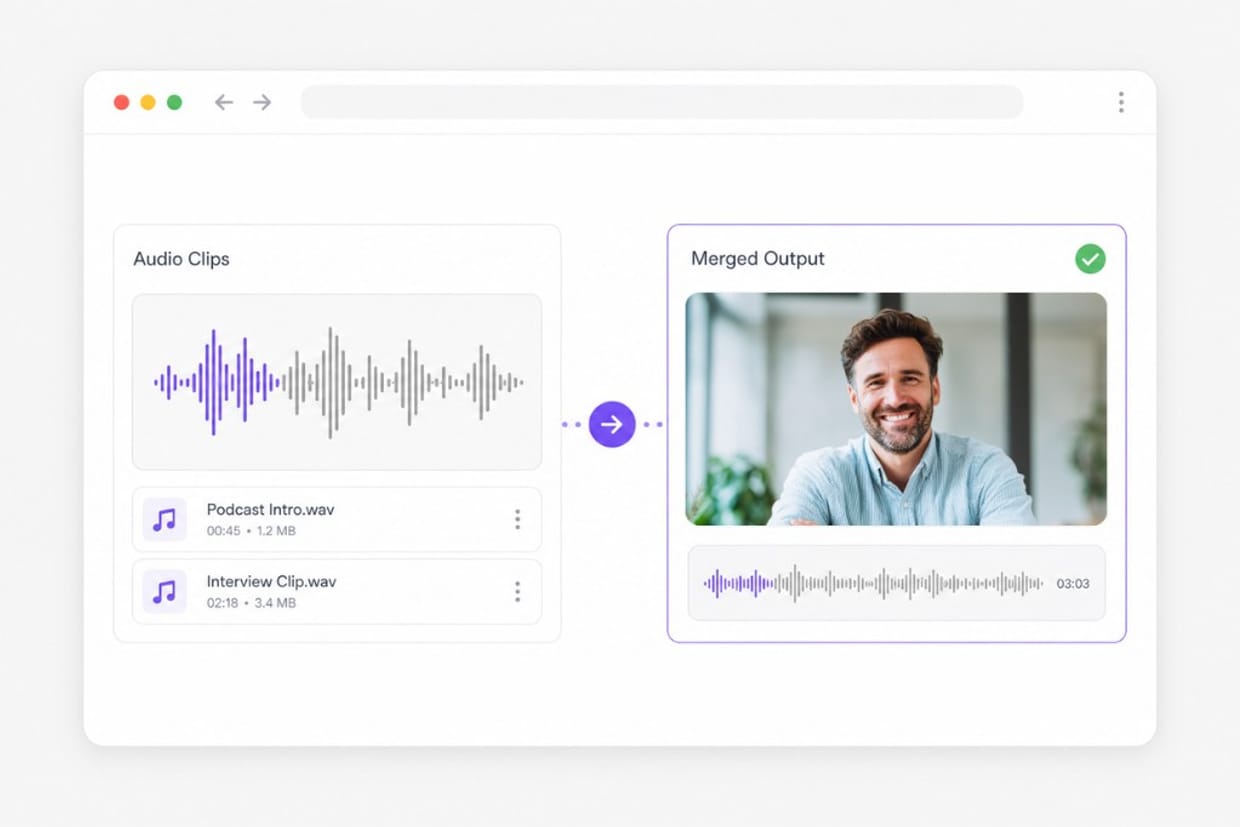
Join multiple audio or video files in order — pure audio, pure video, or separate video and audio tracks. Upload mixed formats, pick MP4, MP3, or WebM, and preview before download. Free online — no install needed.
Loading media merger…
Upload clips, set the order, pick a merge mode, and export — all in three steps.
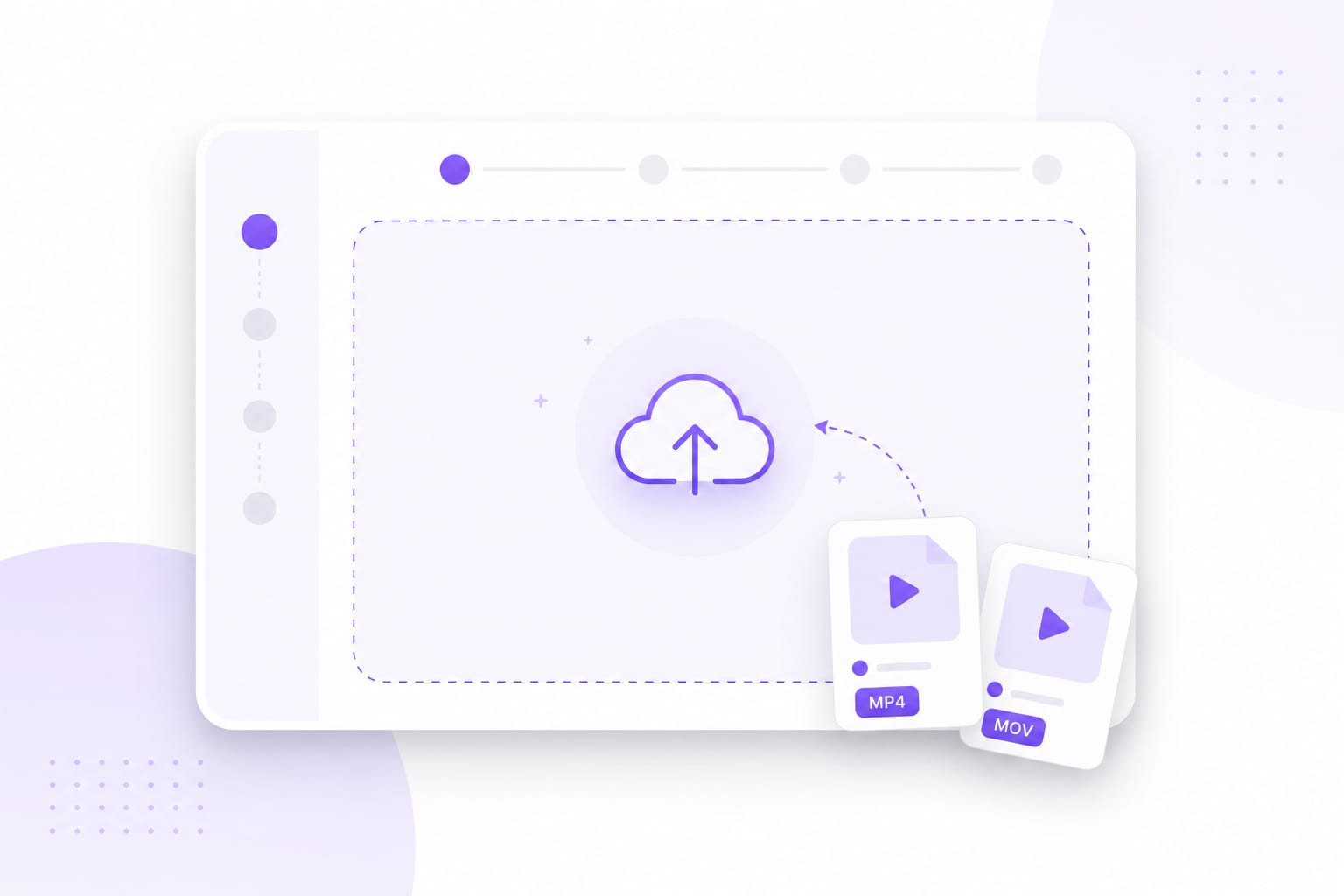
Add two or more audio or video files. Choose pure audio, pure video, or separate video and audio tracks depending on how you want them combined.
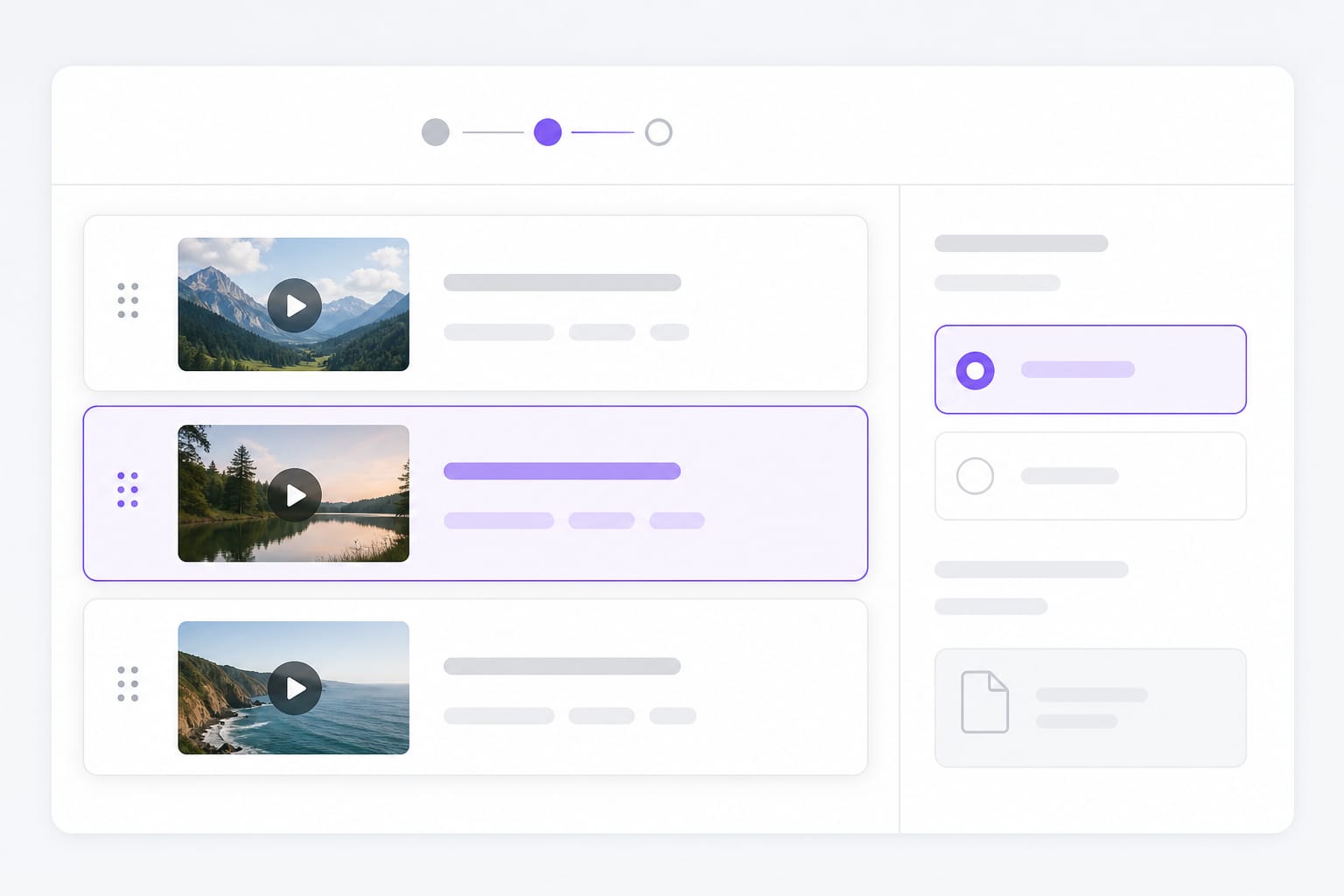
Drag clips into playback order on each track. Select MP3, WAV, MP4, or WebM before you merge.
Processing runs in your browser with ffmpeg.wasm. Preview the merged file, then sign in to download when it looks right.
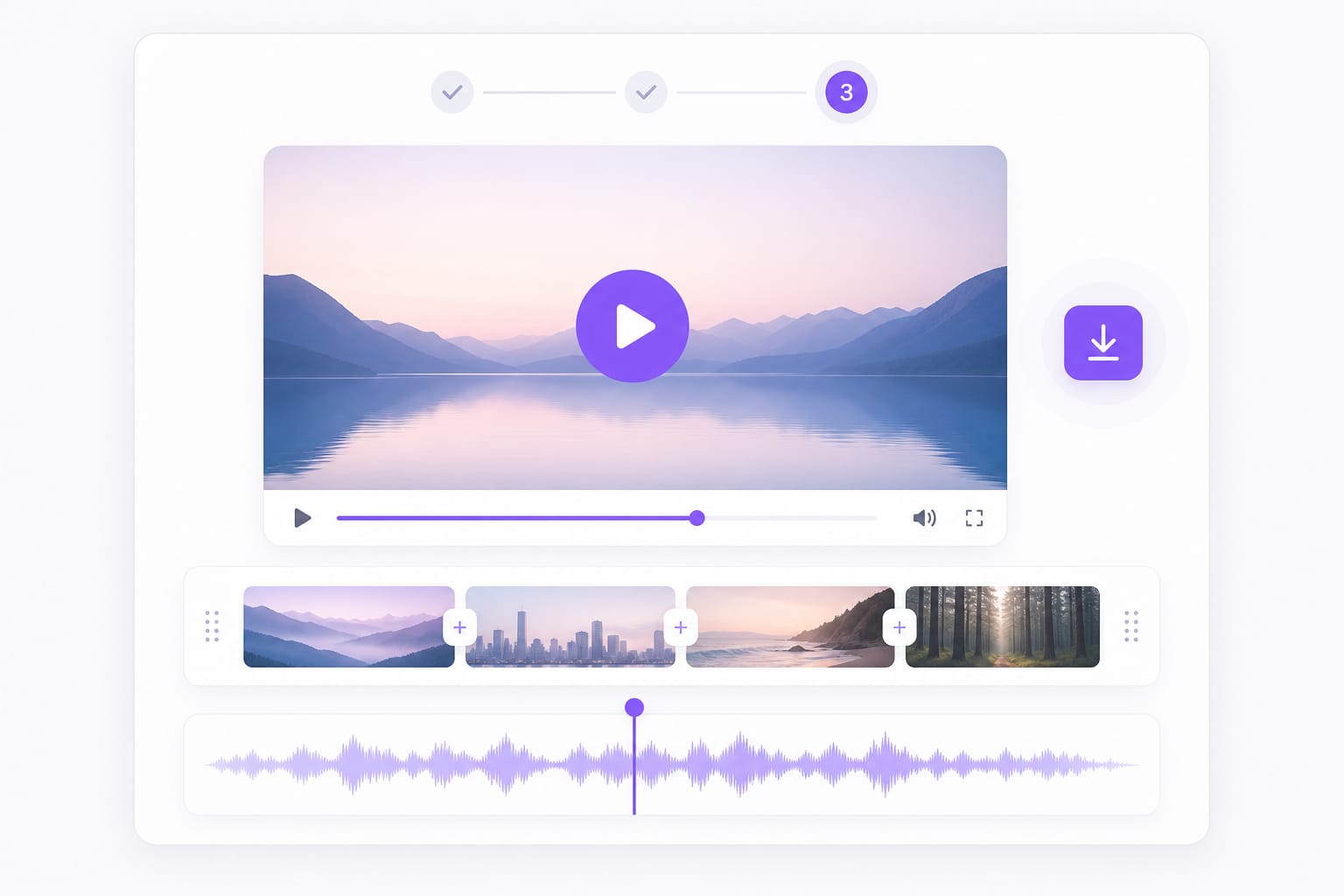
One page for audio-only joins, video-only joins, and separate video plus audio tracks — reorder clips, pick your export format, preview, then download. Drag clips into playback order, preview the full join in your browser, and export one continuous MP3 or WAV track without opening a desktop editor.
Concatenate podcast segments as pure audio, stitch screen recordings as pure video, or upload video and audio on separate tracks when sources do not share one container. Switch modes without leaving the tool.
Drop MP3 beside MOV or WAV beside MP4 — the merger normalizes on export. Pick MP3 or WAV for audio-only output, or MP4 and WebM when you need a playable video file. MP3 suits hosts and phone libraries; WAV hands off cleanly to Audacity, Logic, or Premiere — export from the same browser merge workflow.
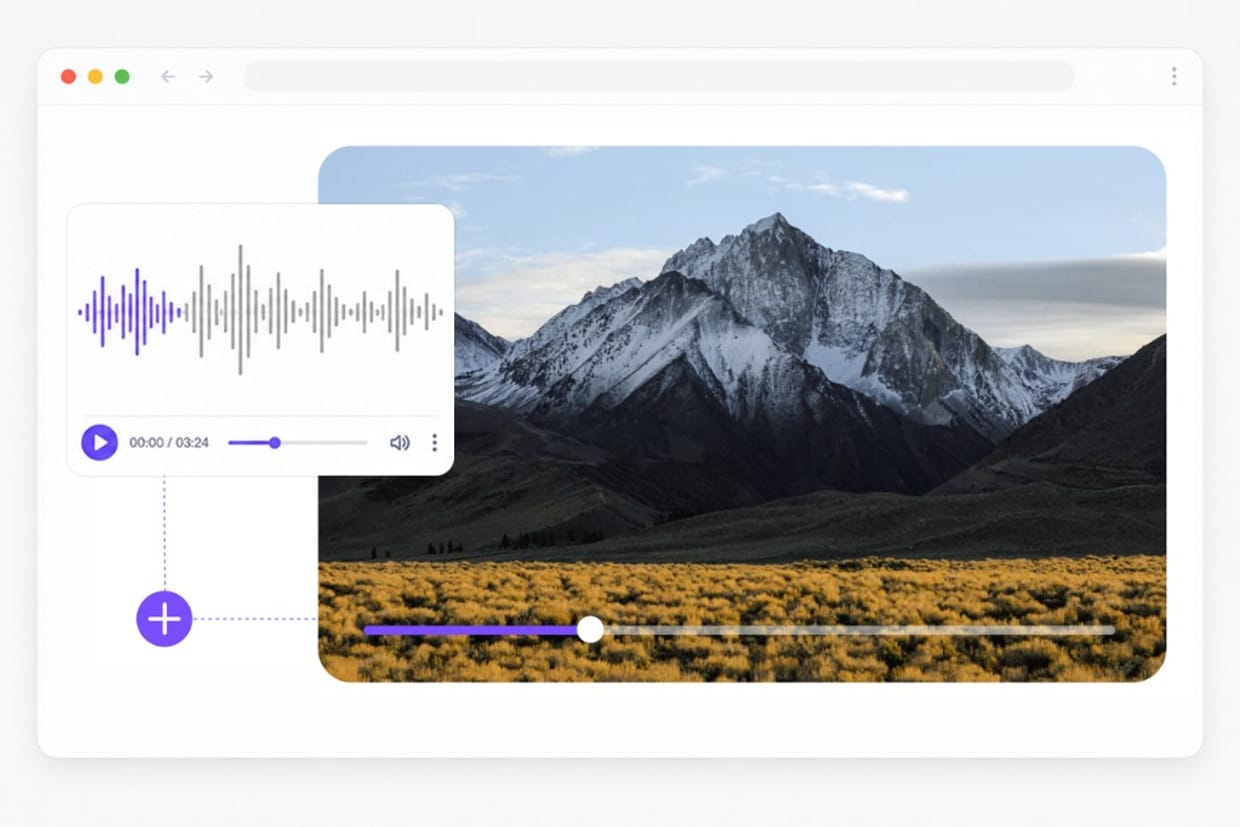
Clips stay on your device while ffmpeg.wasm runs locally. Watch or listen to the full merged result on the page, then sign in to save the file. No desktop software to configure — open Media Merger in a modern browser, adjust settings in the same tab, and export when the preview looks right.
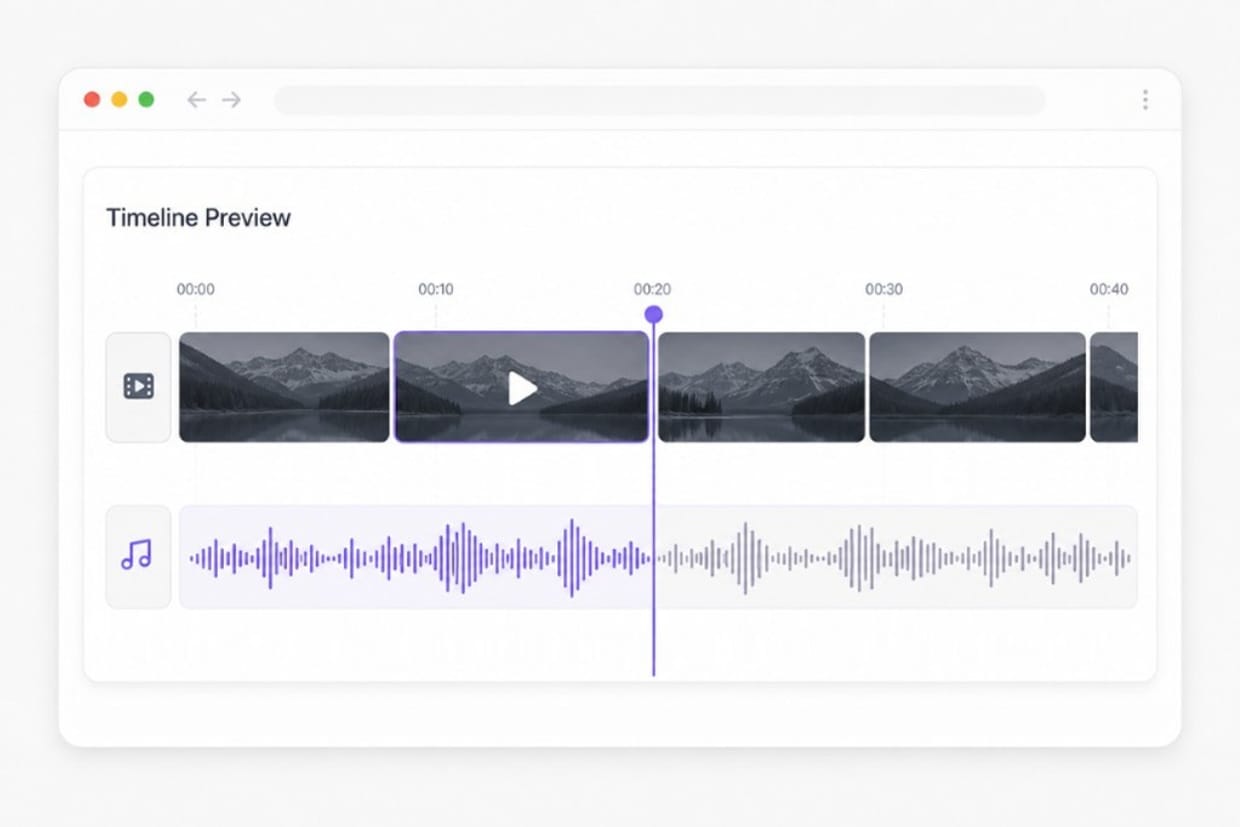
A media merger combines multiple audio files, video files, or separate video and audio tracks into one export. This page handles all three merge modes in the browser.
Pick a merge mode, upload your clips, drag them into order, choose an export format, and click Merge. Preview the result, then sign in to download.
Yes. Add as many clips as your upload limits allow on each track. The merger concatenates them in the order you set before export. Add your clips in the merger workspace, arrange order on the timeline, preview the combined output, then export from this Media Merger page.
Common audio uploads include MP3, WAV, M4A, and OGG. Video uploads include MP4, MOV, WebM, and MKV. Export as MP3, WAV, M4A, OGG, WebM, or MP4 depending on your merge mode.
No. Upload clips, reorder them, pick a format, and merge. No desktop NLE required for a straight join. Add your clips in the merger workspace, arrange order on the timeline, preview the combined output, then export from this Media Merger page.
Common jobs include stitching podcast parts, joining screen-recording segments, muxing narration with B-roll, and preparing a single file for social upload.
Turn marketing clips and training videos into another language with studio-style voices — no recording booth required.